
TC Electronic Clarity M Setup Guide
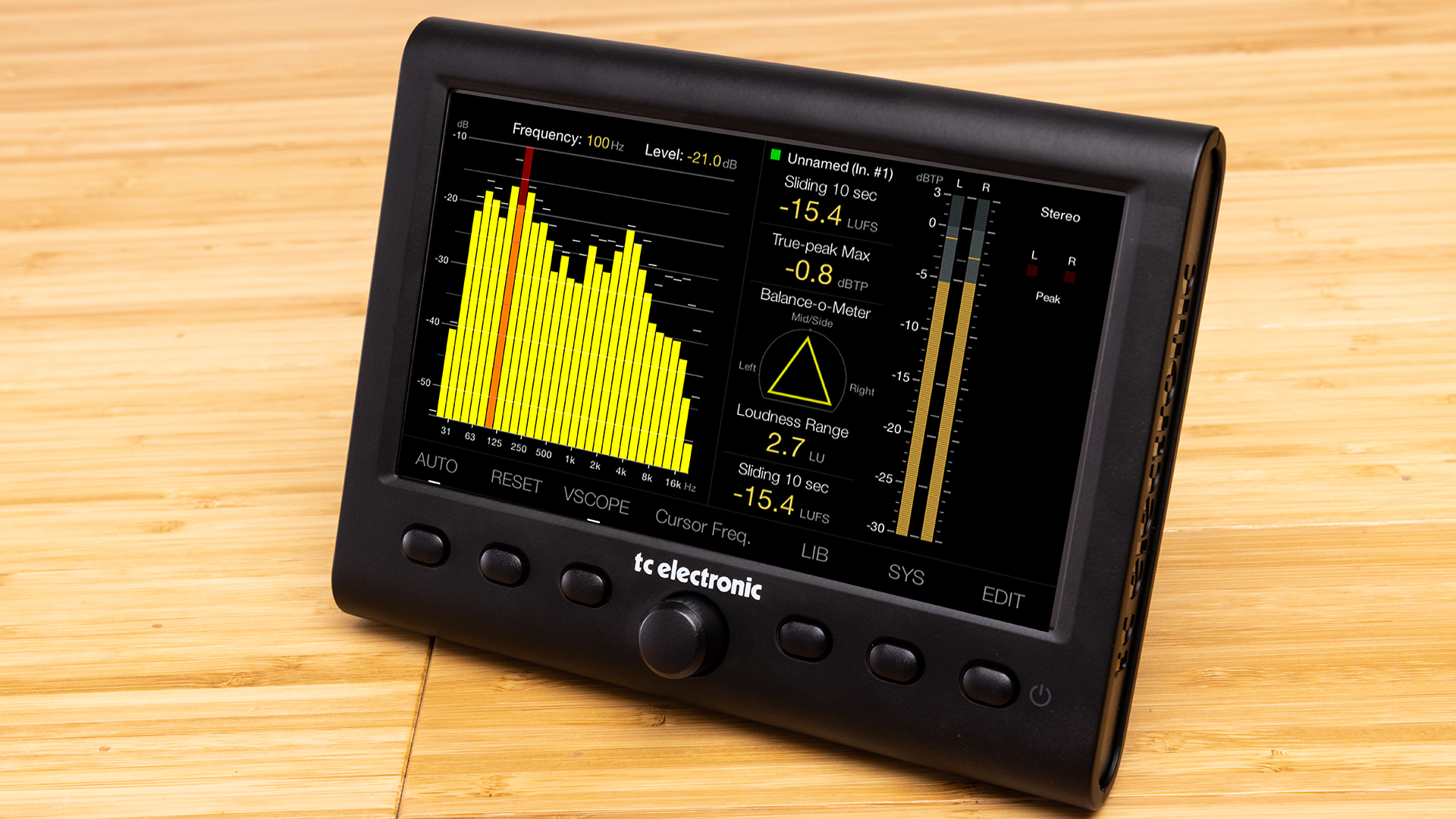
The Clarity M Loudness Meter is a very helpful tool to have in your studio, so in this guide, we will show you how to register, set up, and connect the Clarity M for the first time. Follow the sections below to get started.
Register the Clarity M
While it’s always exciting to take gear out the box and start using it, you’ll first need to register the device with TC Electronic. Once you register the hardware, you’ll receive an extended three-year warranty. We should note that you need to register the Clarity M within the first 90 days of purchase. Check out our TC Electronic registration guide to learn more!
Don’t forget to download the user manual and quick start guide from the Clarity M product page on the TC Electronic website.
Download the plug-in
You can use the Clarity M Loudness Meter on its own, but TC Electronic has also created a software counterpart in the way of VST, AU, and AAX plug-ins. Available for both PC and Mac, the plug-in works in many DAWs such as Cubase, Pro Tools, Logic, and more.
Go to the Clarity M product page on the TC Electronic website. Click Downloads.
Locate the newest version of the software for Windows or Mac. Download and install the package for your computer.
While you are on the page, be sure to download the owner’s manual and the quick start guide.
How to update the Clarity M firmware
TC Electronic will release firmware updates periodically, which often improves the performance of your Clarity M. Updating the firmware is a breeze, too! It’s just a matter of connecting it to your computer, downloading the firmware file, then copying and pasting the file into the Clarity M’s firmware folder.
TIP: Before updating the firmware, press the SYS button to view the current firmware version installed on your device. If it matches that of the latest version on the download page, then you’re all set.
- Press the SYS button, set your Clarity M to Disk Drive Mode, then connect it to your computer.
- Go to the Clarity M product page, and click Downloads. Locate and download the newest version of the firmware.
- Open File Explorer (PC) or Finder (Mac), then access the Clarity M drive.
- Copy the firmware file you downloaded, then paste it into the Firmware folder of the Clarity M drive.
- Safely eject the Clarity M, then press the Reboot button to install the firmware.
Setup and connections
Once the Clarity M is registered with TC Electronic, it’s time to get everything set up and connected. With the types of connections it has, the possibilities are endless. Depending on your setup, you may choose one over the other, but TC Electronic has made it easy no matter what.
USB
IMPORTANT: The Clarity-M will not work via USB unless you have the plug-in loaded. Also be sure you properly eject the drive to prevent data loss when switching from Disk Drive to Plug-in Mode. Check out our guide on safely ejecting USB devices for more information.
When you connect via USB, you can set the Clarity-M to Plug-in Mode or Disk Drive Mode. Disk Drive mode is used to organize your presets, incorporate your company logo, transfer screenshots, and update the firmware. When set to Plug-in Mode, you can use the Clarity-M hardware with its plug-in counterpart. Follow these steps to use it in your DAW.
- Press the SYS button, then use the encoder to switch from Disk Drive Mode to Plug-in Mode.
- Launch your DAW, place the Clarity-M plug-in as the last plug-in on your track, then press play.
- The name of the audio source where the plug-in is loaded will appear on the display.
AES and Optical
If you have these connections on your interface, you can use the AES and optical connections to meter your audio. When using these connections, you’re able to meter audio outside of your DAW and you won’t need to use the native plug-in. This is especially useful in environments where there are guidelines for how soft or loud the audio can be (e.g., the radio or TV). Follow these steps to use your Clarity-M if you’re using AES or optical connections.
TIP: You can use the included BNC to XLR cable to connect the Clarity-M to an AES/EBU device. You’ll need two additional BNC to XLR adapters if you’re working with surround sound.
- Press the SYS button , then use the encoder to switch to Disk Drive Mode.
- Press the DOWN button, then use the encoder to switch between optical or AES1.
Why you need a loudness meter for your recording setup
How to Use the TC Electronic Clarity M
Head on over to our next SweetCare guide.
When you need help, Sweetwater has the answers!
Our knowledge base contains over 28,000 expertly written tech articles that will give you answers and help you get the most out of your gear. Our pro musicians and gear experts update content daily to keep you informed and on your way. Best of all, it’s totally FREE, and it’s just another reason that you get more at Sweetwater.com.

