
Novation Launchkey MK4 Quickstart Guide
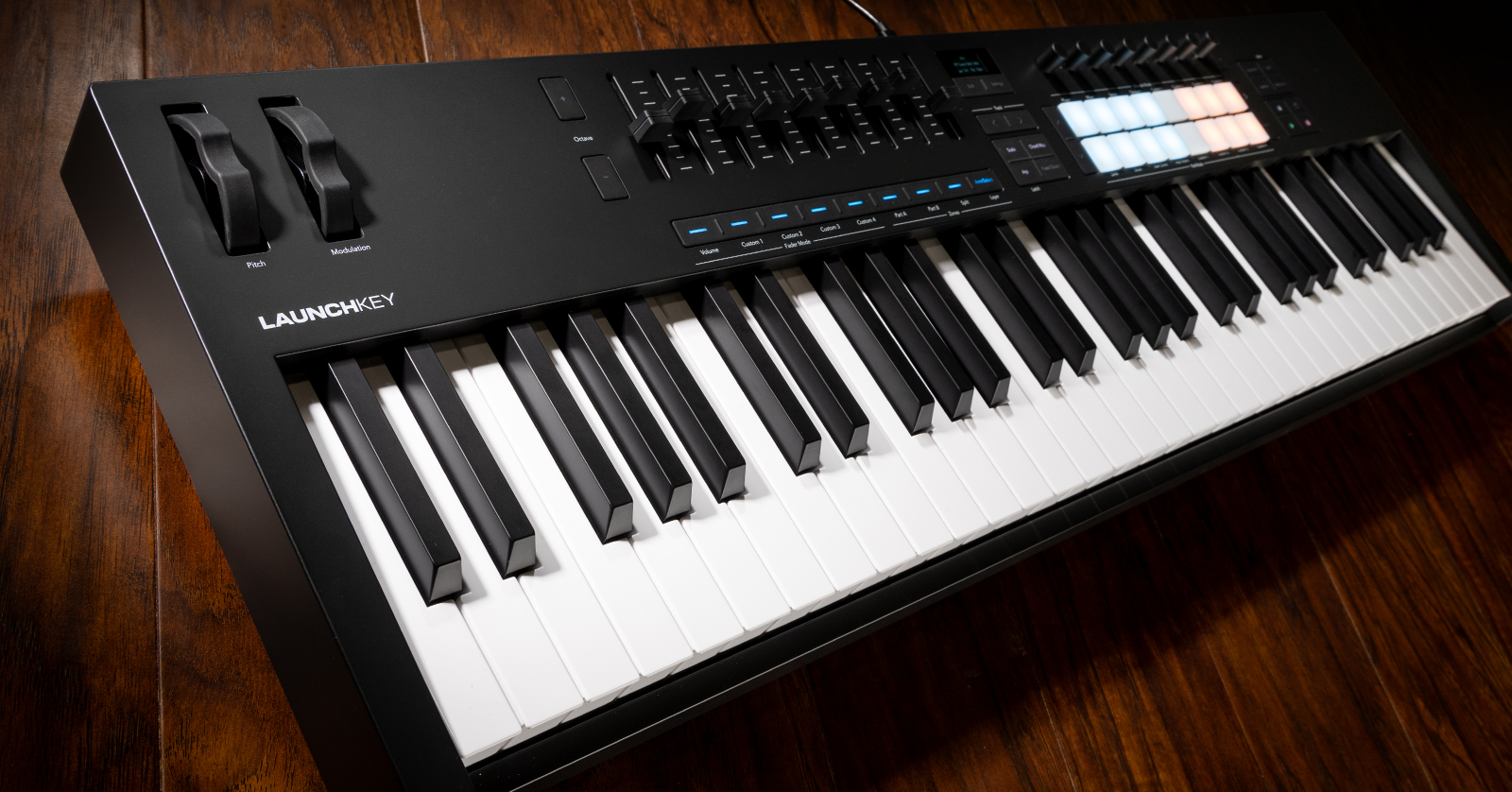
The Novation Launchkey MK4 is the perfect centerpiece for your studio. In this guide, we will show you how to register, set up, and use it for the first time. This article only scratches the surface, so check out the Launchkey MK4 User Guide for more information. Follow the sections below to get started.
- Register Your Launchkey MK4
- Launchkey MK4 Setup and Connections
- How to Perform with the Launchkey MK4
- Novation Launchkey MK4 iPad Connectivity
Register Your Launchkey MK4
Before you can start using the Novation Launchkey MK4, you’ll first need to register it to your Collective account. Once the Novation is registered, you’ll get access to Ableton Live 12 Lite and other free software, including GForce, Klevgrand, Oberheim SEM plug-ins, and a free Melodics subscription.
- Log in to your Collective account. If you don’t have one yet, you can create it here.
- Click Register a New Product. Fill out the registration form, including the serial number on the bottom of the device, and click Set serial number.
- Once you’ve registered, licenses for your bonus software will be deposited in your account, along with activation instructions. You will also gain access to the Components application that you must use for updating your firmware and creating custom controls and presets.
Easy Start
When you first connect the Launchkey MK4 to your computer, it will appear as an external storage device. A computer browser window with an Easy Start .url shortcut will open. Double-click the file and follow the Easy Start process, which will guide you through the setup procedure.
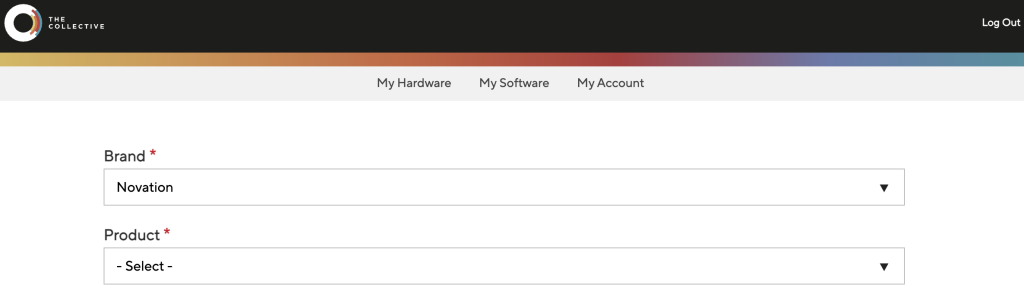
Click the image to register your Novation Launchkey MK4.
Launchkey MK4 Setup and Connections
The Launchkey MK4 has three hardware connections: USB, MIDI Out, and 1/4-inch TRS for a sustain pedal.
USB
You can connect the Launchkey MK4 to your computer and use it as a MIDI controller within your DAW. While it’s fully integrated with every major DAW, controls will differ slightly, so check out our guides to learn how to configure it in your specific DAW. Also, be sure to check out the Launchkey MK4 User Guide for more information.
- The Launchkey MK4 is bus powered, so no external power supply is needed. However, USB hubs (mainly passive hubs) are not recommended, as they may not provide enough power.
MIDI
The MIDI Out port lets you connect the MK4 to any external MIDI device, like a sequencer, a synthesizer, or a drum machine. Check out our guide to learn more about connecting and syncing MIDI devices!
Sustain
The Novation Launchkey MK4 uses a 1/4-inch jack to connect any sustain pedal or momentary footswitch.
How to Perform with the Launchkey MK4
The Novation Launchkey MK4 is designed to work with your DAW of choice outside the box. Connect it to your computer, launch your DAW, and you’re all set! It also has plenty of features that can spark creativity anytime, so you will never run out of ideas.
Pad Modes
Your Launchkey MK4 has four factory modes and four custom modes. The factory modes are DAW, Drum, User Chord, and Scale Chord, and they are associated with the bottom eight pads of the keyboard. The other four are customizable using the Novation Components software.
To choose a mode, hold the Shift button and press the pad associated with the mode labeled underneath.
DAW
DAW mode is only selectable when you’re using the Launchkey MK4. This mode turns areas of the keyboard into default DAW controls. The default controls will control various parameters, such as volume, plug-in, and DAW-specific controls.
Check out the User Guide to learn more about the controls for your specific DAW.
Drum
Drum mode turns the 16 performance pads into velocity-sensitive MIDI notes on MIDI channel 10 (MIDI notes C1 to D# 2). This is perfect for finger drumming when using a drum plug-in. While you can technically use the keys to trigger the notes, using the pads is much easier while playing drums.
User Chord
User Chord mode will show the chord you’re playing. You can then assign the chord to one of the 16 performance pads, which you can trigger. To assign a chord to a performance pad, press and hold the pad you want to trigger, then play the chord. Once the chord is assigned, the pad will illuminate blue.
- To delete the chord, press and hold the Func button and press the pad you wish to delete. The pads illuminate red when you hold the Func button.
Scale Chord
Scale Chord mode lets you pick a musical scale. It will turn the left eight performance pads (illuminated blue) into chords associated with the selected scale. The right six performance pads (illuminated orange) will change the behavior of how the chords are played. Check out page 32 of the User Guide to learn more about Scale Chord pad behavior.
NOTE: You can only use one performance pad at a time while in Scale Chord mode.
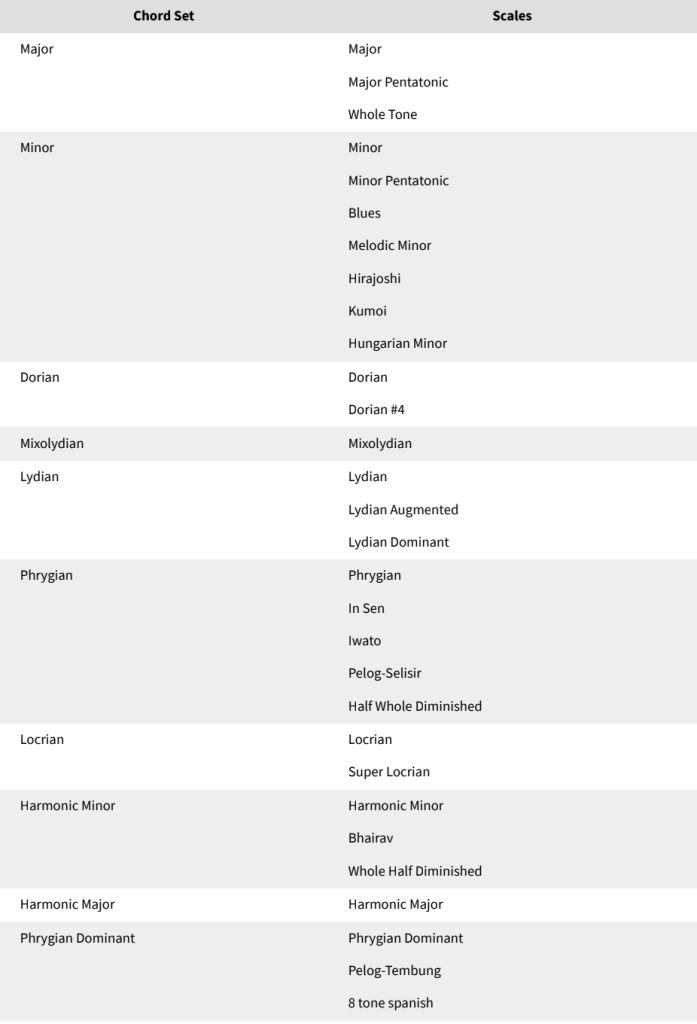
Chord sets and matching scales diagram
Scale Mode
When you’re in Scale mode, there are adjustments you can make to make your scale performance more precise. Here are a few tips.
- Use the first encoder to change the chord set (i.e., Major, Minor, Dorian, Harmonic Major).
- Use the second encoder to change the scale type (i.e., Pentatonic, Blues, Dorian, Lydian).
- Use the third encoder to change the Scale performance to Snap to Scale, Filter out of Scale, or Easy Scale.
- Snap to Scale: Rounds any note outside of the selected scale to the nearest note in that scale.
- Filter out of Scale: Filters any note outside of the scale out. If you press a key outside of a scale, it won’t play.
- Easy Scale: All the notes in your scale are assigned to the white keys on your Launchkey.
Novation Launchkey MK4 iOS Connectivity
IMPORTANT! The Novation Launchkey MK4 is class-compliant with all devices, but is not officially supported as of yet. If your Launchkey MK4 doesn’t function correctly, it may not be fully compatible yet.
You can connect your Launchkey MK4 to an iOS device, which is excellent whenever you’re away from your home studio. However, you will need a few things to make sure your Launchkey works correctly.
Once you have these items, follow these instructions to get set up.
- Connect your Launchkey MK4 and your camera adapter to the powered USB hub, then connect the camera adapter to your iOS device.
- Open an instrument or a recording app, like Garage Band, and start playing!
- Hardware setup depends on the app, so check the app’s instructions for more information.
Related Articles
When you need help, Sweetwater has the answers!
Our knowledge base contains over 28,000 expertly written tech articles that will give you answers and help you get the most out of your gear. Our pro musicians and gear experts update content daily to keep you informed and on your way. Best of all, it’s totally FREE, and it’s just another reason that you get more at Sweetwater.com.

