
TC Electronic Plethora X1 Quickstart Guide
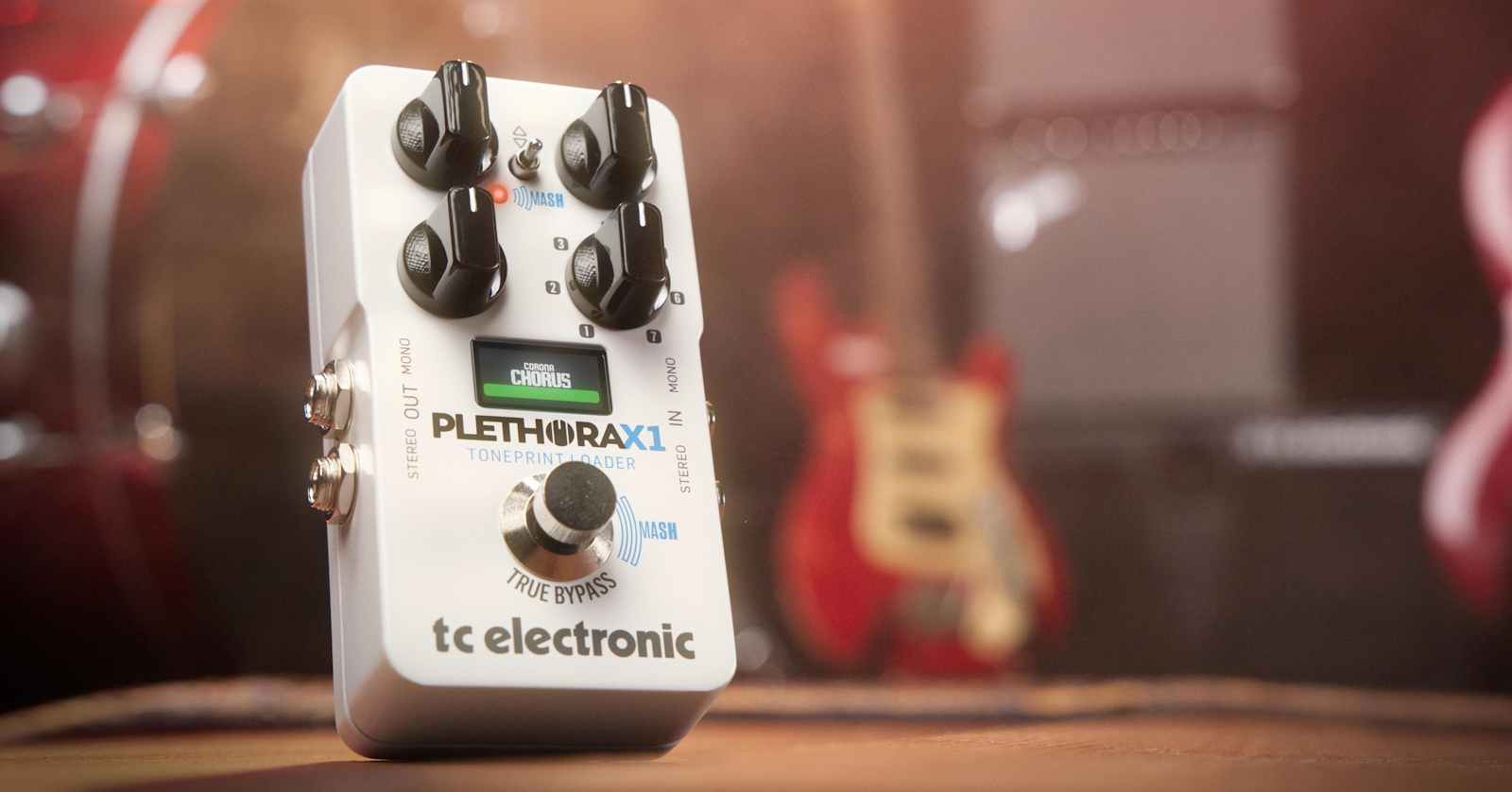
The TC Electronic Plethora X1 TonePrint Loader pedal lets you select one effect at a time from the TC Electronic library of 14 classic effects. When you connect the X1 to the free TonePrint app for your computer or mobile device, you have access to over 5,700 presets, and you can edit and program them and save your own presets to the pedal. Let’s get started.
Register Your Purchase
Before you plug in, register the device with TC Electronic on the company’s website. You’ll receive an extended three-year warranty if you register within the first 90 days of purchase. Check out our guide to learn more.
TIP: Everything you purchase from Sweetwater comes with our 2-year Total Confidence Coverage Warranty. However, three years is even better than two, so please register with TC Electronic today.
Download the TC Electronic Quick Start Guide
There’s a printed Quick Start Guide in the box with your pedal, but it’s useful to download a copy for your computer. On the TC Electronic Plethora X1 product page, click Downloads.
Plethora X1 Connections
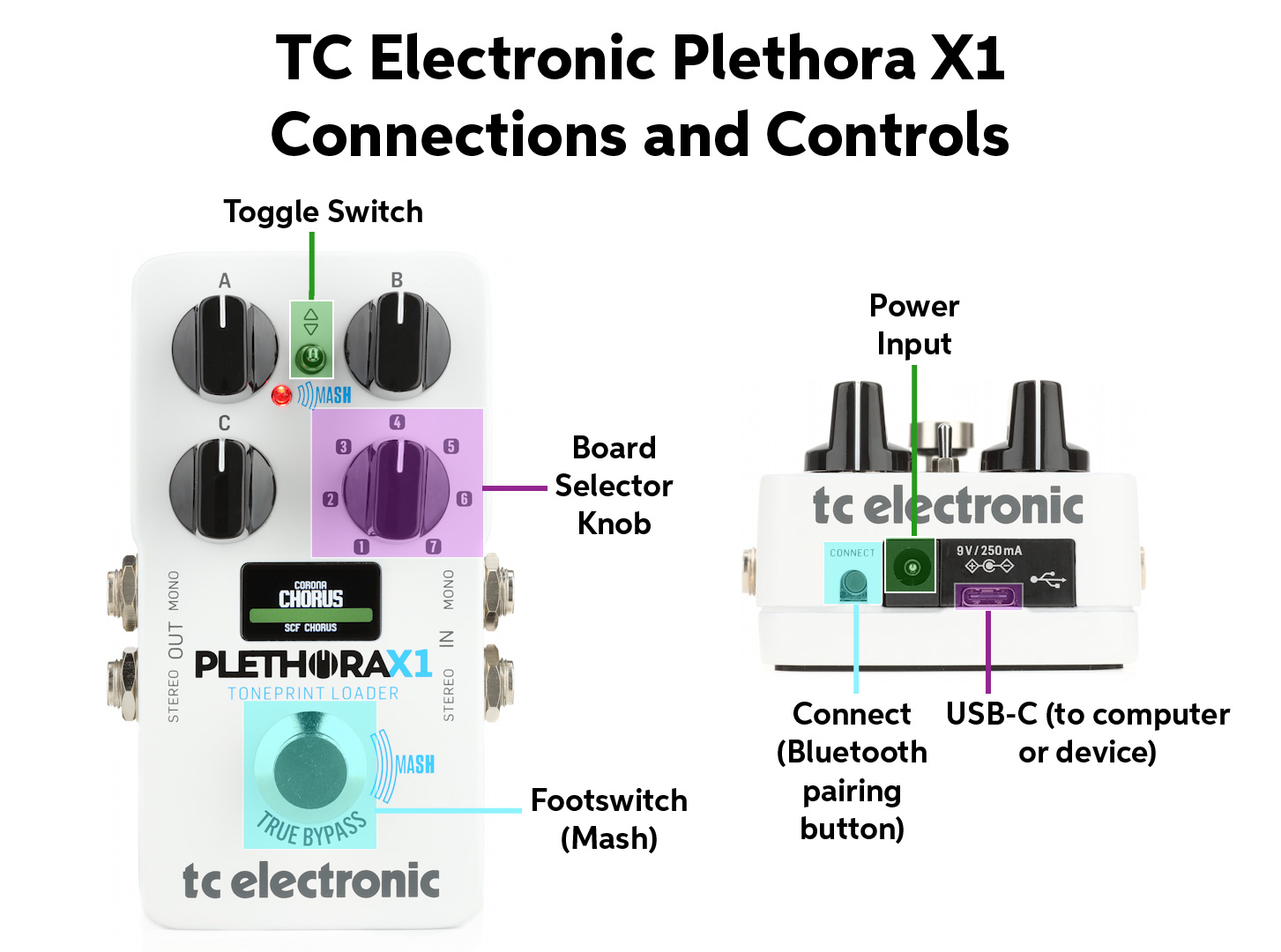
Plethora X1 Connections and Controls
Make sure the unit is powered off before you plug in cables.
Audio Inputs (Stereo In)
If your signal source is a guitar or the output from a mono pedal, then connect an instrument cable with a 1/4-inch TS connector to the Mono In jack.
If your signal source is stereo, then connect a second 1/4-inch TS cable to the Stereo In jack.
Audio Outputs (Stereo Out)
Similarly, if you want a monaural output from the X1, then connect an instrument cable with a 1/4-inch TS connector to the Mono Out jack.
If you want stereo output, then connect a second 1/4-inch TS cable to the Stereo Out jack.
Power Input
Power the X1 with a standard 9-volt center-negative 250mA minimum power supply. TC recommends the TC-Helicon PowerPlug 9.
Bluetooth Pairing Button (Connect)
Hold in the Connect button to put the X1 into Bluetooth pairing mode to connect to the TC Electronic TonePrint app on your iPhone, iPad, Android device, Mac, or Windows PC.
USB-C
You can also connect the X1 to the TonePrint app on your iPhone, iPad, Android device, Mac, or Windows PC using a USB-C data cable. When a firmware update becomes available, you can use the USB-C connection to your computer to install it.
The USB-C connection cannot provide power to the Plethora X1; you need to connect a 9-volt power supply to the power input for that.
Note that the USB-C connection is only for receiving control data from the TonePrint app, not for transmitting or receiving digital audio. To record the output of your Plethora X1, connect its analog outputs to an audio interface using the 1/4-inch jacks.
Plethora X1 Controls
Board Selector Knob
Choose from 14 different effects by turning this knob, which has seven positions.
TC Electronic refers to each position of the switch as a Board. Each Board has two Slots, A and B.
At each position of the knob, you’ll see the effects in Slot A. Use the footswitch to toggle to Slot B, which gives you the second effect in that Board.
Here are the effects as they come from the factory:
| Board | Slot A Factory TonePrint | Slot B Factory TonePrint |
| 1 | Hall of Fame 2 Reverb | Hypergravity Compressor |
| 2 | Flashback 2 Delay | Sentry Noise Gate |
| 3 | Sub ’N’ Up Octaver | Brainwaves Pitch Shifter |
| 4 | Corona Chorus | Mimiq Doubler |
| 5 | Viscous Vibe | Helix Phaser |
| 6 | Quintessence Harmony | Vortex Flanger |
| 7 | Pipeline Tap Tremolo | Shaker Vibrato |
Using the TonePrint app on your computer or device, you can reconfigure the memory of the X1 and freely swap out different effects or set up multiple instances of the same effect with different presets. For example, if you like, you can set up all seven Boards with Flashback 2 Delay and store different presets under each one.
Toggle Switch
When you have selected a Board and a Slot to pull up a particular effect, use the toggle switch to choose between presets for that effect. For each effect, you start out with five factory presets and one slot for a user preset, which you can configure and program in the TonePrint app.
When you press and hold the footswitch while moving the toggle switch, you can select secondary footswitch functions and bypass modes.
Display
The name of each effect will be displayed here, along with selections you make with the toggle switch and parameter values when you turn the effects parameter knobs. The display also shows Mash expression modulation values and tap tempo in beats per minute.
Parameter Knobs A, B, and C
For each effect you select, you have three parameter knobs. The functions are different for each effect. As you turn each knob, the display will indicate its function and its value.
Footswitch (Mash)
The footswitch has two main functions: effects on/off and secondary.
- To turn the effect on, tap the footswitch. Tap the footswitch again to turn the effect off.
- To activate a secondary function (depending on the context), press and hold the footswitch.
The Mash function is unique to TC Electronic pedals. This enables you to use the footswitch as a miniature expression pedal. When Mash is engaged, you can vary the intensity of an effect parameter by how hard your foot presses down on the footswitch.
On the pedal, you can change the settings for secondary functions that go with a certain effect. Hold down the footswitch and use the toggle switch. The display will show the available modes as you toggle through them. For example, you can change the footswitch from latching to momentary mode or engage the Mash function.
For time-based effects, the footswitch is used to set a tap tempo.
When the footswitch is in A/B mode, you can use it to change your Board from Slot A to Slot B.
Here’s the section in TC Electronic’s video How to Use the Plethora X1 which explains the footswitch modes.
TC Electronic: How To Use the Plethora X1
Mash LED
The Mash LED changes brightness to give you visual feedback on how much pressure you are putting on the footswitch in Mash mode. When you set a tap tempo, the LED flashes at the speed of the tempo.
Using the TonePrint App
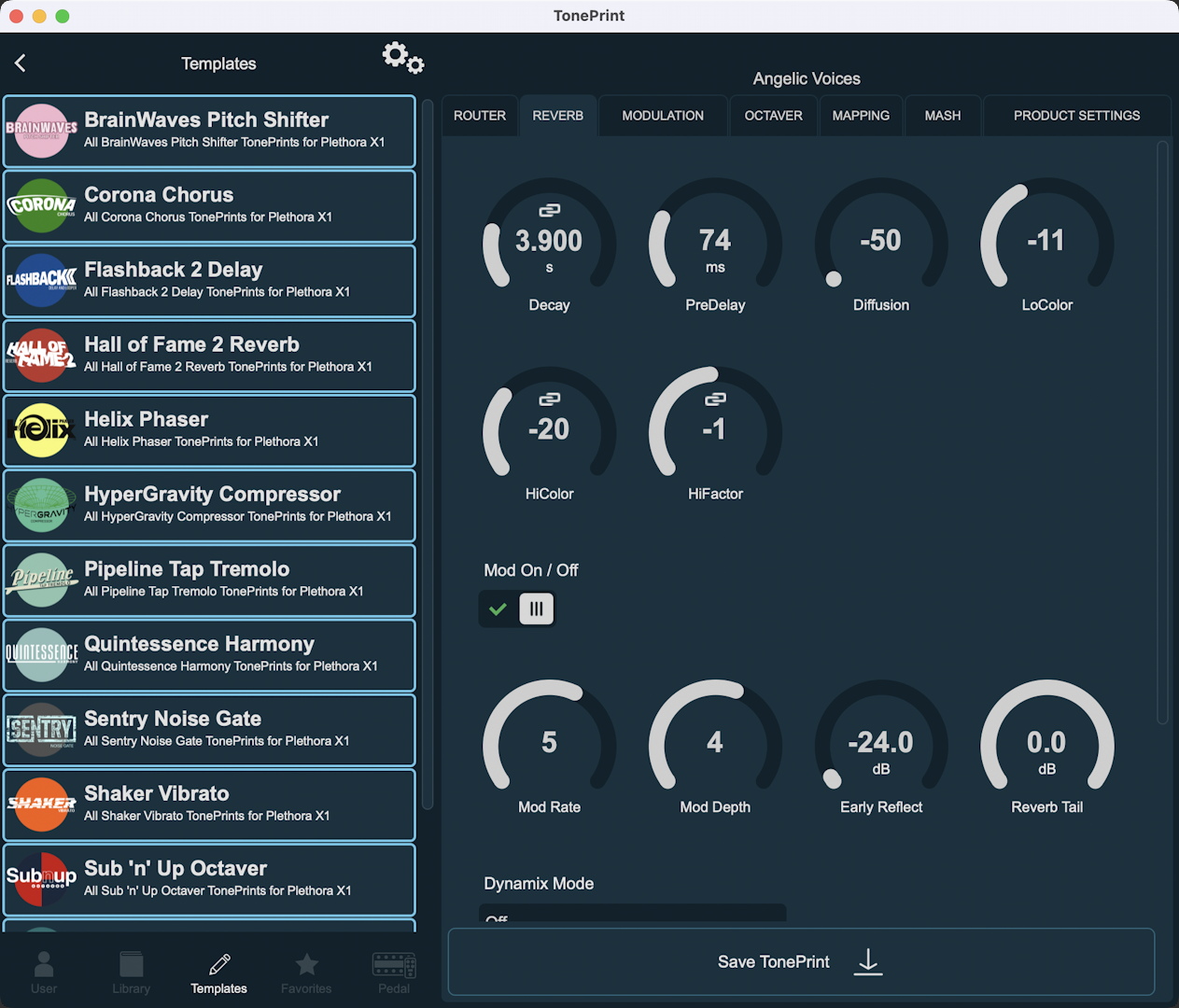
The TonePrint app on macOS.
The Plethora X1 is called a “TonePrint Loader” because it gives you access to 5,736 presets across 14 different effects (plus a programmable noise gate). But the point is that the majority of these presets is in the TonePrint app. You use the app to select and edit the ones you want and then transfer them to the Plethora X1. There are artist presets from famous guitar and bass players, standard presets provided by TC Electronic, and templates, which are starting points for creating your own.
When you edit effects in the TonePrint app, you have access to many more parameters that are not accessible from the X1 itself. In the app, for each preset, you can program the parameter values and assign which parameters will be controlled by each of the three knobs. You can even assign multiple parameters to be controlled by one knob (this is called a macro) and set ramps to control the rate of change of each parameter when the knob is turned. You can then save your edited effects and load them into the X1, giving you a tremendous amount of customization.
The TonePrint app works on iPhone, iPad, Android, Mac, and Windows PC and over USB-C cable or over Bluetooth.
Download the TonePrint App
- On your iPhone or iPad, download the TC Electronic TonePrint app from the Apple App Store.
- On your Android device, download the TonePrint app from the Google Play Store.
- On your Mac or Windows PC, download the TonePrint app from the TC Electronic Plethora X1 product page. Click Downloads. Download and install the version of the TonePrint App for your operating system.
To Connect via Bluetooth
You can use Bluetooth on your phone or tablet and on your Mac or Windows PC.
- With Bluetooth enabled on your device or computer, open the TonePrint app.
- Tap on the setting gear icon. Tap on “Connect to a Bluetooth enabled pedal.” (Android users: you must give location permissions to the app, or pairing will not complete.)
- On your X1, press and hold the Connect button on the back to initiate Bluetooth pairing.
- In the app, the X1 will appear under “Bluetooth MIDI Devices.”
To Connect via USB
Note that the Plethora X1 cannot be powered over the USB-C connection. You will need to connect a 9-volt power supply to the Power In jack.
- Launch the TonePrint app.
- Power up the X1 and connect a USB-C data cable to the port on the back.
- Plug the other end of the cable into your Mac or Windows PC using an adapter if needed. You can also connect to an iPhone, iPad or Android device equipped with a USB-C port.
You’re ready to start loading and editing effects and presets.
Getting Started with the TonePrint App
Here’s the section in TC Electronic’s video How to Use the Plethora X1 which explains working with the TonePrint app.
TC Electronic: Plethora X1 Official Product Launch Video
Related Articles
When you need help, Sweetwater has the answers!
Our knowledge base contains over 28,000 expertly written tech articles that will give you answers and help you get the most out of your gear. Our pro musicians and gear experts update content daily to keep you informed and on your way. Best of all, it’s totally FREE, and it’s just another reason that you get more at Sweetwater.com.

