
Roland Rubix Setup Guide
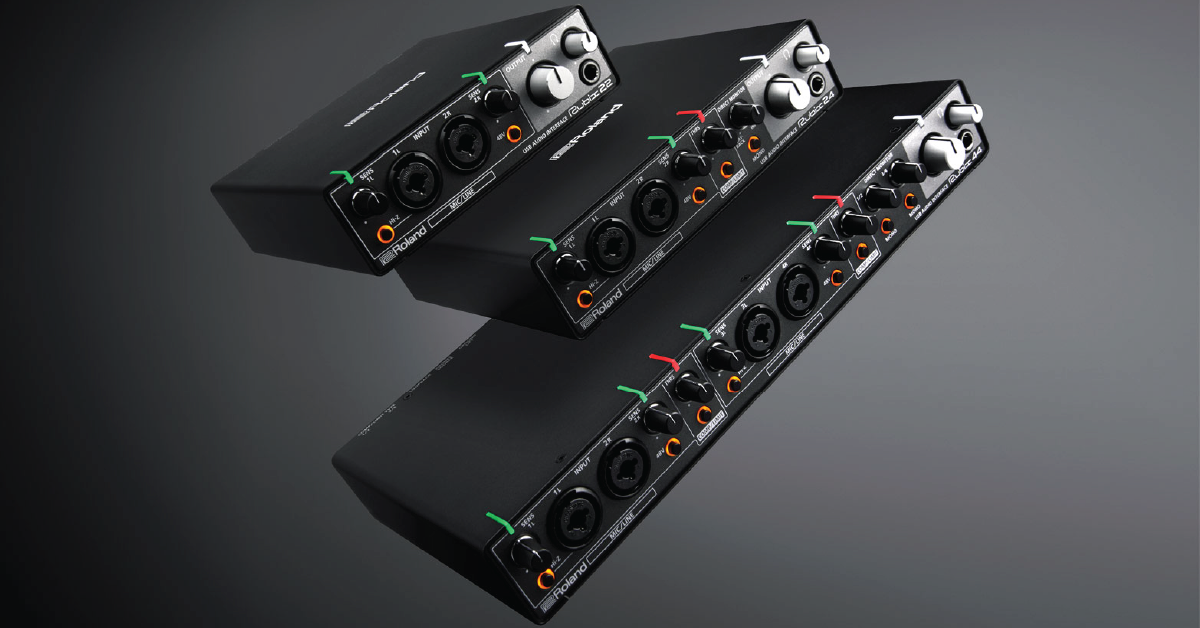
In this guide, we will show you how to register, set up, and configure your Roland Rubix interface for the first time. Follow the sections below to get started.
Register the interface
Before we dive into setting up your Rubix interface, the first thing to do is register the product with Roland. By registering the Rubix, you’ll gain access to Roland’s product support, an extended warranty, and exclusive training content. Follow the steps below to register.
- Log in to your Roland Backstage account. If you don’t have one yet, you can create one here.
- Roland will then send an account activation email to the registered email address to complete the account creation process.
- If you don’t receive an email, be sure to check your spam folder!
- On your account home page, click My Gear and select Register a Product.
- Fill out the required information, including the serial number located on the bottom of the Rubix, and click Register.
- Have your Sweetwater invoice with you, as you will need to enter the purchase date, method, and Dealer (Sweetwater).
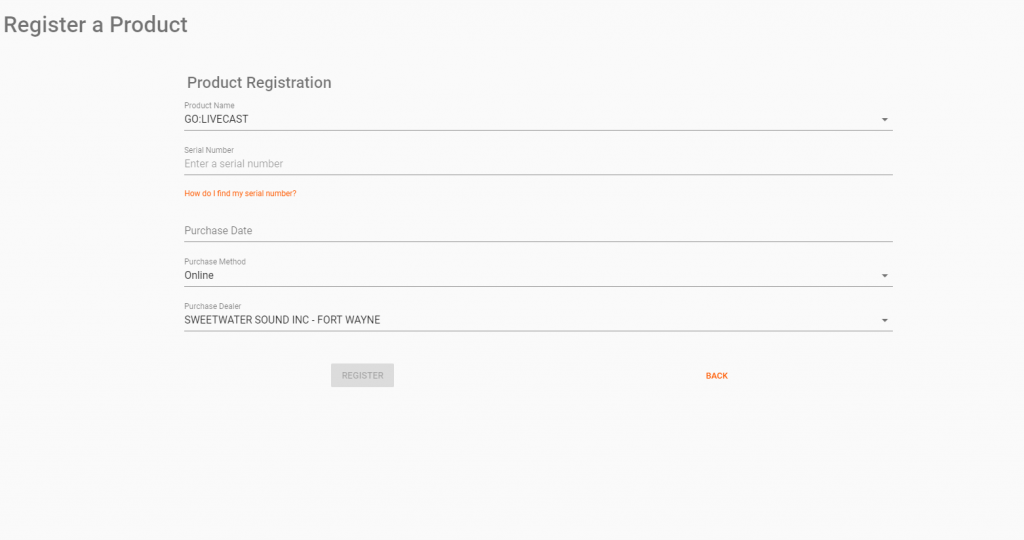
Click the image to register your Roland Rubix interface
Activate Ableton Live Lite
The Roland Rubix interfaces are bundled with a free license to Ableton Live Lite. To activate Live, you’ll need to create an account with Ableton and use the included registration code to activate it. Keep this tab open, and check out our guide on how to activate, download, and install Ableton Live Lite.
Learn more about how to download, install, and register Ableton Live Lite!
Download and install the drivers (Windows users only)
MAC USERS: If you’re a Mac user, you can skip this section and continue to Set up and connect your gear.
For your Rubix interface to work correctly with your PC, you’ll need to download and install its driver software before plugging it into your computer or else it won’t work correctly. Once the driver is installed, you can then continue to Set up and connect your gear.
To install the driver, all you need to do is go to the Roland Rubix download page and click the download for your version of Windows. After it has been downloaded, go to your Downloads and launch the driver installer file.
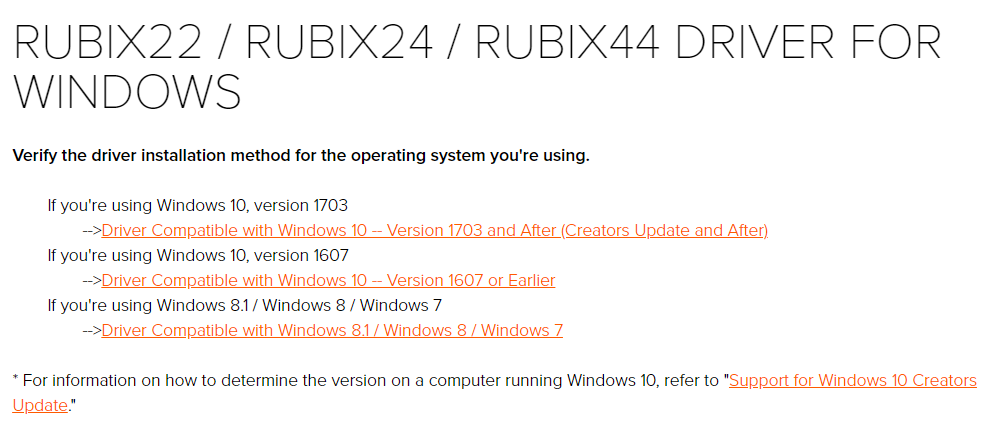
Click the image to download and install the Rubix Windows driver
Set up and connect your gear
IPAD USERS: If you plan on using the Rubix with an iPad, you will need an official Apple Lightning to USB Camera Adapter.
After everything is taken care of, it’s time to get recording! Connecting your gear to the Rubix is a breeze, so follow these steps to get started.
- Turn the Volume knob all the way down, then connect your speakers.
- If you have headphones connected, turn its volume knob all the way down, as well.
- Connect the USB cable from the interface to your computer, then power it on.
- PC users: You must connect it to a USB 2.0 port. If you use a USB 3.0 port, connectivity may be inconsistent.
- Rubix 44 users: The interface is not bus-powered and must be connected using the included power supply.
- Navigate to your OS sound settings and set it as the default input and output device.
- PC: Right-click the Speaker icon on the Windows taskbar, select Sounds, then click the Playback tab. Locate and select the interface, click Set Default, then click OK to close the menu. Do the same in the Recording tab.
- Mac: Click the Apple icon from the Menu Bar and select System Preferences. Click Sound, then select the Rubix under the Input and Output tabs.
- If applicable, connect your headphones to the jack on the front.
- Play some music or a video, and slowly turn the main Volume (and headphone) knob up until it’s at your desired listening level.
- Launch your DAW, and select your Rubix as the primary playback and recording device.
Related content

Learn more about optimizing your Windows 10 computer for music production!
Learn More
Learn more about optimizing your Mac computer for music production!
Learn More
Learn more about how to get up and running with audio recording on iOS devices!
Learn More
Learn more about computer audio basics for your home studio!
Learn MoreAdditional resources
Roland Rubix Quickstart Playlist
When you need help, Sweetwater has the answers!
Our knowledge base contains over 28,000 expertly written tech articles that will give you answers and help you get the most out of your gear. Our pro musicians and gear experts update content daily to keep you informed and on your way. Best of all, it’s totally FREE, and it’s just another reason that you get more at Sweetwater.com.

