
Roland Octapad SPD-30 Quickstart Guide
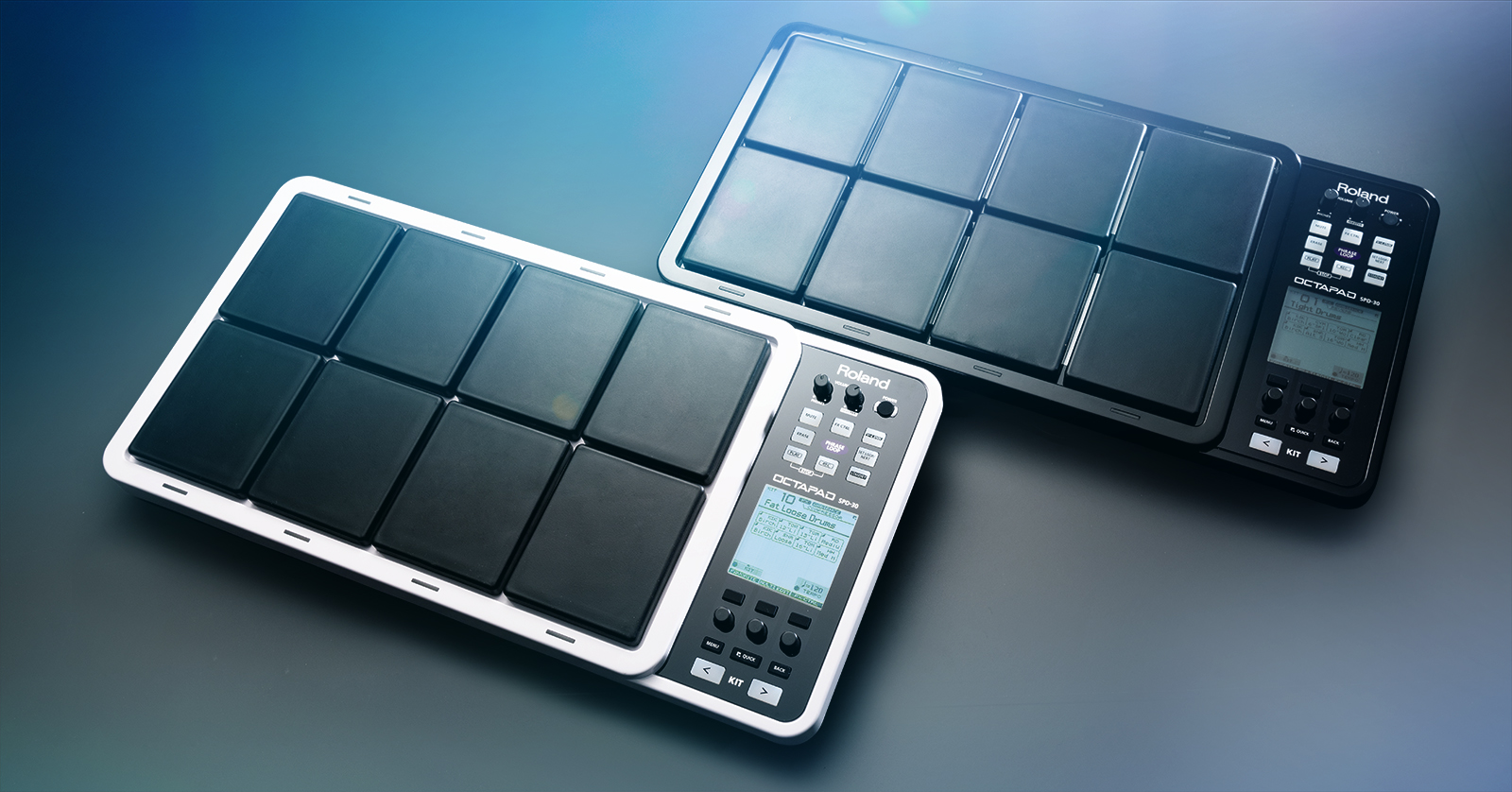
In this guide, we will show you how to register, set up, and use the legendary Roland Octapad SPD-30. Covering everything from registration to building kits, we’ll make sure you get up and running in no time! Follow the sections below to get started.
Register the Serial Number
Before we dive into setting up your Octapad SPD-30, the first thing to do is register the product with Roland. Registering the device gives you access to Roland’s product support, an extended warranty, training videos, and clinic information. Follow the steps below to register, then continue to setup and configuration.
- Log in to your Roland Backstage account. If you don’t have one yet, you can create one here.
- Roland will then send an account activation email to the registered email address to complete the account creation process.
- On your account home page, click My Gear and select Register a Product.
- Fill out the required information, including the serial number on the bottom of the Octapad, and click Register.
- Keep your Sweetwater invoice handy, as you must enter the purchase date, method, and Dealer (Sweetwater).
Click the image to register your SPD-30
Update the Firmware
Roland will release firmware updates periodically which often adds new features and addressed bugs in the current version. Check out our Roland Octapad SPD-30 Firmware Update Guide to learn how to update the firmware!
SPD-30 Setup and Configuration
While the Roland SPD-30 is compact, you have plenty of options for expansion and configuration. The audio outputs are self-explanatory. There are a few things to note, however.
- Audio streaming through the Mix In jack sends the signal to both the Headphone and Output jacks.
- Do not use cables with resistors, as the audio from the Mix In jack will be low.
- Be sure to turn down the volume on the SPD-30 before turning it on. This negates the risk of loud pops, which can damage speakers.
External pads
IMPORTANT: The PD-1400DS digital pad and VH-12 and VH-13 hi-hat controllers are not compatible with the Octapad SPD-30!
While eight pads are available on the unit, you can expand the Octapad SPD-30 even further using the expansion jacks on the back of the unit. With some basic configuration changes in the multipad, you can turn it into a full-blown drum kit!
Almost all Roland drum pads are compatible, making connecting much easier! To assign expansion pads on the Octapad, follow these steps.
- Connect the external pad(s) to the Octapad. It will automatically detect the type of pad that is connected.
- Press MENU, then use the left encoder to navigate to PAD.
- Press the third button (Enter), then select EXTERNAL.
- Hit the pad (or step on the pedal) you want to edit.
- Use the first encoder knob to select the parameter, then use the third to change its value.
SPD-30 Quick Tip: Using the Dual Trigger Inputs
MIDI
You can connect the Octapad SPD-30 to and from external devices such as drum samplers or external synthesizers via 5-pin MIDI cables. You can also assign MIDI Program and Control Changes to external synthesizers.
- To access the MIDI menu, press MENU, navigate to SYSTEM, then select MIDI.
- Use the first encoder knob to select the MIDI parameter, then use the third to change its value.
MIDI implementation chart
There are plenty of MIDI functions you can work with. To see what can be edited, check out the MIDI implementation chart in the Octapad SPD-30 Owner’s Manual!
Computer
NOTE: The Octapad SPD-30 isn’t bus-powered, so you’ll need to make sure the external power supply is connected!
What’s great about the SPD-30 is that you can record its internal sounds or send MIDI data over USB to your computer. To ensure a stable USB connection, download the dedicated Roland driver from their website before connecting it to your computer.
- Go to the Octapad SPD-30 download page and download the latest driver for your OS.
- Navigate to your Downloads folder, locate and launch the driver installer, then follow the on-screen instructions.
- Connect the SPD-30 to your computer and turn on the device.

Click the image to download the latest Octapad SPD-30 driver.
How to Build a Kit on the SPD-30
TIP: All kits are saved automatically. You can also save them to a USB thumb drive for later recall in case you perform a factory reset.
There are over 600 high-quality samples that span 50 preset kits. And while the factory presets sound great, you can create one to get your own unique sound. The process is simple, too, so you can spend more time playing and less time fumbling around menus.
- Hit the pad you want to change, press the MENU button, then navigate to and select INST.
- Use the right knob to scroll through the sounds. If you want to view samples in separate groups (e.g., snares, toms, kicks), turn the middle knob.
- While on the main screen, select QUICK MENU and Kit Name.
- Use the first two knobs to select a letter, the third knob to select numbers, and the first two buttons to move the cursor.
- Once you’ve named your kit, press OK.
SPD-30 Quick Tip: Assigning, Editing, and Layering Sounds
Related Articles
When you need help, Sweetwater has the answers!
Our knowledge base contains over 28,000 expertly written tech articles that will give you answers and help you get the most out of your gear. Our pro musicians and gear experts update content daily to keep you informed and on your way. Best of all, it’s totally FREE, and it’s just another reason that you get more at Sweetwater.com.

