

PreSonus AudioBox GO Setup Guide
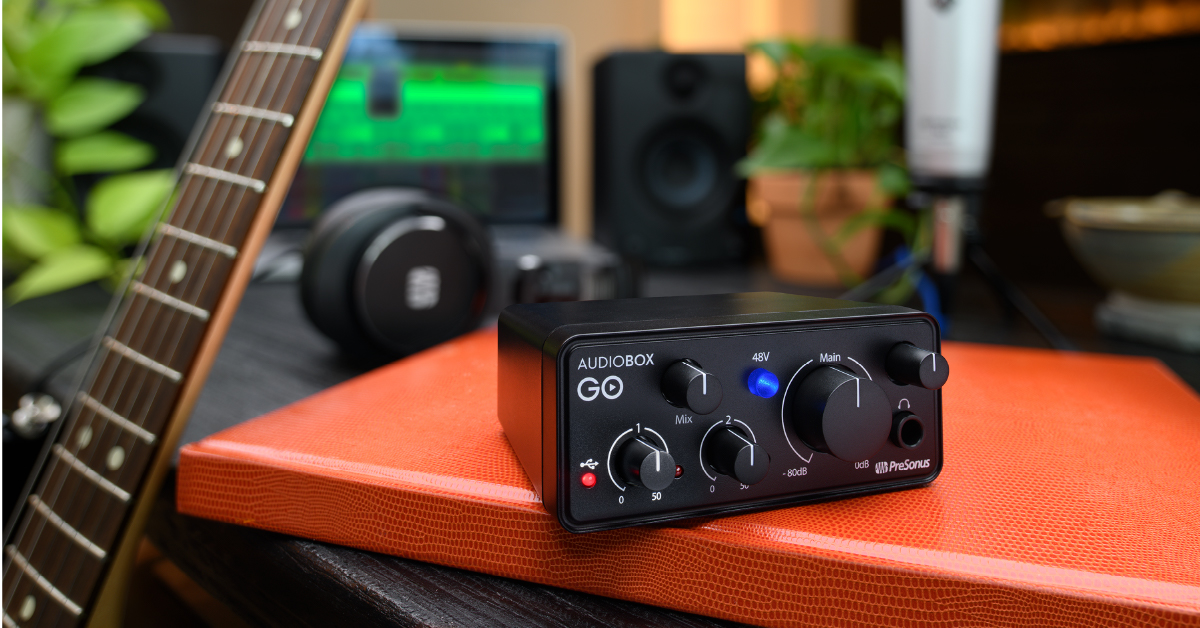
In this guide, we will show you how to register, set up, and connect your Presonus AudioBox GO interface for the first time. Follow the sections below to get started.
- Register the PreSonus AudioBox GO interface
- Connect the GO interface to your computer
- Connect your AudioBox GO interface to an iOS device
Register the PreSonus AudioBox GO interface
The first thing you’ll want to do is register your AudioBox GO interface before we get started. By registering the hardware, you’ll receive a free copy of Studio One Artist. Keep your Sweetwater invoice handy, as you’ll need to enter the purchase date during the registration process.
- Log into your PreSonus account. If you don’t have one yet, click Create Account underneath the Login button.
- On your account homepage, click Register a Product, then use the dropdown box to select Hardware.
- Select the purchase date shown on your Sweetwater invoice, enter the Serial Number (located under the interface, as well as the registration card), then click Register.
- Once your GO interface is registered, click Products on the top of the PreSonus page, then click Software under Products to download and register Studio One Artist.
- For instructions on how to download and activate Studio One Artist, follow our registration guide.
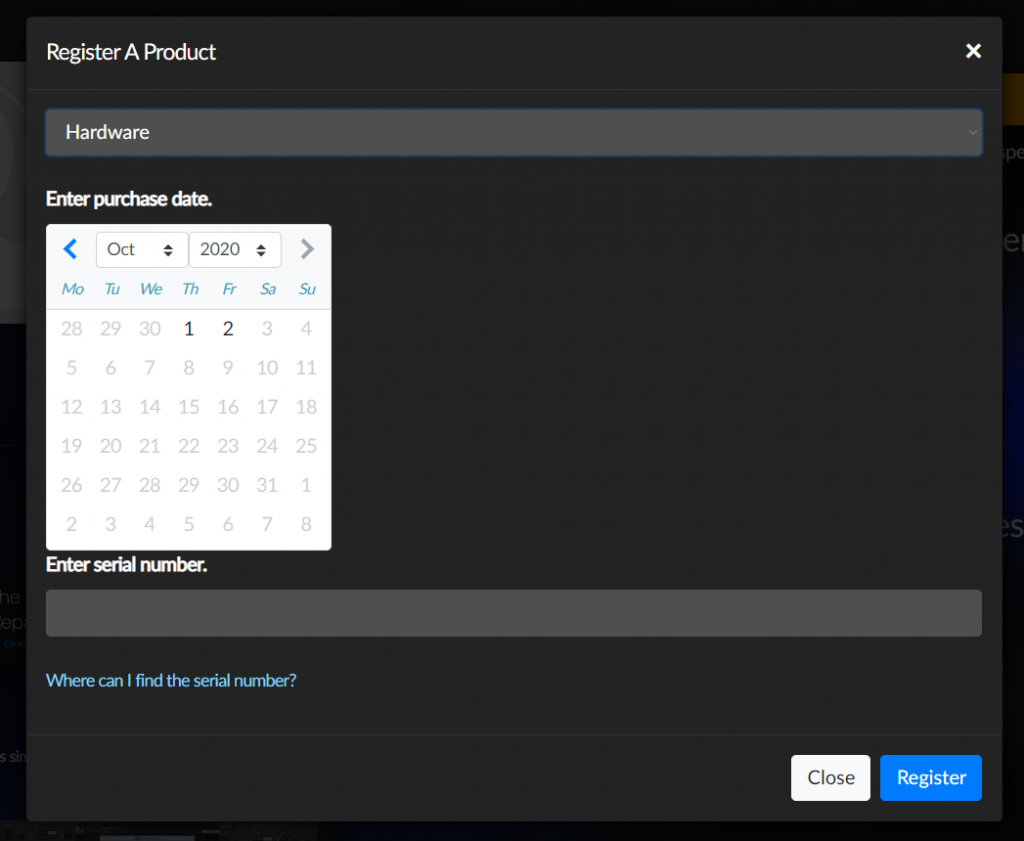
Click the image to register your PreSonus AudioBox GO interface.
Connect the AudioBox GO interface to your computer
Connecting your PreSonus interface to your Mac or PC is a straightforward process. It’s class-compliant on Mac, meaning you can connect it and start playing, but if you’re using it on a PC, you’ll need to install its ASIO driver first via Universal Control. Follow these steps to set up your GO interface desktop computer.
Download and install Universal Control
For your AudioBox GO interface to work correctly on your Mac or PC, you first need to install the Universal Control application, which is used to update your interface’s firmware, and if you’re using a PC, install the driver software. AudioBox Go interfaces are class-compliant on Mac, which means no additional driver software is necessary.
- Go to the Software Downloads section of your interface’s download page, and click Download Now.
- The PreSonus website automatically detects which OS you’re currently using, but if you need to download it for a different OS, use the dropdown box and select the correct OS.
- Open your Downloads folder and run the Universal Control installer.
- PC: Double-click the .exe file to begin the process
- Mac: Double-click the .dmg file, then double-click the .pkg file to begin the installation process.
- Launch Universal Control, then connect the interface to the computer.
- If you receive a firmware update prompt, You’ll first need to update the firmware before using the interface.
Updating the firmware
PreSonus will occasionally update the AudioBox GO series firmware, which will often add new features and fix bugs in the current firmware. To update the firmware, simply launch Universal Control, and it will automatically update it for you.
Update your computer’s sound settings
To get sound in and out of your computer using the AudioBox GO, it must be selected as the operating system’s primary audio device. For most applications (not DAW’s), this will be done from Sound Settings (Windows) or Sound Preferences (Mac). Most DAW’s have their own sound settings, so when using the interface with a DAW, you’ll need to make sure that the AudioBox GO is selected as the main input and output device. Follow these steps to select the AudioBox GO as the main audio device on your computer.
IMPORTANT: The GO interfaces are bus-powered, meaning that it’s powered solely from your computer. Connecting the interface to a USB hub may not provide enough power for your interface, so be sure you connect it to an available USB port on your computer.
- Connect the USB cable from the interface to your computer.
- Navigate to your OS sound settings and set it as the default input and output device.
- Mac: Click the Apple icon from the Menu bar and select System Preferences. Click Sound, then select the AudioBox under the Input and Output tabs.
- PC: Right-click the Speaker icon on the Windows taskbar, then select Open Sound settings. Select the GO interface from both the Output and Input dropdown boxes.
Connect your PreSonus AudioBox GO interface to an iOS device
Connecting your AudioBox GO interface to your iOS device couldn’t be simpler. All you need is a USB to Lightning cable and a USB A – USB B cable. Although the PreSonus GO interfaces are bus-powered, your iOS cannot provide enough power to it. Because of this, you can use a USB power adapter, or if you’re in a place that doesn’t have an outlet, you can use a portable USB power supply.
- Connect your interface from the PC/MAC POWER jack to your power adapter or USB power supply.
- Connect the interface from the DEVICE jack to your iOS device using a USB to Lightning cable.
Continue to the Studio One Quickstart Guide
Additional vendor resources
Recording Your First Song On Guitar with Joe Glider
Related Articles
When you need help, Sweetwater has the answers!
Our knowledge base contains over 28,000 expertly written tech articles that will give you answers and help you get the most out of your gear. Our pro musicians and gear experts update content daily to keep you informed and on your way. Best of all, it’s totally FREE, and it’s just another reason that you get more at Sweetwater.com.

