
PC Optimization Guide for Windows 7
Tired of clicks and pops? Annoyed with error messages? No matter if you just bought the latest and greatest or if your dusty old PC has more than its share of birthdays, Windows isn’t automatically ready to tackle your studio tasks out of the box. This guide should help clear up some of those pesky performance issues that as a studio artist, you don’t have time to worry about. After all, its all about the music!
Getting Started
The first thing to do is more of an aesthetic fix and will only make it easier for us to get through the optimization guide. First click on the Windows Start button and choose Control Panel. On the top right corner of Control Panel, switch the ‘view by’ type to ‘small icons’. This gives us a lot more options without having to click through so many menus.
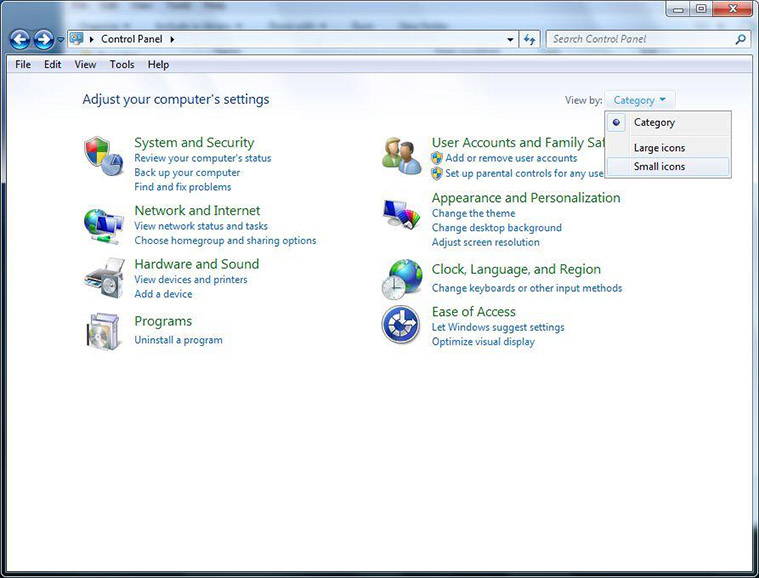
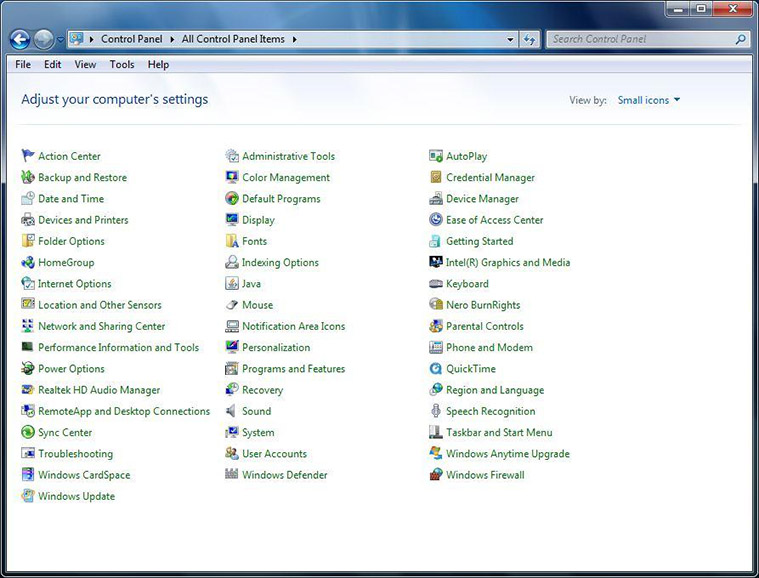
You should instantly see a difference. This will make navigating options in Windows 7 a whole lot easier; especially if you are more familiar with Windows XP.
Disable User Account Control (UAC)
- This helps alleviate and prevent installation and registration issues. To disable UAC, click the Start button. In the Search Box type UAC and press ENTER.
- In the UAC window, slide the slider down to ‘never notify‘ and press OK.
- Restart your PC.


Disable USB Power Management
This helps prevent power issues with devices that are powered by USB.
- Open Control Panel, then click on Device Manager.
- Open the Universal Serial Bus Controllers menu.
- Right click on the USB Root Hub in the menu and choose Properties.
- Go to the Power Management tab and un-check the the box to “allow the computer to turn off…”
- Repeat this for each of the USB Root Hub’s that show up in device manager


Enabling Write Cache and Advanced Performance for hard drives
- This helps alleviate poor hard drive performance. In Device Manager, open the Disk Drives menu.
- For all of your hard drives, right click on the drive name and select Properties.
- Go to the Policies tab and check the boxes to “Enable write caching” and “Turn off Windows write-cache buffer flushing”
Note: For external hard drives, change the option from “optimize for quick removal” to “optimize for performance”.
For internal drives, use these settings:
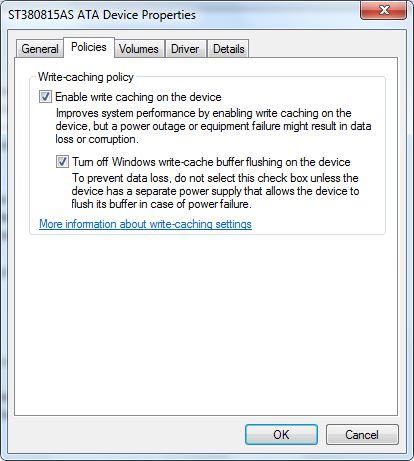
For external drives use these settings:

Shop All External Hard Drives 💾
Disable Startup Items
These settings will make you PC boot lighting fast and give your computer the much needed overhead power to run more plugins.
1. Click the Windows Start button and in the search box, type msconfig, then press ENTER.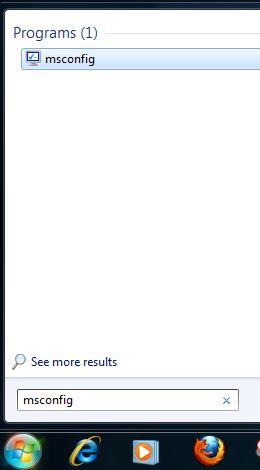
2. Go to the Startup tab and choose Disable all in the bottom right corner.
Note: After doing this, Pro Tools users with Avid or Digidesign interfaces must check the box for “Digidesign MME Binder.”
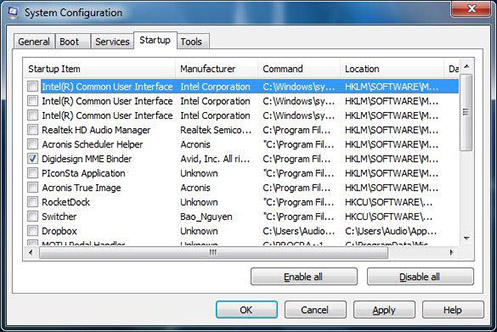
3. Next, navigate to the Services tab. Check the box at the bottom to “hide all Microsoft Services”
4. Choose Disable all on the bottom right corner.
Note: Pro Tools users must check the boxes for “Digidesign MME Refresh Service” (Avid/Digidesign interfaces only), “digiSPTIService” and “PACE License Services.”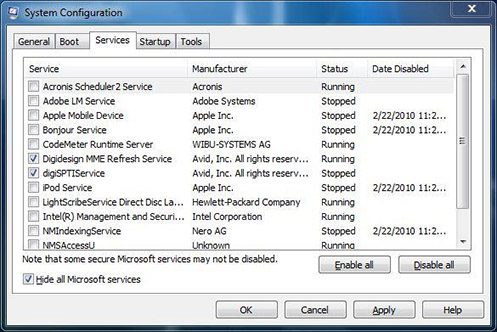
5. Click OK and Restart the computer.
Change Processor Scheduling
Changing the processor scheduling settings dramatically improve the way your computer handles audio tasks. From our experience, we have seen a big performance increase on many other non-audio related programs as well. Its a good thing!
1. Click on the Windows Start button, then right click Computer and choose Properties.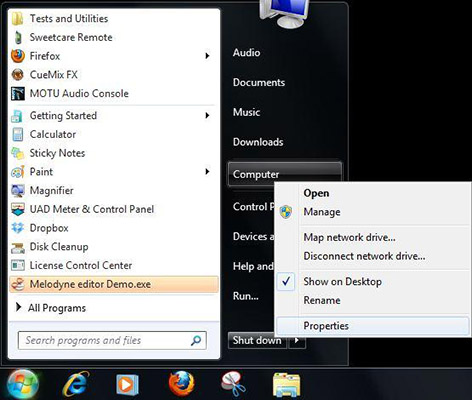
2. Click on Advanced System Settings.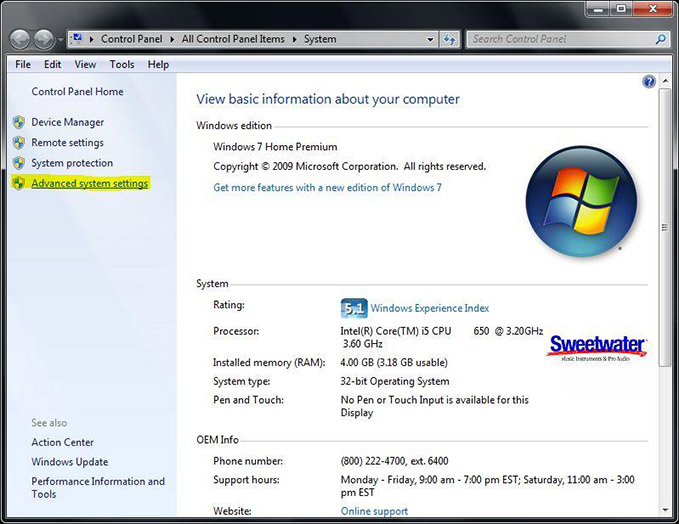
3. Click the Settings button under the Performance section.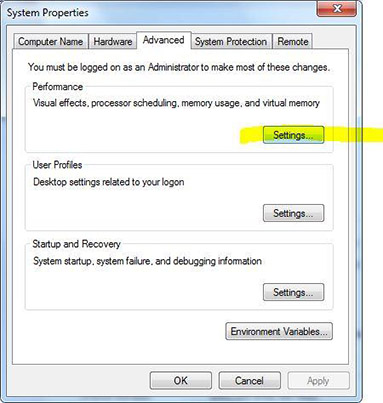
4. Set Processor Scheduling to Background Services.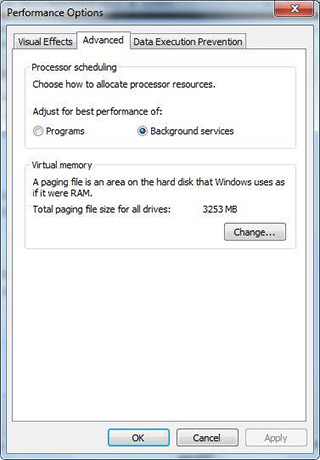
5. Click the OK button. You will have to Restart for changes to take effect.
Adjust Power Options
1. Click on the Windows Start button and choose Control Panel.
2. In Control Panel choose Power Options.
3. In Power Options, choose High Performance.
4. To the right, click Change Plan Settings.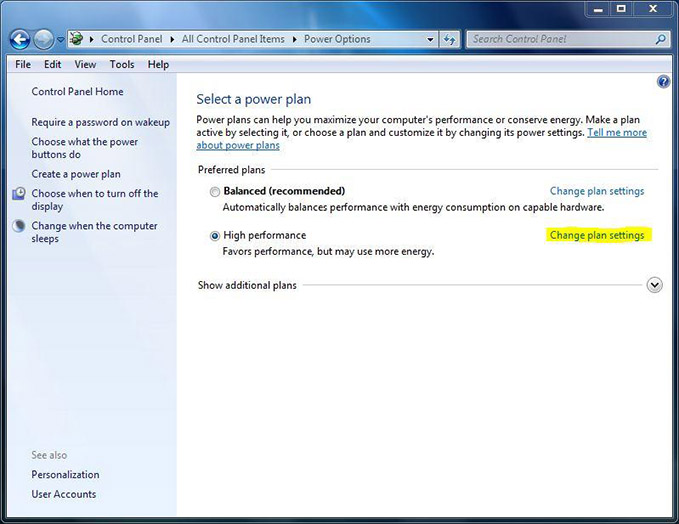
5. Choose Change Advanced Power Settings.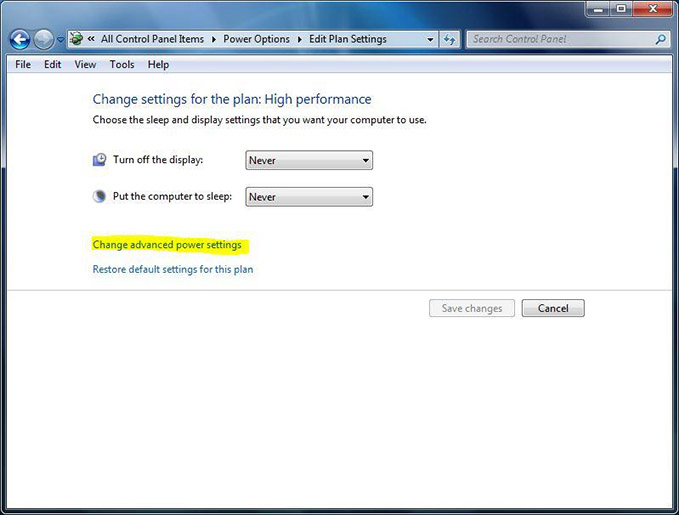
6. At the top of the Advanced Settings window, select High Performance.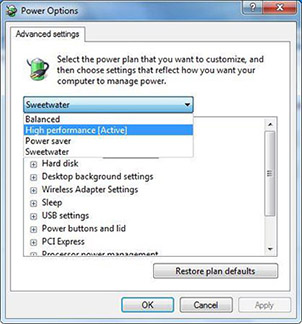
Open USB settings > USB Selective Suspend, and change this to Disabled.
Open Processor Power Management > Minimum Processor State > 100%.
7. Click OK, then Save Changes.
Disable Sound Exclusive Mode
1. Click on the Windows Start button and choose Control Panel.
2. Choose Sound.
3. Within the Sound settings, select your device and click Properties.
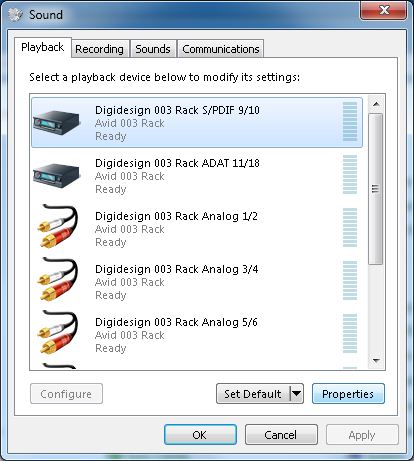
4. Within the Properties window, navigate to the Advanced tab. Then, make sure you uncheck the two boxes under Exclusive Mode.

5. Do this for all devices under the Playback and Recording tabs in Sound Settings.
Speedstep or Processor Throttling
This optimization is probably one of the most important out of all of these. Unfortunately due to the vast array of differences in computer manufacturing, we don’t have a specific step by step tutorial on how to do this. This setting can be disabled from your computers BIOS. If you are familiar with your computers BIOS, look for “Intel Speedstep”, EIST, or “AMD Cool n’ Quiet”, and disable it. This is basically a setting that ramps down your CPU clock cycles to a slower speed, to save electricity. In many cases it interferes heavily with most recording processes on a computer and can severely degrade your performance. Disabling this setting will also make all of your other programs perform a lot faster as well. If you aren’t sure how to disable this option, get with your computer manufacturer for instructions on how to do this.
Virus Protection and Internet Security
For the most part, this will not play nice with your recording programs but let’s be realistic about this. The average Joe uses their music computer for all of their business as well. Its not the best way to handle it, but not everyone has the space (or cash) to run 2 separate computers. If you don’t have a separate machine to run the internet on, use the least intrusive antivirus that you can. We recommend AVG or Microsoft Security Center. There is little CPU usage with these but seem to be pretty effective. If you feel the need to be running any more security than this, you should think about using the internet on a different computer, or change your browsing habits. A light antivirus and a good browser like Firefox with the Adblock Plus extension can do miracles.
Chances are if your are running a modern computer, we really don’t need to make any further changes. Windows 7 is much more efficient with its graphics on modern graphics cards. There are exceptions to this, but for the most part you should be fine. If you are an enthusiast and would like to further optimize the computer we recommend the Black Viper optimizations in addition to this guide. You can find them here.
Helpful Links
PC Optimization Guide for Windows 10
Windows 10 Compatibility Information
How do I format a hard drive on Windows?
How to install Focusrite USB drivers on Windows
Installing and using ASIO4all for Windows
When you need help, Sweetwater has the answers!
Our knowledge base contains over 28,000 expertly written tech articles that will give you answers and help you get the most out of your gear. Our pro musicians and gear experts update content daily to keep you informed and on your way. Best of all, it’s totally FREE, and it’s just another reason that you get more at Sweetwater.com.

