
Modal Electronics SKULPT Quickstart Guide
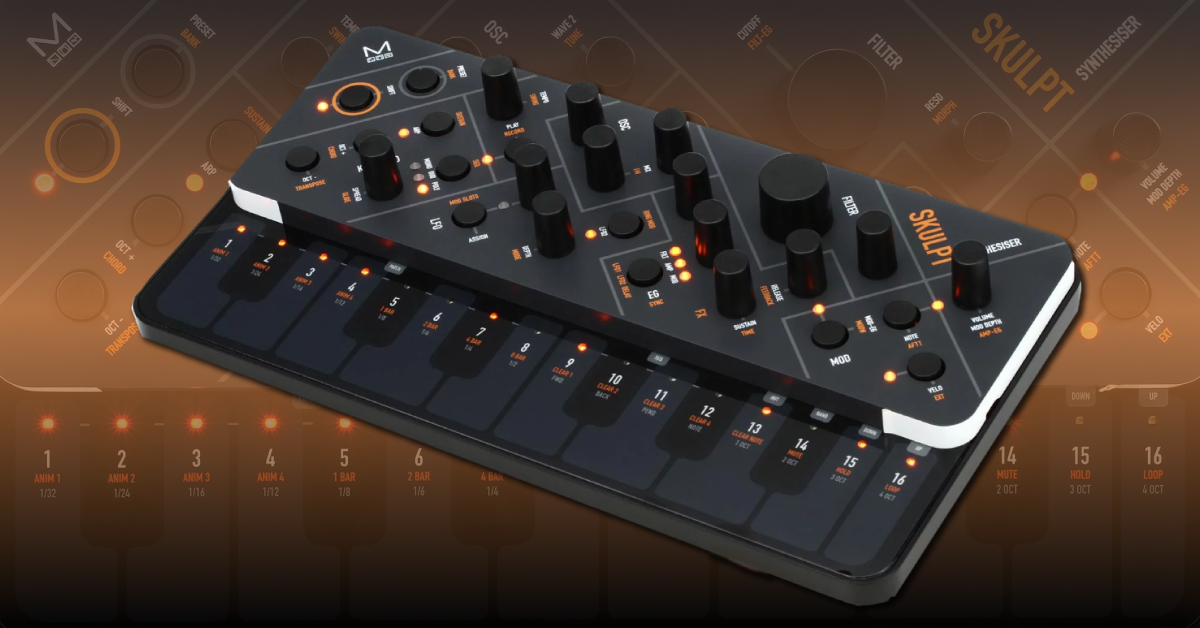
Getting started with the SKULPT
In this guide, Sweetwater’s synth guru, Daniel Fisher, will show you how to register with Modal Electronics, download the MODALapp, explain the fundamentals, and try out the Factory preset on the Modal SKULPT Synthesizer for the first time. Follow the sections below to get started.
- Download MODALapp and update your SKULPT
- Exploring the factory presets on your SKULPT
- Tweaking SKULPT presets
- How to save your SKULPT presets
Download the MODALapp and update your SKULPT
Before we dive into using the SKUPLT, the first thing to do is to register with Modal and get the MODALapp and SKULPT Manual.
- Go to the Modal Electronics main page and click on the SUPPORT link in the upper right.
- Click on the Sign In link in the upper right and then click on “New to Modal Electronics?” “Sign up.” Fill in the requested info and finally click “Sign Up.”
- Now scroll down the page and click on the words SKULPT synthesizer. Click on User Manual to get the latest version.
- After you’ve saved the User Manual, use your browser’s Back button to go all the way back to the main page. Click on the MODALAPP link at the top of the page.
- Download the MODALapp for each of the platforms you might use: macOS, Windows, iOS, Android, VST3/AU macOS, and VST3 Windows.
- After installing the MODALapp, connect your SKULPT via USB and then launch the MODALapp. It will tell you if you need a firmware update and walk you through the steps needed.
Click the image to create an account with Modal Electronics
Exploring factory presets on your SKULPT
If you’ve downloaded the MODALapp you can keep it connected to your SKULPT. Or, if you just want to try your SKULPT by itself, either install (6) AA batteries, or connect to a powered USB jack on a computer, USB hub, phone charger, or USB portable charger. Connect either the ⅛-inch LINE OUT jack to a mixer or amp, or connect headphones with an ⅛-inch plug to the HEADPHONES jack.
- If you own a MIDI keyboard or MIDI controller with a standard 5-pin MIDI Out jack, connect it with a MIDI cable to the MIDI In jack on the SKUPLT. The initial MIDI Channel is set to 1, but you can change it to receive any MIDI channel by powering on while holding the PRESET button in the upper right of SKULPT. While still holding the PRESET button, choose between 1 – 16 on SKULPT’s keyboard.
- If you don’t have a MIDI controller handy you can play with the built-in keyboard and try the sequences that are included on many of the Factory presets. If you have a DAW on your computer you can also send MIDI to your SKUPLT via the USB cable.
- Choose from the first 16 Factory presets by holding the PRESET button while you press one of the keys from 1 – 16. The volume can be adjusted from the VOLUME knob on the far right.
- To get to the next Bank of 16 presets, press and release the SHIFT button on the far left (with the orange circle around it) and choose any number between 1 and 8. Now, after being certain that you’ve turned off the SHIFT light, you can once again hold the PRESET button while choosing presets 1 – 16 in the new bank.
Tweaking SKULPT presets
The single best piece of advice I can give on tweaking your SKULPT is to install and use the MODALapp that clearly allows you to see and edit all of the parameters using your computer, tablet, or phone. BUT… if you’re going to tweak everything using only your SKULPT’s front panel, then here is my best advice for that:
Always be aware of the SHIFT button’s status. Always know if it’s On or Off. And in the same vein, be aware of parameters that have been left on in their SHIFT variation. This tip will help you avoid turning a knob thinking you’re editing one parameter, when you’re actually editing the orange SHIFT parameter.
The most common parameters to experiment with include: FILTER CUTOFF (the only large knob on the panel) and RESONANCE (the knob directly to the right of the CUTOFF knob). Another fun knob is SPREAD (on the bottom left). This allows you to have up to eight oscillators going at once with increasing amounts of detuning.
The next knobs to try would be the ATTACK, DECAY, SUSTAIN, and RELEASE (commonly known as ADSR) knobs (aligned in a V under the FILTER knob). Notice the three orange LEDs near the DECAY knob. The EG button below them lets you alternate between editing the EG of the Filter (FILT), Amp (AMP), or Modulation (MOD). Again, always be aware of which of the three LEDs is lit.
The OCTAVE buttons (OCT+ and OCT-) are useful to put the keyboard in the range you want to play. And the ARPEGGIATOR (ARP) button lets you have fun even if you aren’t a keyboardist. Use the TEMPO knob (top left) to choose a desirable speed for your Arpeggiation.
Tweaking the parameters
Once you’re comfortable with these knobs, try the remaining knobs. And then, when you dare, press and release the SHIFT button (orange ring) and explore all of the knobs and buttons except, this time, read the orange text instead of the white text.
If you want to start a preset from scratch, light the SHIFT button, then hold the PRESET button and also hold Key #13 (INIT).
When you’re really ready to get crazy, light the SHIFT button, then hold the PRESET button and also hold Key #14 (RAND). This will create a random preset that you may or may not like. If you don’t like it at all you can simply repeat the process as many times as you like. If you mostly like the randomized preset you can tweak it until it’s ready to be saved.
Creating an INIT Patch
How to save your SKULPT presets
If you’ve created something you want to save simply hold the PRESET button (top left), making sure the SHIFT button is not lit, and then while still holding PRESET, hold a Preset Key (1 – 16) until it blinks.
Related content
Sweetwater Synth Clips Playlist by Daniel Fisher
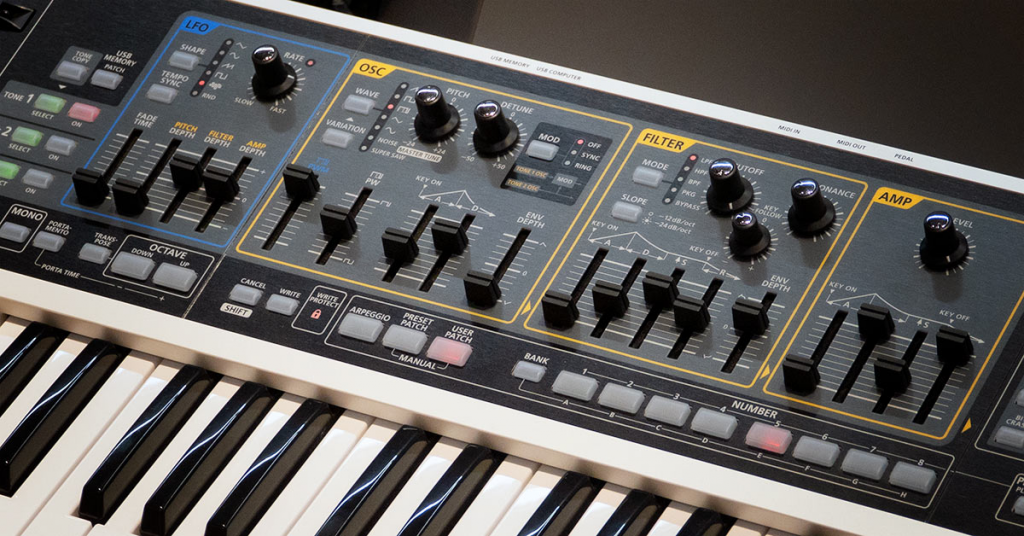
Learn more about the basics of synthesizers!
Learn More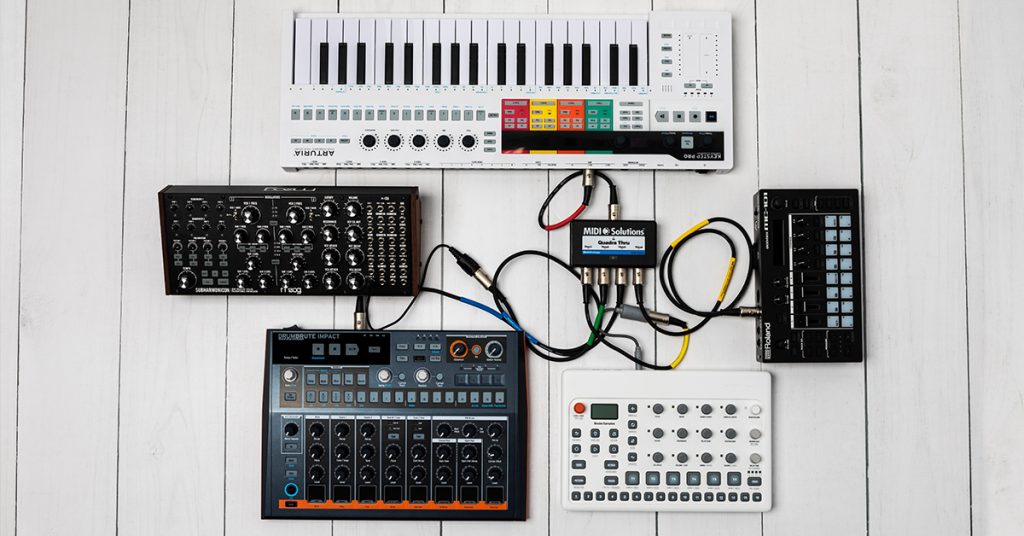
Learn more about how to sync MIDI hardware!
Learn More
Learn more about creating synth sounds from scratch!
Learn MoreLearn more about how to sync your MIDI hardware!
Learn MoreAdditional resources
When you need help, Sweetwater has the answers!
Our knowledge base contains over 28,000 expertly written tech articles that will give you answers and help you get the most out of your gear. Our pro musicians and gear experts update content daily to keep you informed and on your way. Best of all, it’s totally FREE, and it’s just another reason that you get more at Sweetwater.com.

