
Arturia PolyBrute 12 Quickstart Guide
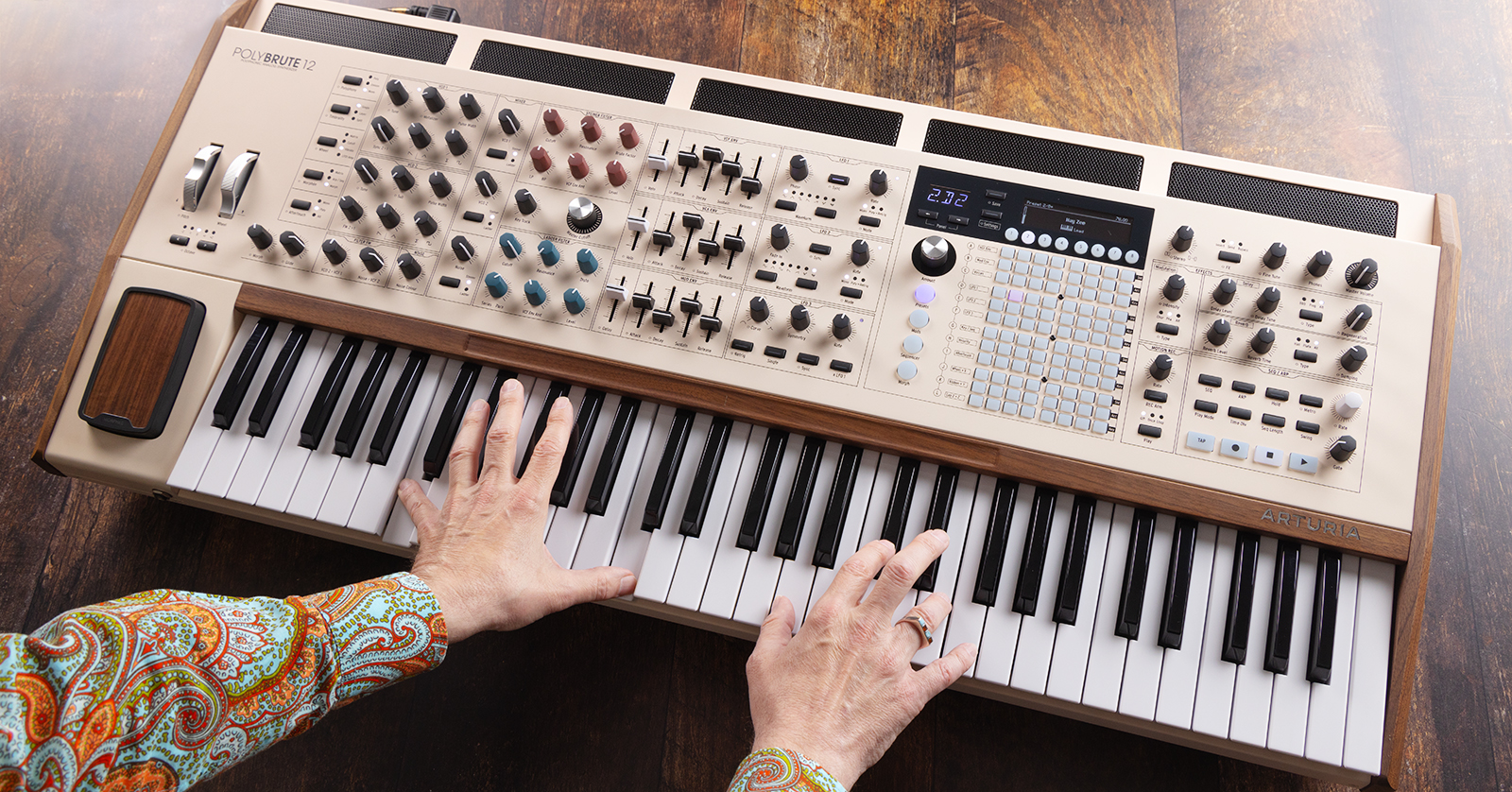
NOTE: This guide is for the Arturia PolyBrute 12 released in 2024. If you have the original Arturia PolyBrute, our SweetCare guide is at this link.
The Arturia PolyBrute 12 is a complex and powerful analog synthesizer that adds additional polyphony and new expressive features to its smaller sibling, the original PolyBrute. In this guide, we’ll help you get started, introduce you to the PolyBrute Connect editor-librarian app, and point out some of the PolyBrute 12’s unique features.
- Register Your Purchase with Arturia
- Create a Patch
- Performance Controllers: Arturia Morphée and Ribbon Controller
- Arturia FullTouch MPE Polyphonic Aftertouch
- Using the PolyBrute 12 Connect app
- Arturia PolyBrute 12 Tutorial Videos
Register Your Purchase with Arturia
Register
Take the time to register your purchase on the Arturia PolyBrute 12 installation page. Click Start Now, then log in to your Arturia customer account or create a new one. Follow the prompts, and enter your PolyBrute 12’s serial number and unlock code, which are found on the label on the underside of the keyboard. Once your purchase is registered, you can access Arturia’s product resources.
Download the User Manual
With a synth this powerful, there’s no substitute for reading the user manual. It’s good to have a digital copy for reference, so download it from the PolyBrute 12 Resources page. Scroll down to Manuals, then select PolyBrute 12 EN Manual.
Download the Arturia PolyBrute Connect app
Arturia PolyBrute Connect is a powerful editor/librarian app for the PolyBrute 12 and the original PolyBrute. It’s also used to update the firmware on your synth. You run the app on your Mac or Windows PC. You need version 3.1 or higher to work with the PolyBrute 12.
Download the newest version from the Arturia PolyBrute 12 Resources page. Scroll down to the bottom section labeled Software.
Connect your PolyBrute 12 to your Mac or Windows computer using a USB Type B data cable.
Launch PolyBrute Connect. You will be prompted to log in with your Arturia user name and password that you created when you registered your purchase.
Update the Firmware
From time to time Arturia will release a new firmware for the PolyBrute 12, which fixes bugs in the synth’s digital control, may add new features, and will provide compatibility with the newest version of the PolyBrute Connect app. Arturia makes updating easy. Here’s our SweetCare PolyBrute 12 Firmware Update guide.
Create a Patch
In the PolyBrute 12, you can create two separate parts (Part A and Part B) and morph them from one to the other in various ways. However, let’s keep things simple for now and create an initialized preset with one part, Part A.
Warming Up and Calibrating the PolyBrute 12
Before you create your first patch, let’s point out that since the Arturia PolyBrute is a true analog synthesizer, the internal components need time to warm up to operating temperature in order for the tuning to remain stable. This typically takes 5–10 minutes. If the tuning doesn’t seem settled after 10 minutes, run the calibration procedures. Learn more in the PolyBrute 12 User Manual > 2.3 Auto-calibrate PolyBrute 12.
Creating Your First Patch
Turn on the PolyBrute 12 and wait 10 minutes.
Press and hold the left arrow Panel button, then press the Presets button. Alternately, go to Settings, navigate to Preset Info, and select Init with the Assign 1 button.
Set the knobs and faders to create your patch, following the basic signal flow. Starting with the VCOs (voltage-controlled oscillators), move to the VCFs (voltage-controlled filters), then go to Modulation, using Envelopes, LFOs (low-frequency oscillators), and other sources.
(The PolyBrute 12’s Modulation Matrix is a powerful and complex feature that you will want to look into in more detail later.)
Then follow through the VCA (voltage-controlled amplifier) and any Effects you wish to add.
Learn more in the PolyBrute 12 User Manual > 3. Create a Patch.
Once you’re finished, name your preset and save it. There are multiple ways to do this; refer to the PolyBrute 12 User Manual > 6.5 Saving a Preset.
Performance Controllers: Arturia Morphée and Ribbon Controller
In addition to the traditional controllers for real-time expression that you are familiar with on synthesizers, namely the Pitch wheel and the Modulation wheel, the Arturia PolyBrute 12 provides two interesting features that are a lot of fun to play with.
Morphée
The rectangular wood panel to the left of the keyboard is the Morphée, Arturia’s proprietary touch controller. By stroking a finger left and right (X-axis), up and down (Y-axis), or by pressing the spring-loaded panel down while you slide your finger (Z-axis), you can morph parameters from a patch’s Part A to Part B. Touch the Morphée, and the display screen shows you the real-time position of your X-, Y-, and Z-axes. Learn more in the PolyBrute 12 User Manual > 12.4.4 Expression > Morphée Modes.
Ribbon Controller
In the center of the walnut panel between the keybed and the controls is a long, shallow groove routed in the wood. Stroke a finger along it, and you will discover that it’s an embedded ribbon controller. With each preset, you can program how it modulates the sound. Learn more in the PolyBrute 12 User Manual > 12.4.5 Expression > Ribbon Modes.
Arturia FullTouch MPE Polyphonic Aftertouch
The PolyBrute 12’s keybed provides FullTouch, Arturia’s novel implementation of polyphonic aftertouch with MIDI polyphonic expression (MPE). In addition to traditional aftertouch, which is a “second touch” that takes place at the bottom of the key travel, FullTouch enables a new kind of polyphonic modulation from the initial trigger point throughout the full range of travel of each key.
The Aftertouch button lets you choose from three modes:
- Mono. Conventional monophonic aftertouch
- Poly. Conventional polyphonic aftertouch, which applies modulation as set up in the Modulation Matrix to each key separately
- Alt. FullTouch
Engaging Alt opens a menu on the display to access FullTouch, which provides three algorithms:
- FullTouch Envelope. From the touch point, the VCF and VCA envelopes are controlled directly by the movement of your fingers.
- FullTouch. Notes are triggered at the touch point and sent to the Aftertouch modulation matrix.
- FullTouch + Z. Notes are triggered at the touch point, but aftertouch happens across two ranges: the FullTouch range sends a signal to the Aftertouch modulation matrix, while the traditional aftertouch at the bottom of the key travel sends a different signal to the Z modulation matrix.
Learn more in the Arturia PolyBrute 12 User Manual > 12. Settings > Expression Control > Keyboard.
Using the PolyBrute Connect App
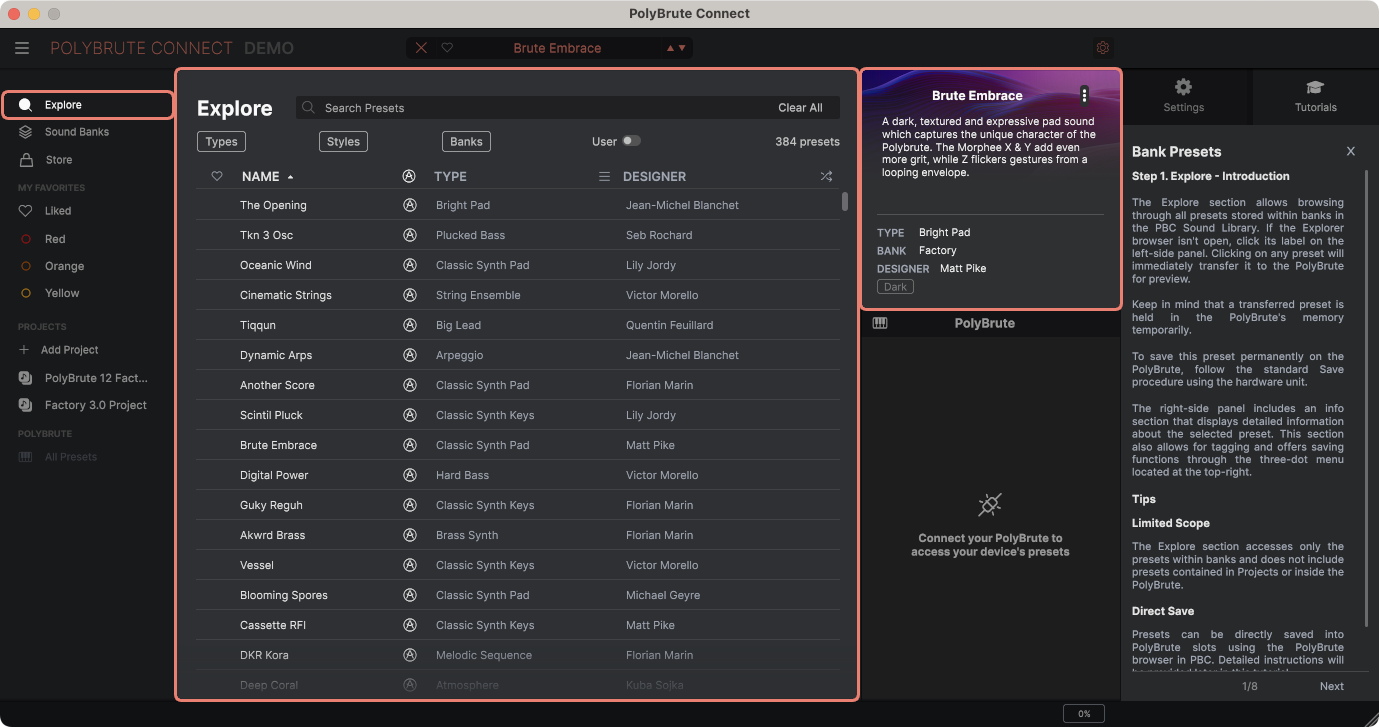
The PolyBrute Connect app
While you can program all of the PolyBrute 12’s patch parameters using its knobs and buttons and its built-in display screen, Arturia provides the PolyBrute Connect app to make it easier to program important settings that are hard to access on the hardware. Among its many features, the app lets you edit and save an unlimited number of presets, and load the ones you need into the PolyBrute 12. It’s also interactive with the hardware. With your PolyBrute 12 connected to your computer, as you program presets using the app, any changes you make to parameters are instantly reflected on the PolyBrute 12, and vice-versa.
For recording on your DAW, the app is also available as a plug-in. With your PolyBrute 12 connected to your DAW via USB, you can not only record your playing as a MIDI sequence, but also use the plug-in to automate parameters for expressive playback as well.
Note that the USB connection between the PolyBrute 12 and your computer transmits MIDI notes and control data, not digital audio. The PolyBrute Connect plug-in does not generate digital audio in your DAW; rather, it controls the PolyBrute 12 hardware. To record audio from your PolyBrute 12, you must connect its analog audio outputs to your computer’s audio interface.
Learn more in the PolyBrute Connect User Manual. Download the latest version from the Arturia Downloads & Manuals page.
You can also consult the Arturia FAQ > PolyBrute Connect on the support page.
Arturia PolyBrute 12 Tutorial Videos
Arturia Tutorials | PolyBrute 12 – Overview
Arturia Tutorials | PolyBrute 12 – FullTouch® Keyboard
Synth Clips with Daniel Fisher (playlist)
Related Articles
When you need help, Sweetwater has the answers!
Our knowledge base contains over 28,000 expertly written tech articles that will give you answers and help you get the most out of your gear. Our pro musicians and gear experts update content daily to keep you informed and on your way. Best of all, it’s totally FREE, and it’s just another reason that you get more at Sweetwater.com.

