
Korg wavestate Quickstart Guide

Getting started
In this guide, we will show you how to register, explain the fundamentals, and create a Performance on the Korg wavestate for the first time. Follow the sections below to get started.
Register the wavestate
Before we dive into using the wavestate, the first thing to do is to register the synth with Korg. If you register the device within the first 90 days of purchase, Korg will extend your warranty for an extra year, and you will also receive free bundled software.
- Go to the Korg product registration page and create or log in to your Korg account.
- On your account page, click Register A Product, fill out the required information, then click Save.
- Keep your Sweetwater invoice handy as you’ll need to enter the purchase date.
Register the software bundle
When you purchase the Korg wavestate, you’ll receive licenses for virtual instruments, effects plug-ins, Reason Studio’s Reason Lite, and also free keyboard lessons. All you need to do is go to the Korg License Center page, enter the bundle code number on the card that was included in the box, then click Submit. Once complete, you’ll receive licenses and activation instructions for each piece of software.
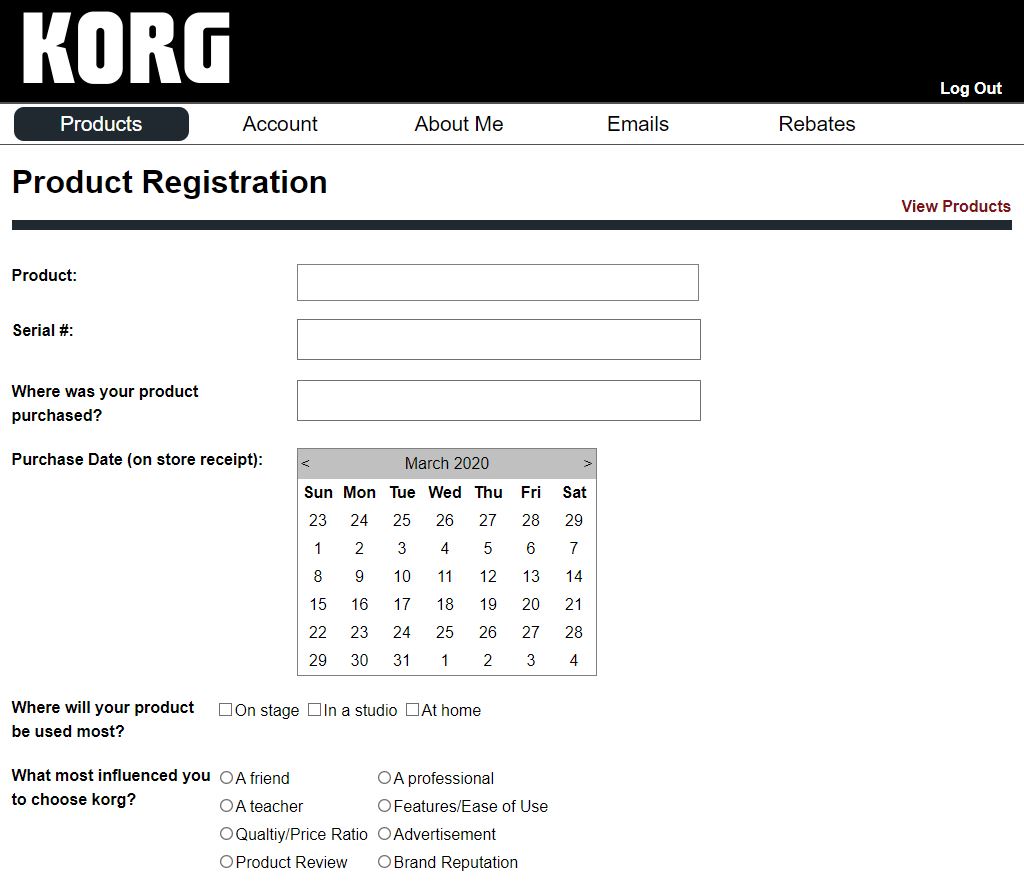
Click the image to register your hardware.
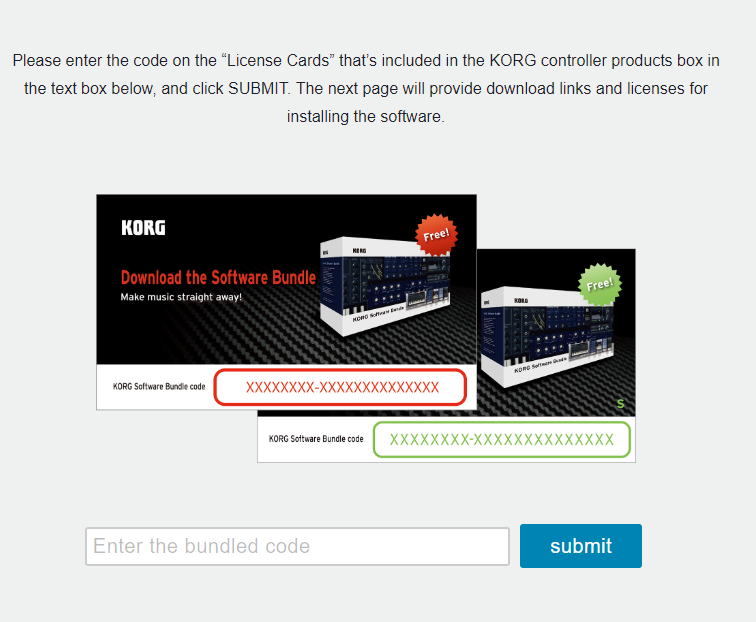
Click the image to register your software bundle.
Korg wavestate resources
This article only scratches the surface, so be sure to check out the Owner’s Manual, as well as the download for the companion Librarian software and its manual!
IMPORTANT: Please note that to use the wavestate Librarian software, you must be on firmware version 1.0.3. Be sure to check out our firmware upgrade guide, as well.
Performances, Layers, and Programs
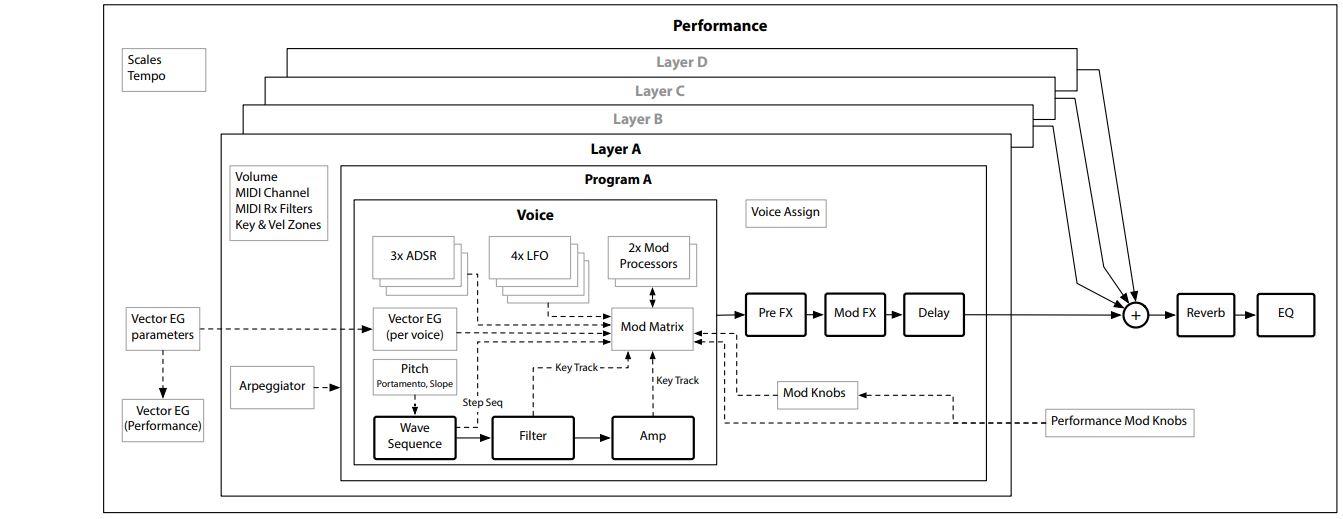
Sound structure of the wavestate. Click to enlarge.
- Programs are the building blocks and include the actual wave sequence, filter, modulation, etc. Check out the user manual to learn more about Programs, Wave Sequencing, and Lanes.
- Layers contain the Programs, Arpeggiator, Keys, and Velocity Zones. You can have up to four Programs per Layer. Pre FX, Mod FX, and Delay can also be applied to each of the four Layers. Learn more about Effects and Layer Setup.
- The Performance is the overall sound which consists of up to four Layers, the master EQ and reverb, as well as overall volume, octave, and tempo. You can also create a Set List which lets you group multiple Performances together. This is particularly useful for live gigs. Visit the user manual to learn about how to group Programs together to create Set Lists.
What are Lanes?
Lanes allow you to set different parameters at different lengths independently. There are seven types of Lanes. Master, Timing, Sample, Pitch, Shape, Gate, and Step Seq. Each Lane controls a specific parameter on each step within the layer, and each bank (A-D) can have 64 steps (16 steps in four banks) per Lane. Here’s a brief description of how each Lane parameter works.
- Timing: Adjusts the length, speed, and crossfade of each step. Use this in conjunction with the Sample Lane to create smooth crossfades and unique rhythmic patterns.
- Sample: This simply changes the sample of the selected lay. If you want to change the sound an individual step, hold ENTER and press the step you want to change.
- Pitch: In its simplest form, you can change the pitch, semitone, and transposition of individual steps. It’s different from an arpeggiator in that it is note-based and starts at every step, rather than notes that are time-synced.
- Shape: The Shape Lane lets you change the waveshape of the currently selected step. It can also affect the Pitch and Step Sequencing Lanes if it’s turned on in those lanes.
- Gate: The Gate will adjust how long the note is held for each step.
- Step Seq: This Lane works hand in hand with modulation. You can adjust the value of a particular type of modulation on a per-step basis.
- Master: Restarts all of the Lanes mentioned above after a specified time/beat. To turn it on, hold SHIFT and press the MASTER button.
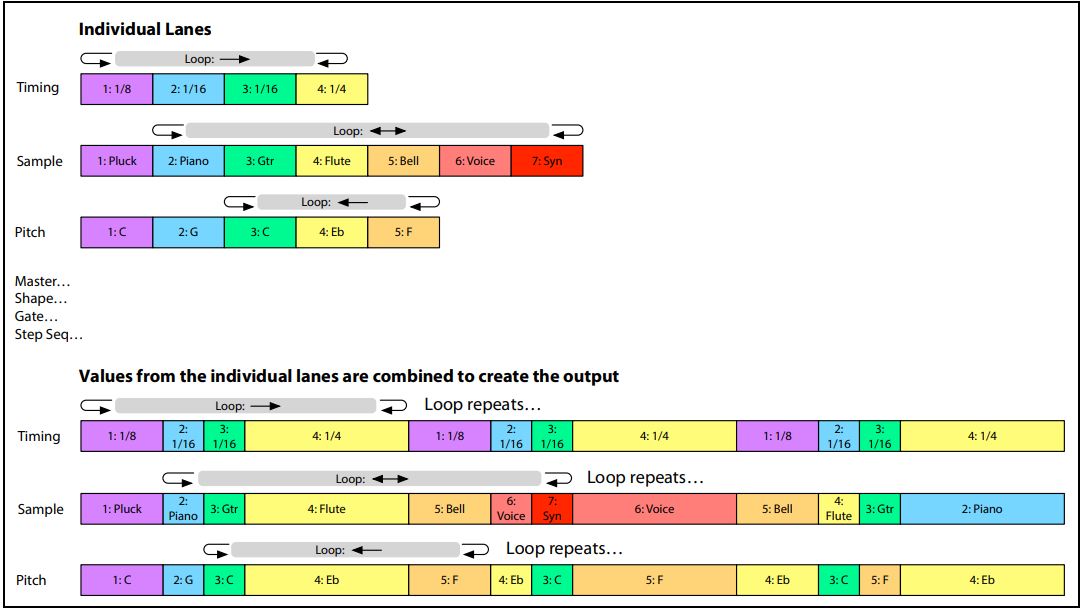
Lane structure of the wavestate. Click to enlarge.
Create a Performance on the wavestate
IMPORTANT: If you switch to a different Performance, you’ll lose any changes you made. Make sure to save often by pressing Write.
Now that you know the fundamentals of the wavestate, let’s create a Performance. On the main display, you’ll see the current layer selected, as well as all of the Lanes. When pressing a key, the progress bar for each Lane will move forward (and backward depending on the parameters). In its simplest form, think of each Lane as individual tracks in a DAW project.
- Press the PERFORM (Home) button to enter the main window.
- Turn the VALUE knob to select a sound, then press ENTER.
- To change between setlists, hold SET LIST and press buttons 1-4 to change banks.
- Once you’ve found a preset, press the WSEQ STEPS button to exit out of setlist mode, then select the layer you want to edit. Double tap to turn a layer off or on.
- Go through and edit any parameters you want.
- Pre-FX, Mod-FX, and Delay can be assigned on a per layer basis. The Reverb and EQ can only be applied to the entire performance. Access the EQ settings by holding SHIFT and pressing REVERB.
- Once you’re done editing, press WRITE to save it.
Editing Lanes
TIP: Hold SHIFT + RANDOMIZE to open pages which display useful shortcuts and tips for each section.
To access each Lane, just press the Lane parameter you wish to change in the WSEQ Lanes section, then use the accompanying knobs in the Mod Knobs section to adjust the parameter. You can also adjust the length of each Lane. To simplify things, let’s edit a Sample Lane on one layer so each step will trigger a new sample. For more information on Lane editing, be sure to check out the User Manual.
- Press the SAMPLE button then press the step where you want to change the sample. This will play the entire pattern on the layer.
- Hold ENTER and to solo the step you want to edit.
- Use the arrow keys and highlight MS, then use the VALUE knob to scroll through the samples.
- For quicker navigation through the samples, hold SHIFT and press the Right button to open the Filters & Sort Order window.
- Press the next step and follow the same procedure.
- If you want to add additional Sample steps to your layer, hold the SHIFT key, press the Right (Page+) button, then use the VALUE knob to change the action, scope, and number of steps.
- Use the Loop Start and Loop Stop knobs to adjust the range of the sample.
- You can also use the white Sample mod knob while in Performance Mod Knobs mode to change the performance in real-time.
Assign the Performance to a Set List
Once you’re done creating that perfect Performance, you can then assign it to a Set Lists. Set Lists allow you to group Performances together, which is particularly useful in live situations where you need to change something on the fly. You can also assign them to one of the four banks available, as well.
- Choose the Performance you want to assign, then press the SET LIST button.
- Hold WRITE, then press the slot number you wish to save it to.
- Press WRITE again and press ENTER.
Assigning to a Bank
- Hold SHIFT and WRITE, then press Bank button 1-4.
- Let go of the SHIFT and WRITE buttons, then hold WRITE and the bank button to assign it.
Related content
Creating an INIT (Initialized) Patch
Choosing a Filter Type
When you need help, Sweetwater has the answers!
Our knowledge base contains over 28,000 expertly written tech articles that will give you answers and help you get the most out of your gear. Our pro musicians and gear experts update content daily to keep you informed and on your way. Best of all, it’s totally FREE, and it’s just another reason that you get more at Sweetwater.com.

