
How to Import Impulse Responses
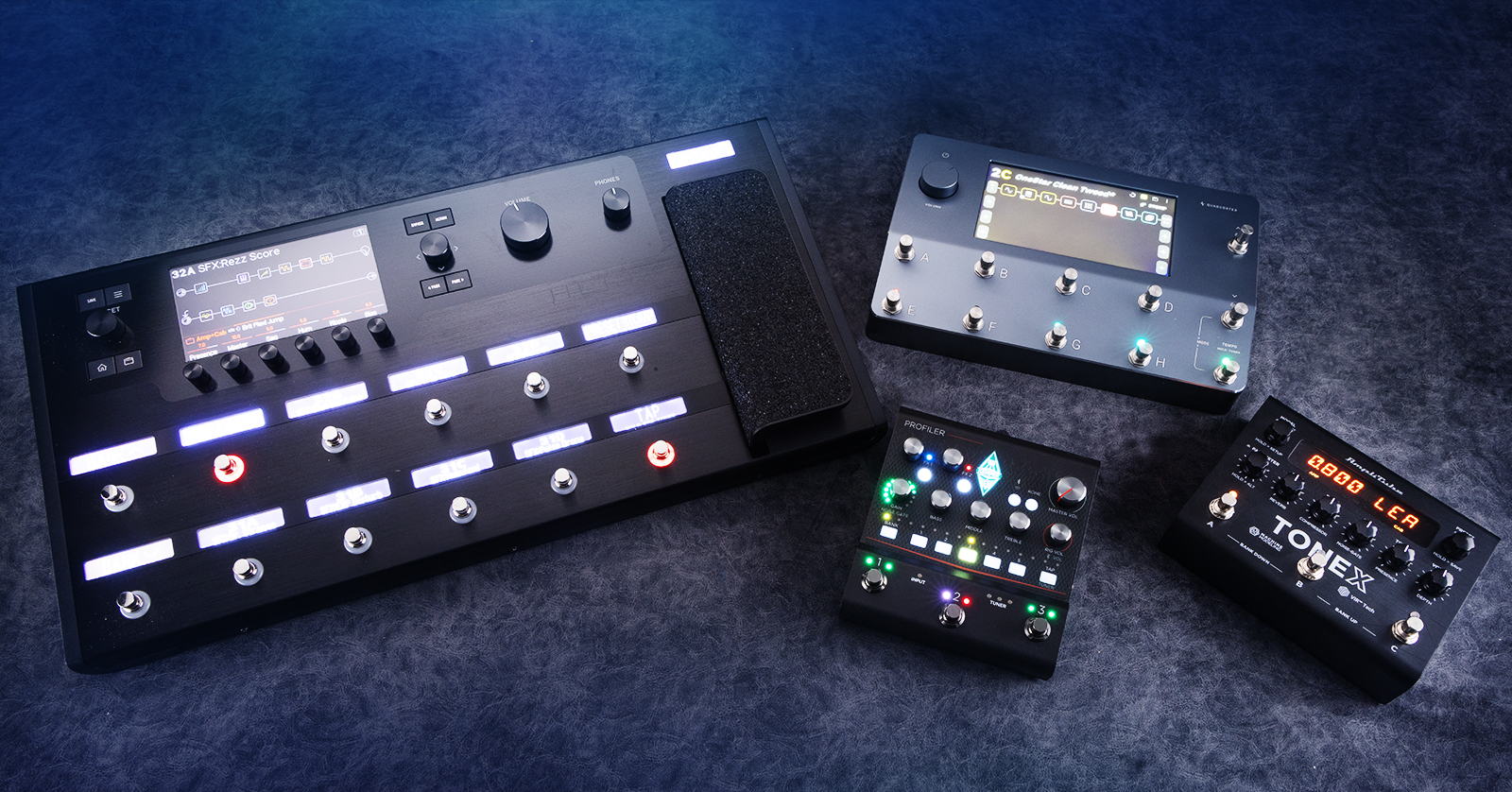
Guitar speaker cabinet impulse responses, or IRs, give a compatible amp or multi-effects processor the ability to emulate the sounds of many different physical speaker cabinets. There’s a growing range of products that let you load your own IRs. We wrote this article to help you get started.
- What Is an Impulse Response?
- How to Load an IR into Your Gear: Overview
- Upload IRs on Kemper Profiler
- Upload IRs on Neural DSP Quad Cortex & Nano Cortex
- Upload IRs on Line 6 Helix Stadium
- Upload IRs on the Original Line 6 Helix
- Upload IRs on IK Multimedia TONEX
- Upload IRs on Two notes Gear, Revv & Supro Amps
- Upload IRs on Hotone Ampero II
- Upload IRs on Valeton GP
- Upload IRs on Synergy, Tone King & Friedman
- Upload IRs on HeadRush Prime, Core & Flex Prime
- Upload IRs on Darkglass Anagram
- Upload IRs on BOSS Effects Processors
- Upload IRs on Fender Tone Master Pro
- Related Content
What Is an Impulse Response?
An impulse response (IR) is a digital measurement of the sonic characteristics of a physical acoustic space or an electronic signal chain. An IR is a short audio file. Once it’s created, it can be used to apply its sonic characteristics to an audio signal through a process called “convolution.”
For example, with a reverberation IR created from a specific concert hall, you can send a microphone signal through a convolution reverb that uses the IR to make it sound like you are performing in that hall.
In this article, we’re talking about IRs that model specific guitar speaker cabinets.
With a guitar amplifier that has a line output and an IR loader, or with a multi-effects unit that models amplifiers and supports IRs, you can play your guitar through the amp and apply the emulated sound of a specific model of speaker cabinet.
How to Load an IR into Your Gear: Overview
Generally, you’ll be starting with a collection of speaker cab IR files that you have downloaded to a folder on your Mac or Windows computer.
With most compatible amps and multi-effects units, loading IRs is done by connecting your device to your computer with a USB data cable. The manufacturer provides an editor/librarian app that runs on your computer and has a feature for importing IRs. When you import IRs into the app, the files are converted into the correct format and then uploaded to your device.
Once an IR has been transferred, you can create a preset that includes a cab block in the signal chain and assign the IR to that block. You may do this on the device’s display screen and controls or on the app on your computer.
In addition to loading IRs from your computer, some manufacturers provide an online, cloud-based tone-sharing community. There you can find IRs shared by other users and download IRs from the manufacturer to your device.
Some devices have Bluetooth and provide a mobile editor/librarian app for your phone or tablet. However, many of these don’t support loading IRs over Bluetooth, so you’ll still need the USB connection to your computer.
Other devices work over Wi-Fi and let you access their online community directly from the device, so you can download IRs without using a computer or mobile device.
Keep Your Owner’s Manual Handy
Here at Sweetwater, we’ve provided Quickstart guides for many makes and models of gear, and the list keeps growing. However, you’ll need to supplement our information with your trusty owner’s manual.
Upload IRs on Kemper Profiler
Kemper Profiler connects to your computer over USB. The Rig Manager app has a function for importing IRs.
Upload IRs on Neural DSP Quad Cortex & Nano Cortex
Quad Cortex & Quad Cortex mini
Quad Cortex connects to your computer over USB and uses the Cortex Control app, where you can drag and drop an IR file to upload it.
You can also log in to their community through your web browser and upload IRs to your account.
On the Quad Cortex, you can also use Wi-Fi to log in to their community and access your Cloud IRs without using your computer.
Learn more in our SweetCare guides:
Nano Cortex
Nano Cortex uses Bluetooth to connect to your phone or tablet running the Cortex Control mobile app.
On the app, log in to their community, where you can select and download IRs. The app will upload IRs to your Nano Cortex over Bluetooth.
Learn more in our SweetCare Neural DSP Nano Cortex Quickstart Guide.
Upload IRs on Line 6 Helix Stadium
The Line 6 Helix Stadium connects to your computer over Wi-Fi. Use the Helix Stadium app to load IRs, which are then uploaded to your Stadium unit.
Learn more in our Line 6 Helix Stadium Editor/Librarian App Guide.
Upload IRs on the Original Line 6 Helix
Units in the Line 6 Helix family connect to your computer over USB. Use the HX Edit app on your computer to load IRs.
Learn more in our SweetCare Line 6 Helix Family Setup Guide.
Upload IRs on IK Multimedia TONEX
IK Multimedia TONEX products connect to your computer over USB using the TONEX Editor app, which you use to log in to their community and download IRs or upload IRs from your computer.
Learn more in these SweetCare guides:
- IK Multimedia TONEX Pedal Setup Guide
- IK Multimedia TONEX ONE Quickstart Guide
- IK Multimedia TONEX Board Quickstart Guide
Upload IRs on Two notes Gear, Revv & Supro Amps
Two notes products, as well as tube amps from Revv and Supro that feature a direct out with a Two notes digital component, connect to your computer over USB and use the Torpedo Remote app. Through the app, you can log in to their community and download and purchase Two notes’ proprietary DynIR virtual cabinets. You can also load third-party IRs from your hard drive.
Learn more in these SweetCare guides:
- Two Notes OPUS Quickstart Guide
- Two notes Torpedo Captor X+ Reactive Load Box Quickstart Guide
- Revv Amplifiers with Two notes Quickstart Guide
- Supro Airwave Tube Combo Amp Quickstart Guide
Upload IRs on Hotone Ampero II
Ampero II Stage
Ampero II Stage has Wi-Fi. You can log in to their cloud community directly on the hardware and download IRs that way.
You can also connect your unit to your computer over USB and use the Ampero II Stage app.
Learn more in our SweetCare Hotone Ampero II Stage Amp Modeler Quickstart Guide.
Ampero II
Ampero II connects via USB to your computer, where you can use the Ampero II app to load IRs.
Learn more in our SweetCare Hotone Ampero II Amp Modeler Quickstart Guide.
Upload IRs on Valeton GP
Valeton GP-200
The Valeton GP-200 connects to your computer over USB. The GP-200 Setup app enables you to load IRs from your hard drive.
Learn more in our SweetCare Valeton GP-200 Guitar Multi-effects Pedal Quickstart Guide.
Valeton GP-150
The Valeton GP-150 connects to your computer over USB. The Valeton Suite app enables you to load IRs from your hard drive.
Learn more in the Valeton tutorial video at this link: Get started with the Valeton GP-150.
Upload IRs on Synergy, Tone King & Friedman
Synergy amps and pedalboard amps from Tone King and Friedman that use the Synergy engine connect to your computer over USB and run a brand-specific version of their app that permits you to load IRs.
Learn more in these SweetCare guides:
- Synergy SYN-20IR Amps: Synergy Editor App Guide
- Friedman IR Tube Preamps: Friedman Editor App Guide
- Tone King Imperial and Royalist: Tone King Editor App Guide
Upload IRs on HeadRush Prime, Core & Flex Prime
HeadRush Prime, Core, and Flex Prime units have Wi-Fi. Directly on the unit, you can log in to their community.
To load your own IRs into a HeadRush Prime unit, you need a Dropbox account.
From your computer, upload IRs to your Dropbox account.
On the HeadRush unit’s display, there’s a function for logging in to Dropbox over Wi-Fi. Download IR files from your Dropbox account directly to your unit.
Learn more in our SweetCare guides:
- HeadRush Prime and Core Quickstart Guide
- HeadRush Flex Prime Quickstart Guide
- HeadRush Remote Editor Quickstart Guide
Upload IRs on Darkglass Anagram
Darkglass Anagram connects to your computer over USB. The Darkglass Suite app lets you log in to their community and upload IRs from your computer.
Learn more in our SweetCare Darkglass Anagram Bass Multi-effects Quickstart Guide.
Upload IRs on BOSS Effects Processors
Some BOSS devices support loading your own IRs. Connect your device to your computer over USB and use the BOSS Tone Studio app for that model. Some models require the use of a separate BOSS IR loader app.
Sweetwater has guides for many BOSS products. Find links to them in our BOSS Tone Studio and BOSS Tone Exchange Guide.
Upload IRs on Fender Tone Master Pro
The Tone Master Pro connects to your computer over USB. The Fender Pro Control app lets you load IRs.
Learn more in our SweetCare guides:
Related Content
SweetCare: How to Create Guitar Amp Impulse Responses
Sweetwater Soundcheck: How to Use and Capture an Impulse Response (IR)
When you need help, Sweetwater has the answers!
Our knowledge base contains over 28,000 expertly written tech articles that will give you answers and help you get the most out of your gear. Our pro musicians and gear experts update content daily to keep you informed and on your way. Best of all, it’s totally FREE, and it’s just another reason that you get more at Sweetwater.com.

