
Revv Amplifiers with Two notes Quickstart Guide
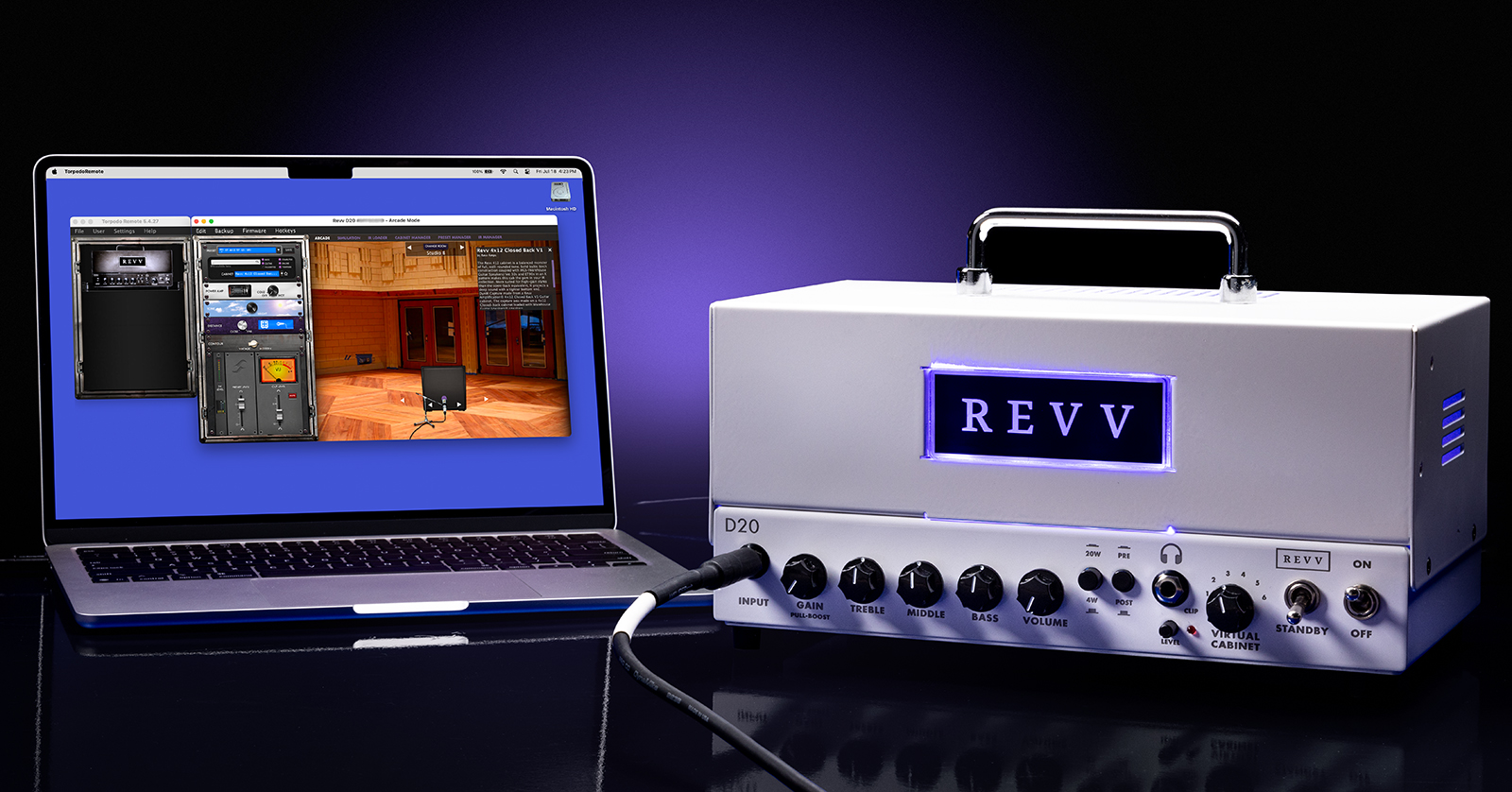
If you’ve got a Revv amp with a built-in Two notes reactive load box and digital module, then you’ve got a genuine tube guitar amplifier that provides a “silent stage” option and a range of speaker-cabinet emulations for live performance and recording. These models include the Revv Generator 120 MKIII, Generator 100 MKIII, Generator G50, Dynamis D40, G20, G25, D20, and Dynamis D25.
Connect your amp to your computer with the Two notes Torpedo Remote app, and you open a range of options for choosing your own custom DynIR cab emulations and configuring virtual microphone placement and tone-shaping controls.
We wrote this guide to help you get started with the Two notes technology built into your Revv amp. Let’s go!
- Register Your Purchase, Download the Manual
- Two notes DI Controls & Connections
- Using the Revv Amp with the Two notes Reactive Load Box
- Using the Revv Amp with the Two notes Torpedo Remote App
- Revv Tutorial Videos
Register Your Purchase, Download the Manual
To obtain your full warranty from Revv, go to their website.
Scroll all the way to the bottom of the page, and on the lower left, click “Warranty Registration.”
On the next page, fill out your information, including your model and serial number. Click “Submit.”
On the Revv Amplifier Support page, locate your model and download the User Manual. You’ll need to refer to it for all the other functions of your amp besides the Two notes features.
You must also download the Two notes Torpedo Remote app from the Two notes company website. We’ll cover that in the designated section below.
Two notes DI Controls & Connections
At the end of the signal chain of your Revv amp’s vacuum tube amplifier are two components built by the Two notes company: the reactive load box and the digital module which provides their DynIR impulse response (IR) speaker cabinet models.
Depending on your Revv model, on the front panel you’ll see these controls and connections for the Two notes components.
Front panel

Two notes controls on the front panel of the Revv Generator 120 amp head
Pre/Post button
In Pre mode, the full signal path of the tube preamp and the tube amplifier is sent to the Two notes unit, which provides the DynIR speaker cabinet emulation and effects that will then be sent to the line output.
In Post mode, only the preamp signal goes to the Two notes unit, which then provides an emulation of an alternate power amp circuit followed by the speaker cab emulation. This then goes to the line output.
Virtual Cabinet selector
Turn this to select between the 6 stored presets. You can create your own presets, with entirely different IR speaker cabinet emulations, using the Two notes Torpedo Remote app.
Clip LED and Level knob
The LED lights up red when the input or output stage of the Two notes module is overloaded, producing undesirable distortion. If this occurs, turn down the Level knob. If it’s still overloading, turn down the amp channel’s Master volume knob.
Headphones
Connect headphones with a 1/4-inch TRS plug.
Back panel

Two notes connections on the rear panel of the Revv Generator 120 amp head
Internal Load/Speaker button
Choosing the Internal Load position engages the Two notes reactive load box, silencing the Revv’s physical speaker connection while the tube amp’s output and the Two notes cabinet simulation are passed to the DI and headphone outputs.
In the Speaker position your amp operates as normal, connected to your physical speaker cabinet. Even when in the Speaker position, you can still use the Two notes digital emulation at the Torpedo Output. For example, you can send the signal with the emulated cabinet to your front of house mixer while you hear your guitar through the physical speaker cabinet.
Torpedo Output
Some Revv models have a single mono output, and some have Left and Right, for stereo. Connect XLR cables.
These balanced connections provide a direct output (DI) from the tube preamp and amplifier and the Two notes cabinet simulation, which you can send to your front-of-house or connect to an audio interface for recording.
Ground/Lift button
Toggle this switch to eliminate hum from a ground loop at the XLR outputs.
USB
NOTE: The USB connection is for control data to the Torpedo Remote app only; it does not transmit digital audio. To record the output from the amp to your computer or DAW, connect the analog Torpedo Output jacks to an audio interface using XLR cables.
Connect a USB-B data cable to your Mac or Windows PC, with an adapter as needed, to run the Two notes Torpedo Remote app to program and create presets, to load new DynIR speaker cabinet simulations, and to update the firmware.
Using the Revv Amp With the Two notes Reactive Load Box
Two notes has a support document on how to find the “sweet spot” for tube amp settings when using the reactive load box and the DI output — to get the best tone without prematurely wearing out the tubes. Learn more in their Recommendations: Which output volume for my amplifier?
Using the Revv Amp With The Two notes Torpedo Remote App

Two notes Torpedo Remote app with the Revv D20 on macOS
The Two notes Torpedo Remote app enables you to edit your own custom cab emulation presets which you can then upload to your Revv amp.
The app comes in two versions.
All Revv amps can use Torpedo Remote for Mac or Windows PC over a USB cable.
In addition, the Revv Generator 120 Mk III, Generator 100 Mk III, Generator G50 and Dynamis D40 have Bluetooth connectivity. On these models, you can use the Two notes Torpedo Wireless Remote app on your iPhone, iPad or Android mobile device.
With Torpedo Remote, you gain direct control over the presets in the amp, letting you not only select a different speaker cab IR but also manipulate virtual microphone selection and position, tone, and other parameters, all running on the Revv amp and going to the DI output.
Start with the computer-based app, because it’s capable of updating the firmware on your Two notes module.
Set Up the Torpedo Remote App on Your Computer
- On your Mac or your Windows PC, go to the Torpedo Remote page on the Two notes company website. Click Download Now.
- On the next page, select the newest version of Torpedo Remote for your version of macOS or Windows. Download it.
- In your Downloads folder, run the installer and follow the prompts.
- Connect your Airwave to your computer using a USB-B data cable (with an adapter as needed). Power up the Revv amp.
- Launch the Torpedo Remote app.
- Follow the prompts to create a user account with Two notes. Log in to the account.
- In the Declaration of ownership dialog, the app will detect your Revv amp and its serial number. Select Register and click OK. Don’t choose Guest mode; you won’t be able to update the firmware or access additional IR models.
Update the Two notes Firmware on Your Revv Amp
From time to time, Two notes will provide a firmware update to fix bugs and add new features to the Two notes digital module in the Revv amp. The app will prompt you if there is a firmware update. Follow the on-screen instructions.
The update may take several minutes. During that time, don’t quit the app, don’t disconnect the USB cable, and don’t turn the power off on the Revv amp. The app will inform you when the update is complete.
Set Up the Torpedo Wireless Remote App on Your iPhone, iPad, or Android Device
If you have one of the models of Revv amp equipped with Bluetooth, you can also use the Torpedo Wireless Remote app.
- On your iPhone or your iPad, download the Two notes Torpedo Wireless Remote app from the Apple App Store.
- On your Android device, download the Two notes Torpedo Wireless remote app from the Google Play Store.
Here’s how to pair your Revv amp with the app on your device.
- Enable Bluetooth in the system settings on your device.
- On your device, launch the Torpedo Wireless Remote app.
- Accept all the requested authorizations to enable the app to use Bluetooth and to search for your device.
- The Bluetooth pairing occurs within the Torpedo Wireless Remote app and not in your device’s system settings. The app’s connection window will search and detect your Revv amp.
- Input the PIN code to pair the Revv amp and your mobile device. The PIN code is printed on a card that comes in the box with your amplifier. If you misplace the PIN code, contact Revv support.
If the Revv doesn’t show up in the Devices menu in Torpedo Wireless Remote, then go to the Bluetooth settings on your device and unpair the Revv from the list of devices. Then repeat the procedure above.
Some phones need to have Location (GPS) activated to permit Bluetooth pairing.
Using the Torpedo Remote App with your Revv Amp

Two notes Torpedo Remote app’s Cabinet Manager
With the Torpedo Remote app on your computer or your mobile device, you can construct presets which contain your choice of:
- a DynIR virtual cabinet
- a virtual microphone model and its position versus the speaker cabinet
- tone-shaping effects for the virtual cabinet and microphone
- Levels for outputs
You can create presets using your own third-party IRs and load them into the app.
You can also preview additional DynIR cabinets that you can purchase from Two notes through the app.
Once you have constructed a preset, you can use the app to upload the preset into the Revv amp and assign it to one of the preset slots.
Revv Tutorial Videos
Revv provides these videos that demonstrate editing Two notes presets using the Torpedo Remote app.
Revv Amps: Revv’s HIDDEN @TwoNotestv Features!!!
Revv Amps: REVV G20 | CREATING PRESETS | Two notes, virtual power tubes, & more
Revv Amps: THE D20 SOUND (1/5) | Virtual Power Amps
Related Articles
When you need help, Sweetwater has the answers!
Our knowledge base contains over 28,000 expertly written tech articles that will give you answers and help you get the most out of your gear. Our pro musicians and gear experts update content daily to keep you informed and on your way. Best of all, it’s totally FREE, and it’s just another reason that you get more at Sweetwater.com.

