

How to Edit Audio in Pro Tools

In this article, we will show you how to edit audio in Pro Tools. If you’re a beginner you’ll learn the basics, but if you need to or haven’t done so yet, visit our guides for creating a session, creating tracks, and recording audio.
Edit window ruler and modes
In Pro Tools, the Edit window (Window > Edit) is where you view and edit your tracks & clips. The window can be set up to accommodate different editing styles like bars and beats (tempo-based) or minutes and seconds (free flow). Consider these when creating a Pro Tools session, but being able to change the Edit window’s settings on the fly can help get your work done faster.
Change main counter and Grid ruler
Before editing audio clips, consider whether you should edit the session with a ruler measure in either bars and beats or minutes and seconds. The Main Counter type determines the Edit window’s Grid, so if you are using a click track or metronome, Bars|Beats will likely be your choice. If a click track is not being used, then Min:Secs will work just fine, but it’s you who will determine what works best in a given session. If you’re not sure, try both. The Grid will reflect the Main Counter type, but you can view two simultaneously by selecting a second Sub Counter, too.
- Click the Main Counter Selector and choose the Main Counter type.
- Click Show Sub Counter and select the Sub Counter type for an additional counter type below the Main Counter.
Showing the grid
To make the Grid appear/hide, click the Grid button to the right of the time counter(s). The Grid’s ruler is based on your Main Counter type. Using Bars|Beats for the Main Counter and Min:Secs for the Sub Counter is reliable for many users. Now the Grid will sync with the bars & beats, but you can still see the timestamp in the Sub Counter.
Changing the scale and counter types.
Edit modes
While the Main Counter determines the Grid’s ruler, four available Edit modes determine how clips behave in the Edit window. Slip is the most common (and default) mode, but Grid is beneficial when clips need to snap to bars and beats. Depending on the particular session, some modes may be more valuable than others. Consider each of the four edit modes (below), and don’t hesitate to try a different one if it benefits your workflow. Ultimately, it’s up to you to determine what works best for the session.
- Slip: Clips move freely and do not latch onto the grid. Use this method when moving clips to exact positions.
- Grid: When moved, clips will latch onto the closest grid position. When used with a Bars & Beats Time Scale, clips will latch onto beats and sub-beats. While editing, hold the ⌘ key to engage Slip mode temporarily.
- Shuffle: In Shuffle mode, all clips will condense to the left. That means you can move a clip in between two other clips, and those clips will sandwich around the moving clip. Remove the clip, and the surrounding clips will shrink back together.
- Spot: With Spot mode, clicking a clip prompts you to enter the exact start or end time (depending on your Main Counter). This mode is handy when you know precisely where a clip must start or end.
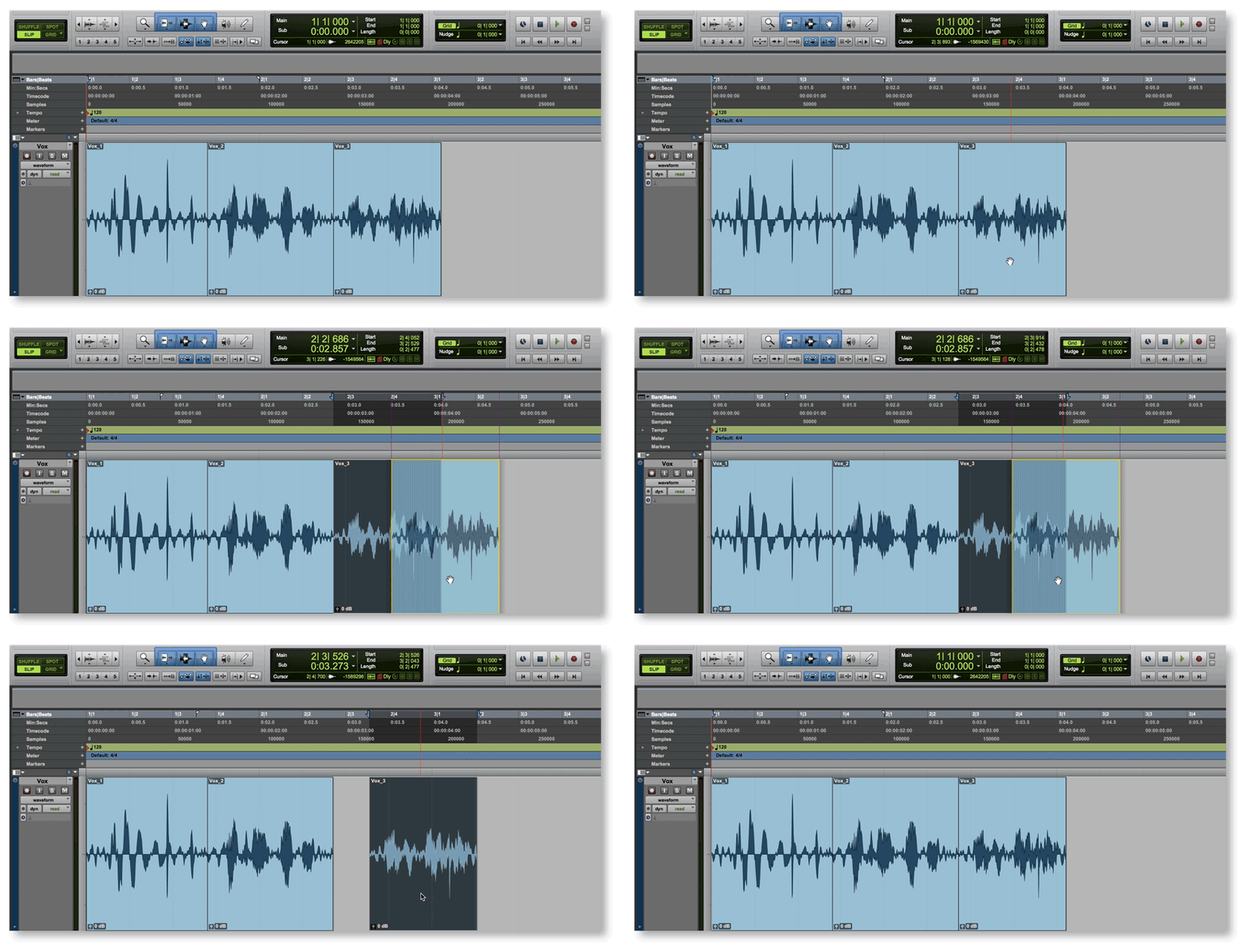
Slip edit
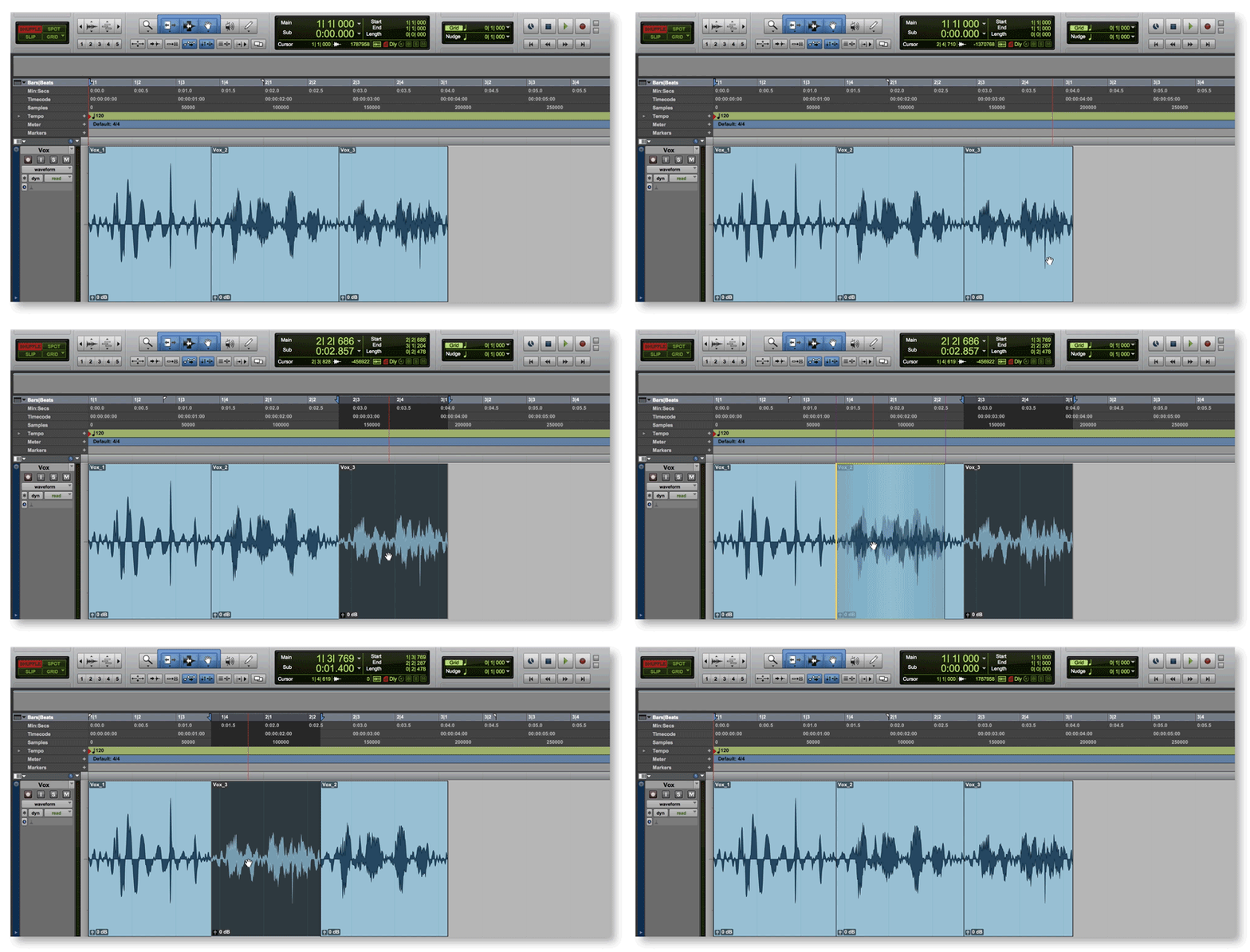
Shuffle edit
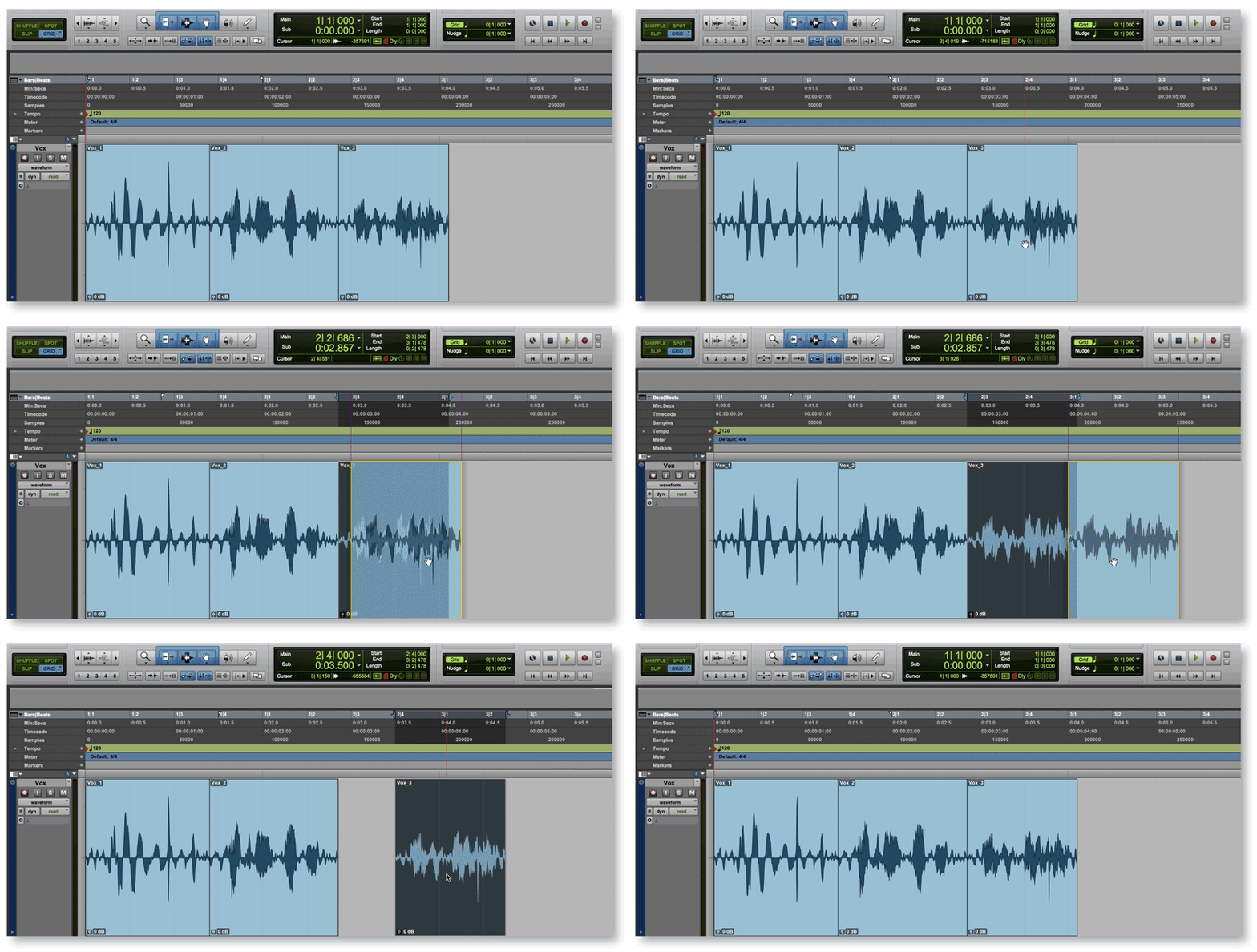
Grid edit
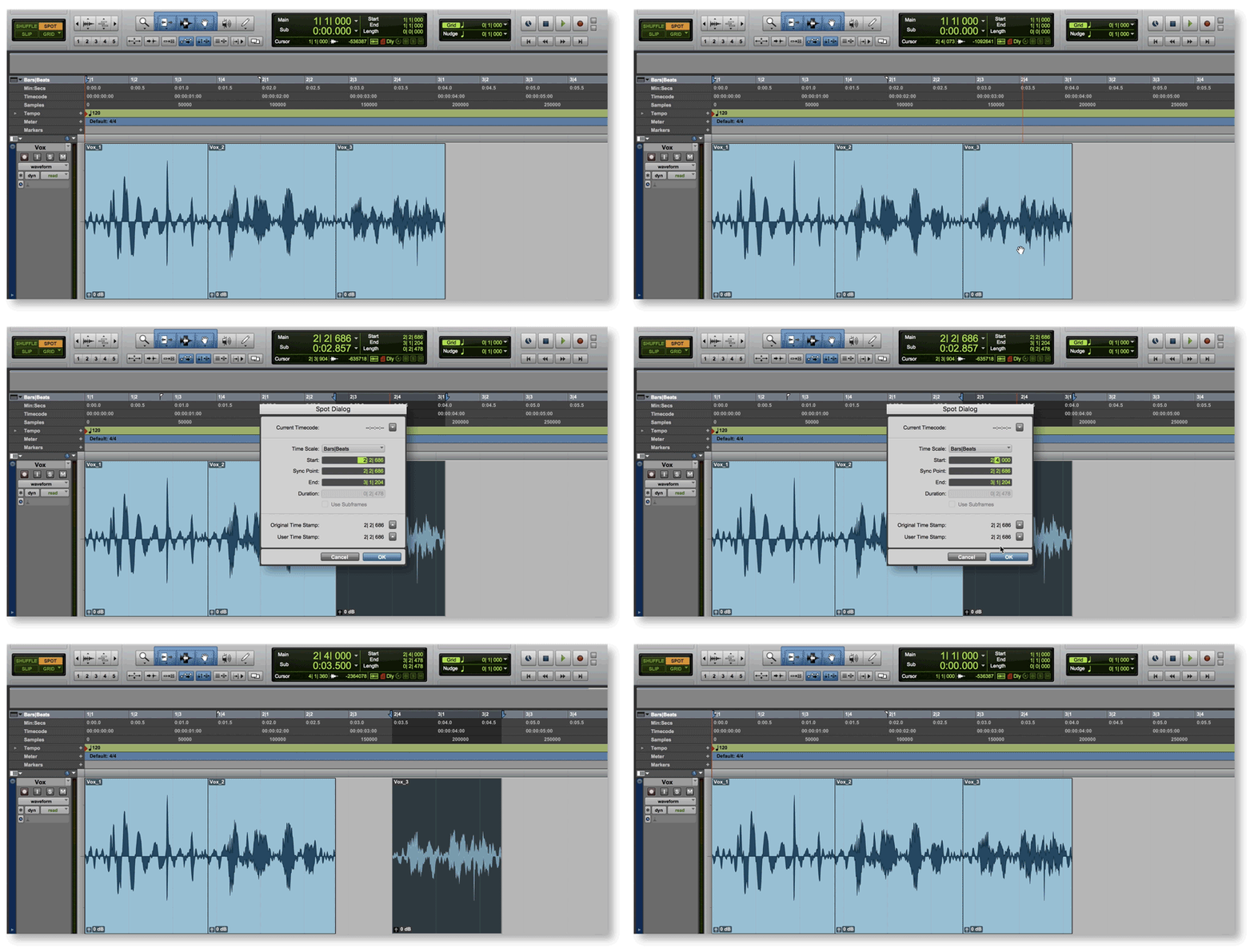
Spot edit
Editing tools
Pro Tools offers a few methods for editing audio. Knowing how and when to use each tool is beneficial to your workflow and editing skills. Depending on what you use Pro Tools for, some of the editing tools may be more preferable than others. Let’s discuss each editing tool:
- Trim tool: Use the Trim Tool to shorten or lengthen an audio clip. You’ll typically use this when removing the beginnings or ends of clips. This is helpful when removing extra noise before, after, and in between sections of audio. Trim will also work on an audio clip’s fades and crossfades.
- Selector tool: When you need to highlight or select a specific region, use the Selector Tool. Once selected, certain commands can be applied that that specific region. For example, pressing delete will remove the selected region from its clip. Copy (⌘ + c) and paste (⌘ + v) commands work just the same.
- Grabber tool (Time): To move clips forward and backward, or from one track to another, use the Grabber Tool. Click the clip and drag it to another point on the timeline. To copy and paste, select the clip using the Grabber Tool and copy it (⌘ + c). Use the Selector Tool to click where you want the copy to go and then paste it (⌘ + v).
- Smart tool: A “smart” editing feature built into Pro Tools is called the Smart Tool. The Smart Tool is a combination of the three tools listed above. Depending on where your mouse is, the Smart Tool will determine the most applicable tool. For example, placing your cursor near the beginning or end of a clip will enable the Trim Tool. Placing the cursor near the top half of a clip will engage the Selector Tool while the bottom half will use the Grabber Tool.
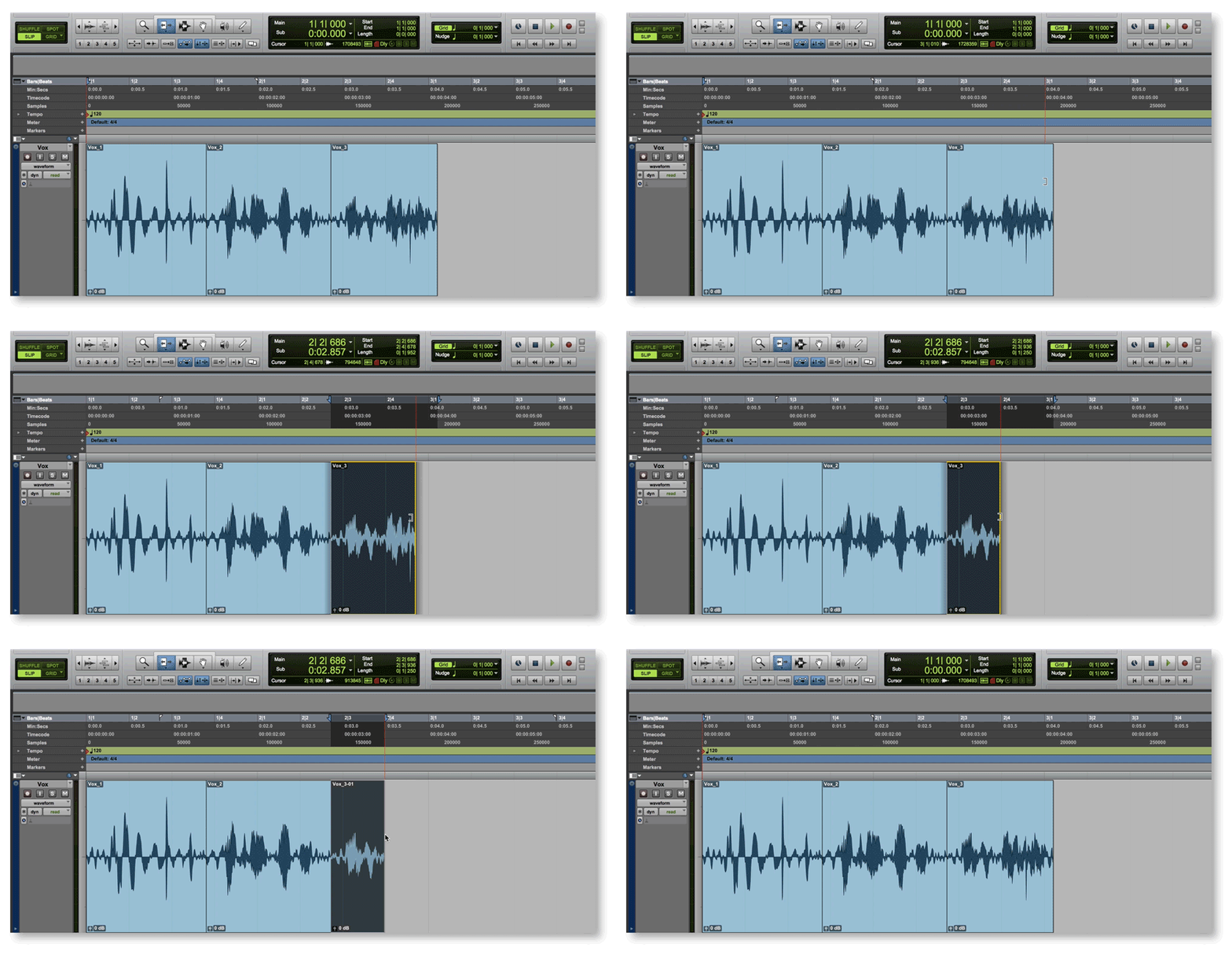
Trim tool
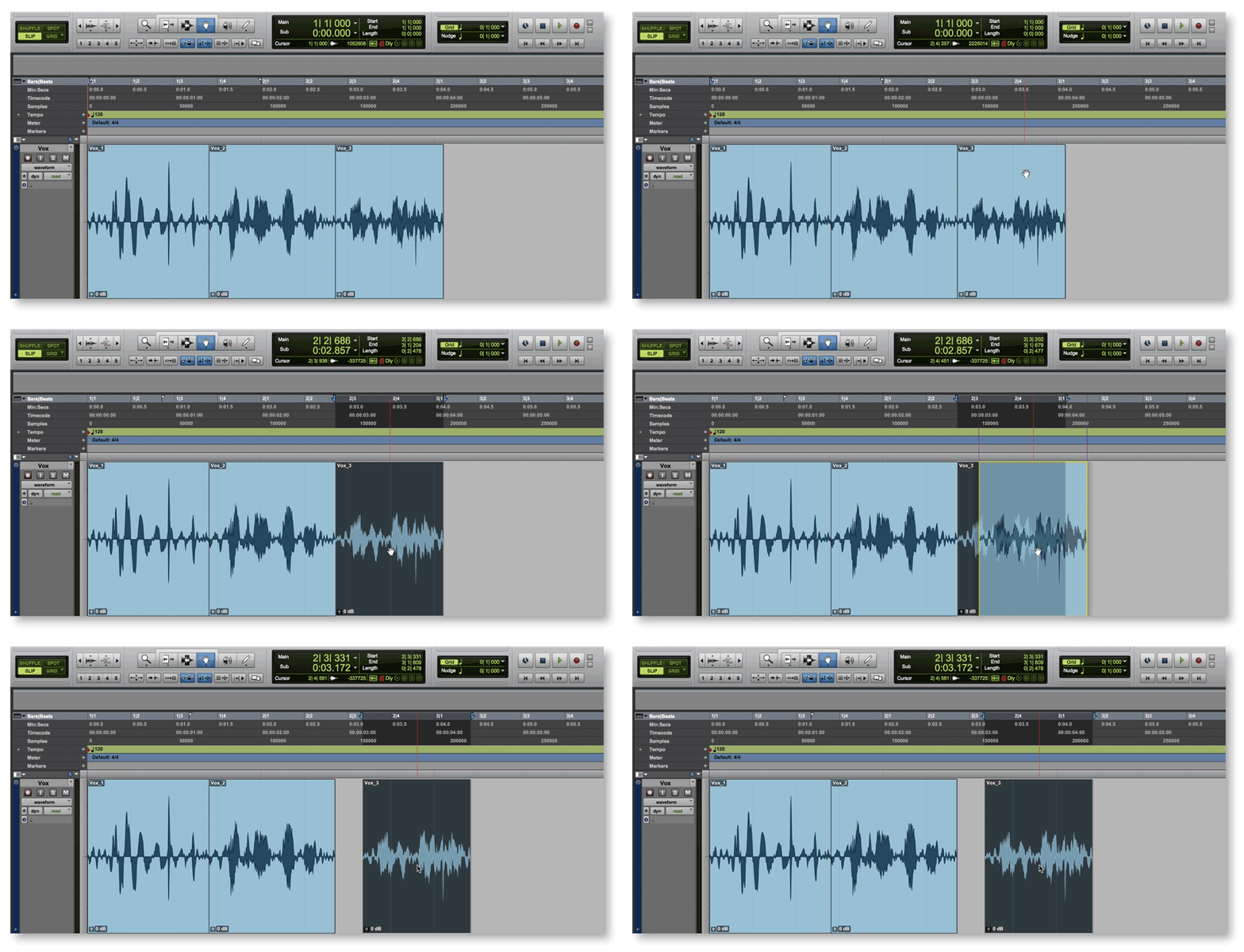
Grabber tool (Time)
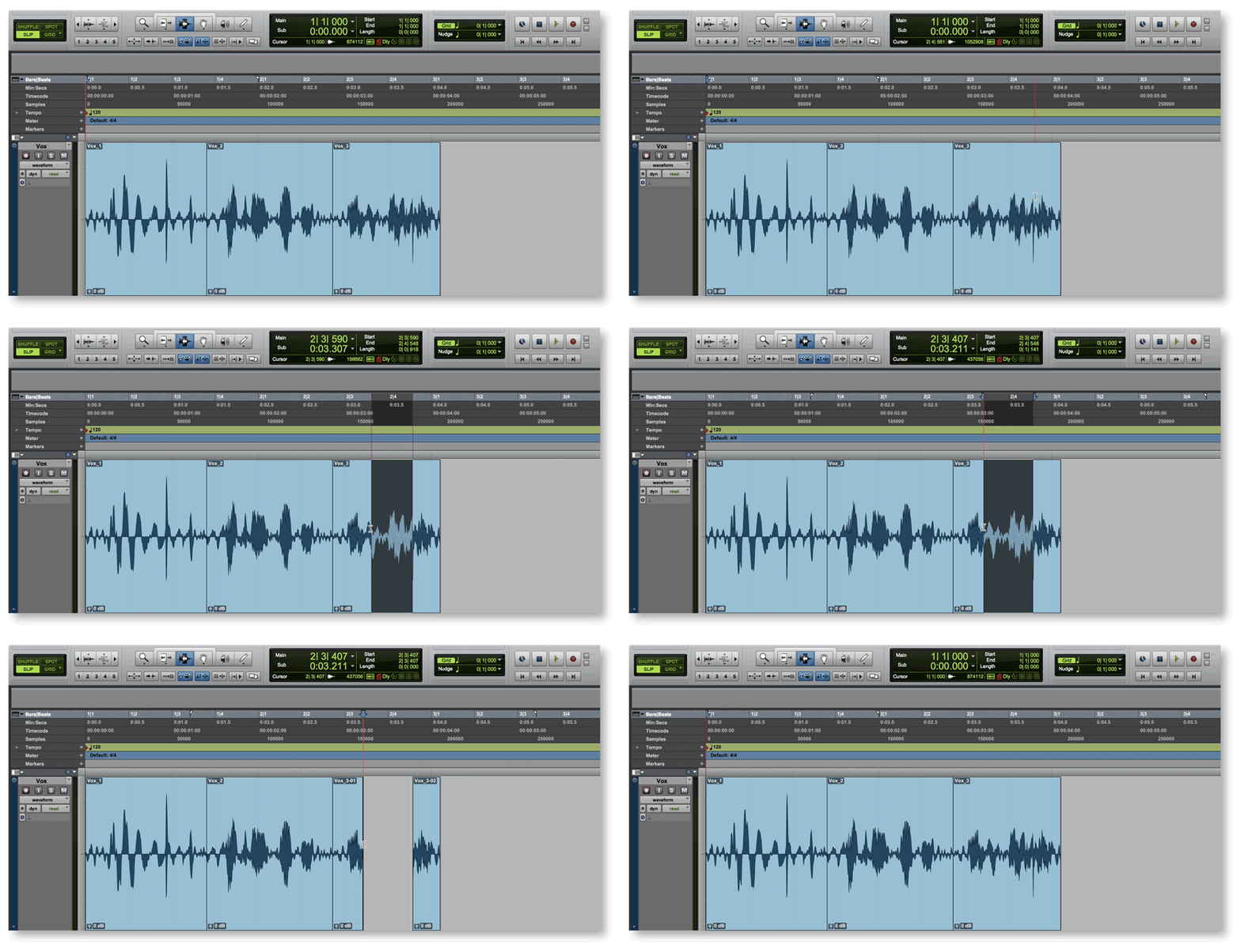
Selector tool
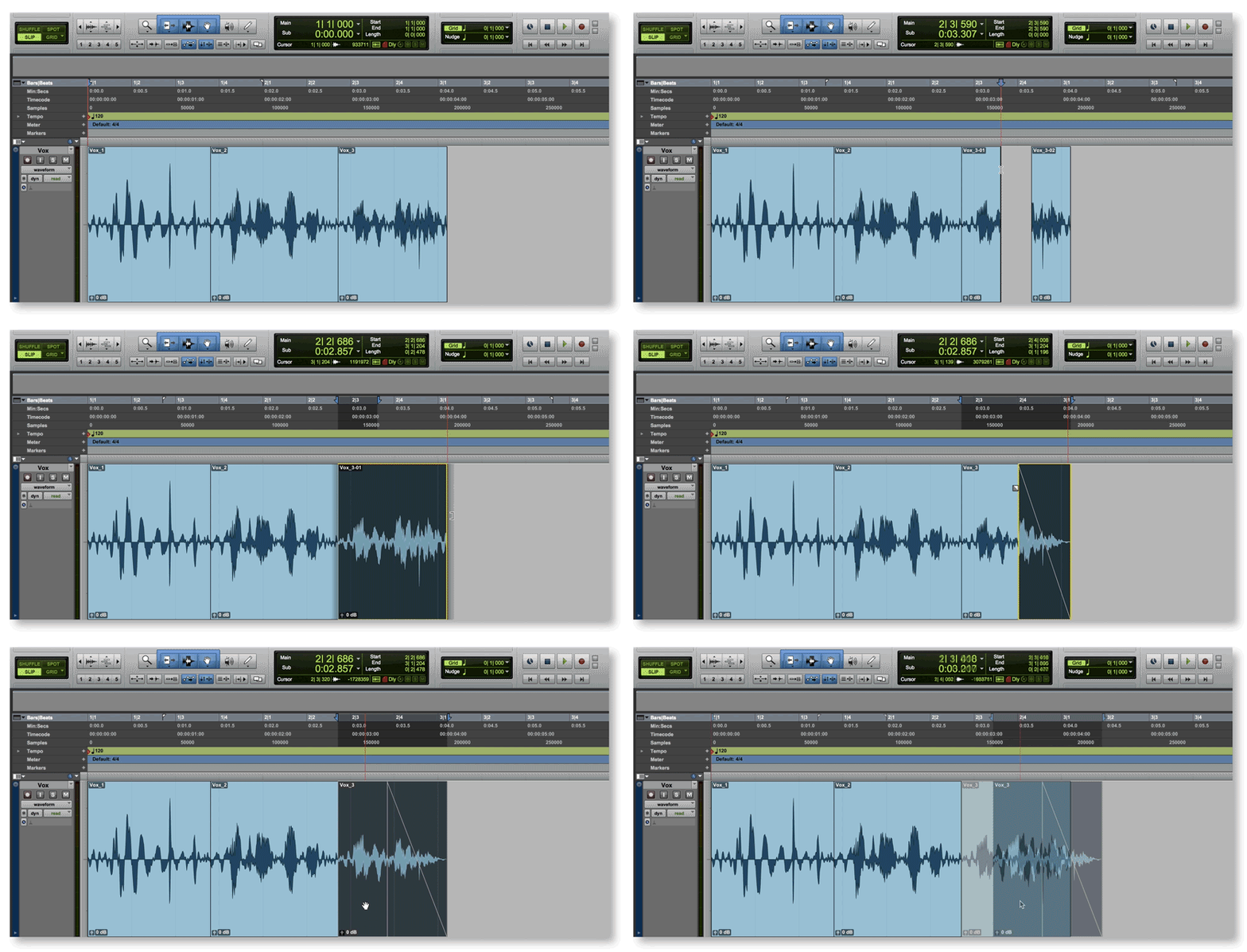
Smart tool
Fades and crossfades with the Smart Tool
The Smart Tool can also be used to create fades. With the Smart Tool engaged, move your cursor to the top right or left corner of a clip and the cursor will change to a fade icon. Click and drag to create a fade in/out. Using the Smart Tool fade on two adjacent clips will automatically create a cross-fade. Learn more about fades in How to Use Crossfades in Pro Tools.
Separating clips and editing Playlists
Pro Tools has quite a few useful features and shortcuts. Now that you’ve got the basics down, we’ll show you two editing tips we use all the time. For more tips, visit our page about New Time-saving Features in Pro Tools 2018. If you want to learn more about useful shortcuts, visit 28 Best Pro Tools Shortcuts You Should Know.
Cut or separate audio clips
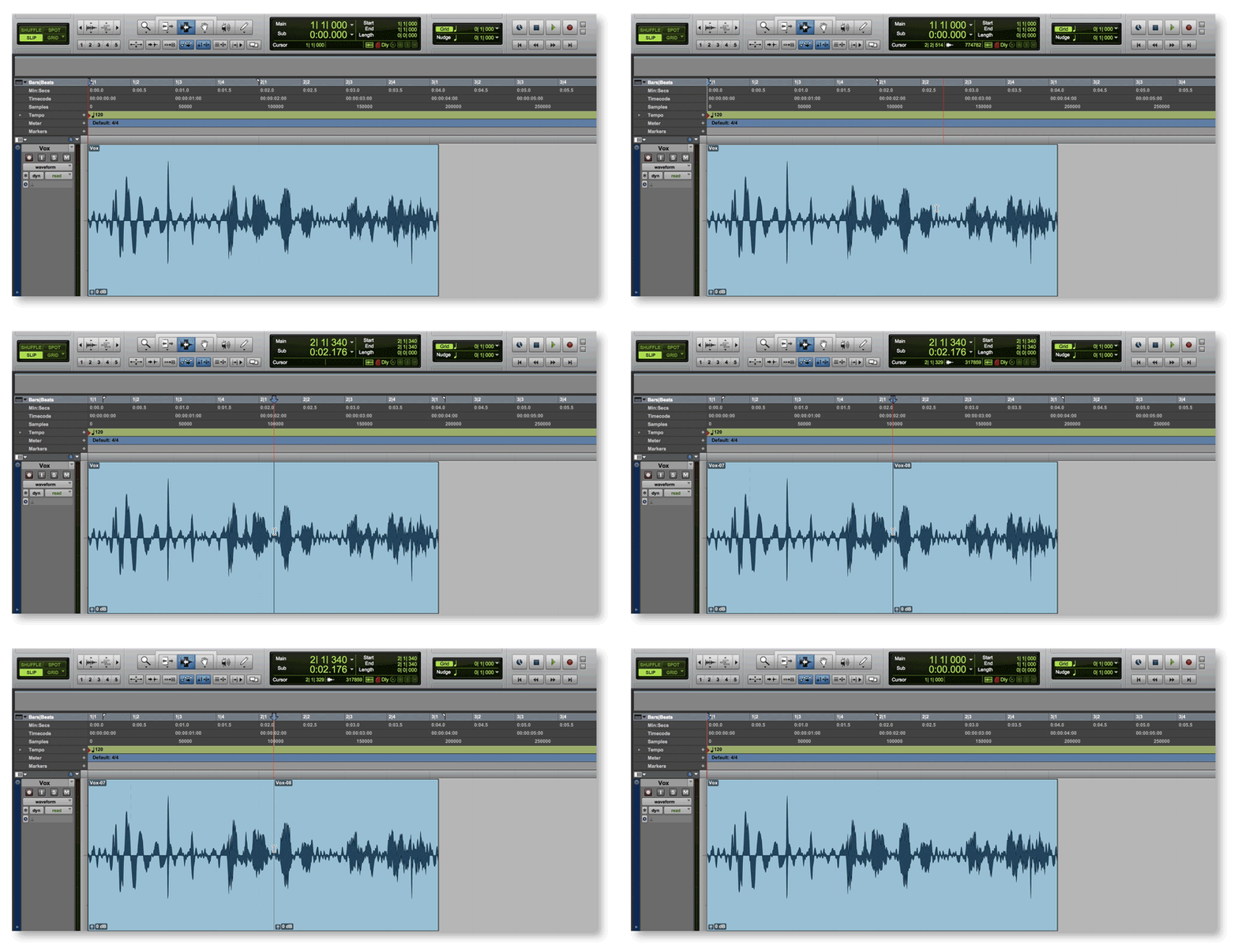
One of the most helpful editing shortcuts is Separate Clip at Selection. This cuts a clip into two separate clips. When a region is selected, it will even turn it into a new clip.
- Using the Selector Tool, click where you want to separate a given audio clip.
- Separate the clip into two by clicking the Edit menu, choosing Separate Clip, and then selecting At Selection (⌘ + e).
- Use the Trim or Grabber tools to adjust the respective clips.
Separate a selected region
Effortlessly turn a region into a clip with the Selector Tool. Just select the desired region and then use the Separate Clip function (⌘ + e). The selected region will now be its own audio clip.
Edit audio with Playlists
Another helpful tip for editing audio is to use playlists. Playlists are essentially additional takes of the same track. That means you can view all of the takes at the same time and then use the editing tools to stitch together a compilation of audio clips. Follow these steps to edit audio with playlists.
- Create a few playlists and record takes to each one.
- Create a new playlist to compile the audio edits.
- Using your editing tools, fill the compilation playlist with audio clips from the other playlists.
Manufacturer resources
Avid has created helpful video tutorials on their YouTube channel. Watch the videos below to learn how to use the zoom functions and tab to transient command.
Related Articles
When you need help, Sweetwater has the answers!
Our knowledge base contains over 28,000 expertly written tech articles that will give you answers and help you get the most out of your gear. Our pro musicians and gear experts update content daily to keep you informed and on your way. Best of all, it’s totally FREE, and it’s just another reason that you get more at Sweetwater.com.

