
How to Use Crossfades in Pro Tools
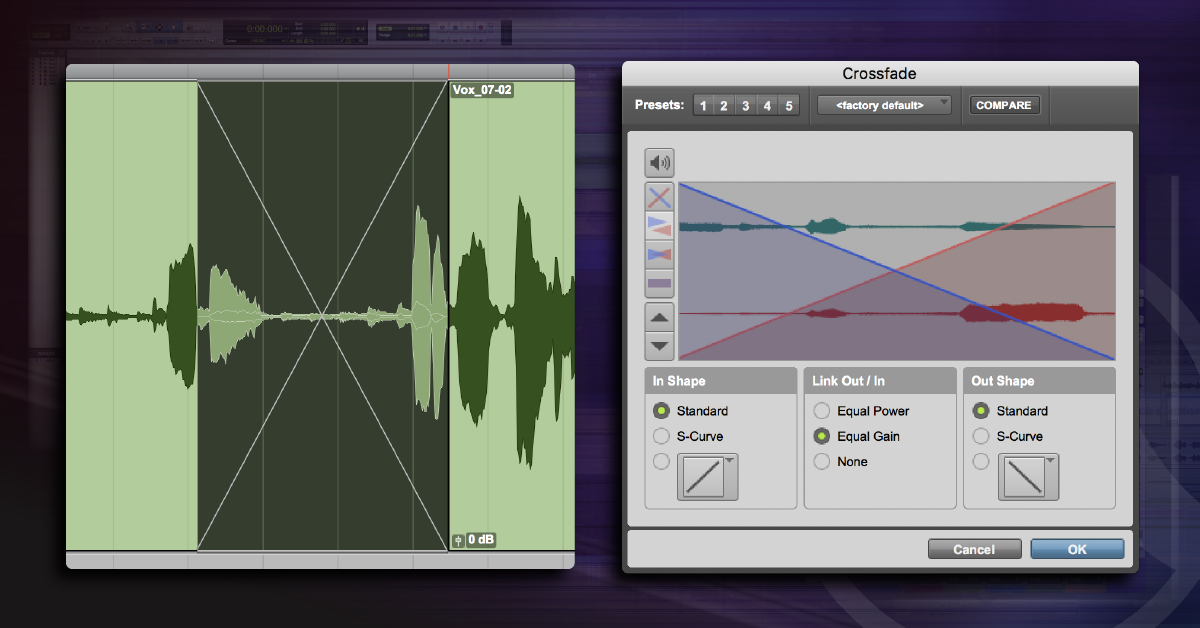
Crossfades are typically used to smooth the boundaries between regions where clicks or pops can occur, though they can also be used in more creative ways. The position, length, and shape of crossfades can all be adjusted in the Pro Tools Edit window.
Creating a Crossfade
You can create crossfades in a couple of ways: complex or easy. First, the complex method, using the Menu:
- Using the Selector Tool, choose the start and endpoints for the crossfade. (fig. 1). Notice that you don’t have to put the boundary in the middle of the crossfade, but be sure you don’t include any unwanted audio.
- From the Edit menu, choose Fades > Create. Or hit Command + F to open the Crossfade dialog box (fig. 2). In this window, you can choose from a number of presets and from several other options, including the in and out shape of the crossfade, whether to link the in and out shapes with either Equal Power or Equal Gain (fig. 2 shows the standard curve without linking in and out). You can also audition the crossfade by clicking on the Audio icon on the left side of the window.
- Click OK or hit Enter to create the crossfade (fig. 3 shows the crossfaded region selected, while fig. 4 shows the crossfaded region deselected).a

Creating a crossfade in Pro Tools with the Crossfade window.
Using the Smart Tool
And now for the easy method, using the Smart Tool:
- Turn on the Smart Tool by pressing F6 + F7. Move the mouse close to a region boundary, toward the bottom of the track. The cursor will change into a symbol that looks like a crossfade. Click and drag the cursor either to the left or to the right, and a crossfade will appear, centered on the boundary.
- Release the mouse, and a crossfade will form (fig. 5). Crossfades created with the Smart Tool will use the default fade shape set in Pro Tools Preferences under the Editing tab.

You can also use the Smart Tool to create crossfades in Pro Tools.
Related Articles
When you need help, Sweetwater has the answers!
Our knowledge base contains over 28,000 expertly written tech articles that will give you answers and help you get the most out of your gear. Our pro musicians and gear experts update content daily to keep you informed and on your way. Best of all, it’s totally FREE, and it’s just another reason that you get more at Sweetwater.com.

