

How Do I Update Drivers on My Windows PC?
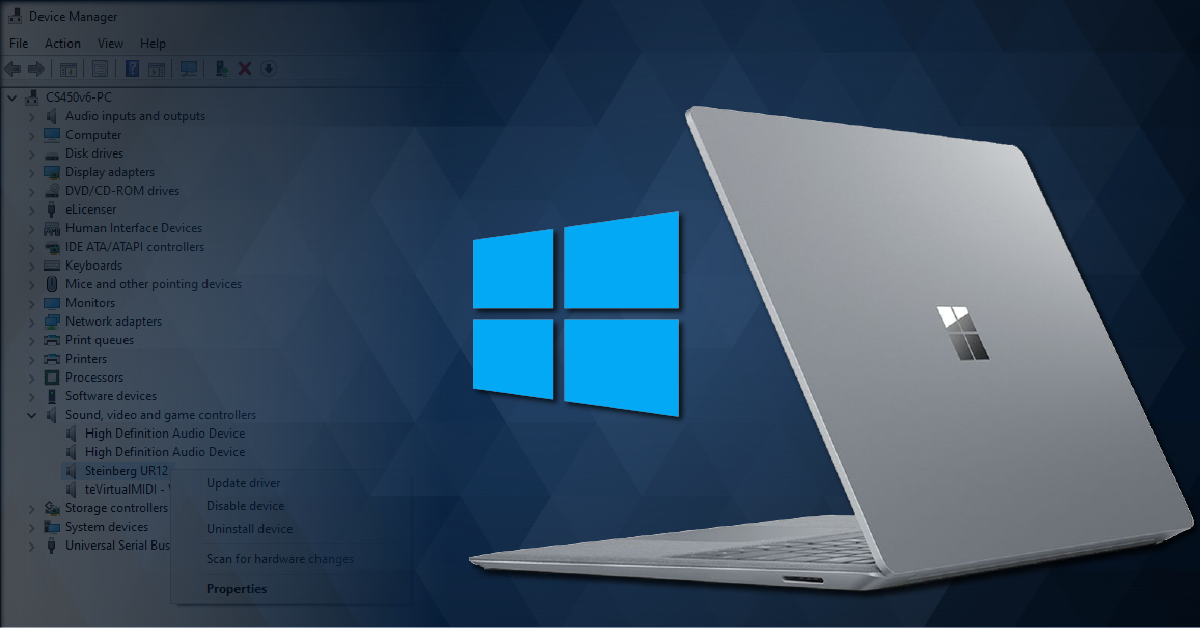
Getting started with Windows driver updates
In this article, we will show you how to install and update drivers on Windows 10. Your Windows PC requires drivers so it can communicate with hardware such as graphics cards, audio interfaces, printers, mice, and keyboards. Some peripheral drives are installed simply by connecting it to your computer (class-compliant), but most third-party devices often require an additional driver installation. We’ll break it down into four parts:
- How to update Windows 10 system drivers
- Unknown publishers
- How to install audio and MIDI device drivers on Windows
How to update Windows 10 system drivers
There are a few different ways drivers can be updated on Windows PCs: using Windows Update, using Device Manager, or manual installation. In most cases, updating using the Windows Update feature is fine. However, if a device isn’t class-compliant, like most audio interfaces or graphics cards, it’s recommended to manually install them. Follow the instructions below to learn how to update Windows 10 system drivers.
Windows update
The Windows Update feature is the simplest way to update drivers. Not only does it check for OS updates like Feature or Quality updates, but it also checks for system drivers. If there is an available update, Windows will automatically download and install them. Follow these steps to update drivers through Windows Update.
- Navigate to the Start menu, click the Settings (cog) icon, and then select Update & Security.
- Click Windows Update on the left side of the window, and select Check for updates.
Update through Device Manager
Another way of automatically updating drivers for network adapters, printers, keyboards, and other components is through Device Manager. You can also uninstall or disable the device, and also view the hardware’s properties (driver version, device status, etc.), if needed.
- Open Control Panel, and select Device Manager.
- Locate the category your device is in, right-click it and select Update driver.
- In the window that appears, select Search automatically for updated driver software.
Updating a driver through Device Manager.
Manually update drivers
Sometimes, Windows may install a generic driver package if it can’t find the correct one through Windows Update. Also, an automatic update may not install the latest version, so updating manually will ensure you have the latest version on your computer.
- Uninstall the current driver by navigating to Apps & features and clicking Uninstall.
- If the driver doesn’t appear in Apps & features, go to Device Manager, locate the device, right-click it and select Uninstall device.
- Go to the device manufacturer’s website, and then download and install the latest driver software installer.
- After installation, reboot your system.
Unknown publishers
IMPORTANT: Windows Security settings are for keeping your PC and data safe. Be cautious when installing third-party software. Remember to only download and install driver software directly from known and trusted developers!
Sometimes your device’s driver software might not be recognized by Windows as a known publisher, and you will receive a User Account Control (UAC) pop-up asking if you still want to allow the app to run. This is usually because either the installer doesn’t have a “digital signature” recognized by Microsoft, or it may not include keywords such as setup, install, or update. If the driver is from a known and trusted developer, click Yes or Run anyway when the window appears. Learn more about User Account Control and how it works.
Microsoft app recommendation settings
You may also receive a message which blocks the installer from running stating that Windows has prevented an app not verified by Microsoft from starting. More often than not, this window will appear if you have your App Recommendation settings set to Microsoft Store only. If you do receive this message, follow these steps to turn it off.
- Click the Windows start menu icon, begin typing Apps, and then click Apps & features.
- Go to Choose where to get apps, click the dropdown box, and change it from The Microsoft Store only to Anywhere.
- Close the Apps & features window, and then launch the installer again.
Allowing to choose apps from anywhere.
How to install audio and MIDI device drivers on Windows
Audio and MIDI devices require drivers to communicate with Windows 10 machines. Without the driver, your computer may not be able to interact correctly with the device. Some devices are considered class-compliant, meaning they do not require additional driver installation because the computer’s generic driver will work just fine.
Internet browsers, communication apps like Skype or WhatsApp, and music applications such as Spotify can run on standard audio driver protocols such as WDM or WASAPI. Most DAW’s, on the other hand, require the audio device to run on the ASIO driver protocol. If your audio device is class-compliant and you are using it in a recording environment, you will want to use ASIO4All. Learn more about audio driver protocols and ASIO4All.
Related Articles
When you need help, Sweetwater has the answers!
Our knowledge base contains over 28,000 expertly written tech articles that will give you answers and help you get the most out of your gear. Our pro musicians and gear experts update content daily to keep you informed and on your way. Best of all, it’s totally FREE, and it’s just another reason that you get more at Sweetwater.com.

