

Yamaha YDS Digital Saxophone Quickstart Guide
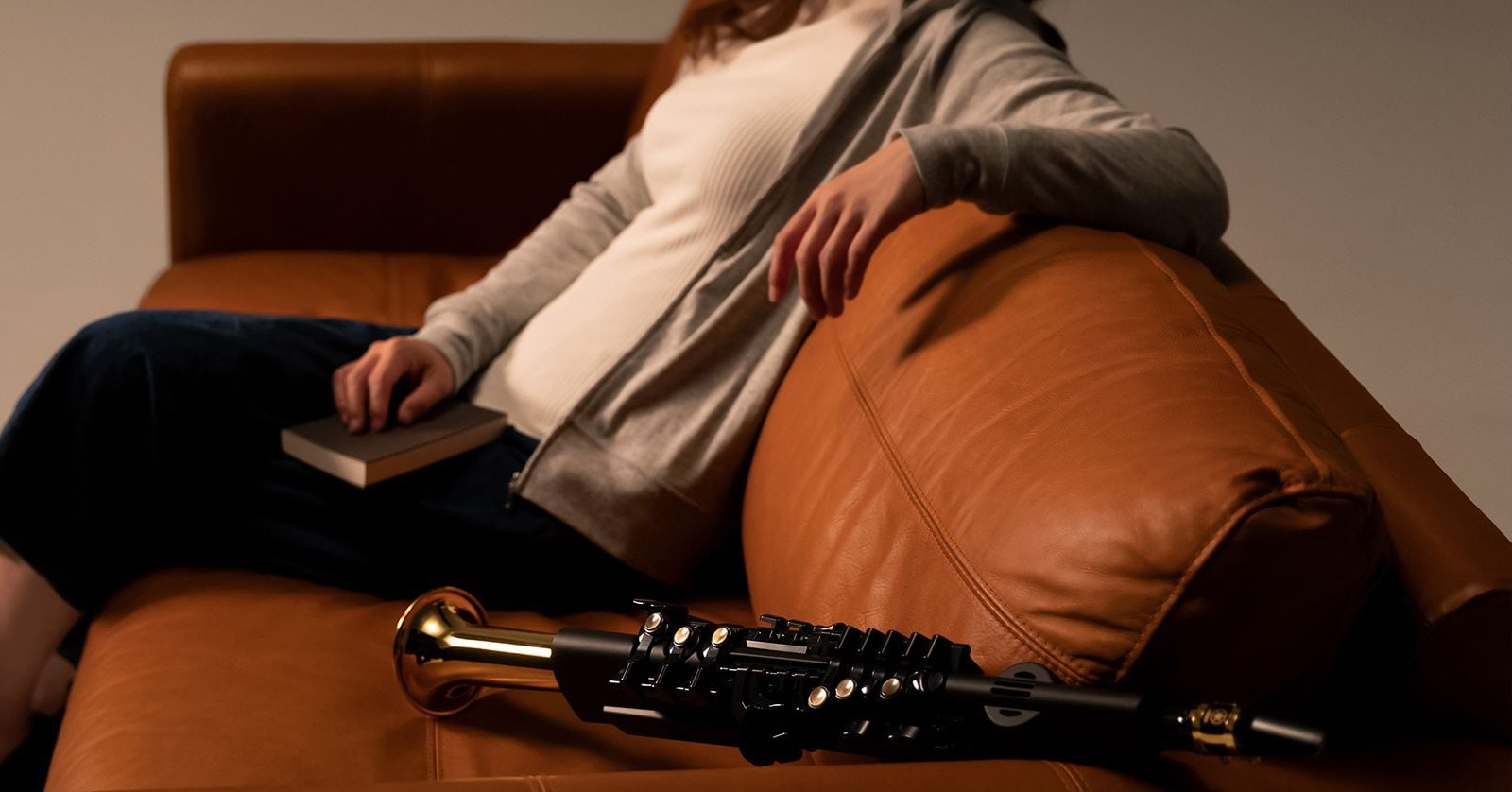
The Yamaha YDS-120 and YDS-150 digital saxophones are the latest generation in a long history of Yamaha electronic wind instruments. Let’s get started.
- What Is an Electronic Wind Instrument?
- Register Your Purchase, Download the Manuals & App
- Install the Driver & Update the Firmware
- Playing Sounds on Your Yamaha YDS
- What Is MIDI? The Yamaha YDS as a MIDI Controller
- Yamaha YDS Care & Maintenance
- Yamaha YDS Tutorial Videos
What Is an Electronic Wind Instrument?
The YDS digital saxophones are the culmination of Yamaha’s decades of experience in designing electronic wind instruments (EWI), going back to the 1980s. If you play saxophone, then a Yamaha YDS provides an instrument for practicing silently, emulating acoustic saxophones, and playing synthesizer sounds.
Your Yamaha YDS digital saxophone features:
- A breath controller mouthpiece that, while not the same as a reed and a mouthpiece on a conventional saxophone, senses your breath so you can start, sustain, and stop notes
- Keys that operate in the same fashion as a saxophone with fingerings that are very similar to the acoustic instrument
- An internal sound engine that creates the sounds of instruments in the saxophone family, from soprano to baritone, as well as synthesizer sounds
- An internal speaker that puts out enough volume for you to hear what you play
- Headphone output so you can practice silently. You can also use the headphone output to connect an audio cable to an amplifier, PA system, or audio interface for recording.
- Auxiliary input through a 1/8-inch TRS cable for playing along with backing tracks
- MIDI over USB to connect to a computer running a DAW and use the YDS as a MIDI controller to play virtual instruments
- Battery power so you can play without a power cable
Register Your Purchase, Download the Manuals & App
Register
Take a moment to register your YDS instrument with Yamaha.
Go to the Yamaha USA home page and click on the “My Account” icon in the upper-right corner (it looks like a person).
In the Yamaha Music ID panel, log into your account or create a new one.
From your account page, navigate to Product Registration and then click “Register my Product.”
Fill out all the required information, including your unit’s serial number, and click “Complete Registration.”
Download the Manual
Yamaha’s manuals are simple, straightforward, and helpful. You’ll need them for reference.
- Download the YDS-120 Owner’s Manual from the Yamaha product page.
- Download the YDS-150 Owner’s Manual from its product page.
Yamaha YDS Controller App
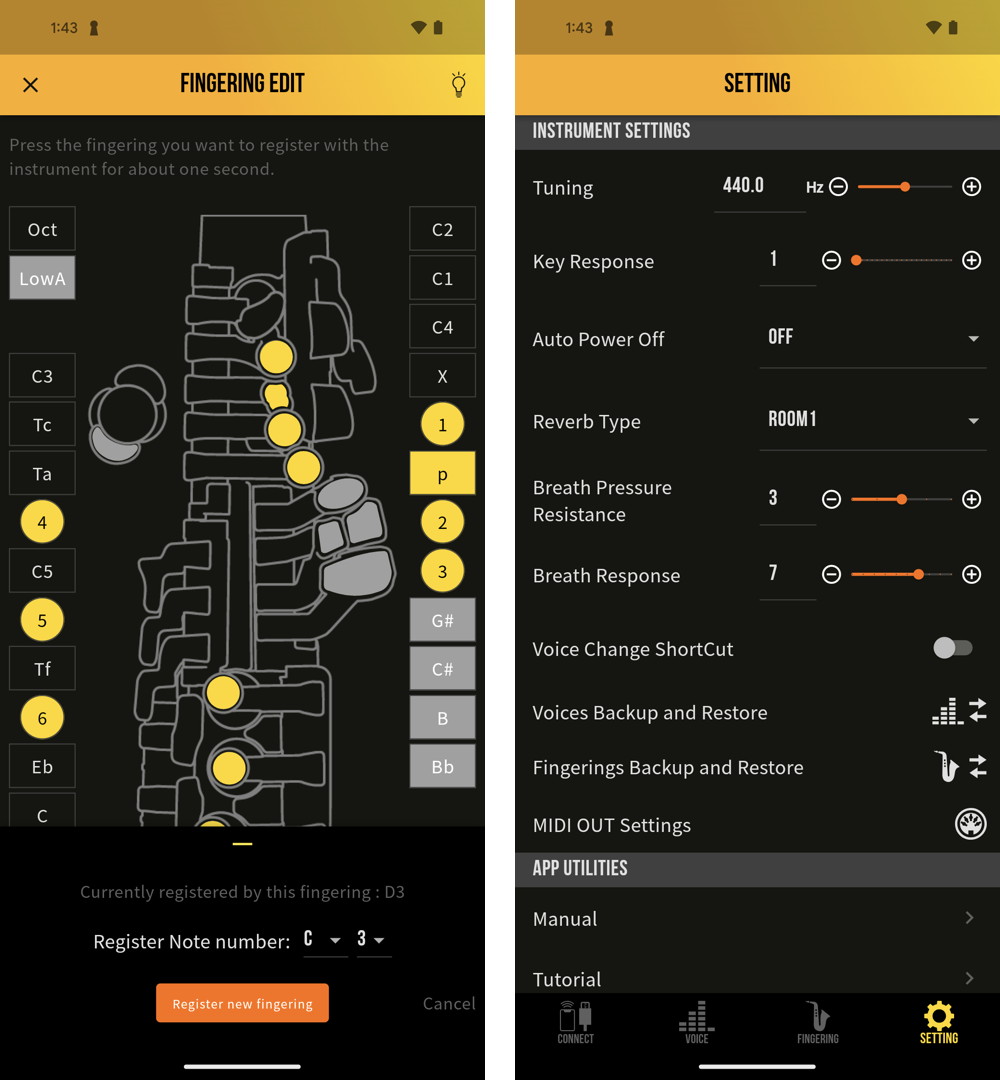
Two views from the YDS Controller app on Android
The Yamaha YDS Controller app for iPhone and Android expands the range of sound creation and makes it easy to adjust parameters, including customizing fingerings.
- On your iOS device, download the app from the Apple App Store.
- On your Android device, download the app from the Google Play Store.
The YDS-150 connects to the YDS Controller app wirelessly over Bluetooth.
Because the YDS-120 does not have Bluetooth, to use the app you will need a USB data cable with a micro-USB plug on one end and a USB-C plug on the other to connect the instrument to your mobile device.
Here’s Yamaha’s tutorial video:
YDS-150 Digital Saxophone Tutorial: Connecting and Using the App
Learn more in the online Yamaha YDS Controller Manual.
Install the Driver & Update the Firmware
Driver
NOTE: The YDS-120 and YDS-150 can connect to your computer with a USB cable to transmit MIDI for playing virtual instruments in a DAW. The YDS-120 and YDS-150 do not transmit audio over USB. To record the sound from your YDS instrument to a DAW, use an 1/8-inch audio cable to connect the Phones output from the YDS to an audio interface connected to your computer.
If you’re on Windows, then you must install the Yamaha Steinberg USB Driver so that your YDS can send and receive MIDI data to your computer over USB.
You must make sure that you have a micro-USB data cable, not a charging cable, and an appropriate adapter to connect to your computer.
- On your Windows PC, go to the Yamaha YDS-150 Downloads page.
- Under Firmware/Software, find the newest version of the driver. Click the link to go to the driver’s support page.
- Read the License Agreement, click “Yes, I agree,” and then download the installer.
- In your Downloads folder, unzip the download.
- In the resulting folder, run the setup.exe file. Follow the prompts to complete the installation.
If you’re on macOS, then no driver is needed.
Firmware Update
This procedure is for the YDS-150 only. If you have a YDS-120, then skip this section.
The YDS-150 is a digital device that runs software internally. From time to time, Yamaha may release a firmware update that fixes bugs and may add improvements and/or new features.
When you first get your new instrument, check to see if there’s a new version of the firmware and install it.
The firmware update is installed from your computer to your YDS-150 over the micro-USB cable connection.
You must make sure that you have a micro-USB data cable, not a charging cable, and an appropriate adapter to connect to your computer.
- On your computer, go to the YDS-150 Downloads page.
- Under Firmware/Software, click on the link for the newest firmware updater.
- On the information page, under License Agreement, click “Yes, I agree,” and download the update file.
- In your Downloads folder, unzip the file.
- In the resulting folder, you’ll see an Update Guide PDF, and a file ending in .bin, which is the firmware update.
Read the instructions in the Update Guide. You can use the app to display the version number of the firmware on your YDS-150 to determine whether your unit requires an update. If so, then follow the instructions to perform the update.
Playing Sounds on Your Yamaha YDS
Batteries & Power
You can power your YDS with four AAA batteries, either alkaline or rechargeable NiMH (nickel-metal hydride). Since the YDS cannot recharge batteries internally, you’ll need to remove rechargeable batteries and put them in an external charger.
The other option is to power the unit via USB. You’ll need to provide a micro-USB to USB-A cable connected to a 5V power adapter or a USB mobile battery (not included).
Learn more in the YDS-150 Owner’s Manual > Before Playing > Power Requirements.
Use the Speaker or Connect to Headphones
Power on the unit, and you can play through the built-in speaker.
For silent practice, with the unit turned off, connect headphones with an 1/8-inch TRS cable. After you turn the power on, use the Volume buttons below the display screen to gradually increase the volume.
Play!
Connect a saxophone strap to the strap hook on the back of your instrument.
The YDS-150 has a mouthpiece with a synthetic reed and ligature. For instructions on assembling them, consult the YDS-150 Owner’s Manual > Setting the Reed and Ligature.
The YDS-120 has a plastic mouthpiece that lacks the reed.
Regardless, both instruments are played the same.
Here’s how to create the correct embouchure. Position the mouthpiece with your upper front teeth resting 1cm from the tip. Cover your lower teeth with your lower lip. Seal your mouth around the mouthpiece, and don’t bite hard on the mouthpiece. Blow into the mouthpiece, and the YDS will respond to breath control.
Finger the instrument like a saxophone. There is a fingering chart in the back of the owner’s manual.
Select Different Instrument Sounds
Select different sounds using the Voice buttons beneath the display screen.
The Analog Controller is a joystick-like knob you can operate with your thumb to raise and lower pitch and apply vibrato and portamento.
Using the Function button, you can access settings to customize the instrument’s breath response, key response, and other parameters.
Learn more in the YDS-150 Owner’s Manual > Playing the Instrument.
What Is MIDI? The Yamaha YDS as a MIDI Controller
As discussed above, you can connect your YDS instrument to a macOS or Windows computer via USB. You must make sure that you have a micro-USB data cable, not a charging cable, and an appropriate adapter to connect to your computer.
Your YDS can be used as a MIDI controller. In addition to making sounds within the instrument, you can use it to play external instruments.
Like other electronic musical instruments such as keyboards, your EWI uses the universal MIDI protocol (Musical Instrument Digital Interface). With MIDI, you can go beyond the instrument sounds built into your YDS and access a much broader range of sounds, both emulating orchestral instruments and playing synthesizers.
When you play a note on your YDS, it transmits MIDI data that plays that note on an external hardware synthesizer or a virtual instrument plug-in on your computer, running inside a recording app called a DAW (digital audio workstation).
Note that programs and sounds on synthesizers and virtual instrument plug-ins are usually set up to be played from a keyboard. To play these sounds expressively with your electronic wind instrument, you will have to modify the parameters of the sounds on the synthesizer or virtual instrument. Specifically, synthesizer programs need to be modified to use MIDI CC 2 for breath control.
The MIDI output from your YDS can also be used for recording. A DAW can record MIDI data separately from audio. After your record a track, you can edit your performance and assign the MIDI data to different virtual instruments. In some DAWs, your recorded MIDI data can be transcribed into standard music notation or output to music notation software for creating charts and scores.
If you want to learn more about the world of MIDI, here’s our Sweetwater inSync guide.
inSync: What Is MIDI? The Essential Guide
Yamaha YDS Care & Maintenance
Each time you are finished playing, you must remove the mouthpiece and clean it out. The specific steps depend on whether you have the YDS-150 with its reed and ligature or the YDS-120 with its one-piece mouthpiece.
Both instruments have a water drain on the bottom. Carefully set the instrument upright to let moisture or condensation drain out.
Here’s Yamaha’s tutorial video.
YDS-150 Digital Saxophone Tutorial: Maintenance and Storage
Yamaha YDS Tutorial Videos
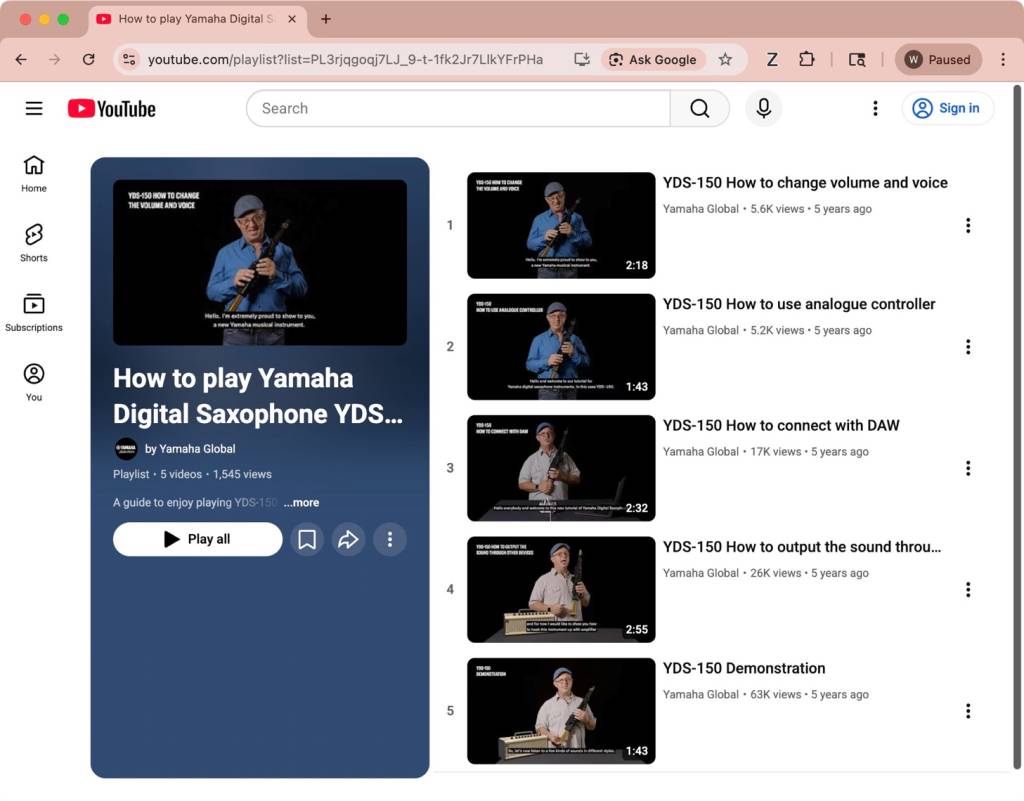
Yamaha Global: How to Play Yamaha Digital Saxophone YDS-150
Yamaha Global provides a YouTube playlist of short tutorials that show you how to set up and play the YDS-150.
Yamaha Music USA provides these videos:
YDS-150 Digital Saxophone Tutorial: Getting Started
YDS-150 Digital Saxophone Tutorial: Basic Functions
When you need help, Sweetwater has the answers!
Our knowledge base contains over 28,000 expertly written tech articles that will give you answers and help you get the most out of your gear. Our pro musicians and gear experts update content daily to keep you informed and on your way. Best of all, it’s totally FREE, and it’s just another reason that you get more at Sweetwater.com.


