
Hardware recommendations for Windows-based DAW systems.
In this guide, we will show you how to determine whether your current computer can handle the demands your software will put on it and if there are any hardware upgrades or additions you may need to make. This will also help you choose which new computer to buy and ultimately help you avoid problems with your new Windows PC down the road.
- Computer hardware explained
- Minimum hardware requirements for Windows PCs
- Recommended requirements for music production
- DAW manufacturer requirements
- What PC is best for music production?
- Additional concerns and incompatibilities
- I found a PC — now what?
Computer hardware explained
Before discussing minimum and recommended system requirements for music production, we’ll discuss hardware specifications. Knowing your computer’s components and how each part operates will help determine how well your PC will perform when using audio recording gear. While it may seem intimidating, especially if you’re new to computers, researching your computer hardware specs and DAW specs beforehand can set you up for success.
Processor
The processor (CPU) is the brain of a computer. Its main job is to send, receive, and execute system instructions like a mouse click, keystroke, or opening software. Every processor is composed of cores and threads. Cores are the ‘hardware’ that make up the processor as a whole, and threads are the ‘software,’ which is the series of tasks your computer needs to carry out the instructions. So, if you have a 6-core, 12-thread processor, the processor can perform 12 tasks simultaneously.
RAM
RAM (Random Access Memory) is essentially the go-between between your processor and hard drive. When you perform an action like launching software or saving a document stored on your hard drive, the operation is sent to your RAM on a short-term basis so you can access it quickly. What does this mean? The less RAM you have, the longer it takes for the operation to be processed by your CPU.
Hard drives
Storage drives are self-explanatory: they’re where your software is stored. There are two types: spinning disk (HDD) and solid-state (SSD).
- Spinning disk (HDD): Uses a series of magnets and plates to write data onto the drive.
- HDDs are more affordable but have a larger form factor and are less reliable due to the use of mechanical parts.
- Solid-state (SSD): Has no mechanical parts like a spinning disk (HDD) drive. Instead, it relies on memory chips inside of the disk.
- SSDs are more expensive and have a small form factor, as they utilize integrated memory. As a matter of fact, there are also M.2 SSDs that are the size of a RAM stick!
Minimum system requirements for Windows PCs
Now that you know how a computer works, you need to know what hardware requirements you must meet for your software to run efficiently.
The following are minimum requirements to operate Windows. In other words, these requirements are for operations such as word processing, browsing the web, and so on, but the demands for a PC dedicated to recording and processing audio and video are much higher.
Windows 11 system requirements
To increase your computer’s security, Windows 11 has stricter system requirements than Windows 10. Most motherboards and processors built after 2018 should be able to run Windows 11, but you will need to check the manufacturer’s product specs and compare them to ensure compatibility. Check out our Windows 11 Download and Install Guide to learn more about Windows 11 system compatibility and requirements.
- 1GHz (gigahertz) processor with two or more cores on a compatible processor or system on a chip (SoC)
- 4GB (gigabytes) of RAM
- 64GB+ of hard drive space for installation. Microsoft recommends more space for future updates and for enabling specific features
- UEFI, Secure Boot compatible
- TPM version 2.0
- Graphics card compatible with DirectX 12 or later with WDDM 2.0 driver
- 720p display with a monitor larger than 9 inches
- An Internet connection is necessary, as you must create a Microsoft account to complete the OS setup on your PC
- Windows 10 version 2004 or later
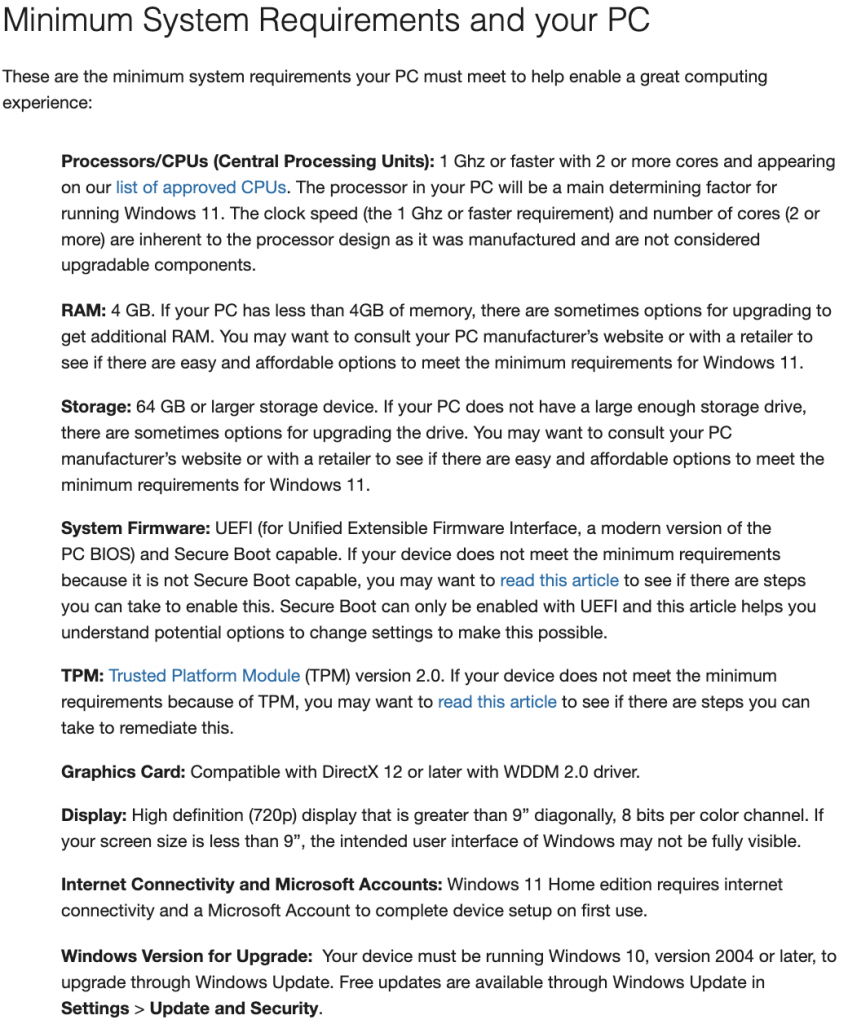
Click the image for more information on minimum system requirements for Windows 11.
Windows 10 system requirements
If your computer doesn’t meet Windows 11 requirements, you can still use Windows 10 with no software incompatibility.
- 1 GHz (gigahertz) or faster multi-core CPU
- 2 GB (gigabytes)of RAM
- 32 GB (gigabytes)available hard drive space
- Graphics card running DirectX 9 or later
- Display resolution of at least 800×600
- Internet connection (hardwired or Wi-Fi)
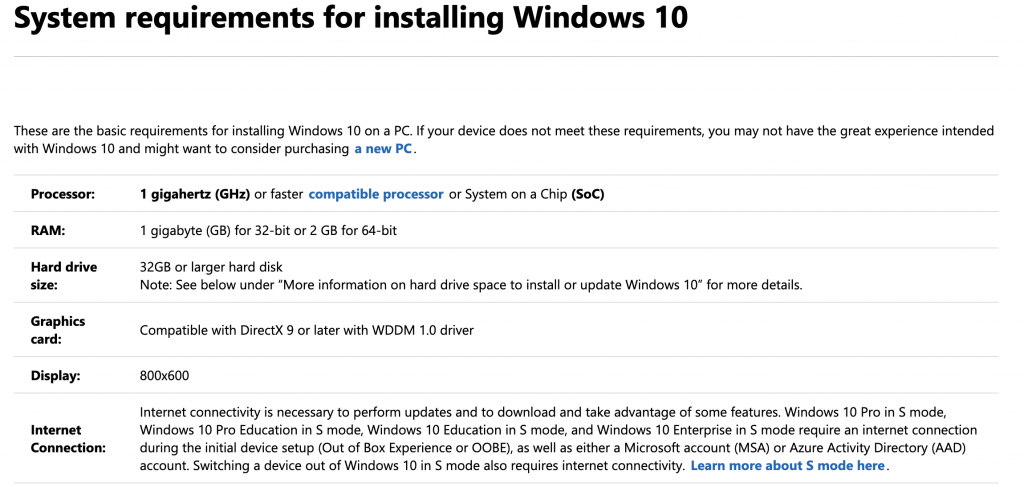
Click the image for more information on minimum system requirements for Windows 10.
What’s the difference between Windows Home Edition and Pro Edition?
There are two primary versions of Windows: Home and Pro. While both have almost the same core features, Pro Edition has a few additional functions primarily designed for business enterprises. If you’re a musician and plan on using a Windows PC for recording, Windows Home Edition will suit your needs perfectly. Be sure to check out Microsoft’s comparison chart to learn more.
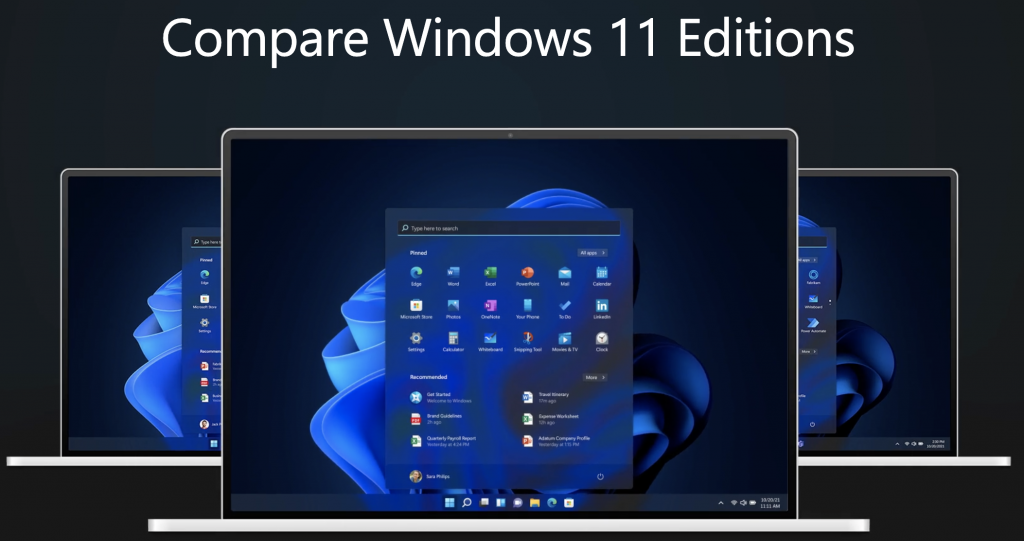
Click the image to compare Windows editions
Recommended system requirements for music production
DAW processing can place intense demands on your computer. Many budget-friendly computers you can find at a retailer do not have music production in mind, so they will struggle to run, or even worse, not be compatible at all. Knowing that, high-end computers like Sweetwater Creation Stations are a perfect solution since they are made specifically for music production. Or, if you have the know-how, you can build your own for surprisingly great results!
Not everyone can afford a $2000 computer system, so below are some minimum requirements when choosing a PC that will suit most recording, editing, and other audio needs you can find without breaking the bank.
- 64-bit Intel i5 multi-coreCPU or AMD Ryzen 5-3600 processor.
- Manufacturers may only list Intel-compatible processors, but they work to ensure AMD Ryzen processors operate correctly.
- 16 gigabytes (GB) of RAM.
- Avid recommends 32 gigabytes (GB) of RAM.
- At least 250 gigabytes (GB) of hard drive space for installation and at least one dedicated 1 terabyte (TB) hard drive for virtual instrument libraries and audio. This is especially important for those who purchase multiple virtual instruments.
- While HDDs are perfectly fine, we highly recommend computers with SSDs for optimal read and write speeds.
Additional system requirements
Your OS, processor, CPU, and hard drive are the most important system requirements for any PC, but there are a few additional system requirements to consider when using a Windows PC for music production.
- Dedicated graphics card running DirectX 11, primarily if you use the computer for video editing.
- USB ports for ASIO-compatible audio interface connectivity. Depending on the interface, you may need a Thunderbolt port.
- Some interfaces run on the USB 3.0 protocol, so your computer may need USB 3.0 ports. Be sure to check your audio interface’s manual for more information.
DAW manufacturer requirements
Each manufacturer will have different system requirements in order to run their DAW. Oftentimes, they’ll provide both minimum and recommended system requirements.
What PC is best for music production?
IMPORTANT: You must use the 64-bit version of Windows, as DAW and software manufacturers no longer officially support 32-bit versions of Windows.
Now that you’ve been armed with PC knowledge and know the minimum requirements of the DAW you’ll be using, the question becomes, “What PC is best for music production?” While we all want the fastest, most powerful computer on the market, there may be times when you can get away with one that won’t break the bank. There’s no hard-and-fast rule on what PC you should get, but our recommendations below will set you up for success.
Recording
If you’re primarily using your Windows PC for tracking yourself or bands, you need smooth performance, glitch-free recording, and a lot of hard drive space. Many fast hard drives (SSDs) are also required for smoother operation.
- Processor: The fastest processors on the market aren’t essential for dedicated recording computers. A 6-core 4 GHz Intel i5 or AMD Ryzen 5 3600 are great starting points if you’re just starting out. That said, higher spec’d CPUs are highly recommended, particularly if you use virtual instruments and plug-ins.
- RAM: When recording, it’s best to have at least 16 GB of RAM, as recording is often offloaded to RAM before being written to your hard drive.
- Hard drive: The key component for recording computers are hard drives, specifically SSDs. Multiple drives dedicated to particular functions are critical. You should have separate hard drives for the Windows OS, projects, plug-ins, and virtual instrument libraries, along with a backup hard drive.
- Operating system: You should have the most recent version of Windows for best compatibility.
- Other: While laptops work as recording computers, desktops are recommended. This is particularly true if multiple USB or Thunderbolt ports are required.
Mixing and mastering
If you’re a mixing or mastering engineer, you will need as much power and storage possible if you plan on using a good number of plug-ins, particularly on projects with many tracks (e.g., orchestral recordings).
- Processor: You will need the best you can get. At the bare minimum, you should have an 8-core processor like the AMD Ryzen 7 3800X or Intel i7.
- RAM: Similar to the processor, you need as much RAM as possible within the limits of your motherboard. Many plug-ins often use a large amount of memory to load, increasing as you begin adding plug-ins to all tracks. We recommend 16GB at the bare minimum.
- Hard drives: Depending on the number of plug-ins and software you use, hard drive space isn’t of the utmost importance for mixing and mastering engineers, but it still plays a role, particularly with projects that include many tracks. SSDs with at least 500GB should do the trick, but more is required depending on how many plug-ins you own and how many projects you work with regularly.
- Operating System: You may have a more challenging time with OS compatibility, as you not only have to deal with DAW compatibility but with plug-ins that you may use. Check out our regularly updated PC Compatibility Guide.
Composing
If you’re a composer, you will need the best Windows PC possible, especially since many virtual instruments are used and tracks are being composed in real time. Hard drive space and RAM are the critical components for this type of setup. The processor also plays an important role, as it determines how much the computer can calculate data. Oftentimes, composers will need to offload tasks between multiple computers, having one act as a sample playback engine while the other is specifically used for recording.
- Processor: The fastest possible. Look at computers that either have an AMD Ryzen 9 3900X or an Intel i9-12900H.
- RAM: The largest amount possible that is compatible with your motherboard. Due to the amount of processing you must go through, we recommend 32GB to 64GB of RAM.
- Hard drives: Composers need as much hard drive space as possible because of how large virtual instrument sound libraries and plug-ins can be. Hard drive space of 1TB to 2TB should work.
- Operating system: You should have the most recent version of Windows for the best compatibility.
Hybrid DAW
The hybrid PC is the system designed to do everything. This is the system that the one-man-band will use as they try to accomplish all the tasks mentioned earlier on one system. This is the type of system a hobbyist or home studio user has. The computer doubles as a home office or gaming computer, is usually connected to the Internet full time, and often has multiple users. A balance is crucial to ensure that one aspect of the process does not suffer at the expense of another.
There are not any specific recommendations for each component in the computer. As long as the minimum requirements for hardware and compatibility for EACH application is met and there is plenty of drive space for recording, this user should be fine. However, many home studio users tend to gravitate toward becoming one of the aforementioned types of DAW users, so the recommendations will tilt in favor of what’s recommended for that type of use.
Mobile recording
The mobile DAW user usually takes their laptop on the road for remote or on-location recording, podcasting, live performance, or a combination of the three. The biggest challenges for this user are the general limitations of laptops. Battery life is sucked very quickly by high-performance audio applications and bus-powered hardware.
- Processor: The processor should be as robust as possible. Many laptops feature a particular processor with throttling features. Throttling ramps a processor’s speed up and down as the PC monitors activity. This feature should be avoided if possible or turned off at the very least. This is because your audio software requires a lot of processing power and will often generate error messages or crashes if the processor cycles down to save power.
- RAM: The total amount of RAM that can be limited due to the laptop’s form factor. Due to other limitations, it is advisable that as much RAM as possible be added.
- Hard drives: This is where laptop users suffer the most. The internal drives of a laptop are primarily designed for power saving and, as such, spin at significantly slower speeds than their desktop counterparts. Because of this, external hard drives for recording and sample streaming are essential.
- Operating system: Again, you should choose the OS based on the software used. Avoid tablet PCs, though, as the extra tablet features often conflict with audio hardware.
- Other: Bring some extra batteries if you cannot plug in the laptop. Also, please note that many onboard controllers for laptops may not be compatible with specific hardware interfaces, so be prepared to add expansion cards. Before you commit to a laptop, double-check that it has enough ports, or that it is expandable enough, to accommodate all your hardware.
Are you building a PC for music production?
Many PC users like to build custom PCs to suit their needs. For example, some like one dedicated strictly to music production, whereas others want to build hybrids that suit both their recording needs and other needs, such as gaming.
Not all PC hardware is compatible. For example, you may have 64GB of RAM on hand, but the motherboard may not be able to handle that much due to circuitry. If you’re building a PC for music production, we highly recommend using PCPartPicker. As the website name implies, you can pick every part of your PC while ensuring all components are compatible.
Additional concerns and incompatibilities
When getting or building a PC, there are a few specific areas to be wary of. Most notably:
- Software versions: Many users who purchase new PCs plan to continue using older hardware and software on the system. This is fine, provided the current version is compatible with the system. For example, an interface designed for Windows 10 may not have a driver for Windows 7 available from the manufacturer. The older Windows driver will typically NOT work in the newer Windows OS. If a dedicated driver isn’t available via download from the manufacturer, then that piece of hardware may need to be replaced.
- Before you attempt to install older software or hardware on your new system, double-check and be sure that it is compatible with the operating system of your new computer. If a later version or version updates are available, manufacturers will have them posted in the Support or Downloads sections of their websites.
- Device Ports: Before investing in any computer, make sure it has enough ports to connect to the hardware you plan to use. Many software titles require the use of a USB dongle or protection key. Make sure you have enough ports to accommodate these. Also, avoid USB hubs for any high-powered or real-time audio devices. USB hubs are fine for peripherals like thumb drives and mice but not for MIDI controllers, hard drives, or interfaces. Also, make sure that if you have USB 3.0 devices that there are enough USB 3.0 ports available on your PC. The same goes for USB 2.0, USB-C, and Thunderbolt.
- On-board video: Video cards built into the motherboard that shares resources with the rest of the system are called on-board graphics controllers. These can be problematic for video-intensive applications (such as video editing) because they draw resources away from the main CPU and RAM. Dedicated video cards have built-in CPU and RAM for graphics processing and can relieve the video processing load from the rest of the system.
- In most audio-only cases, this is not a problem unless built-in graphics are explicitly stated as incompatible by the manufacturer (as in the case of Pro Tools). Be aware of built-in graphics controllers when choosing a computer, especially if you will use video in your work.
- In most audio-only cases, this is not a problem unless built-in graphics are explicitly stated as incompatible by the manufacturer (as in the case of Pro Tools). Be aware of built-in graphics controllers when choosing a computer, especially if you will use video in your work.
I found a PC – now what?
You’ve done the work researching compatibility documents from several manufacturers, double-checking the specs of several models from different manufacturers, and you finally decided on one with the specs you will need for your work. Can you just plug in and go?
No! To get the absolute most out of your new PC, please review Sweetwater’s PC Optimization Guide. These guides are designed to help you tweak and configure Windows to avoid common processing problems due to incorrect settings. These guides will take you through the process of configuring and maintaining your computer-based DAW.
Related Articles
When you need help, Sweetwater has the answers!
Our knowledge base contains over 28,000 expertly written tech articles that will give you answers and help you get the most out of your gear. Our pro musicians and gear experts update content daily to keep you informed and on your way. Best of all, it’s totally FREE, and it’s just another reason that you get more at Sweetwater.com.

