
Getting Started with USB Mics
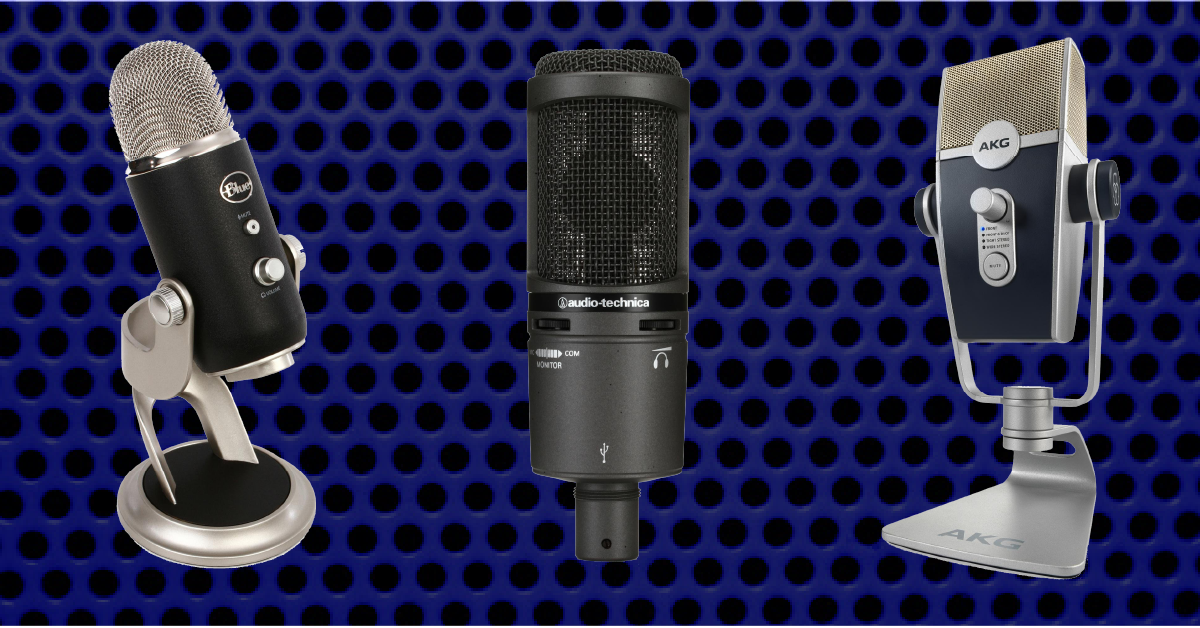
How to use USB mics
In this guide, we’ll show you how to set up and use USB microphones. USB mics are a great solution when you’re on the go, don’t have access to an audio interface, and even livestreaming and gaming. Follow the sections below to get started.
How to set up a USB mic with your PC or Mac
Connecting a USB mic with your PC or Mac couldn’t be more simple. All you need is an available USB port, the correct USB cable (which often comes with your mic), and the software you’ll be using the mic with. Some USB mics are class-compliant meaning no additional driver software is required, while others do. Before connecting your USB mic to your computer, visit the manufacturer’s website to confirm if it requires driver software.
- Connect your microphone to your computer.
- Download the driver software (if necessary)
- Go to your Downloads folder, and run the driver’s installer.
Connect USB mics to USB hubs
TIP: If your USB microphone model isn’t listed (e.g., ICON USB Mic) it may also be listed in your input as USB Audio Codec, Generic USB Microphone, or even just Microphone.
Computer audio production often involves connecting a few external devices to your computer. USB mics prefer to be connected directly to your computer. Although hubs are a convenient way to connect multiple devices to the same USB port, they may prevent your USB mic from properly communicating with your computer – this is especially true with passive hubs and USB condenser microphones. So if you’re using a hub and there are connectivity issues, connect it directly to your computer.
Connect USB mics to mixers or interfaces
One question that is often asked about USB mics is connecting it to an external mixer or audio interface. The short answer is not necessarily. You can’t connect a USB mic to an audio interface or mixer, as there are currently none on the market with USB audio inputs. Also, USB mics strictly use digital inputs and outputs. There are XLR/USB mics out there, which, when using the XLR jack, can be connected to a mixer that’s connected to the computer.
A note on connecting USB mics to video game consoles
USB microphones are very popular among the video gaming community. Different consoles have different compatibility, so be sure to check out the console’s manufacturer manual or website for compatibility information before you set everything up.
Is your USB mic not working?
If you think your USB mic isn’t working, first reconnect it by unplugging and plugging it back in. If you have not done so yet, try to configure the USB connections so that the USB mic is connected directly to your computer. If the problem persists, try a different USB port or cable. Visit our Windows and Mac guides for more tips on resolving audio device connectivity.
Learn more about resolving audio interface issues on Windows!
Learn more about resolving audio interface issues on Mac!
How to record using a USB mic
Once your USB mic is connected to your computer, the next thing you’ll probably want to do is get it set up in recording software such as Audacity, FL Studio, or Garageband. The great thing about USB microphones is that setting it up to record is a breeze. Depending on the OS and recording software you’re using, you may need to set up an aggregate device for the mic to work correctly.
- Once the USB microphone is connected to your computer, launch your recording software, like Audacity or FL Studio.
- Navigate to its Audio Preferences menu.
- It may be called something different in your software, so If you aren’t sure where to find the option, check out the owner’s manual.
- Change the software’s Input to your USB mic, then start recording!
- If you’re not getting any input after changing it to your USB mic, restart the software.
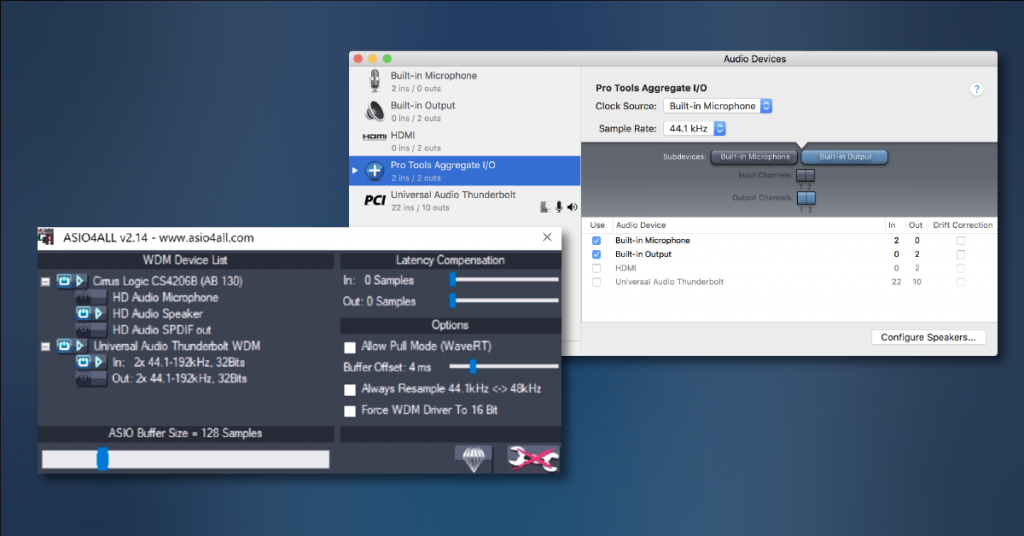
Learn more about how to create aggregate devices on PC and Mac!
Related content
Learn more about how to optimize your Windows 10 computer for audio recording!
Learn more about how to optimize your Mac computer for audio recording!
Learn more about how to install and use ASIO4All!
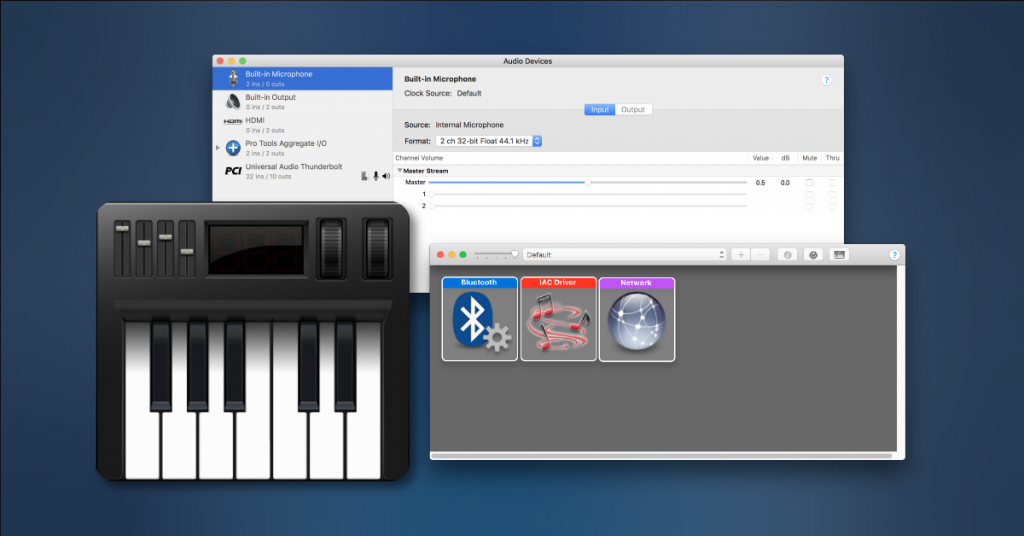
Learn more about Audio MIDI Setup on Mac!
When you need help, Sweetwater has the answers!
Our knowledge base contains over 28,000 expertly written tech articles that will give you answers and help you get the most out of your gear. Our pro musicians and gear experts update content daily to keep you informed and on your way. Best of all, it’s totally FREE, and it’s just another reason that you get more at Sweetwater.com.

