
Getting Started with the Moog Subsequent 37
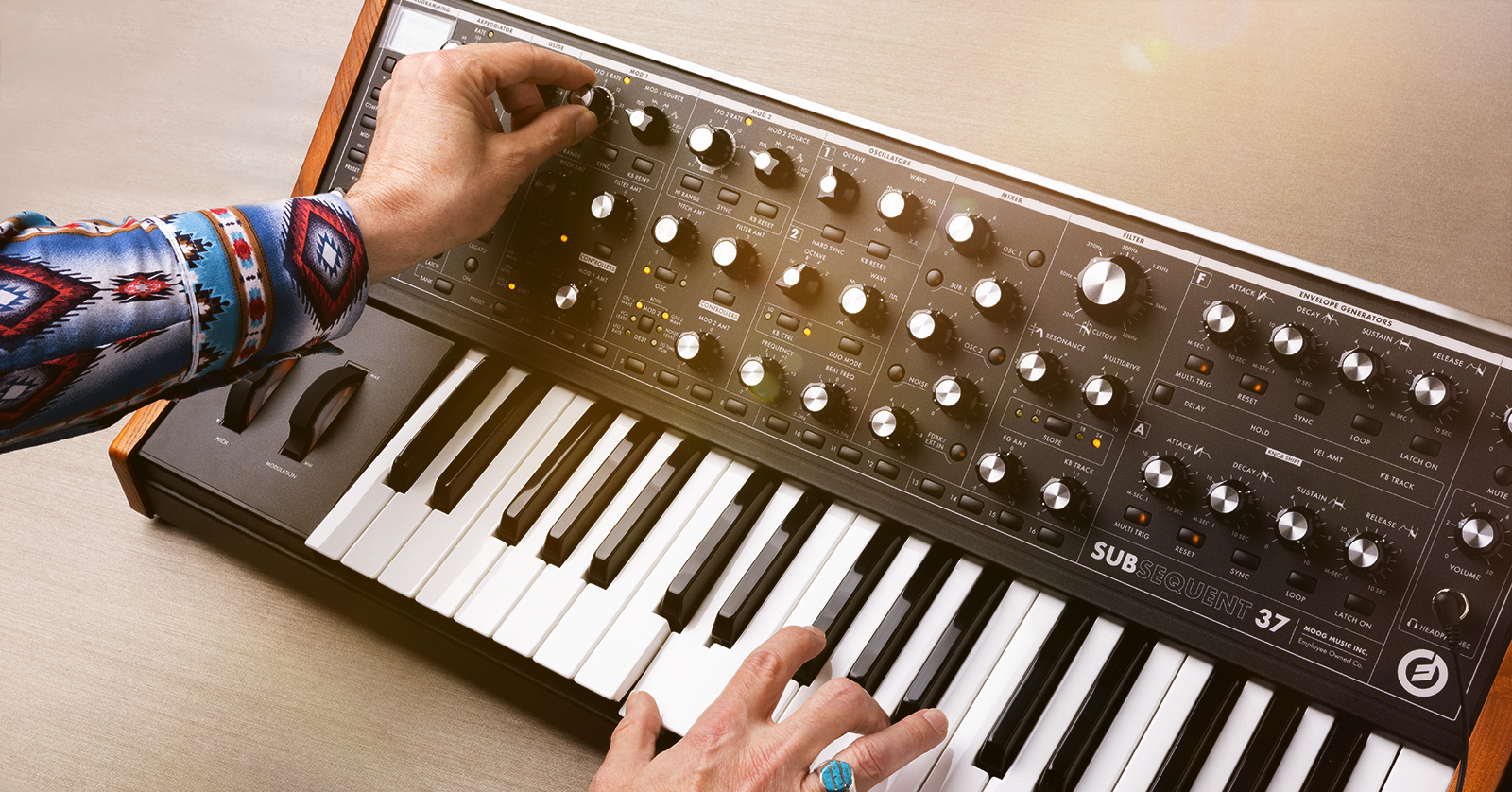
Congratulations on purchasing one of Moog’s most versatile and powerful monophonic analog synthesizers. In fact, it has the ability to play two notes at a time through a single filter in paraphonic Duo Mode.
With its classic sound, 40 knobs and 74 switches, onboard arpeggiator, and 64-note step sequencer, the Subsequent 37 provides a vast array of analog sound design tools. You can control all the parameters over MIDI, store patches onboard and on your computer using its editor/librarian app, and even automate knob parameters in your DAW using the provided plug-in.
This Sweetwater Quickstart Guide is designed to help you discover this powerhouse synth’s formidable functions on your first days owning it. Let’s get started.
- Find the Moog Reference Guide
- Register Your Purchase with Moog
- Inputs, Outputs, and Connections
- Advanced Features
- Let’s Play!
- Using the Subsequent 37 with Your DAW
- New to Synthesis?
Find the Moog Reference Guide
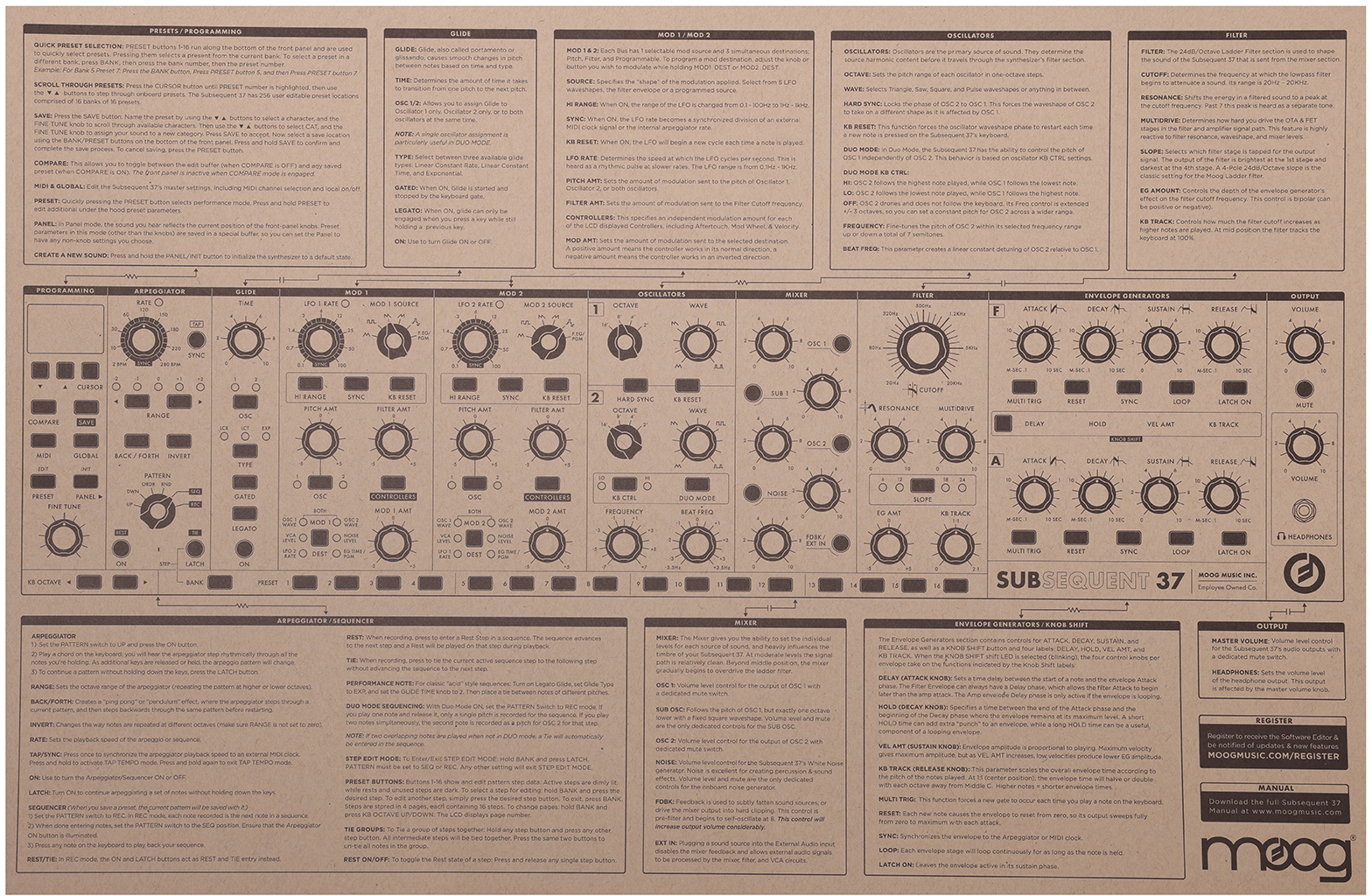
When you open the box, there will be a large piece of kraft paper with the Moog logo covering the instrument. On the back side is a reference guide. Keep it handy.
Register Your Purchase with Moog
When you register with Moog, you can download the Subsequent 37 Editor/Librarian for Windows and Mac, which comes in two versions. The stand-alone app is for sound design and storing presets. The plug-in works within your DAW and enables you to automate Subsequent 37 parameters.
Register by creating an account at inMusic, the parent company of Moog.
After you have registered your instrument, the Editor/Librarian app will become available on your account page. On your computer, download the version for your operating system, macOS or Windows.
Inputs, Outputs, and Connections
Audio Out
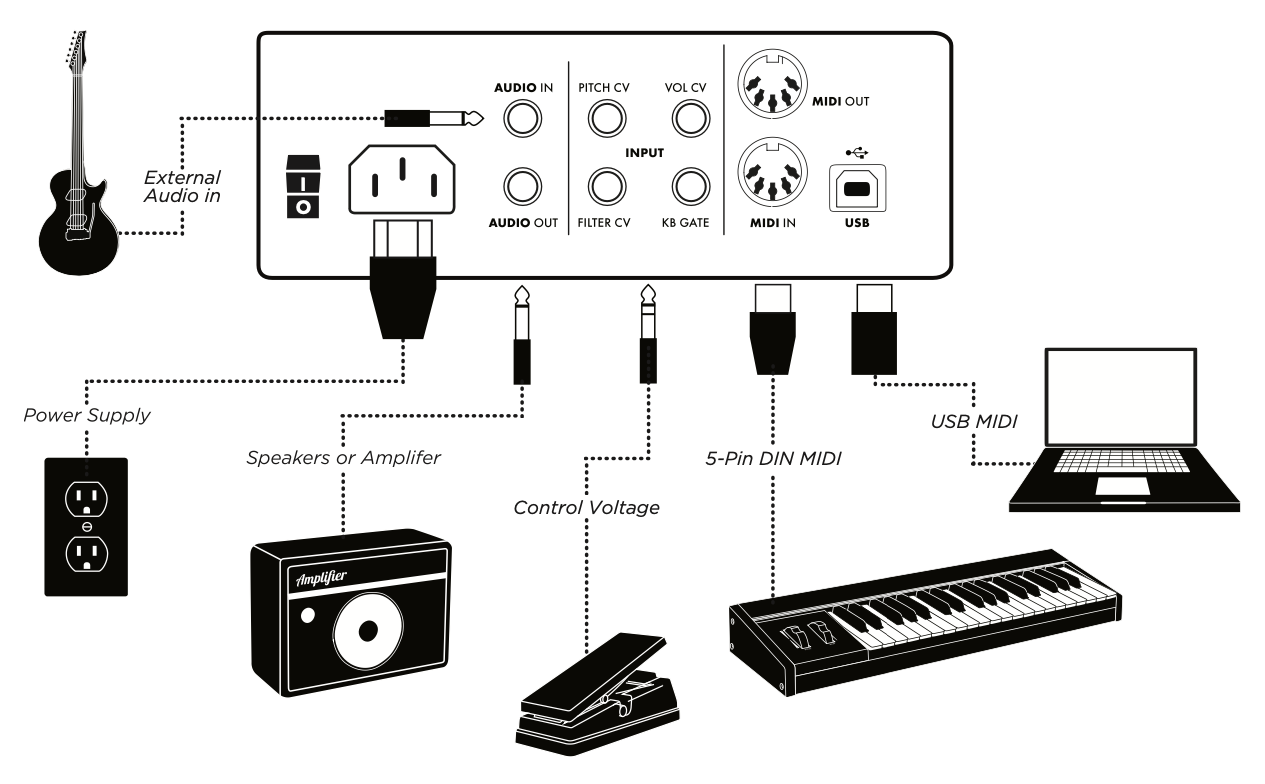
On the side panel, use an unbalanced, TS ¼-inch instrument cable to connect the Audio Out to a speaker, a mixer, or an audio interface.
USB connection and the Moog Subsequent 37 Editor/Librarian
Connect a USB cable to your Mac or Windows PC to send MIDI data to and from the Subsequent 37 Editor/Librarian app, discussed below. The Subsequent 37 does not transmit audio over USB.
MIDI OUT and MIDI IN
You can also connect standard 5-pin MIDI cables to other MIDI devices.
Advanced Features
The Subsequent 37 provides optional advanced features for real-time expression.
Control voltage expression pedals
You can connect one or more Moog EP-3 universal polarity expression pedals (not included) or other control voltage expression pedals to the Pitch CV, Vol CV, or Filter CV input jacks.
KB GATE
The KB GATE input accepts a +5-volt signal which triggers the Subsequent 37’s envelopes, as on a modular synthesizer.
Audio In
The Audio In jack can accept an external audio input, such as a guitar or another synthesizer, for filtering and processing.
Let’s Play!
TIP: Let it warm up. The tuning may not be stable until the unit has been powered on for a couple minutes.
With the Master Volume on the Subsequent 37 turned all the way down, power on your mixer, speakers, or audio interface. Then power on the Subsequent 37 and gradually turn up the volume.
Headphones
You can connect headphones to the jack on the lower right corner of the front panel. First, turn the Headphones Volume to zero, then plug in the headphones. The Headphones Volume is governed by the setting of the Output Volume. The Mute switch affects the Output Volume but not the Headphones Volume.
Presets and programming
Have another look at that large piece of paper with the reference guide.
The Subsequent 37 has 16 banks of 16 presets. You can start playing presets right away using the 16 buttons along the bottom of the front panel. To select a preset in a different bank, press BANK, then the bank number, then the preset number.
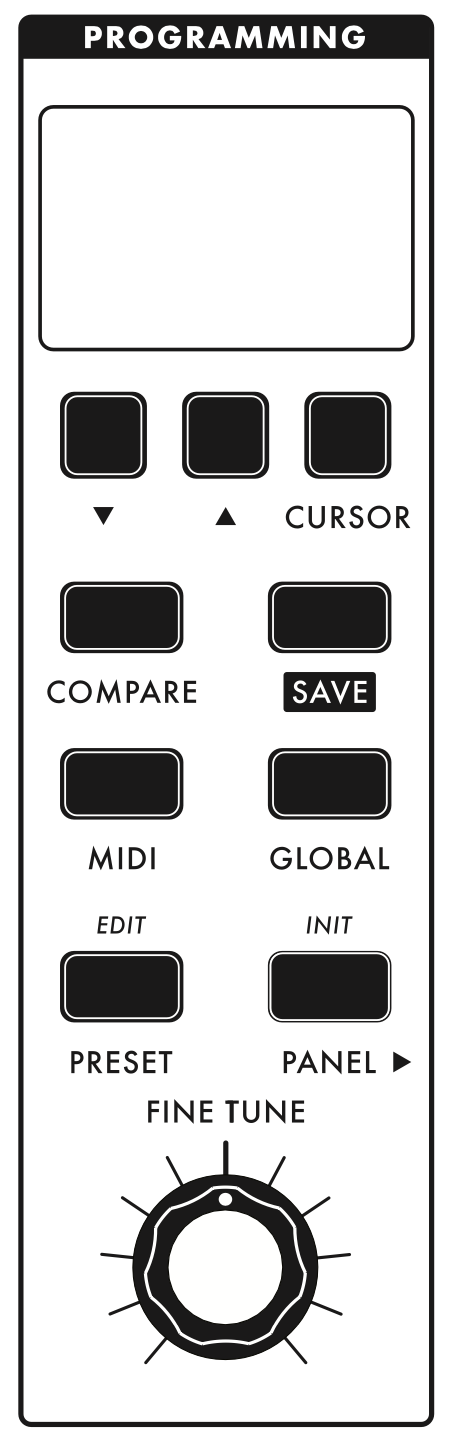
You can also select presets on the PROGRAMMING section on the front panel. The presets’ names are displayed on the screen. Press the CURSOR button until PRESET is highlighted. Use the up and down arrow buttons to step through the presets.
Play with several presets. Turn some knobs in the different sections of the synthesizer to get a feel for how each parameter alters the sound.
Preset and Panel modes
The PRESET and PANEL buttons select the performance mode of your Subsequent 37. In PRESET mode, the sound you hear reflects the position that the panel knobs and buttons were in when the preset was saved, regardless of their current position. In PANEL mode, the sound you hear reflects the current position of the front-panel knobs and buttons.
Saving a preset
If you modify a preset (for example, by changing the position of one or more panel knobs), you can save it with the SAVE button. Name the preset using the arrow buttons and the FINE TUNE knob to select characters. Then assign a preset to a category using the arrow buttons and the FINE TUNE knob. Press SAVE to accept, then select a location using the 16 BANK/PRESET buttons on the bottom of the panel. Press and hold SAVE to confirm.
Additional functions
The Programming section and the display screen give access to features and functions not found on the front panel knobs and switches. Consult the owner’s manual for more information.
Creating a new sound
Press and hold the PANEL/INIT button to initialize the synthesizer to a default state. This will be a basic one-oscillator sound with a sawtooth wave. Turning the WAVE knob on Oscillator 1 lets you continuously interpolate between the basic triangle, sawtooth, square, and pulse waves.
From here, you can construct a new sound using all the parameter knobs and save it to a preset.
Arpeggiator and sequencer
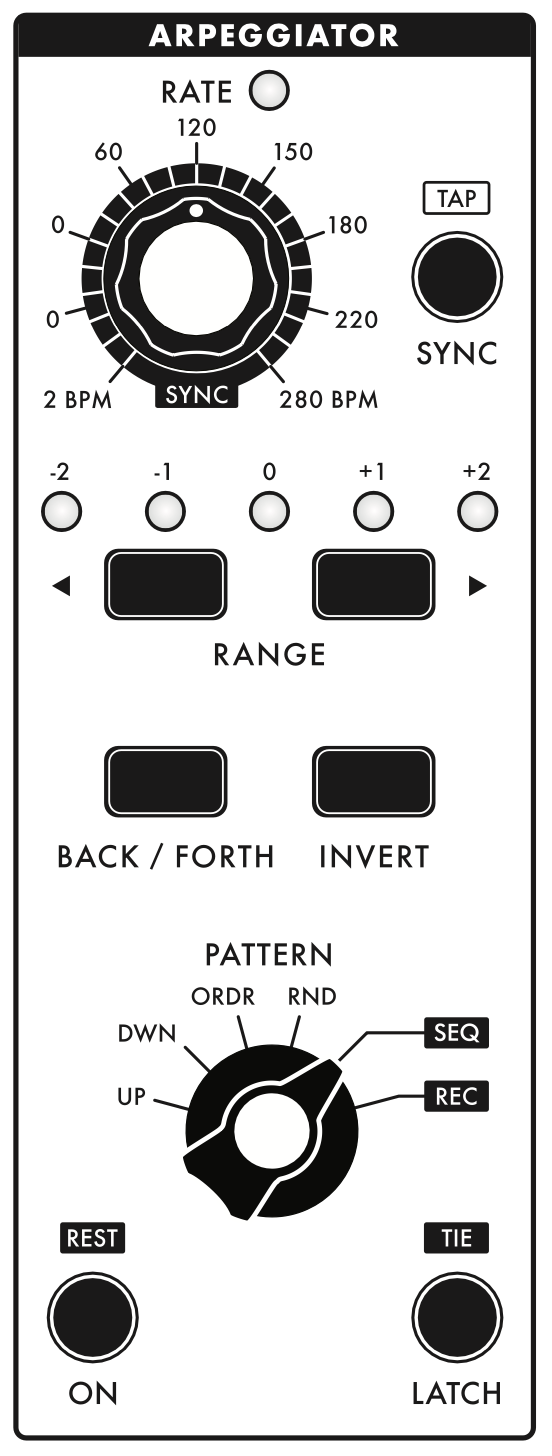
- Set the PATTERN switch to UP and press the ON button.
- Hold down a chord on the keyboard. You will hear each note played one at a time according to the beats per minute on the RATE knob.
- Press the LATCH button. After you let go of the keys, the pattern will continue to play. You can play different chords to change the arpeggio.
Change the order in which the notes are played by manipulating the PATTERN knob. Change the tempo by adjusting the RATE knob.
While your arpeggio plays back, you can further animate the sound by manipulating knobs in the OSCILLATORS, FILTER, and ENVELOPE GENERATORS sections and elsewhere.
Setting the PATTERN switch to REC enables you to enter notes and rests one at a time to establish a step sequence, which you can play back and save. Consult the reference guide poster and the user’s manual for instructions.
Using the Subsequent 37 with Your DAW
With a MIDI over USB connection to a DAW on your Mac or Windows PC, you can leverage the full potential of the Subsequent 37’s real-time controls.
If you are on Windows, you need to install the Moog Sub 37 USB MIDI Driver that comes with the Editor installer package for your PC to recognize the Subsequent 37’s USB connection. If you are on Mac, no driver is required.
Subsequent 37 Editor/Librarian app
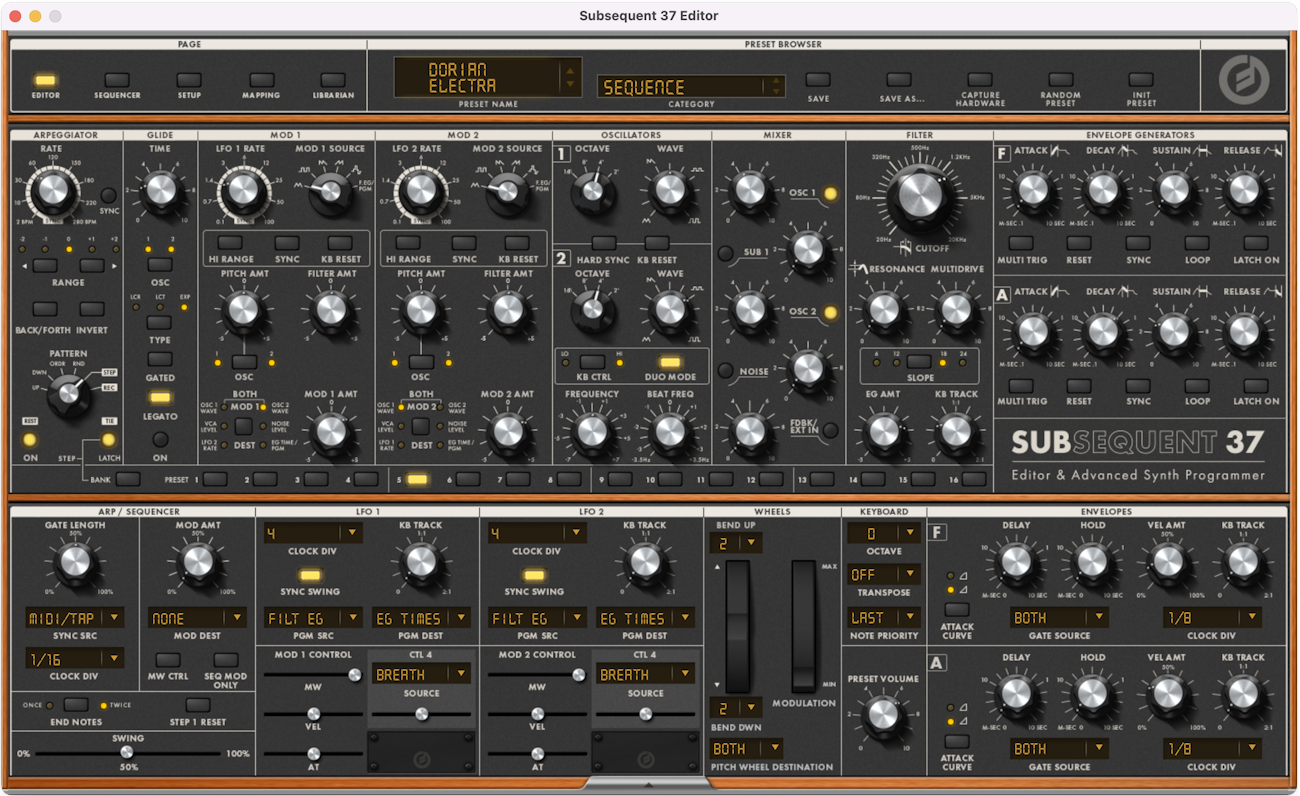
The Subsequent 37 Editor/Librarian app for Mac and Windows comes in two versions. The stand-alone app is ideal for sound design and saving and loading banks of presets. The plug-in works within your DAW and enables automating Subsequent 37 knob parameters, so you can sequence and track expressive performances.
The Editor only sends and receives MIDI over USB, as the Subsequent 37 does not transmit audio over USB. To record sound in your DAW, you need to connect the Subsequent 37’s audio output to your audio interface.
By using the plug-in inside your DAW, you can also play back MIDI automation of the knobs’ parameters while you play the keyboard in live performance. Alternatively, you can program musical sequences in your DAW’s piano roll or software sequencer and play them back via MIDI while manipulating parameters in real time.
See the Subsequent 37 Editor user’s manual for more information.
NRPN mode
NRPN stands for Non-registered Parameter Numbers, an implementation of MIDI continuous control. In NRPN Mode, every knob and button on the Subsequent 37 transmits continuous data. This is useful for recording your knob turns and button presses into your DAW, as well as for controlling external devices. If your DAW does not support NRPN, you can configure the Subsequent 37 to use industry-standard MIDI CC (continuous control) data. Consult the owner’s manual under MIDI Menu Parameters.
New to Synthesis?
If you are new to synthesis, you’ve already got a great learning platform in the classic subtractive synth architecture of the Moog Subsequent 37. Sweetwater has you covered with our Synthesizer Fundamentals and Synth Clips video series. Check them out.
Related Content
When you need help, Sweetwater has the answers!
Our knowledge base contains over 28,000 expertly written tech articles that will give you answers and help you get the most out of your gear. Our pro musicians and gear experts update content daily to keep you informed and on your way. Best of all, it’s totally FREE, and it’s just another reason that you get more at Sweetwater.com.

