
Oberheim TEO-5 Quickstart Guide

The Oberheim TEO-5 keyboard synthesizer and TEO-5 Desktop Module are a great entry point to the classic Oberheim sound, with modern enhancements. We wrote this guide to help you get started.
- Register Your Purchase with Oberheim
- TEO-5 Connections
- Set Up the TEO-5 and Start Playing
- Create Your First Program
- Arpeggiator and Step Sequencer
- New to Synthesis?
Register Your Purchase with Oberheim
Register your purchase by going to the Oberheim Support page and clicking on Register Instrument. Fill out the information, and enter the TEO-5’s serial number. Check the box if you want to Receive News about updates.
From the Support page, click on TEO-5 User’s Guide to download the newest version for reference. Trust us: it’s a short manual that’s easy to understand and full of useful examples.
TEO-5 Connections
Make sure your unit is powered down. Turn the Master Volume knob on the front panel all the way down before you connect any cables.
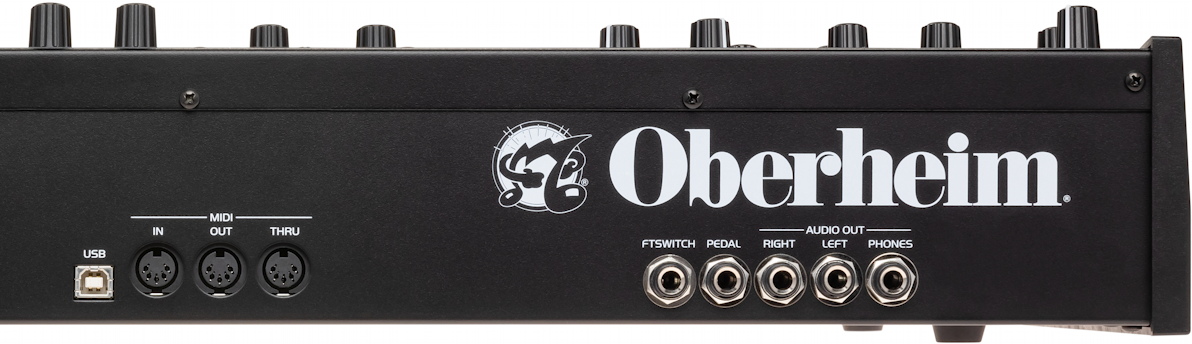
Oberheim TEO-5 back panel
Power On/Off
AC Power Connector
Phones
Connect headphones with a 1/4-inch TRS connection. The volume is controlled by the Master Volume knob on the front panel.
Left and Right Audio Outputs
Connect unbalanced 1/4-inch TS cables. Use the Left and Right outputs for stereo output. If you require mono, configure this in the TEO-5’s Global Settings on the front panel’s display, and use either jack for output. Learn more in the Oberheim TEO-5 User’s Guide > Chapter 2: TEO-5 Controls > Global Settings > 4. Mono/Stereo.
Pedal
Connect an expression pedal (purchased separately) with a 1/4-inch TRS connector. You can configure the pedal to modulate one of a variety of parameters, such as filter cutoff frequency or volume. Learn more in the Oberheim TEO-5 User’s Guide > Chapter 2: TEO-5 Controls > Global Settings > 8. Pedal Function.
Footswitch
Connect a footswitch (purchased separately) with a 1/4-inch TS connector. Configure the TEO-5 to use the footswitch as a sustain pedal, to latch the Arpeggiator, or to start and stop the Sequencer. Learn more in the Oberheim TEO-5 User’s Guide > Chapter 2: TEO-5 Controls > Global Settings > 6. Foot Function.
MIDI In, Out, and Thru
Connect standard 5-pin DIN MIDI cables for MIDI control.
USB
Connect a USB Type B data cable for MIDI over USB to your host computer. The TEO-5 is class compliant, meaning it requires no drivers for macOS or Windows.
Set Up the TEO-5 and Start Playing
With the power turned off and the Master Volume control turned all the way down, connect your audio outputs. Turn on the TEO-5, then turn up the volume on your amp, your mixer, or your powered speakers. Turn up the Master Volume on the TEO-5.
Calibration: Tune the Oscillators and Filters
Because the Oberheim TEO-5 is an analog synth, it requires calibration in order for the oscillators and filters to remain stable. The calibration procedure enables the TEO-5 to acclimate to the range of temperatures in your playing environment. If the tuning drifts and the filters behave unpredictably, you may need to repeat the procedure over the first few days of using your TEO-5.
- Press the Global settings button.
- Turn the Select knob to bring up Cal Voices on the display screen.
- Press the Write button.
- Wait while the TEO-5 performs the calibration procedure. It’s finished when the front panel’s controls return to normal.
Audition the Factory Sounds
Let’s play through the amazing sounds that come from the factory.
The TEO-5 has 512 presets grouped into two sets, Factory and User. The 256 Factory presets cannot be overwritten. The 256 User presets are initially identical to the Factory set, but you can overwrite them to save your own presets.
A preset can have two elements: a synthesizer patch and a sequence. With each Factory preset you call up, press the Sequencer’s Play button to hear it.
You can call up presets using the Factory and Bank buttons, the 16 numbered Program Select buttons, and the Manual button on the bottom right of the control panel. The LED display next to the Bank button shows a program number; with each program you call up, the display screen at the top shows the name and more information.
To select a preset, hold down the Bank button and press one of the Program Select buttons (1–8). Then release the Bank button and press one of the Program Select buttons (1–8) to select one of the 16 presets in that bank.
Create Your First Program
Start with the Basic Program
- Under Settings, press the Global button.
- Use the Select knob to scroll to Basic Program on the display.
- Press the Write button.
You’ve now got a sawtooth setting on the first oscillator, plus basic filter, envelope, and simple settings for the modulation wheel and pitch wheel.
You can now move through the signal path and change settings.
Where’s the Mixer?
To set the levels of Oscillator 1, Oscillator 2, the Sub-Oscillator, and the Noise generator, access the mixer functions using the buttons in the Filter section in conjunction with the value on the display screen.
- Toggle an oscillator on by pressing its button; it’s now at full volume.
- Hold down the button, then look up at the value on the display screen. Turn the Value knob to lower the volume.
The signal then passes to the Filter section.
Work Through the Signal Path
The Filter section acts on the Oscillators; try turning the Resonance and Cutoff knobs while you play a note. Additional filter parameters are available in the Program menu on the display.
The Envelope section provides one envelope for the filter and one for amplitude. Each has a Velocity button to enable key velocity to influence filter cutoff frequency or amplitude volume.
The LFO section provides two low-frequency oscillators.
Modulation Matrix
The Mod section has two buttons, Source and Destination. Hold down the Source button, select a parameter knob, and turn it. Then hold down the Destination button and turn a different parameter knob. In this way, you can choose from 19 sources and 65 destinations. Then go to the display screen to set the amount of modulation with the Value knob.
Effects
Choose from two digital effects. Select the first effect’s Type from the choices on the display screen. The second effect is Reverb.
Save Your Program
You must save your program to a User bank.
- Press the Write button.
- Hold down the Bank button. Press a Program Selector button to specify the “hundreds” bank.
- Release the Bank button, then press a Program Selector button (1–16).
- Press the Write button again. The program is saved.
Learn more in the TEO-5 User’s Guide > Chapter 2: TEO-5 Controls.
Chapter 3: Creating Sounds in the User’s Guide has tutorials on creating bass, brass, string, and lead sounds.
Live Panel Mode (Manual)
When you switch to Live Panel mode, the values of each knob and switch on the synth are what you see on the panel, rather than the settings on a current preset. This helps you learn each function.
Enter Live Panel mode by pressing the Manual button in the lower-right-hand corner of the panel. Enjoy turning some knobs and listening to the results.
You can toggle the mode off by pressing the Manual button again.
Arpeggiator and Step Sequencer
The TEO-5 has a multi-mode arpeggiator and a 64-step polyphonic sequencer. You can save a sequence with each program.
Learn more in the TEO-5 User’s Guide > Chapter 2: TEO-5 Controls > Arpeggiator and the following section, Sequencer.
New to Synthesis?
If you are new to synthesis, then you’ve got a great learning platform in the classic subtractive synth architecture of the TEO-5. Sweetwater has you covered with our Synthesizer Fundamentals and Synth Clips video series. Check them out.
Related Articles
When you need help, Sweetwater has the answers!
Our knowledge base contains over 28,000 expertly written tech articles that will give you answers and help you get the most out of your gear. Our pro musicians and gear experts update content daily to keep you informed and on your way. Best of all, it’s totally FREE, and it’s just another reason that you get more at Sweetwater.com.

