
Getting Started with MIDI Interfaces
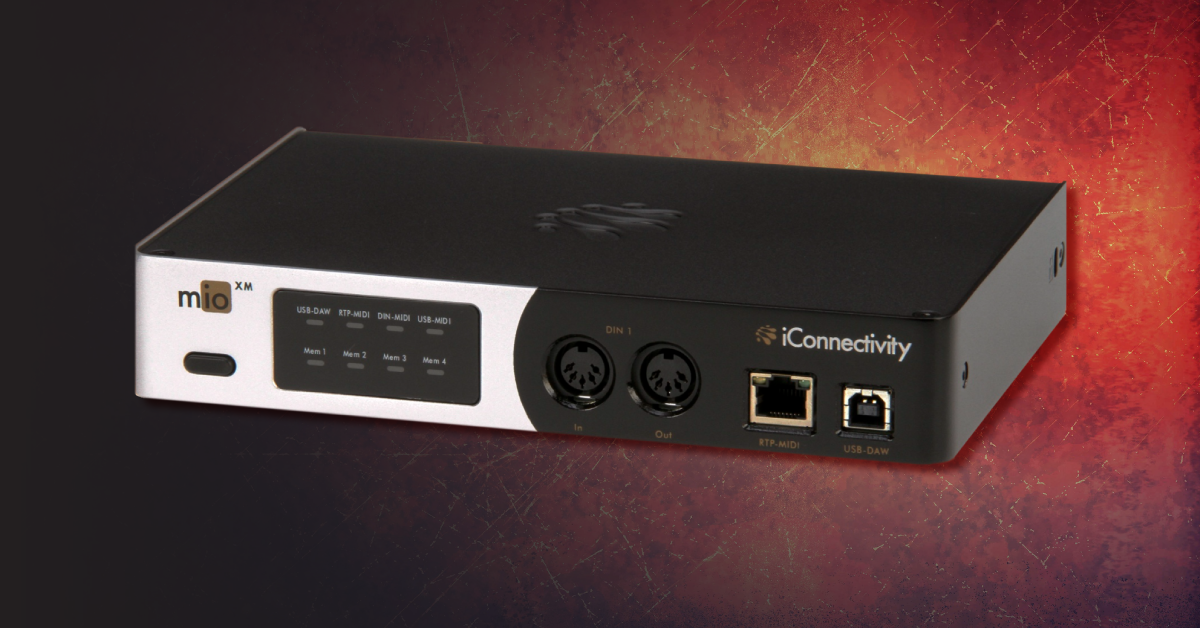
MIDI interfaces come in many different shapes and sizes, but at their core, they all serve one purpose: to send and receive MIDI. So, in this guide, we will show you the ins and outs of a MIDI interface, how it works, and how to get up and running.
What is a MIDI interface?
The first MIDI devices shown at the Winter 1983 NAMM show connected to each other via MIDI In and Out ports. That breakthrough was followed by additional developments, including computer interfaces that could bring MIDI data into, and send it out of, a computer. When the interface is connected, your computer can send and receive MIDI data. This means you can record MIDI data from an external MIDI device to your DAW or send MIDI data from your computer to trigger an external synth via MIDI connection.
MIDI interfaces are primarily used when you have a larger external MIDI setup and need to connect multiple devices to your computer. One MIDI port carries 16 channels of MIDI data, so if you have an 8-port MIDI interface, 128 MIDI channels are available for use.
Depending on the MIDI interface, you can also split the MIDI input into multiple MIDI Thru ports, expanding on advanced routing options that will let you get more creative with your studio setup.
Setup and connections
Almost every MIDI interface has three primary connections: USB-B (to connect to your computer) and 5-pin MIDI ports for both the inputs and outputs. Some of the more advanced MIDI interfaces also have USB-A, USB-C, and Ethernet (for Network MIDI/RTP) connections, as well as options that allow you to change how the MIDI is synchronized, to adjust the routing for individual inputs, to adjust how they’re synced, etc.
When using a basic MIDI interface, you just need to connect it to your computer via the USB port. The way you connect external devices to the interface is all dependent on your application. Some MIDI interfaces are class-compliant, meaning they’re plug-and-play devices. If the interface requires a driver, then you must install that before connecting it to your computer.
To make things easy, we’ve created a driver download hub so you can find the driver for your specific MIDI interface in no time!
- Connect MIDI interfaces directly to your computer for optimal connectivity. Connecting it to a USB hub may result in random dropouts and poor performance.
- If you’re using an external MIDI controller, use a 5-pin MIDI cable to connect from the controller’s MIDI Out to the interface’s MIDI In.
- When using an external sound generator such as a synth or drum machine and you want to send MIDI to trigger that specific hardware, use a 5-pin MIDI cable to connect from the interface’s MIDI Out to the sound generator’s MIDI In.
- If you plan on using MIDI editing/library software or if you need to send and receive SysEx dumps, then you’ll need to create a “loop”: MIDI Out from the external device to the MIDI In of the interface, and MIDI Out of the interface to the MIDI In of the external device.
MIDI Without USB – Classic MIDI Connections
Is your MIDI interface not showing up?
If the interface is not showing up when connecting it to your computer, double-check that all of your cabling is correct. If you haven’t done so yet, try to reconnect the interface by unplugging it and plugging it back in. Also, try different USB ports and/or different USB and MIDI cables.
If the problem persists, check out our guide on resolving MIDI device issues on PC and Mac.
Using a MIDI interface inside your DAW
Once you have your MIDI devices set up the way you want, you will need to go into your DAW and update its settings so they can communicate correctly. This means you will need to enable the MIDI interface in your DAW settings and then configure the MIDI I/O and its channels. The setup process is different for each DAW, so check out our guides on connecting and enabling MIDI hardware inside your specific DAW.
- The MIDI channel on your external MIDI controller/sound generator must match the DAW’s channel in order to communicate. If they don’t match, nothing will be sent or received.
- Double-check that all of the MIDI interface’s inputs and outputs are enabled.
- MIDI only sends data, so if you hear latency when recording, then your buffer size is likely too low or your computer processing power is inadequate.
MIDI channel count
One MIDI port can carry 16 channels of MIDI data. This means that an 8-channel MIDI interface will carry 128 channels! While it might sound like quite a bit, different MIDI devices can use up different numbers of channels. For example, a Faderport control surface will use 16 channels. However, an E-MU Proteus 2000 can take up to 32 channels! So, if you have a larger setup, consider the channel count and check the owner’s manuals of your gear to see how many channels it will use.
Local Control
Many external MIDI controllers, specifically workstations and keyboards, have a function called Local Control. When this is turned on, the sounds of the workstation or keyboard will trigger. If you’re connecting the controller to a MIDI interface and you have Local Control turned on, it will not only trigger the external sound, but it will also trigger the internal sound. This causes a doubling, almost flange-like sound, which can most certainly throw you off, whether you’re in the studio or playing live.
To avoid this, go into your external controller’s settings and turn Local Control off. Turning off Local Control separates the internal sound engine from the keyboard itself, turning it into a standalone sound engine.
What if I still want to use the built-in sounds?
If, by chance, you want to trigger the internal sounds and you need Local Control off, you just need to match the MIDI channel of the internal sound engine to that of your DAW. Refer to your owner’s manual for more information about Local Control.
Related Articles
When you need help, Sweetwater has the answers!
Our knowledge base contains over 28,000 expertly written tech articles that will give you answers and help you get the most out of your gear. Our pro musicians and gear experts update content daily to keep you informed and on your way. Best of all, it’s totally FREE, and it’s just another reason that you get more at Sweetwater.com.

