

Getting Started with a Korg nanoKONTROL
How to use this guide
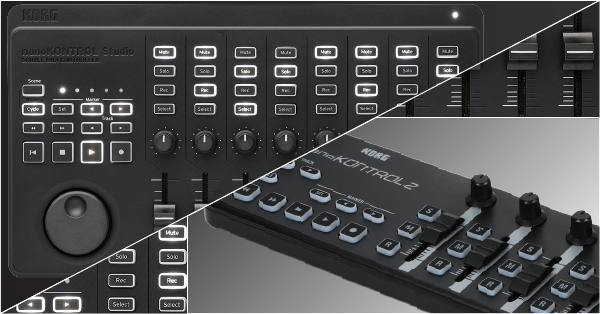
In this guide, we will show you how to get started with the Korg nanoKONTROL. We’ll walk you through how to register the bundled software, and also how to connect and use the Korg Kontrol Editor software. Follow the sections below to get started.
- Register the software bundle
- Download & install the drivers
- Connecting to iOS devices
- Using Korg Kontrol Editor
- DAW controller setup guides
Register the software bundle
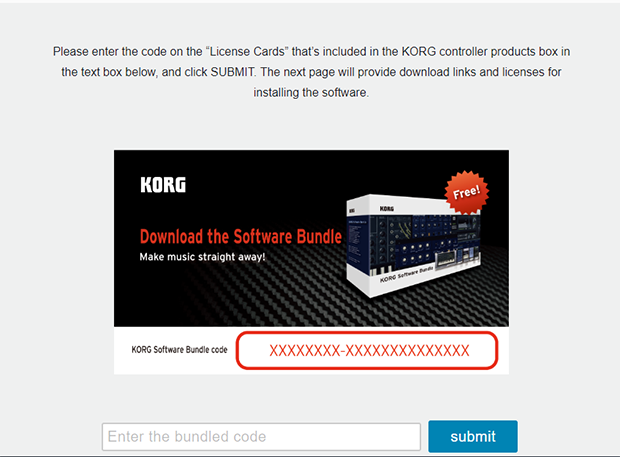
The Korg nanoKONTROL includes free bundled software and plug-ins. To get the licenses for the software, you must register the bundle code on the Korg website using the included bundle code. Once registered, you’ll be sent to a web page with the activation codes and download links. Follow the steps below to register your bundled software.
- Go to the Korg Software Bundle page and enter the bundle code located on the card which is included in the box.
- Fill out the information, then click Submit.
- On the next page, click the download links and follow their respective activation instructions.
Are you a Logic or Garageband user?
Korg also has a Control Surface plug-in for Logic and Garageband. This plug-in will automatically sync the controls of your nanoKONTROL to those of the DAW.
Download & install the drivers
IMPORTANT: The KORG USB-MIDI Driver is NOT compatible with machines running higher than macOS 10.14.
Please visit Korg’s compatibility page to learn more.
Before connecting your nanoKONTROL, download and install the driver software and Kontrol Editor for your OS. Korg Kontrol Editor is the software you will use to customize the hardware controls which we will cover in the next section. Follow these steps below to install the software and connect your device.
- Go to the Korg USB-MIDI download page and download the KORG Kontrol Editor and driver for your OS. Be sure to download the latest version of the driver.
- Do not download the USB-MIDI driver if your machine is running higher than 10.14.
- Go to your Downloads folder and run the installer file, then follow the on-screen instructions.
- Connect your device to your computer and navigate to the computer’s device settings to ensure it’s recognized.
- PC: Go to Device Manager, then click Sound, video and game controllers to verify it’s listed.
- macOS: Go to Applications, then click Utilities, and System Information. Verify it’s listed in the USB section.
Connecting to iOS devices
The nanoKONTROL series have the ability to connect to iOS devices by using an Apple Camera Connection Kit. Just connect the adapter to your iOS device, then connect the nanoKONTROL to the other end.
If you have the nanoKONTROL Studio, you can also connect via BlueTooth. Download the Bluetooth setup application for your PC or Mac or iOS device. For detailed instructions on how to pair the devices, visit the Bluetooth MIDI Connection guide. Please note that these instructions only apply to the nanoKONTROL Studio.
Using Korg Kontrol Editor
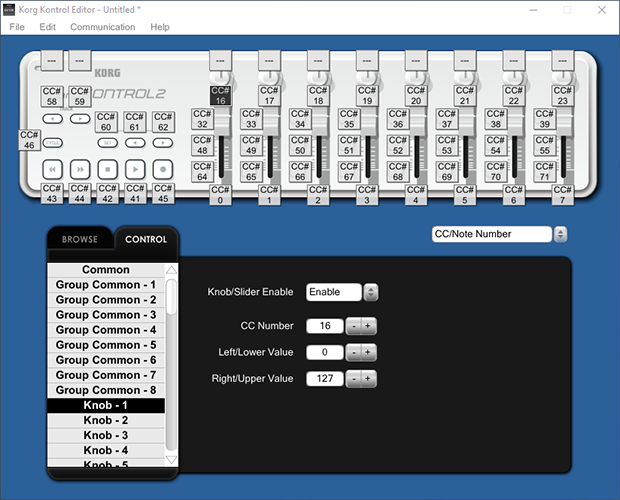
Korg Kontrol Editor is standalone software where you can edit different control parameters such as transport, channel, and automation on your nanoKONTROL. This allows you to create a custom profile (scene) and load it at any time. For example, if you use multiple DAW’s (or even video software with MIDI capability), you can create unique profiles for each piece of software. In order to edit these parameters, you first need to configure the MIDI ports in the software preference. For a detailed list of functions and how to use it, visit the Kontrol Editor user guide. Follow these steps to enable your device.
- Launch the Kontrol Editor app, and select your nanoKONTROL. Be sure the device is connected to your computer before you open the app or it may not be recognized.
- Click Edit then Preferences to open the MIDI configuration page.
- Click the box for Set MIDI ports manually, select the nanoKONTROL as the MIDI IN and MIDI OUT device, then click OK.
DAW controller setup guides
If this is your first time using a DAW controller, visit our getting started guide to learn what they are and how they work. Visit our setup guides below to learn how to get it connected inside your DAW.







Click your DAW app to view its configuration instructions.
When you need help, Sweetwater has the answers!
Our knowledge base contains over 28,000 expertly written tech articles that will give you answers and help you get the most out of your gear. Our pro musicians and gear experts update content daily to keep you informed and on your way. Best of all, it’s totally FREE, and it’s just another reason that you get more at Sweetwater.com.

