
Casio CT-S1000V Setup Guide
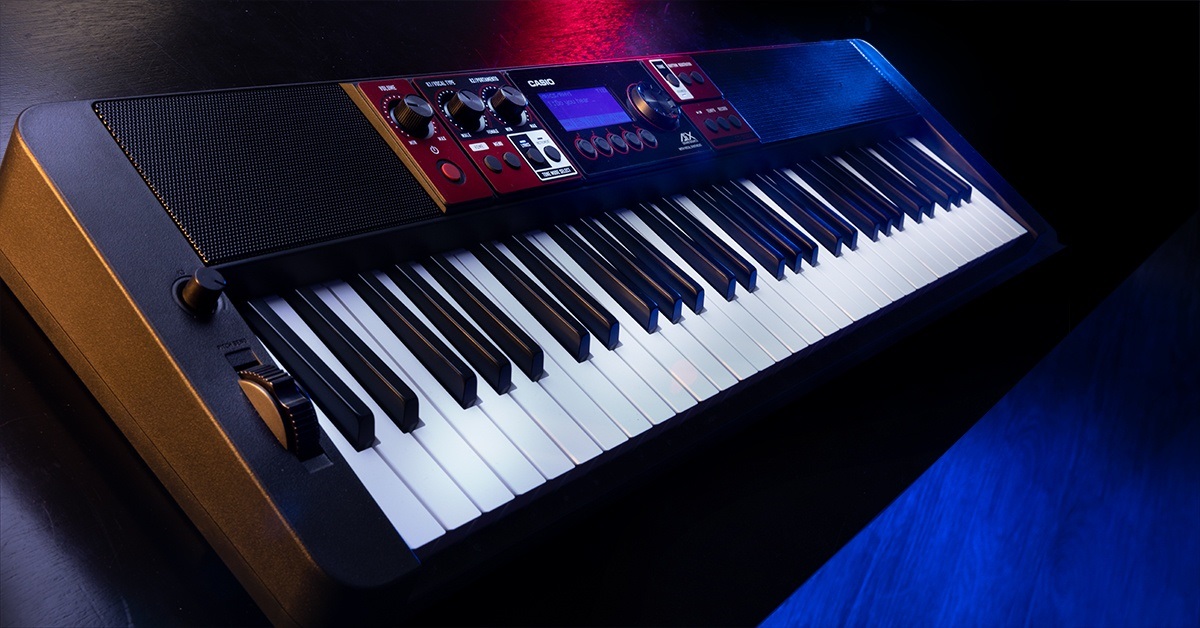
The CT-S1000V is a fun and powerful keyboard to work with, so in this guide, we will show you how to register, set up, and connect a Casio CT-S1000V for the first time. Follow the sections below to get started!
Registration
Before you get started, you’ll need to register your CT-S1000V with Casio. Upon registration, you’ll get access to Casio support, as well as an extended warranty for your keyboard. The process couldn’t be easier. Go to the Casio keyboard registration page, fill out the necessary information, and click the Finish button at the bottom.

Setup and connections
NOTE: Be sure that the keyboard is powered off and that you have the volume all the way down while making your audio and USB connections.
Once your keyboard is registered with Casio, it’s time to get everything set up and connected! There are multiple ways you can incorporate your CT-S1000V into your studio and live rig. Since there are only two primary areas of the keyboard for connections (located at the back), the setup is straightforward.
USB
There are two different USB connections located on the left side of the unit. One is a micro USB-B port, where you can directly connect a smart device. The other is a USB-A connection that you can use to connect a Casio WU-BT10 Bluetooth adapter (for streaming audio and MIDI) or USB thumb drive (to import and export saved user data).
- You must use a USB cable shorter than two meters for optimal performance if connecting a smart device to the micro USB port.
Input and output
There are hardware connections dedicated to audio and foot pedals on the right side of the keyboard.
Audio and MIDI input
There are two physical audio inputs you can work with when using the Casio CT-S1000V. You can connect the included WU-BT10 Bluetooth adapter and stream audio, or you can still use a 3.5mm cable to connect a smart device via the AUDIO IN port or USB (TO HOST) port.
Audio outputs
The keyboard has two types of outputs: Headphones (3.5mm) and Line Outs (¼-inch). Here are a few key things to remember!
- If you want to turn off the sound from the built-in speakers when using the Line Out jack(s), go into the Settings menu and turn off the speaker.
- Check out page 233 in the User Manual to learn more about changing settings.
- Connecting headphones to the Casio will disable the built-in speakers on the keyboard.
- Headphones will disable any surround sound effect.
- To conserve battery power, lower the volume and use your headphones.
Foot pedals
There are two jacks available for foot pedals. Pedal 1 is for an SP-3 or SP-20 sustain pedal, and pedal 2 is for either a sustain pedal or an expression pedal.
- If you’re connecting an expression pedal to the Pedal2/Expression jack you will need to calibrate it and, depending on the pedal, change the polarity. For calibration and polarity instructions, be sure to check page 76 of the User Manual.
Continue to
Related Articles
When you need help, Sweetwater has the answers!
Our knowledge base contains over 28,000 expertly written tech articles that will give you answers and help you get the most out of your gear. Our pro musicians and gear experts update content daily to keep you informed and on your way. Best of all, it’s totally FREE, and it’s just another reason that you get more at Sweetwater.com.

