
Alesis Nitro Max Quickstart Guide
In this guide, we will show you how to register, set up, and use your new Alesis Nitro Max electronic drum kit. Follow the sections below to get started. This article covers the basics, so be sure to check out the Nitro Max User Guide for more information!
Register the Alesis Nitro Max
Before you get set up, you must register your Nitro Max with Alesis. Upon registration, you will receive an extended warranty and access to Drumeo, a 30-day free trial of Melodics lessons, and even a free copy of the BFD virtual instrument! Follow these instructions to register your kit, then watch the videos below to learn how to redeem your bonus software.
- Log in to your Alesis account. If you don’t have one yet, you can create one here.
- Go to the Alesis registration page, use the Product drop box, and select Nitro.
- Enter the serial number (located on the module packing box, underneath the module, and on the front page of the manual), enter the purchase date on your Sweetwater invoice, and click Register My Product.
Drumeo Redemption
Melodics Redemption
Setup and Connections
Once you’ve registered your Nitro Max, you can assemble it and connect everything. When you open the box, smaller boxes will contain each part of the kit. Please take note of the box labels so you can stay organized along the way!
Follow the included assembly guide to build your new Alesis Nitro Max kit. Also, be sure to check out this helpful video from Alesis!
Bluetooth Connectivity
One great thing about the Alesis Nitro Max kit is its ability to stream audio from a mobile device to your module via Bluetooth! This means you’re able to practice your favorite tunes wirelessly. If you’re not sure how to pair Bluetooth devices, check out our Android and iOS setup guides to learn more!
- Enable Bluetooth on your Android or iOS device.
- Press the Bluetooth button to enter pairing mode. The Bluetooth light will begin to flash.
- Open your mobile device’s Bluetooth settings. Locate and select Alesis Nitro Max.
- The Bluetooth light will then turn solid.
Update the Module Settings
The factory default settings are a great starting point when you first assemble your Nitro Max kit, but you may need to adjust various settings to suit your needs.
Kit Settings
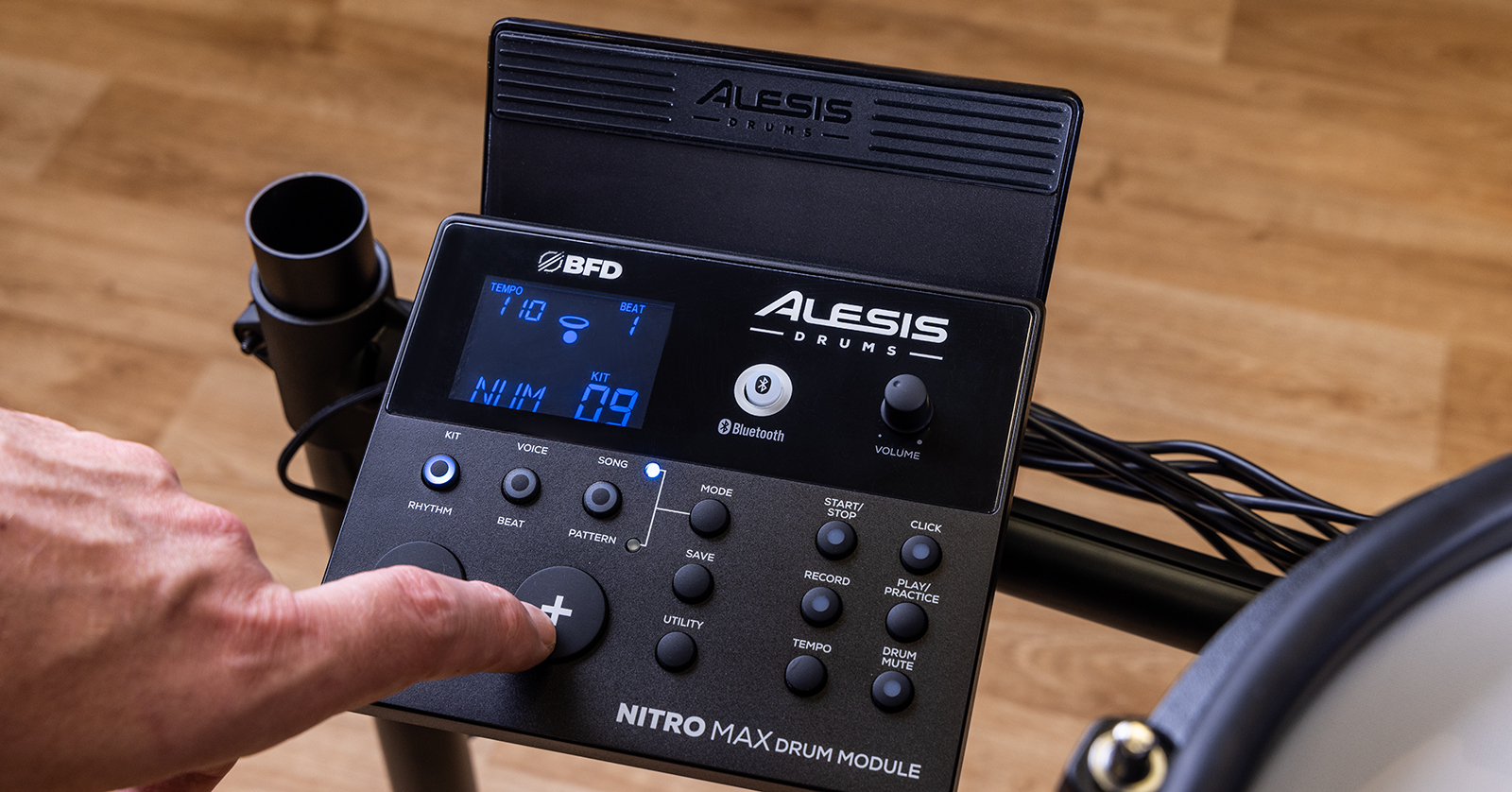
When you select a preset, you first should tweak the overall settings. This includes the volume, reverb, and EQ. To adjust the settings, press Kit until you see NUM on the module’s display. Next, use the + and – buttons to choose your kit.
Once you’ve selected your kit, press Kit to cycle through the following settings, then use the + and – buttons to adjust their values. Press Save once you’re happy with the kit’s settings.
NOTE: The reverb and EQ will affect both the selected kit and song (if applicable).
- VOL: Kit’s volume
- REV: Reverb
- EQH: High-frequency EQ
- EQM: Mid-frequency EQ
- EQL: Low-frequency EQ
Pad Control Settings
You can adjust the pad’s overall settings. This means you can adjust the sound, volume, pitch, reverb, and pad behavior (MIDI note changes, turning a pad into a switch, etc.).
- Press Mode so your kit is in Normal mode (indicated by the top LED), then strike the pad you want to adjust.
- Press the Voice button to adjust the following settings. Use the + and – buttons to change their values.
- NUM / HC: Pad sound (drum, cymbal, percussion). If the hi-hat pad is chosen, select one of the combinations of open and closed hi-hat sounds (H–C, 001–007).
- VOL: Pad volume
- PAN: Pad panning
- PIT: Pad pitch
- REV: Pad reverb
- MID: Pad MIDI note. Click here to view the list of the pad MIDI note numbers.
- P–S: Pad song switch. This selects whether or not a song will play when the pad is struck.
- P–N: Pad song number. This selects what song will play when the pad is struck.
- Songs 61–80 are pitched, non-drum songs instead of actual songs. This is great when choosing the pad song number. Songs 66–80 will change pitch with each hit, and songs 1–60 are actual songs.
- Once you’ve adjusted your settings, press Save, use the + and – buttons to choose the user kit (33–48) slot in which you want to save it, then press Save again.
Pad Utility Settings
Not all drummers play the same way. Some are heavy hitters, while others are more light-handed. That said, you should take some time to dial in the pads’ settings so your playing feels as natural as possible. The pads’ settings can be accessed via the Utility menu. Check out our guide about electronic drum terms to learn more!
- Press Mode so your kit is in Normal mode (indicated by the top LED), then strike the pad you want to adjust.
- Press the Utility button repeatedly to adjust the following settings. Use the + and – buttons to change the value.
- SEN: Pad sensitivity
- THR: Pad threshold
- CRO: Pad crosstalk
- CUR: Pad velocity curve
- R-S: Rim sensitivity
- S–S: Hi-hat splash sensitivity. The splash effect is when you tap your foot on the pedal and immediately raise your foot.
- LOC: Local mode
- When local mode is turned on, it will trigger the internal sound samples. When it’s turned off, playing your Nitro Max will trigger sounds from a virtual instrument (like BFD) when it’s connected to your computer.
- GM: General MIDI mode
- When GM is set to ON, MIDI channel 10 will use generic MIDI percussion sounds instead of the module sounds. When turned off, MII channel 10 in the module will use the internal drum sounds.
- Once you’ve adjusted your settings, press Save. If you don’t save before you turn off the module, all pads will return to their default settings.
Related Articles
When you need help, Sweetwater has the answers!
Our knowledge base contains over 28,000 expertly written tech articles that will give you answers and help you get the most out of your gear. Our pro musicians and gear experts update content daily to keep you informed and on your way. Best of all, it’s totally FREE, and it’s just another reason that you get more at Sweetwater.com.

