
Zoom H8 Getting Started Guide
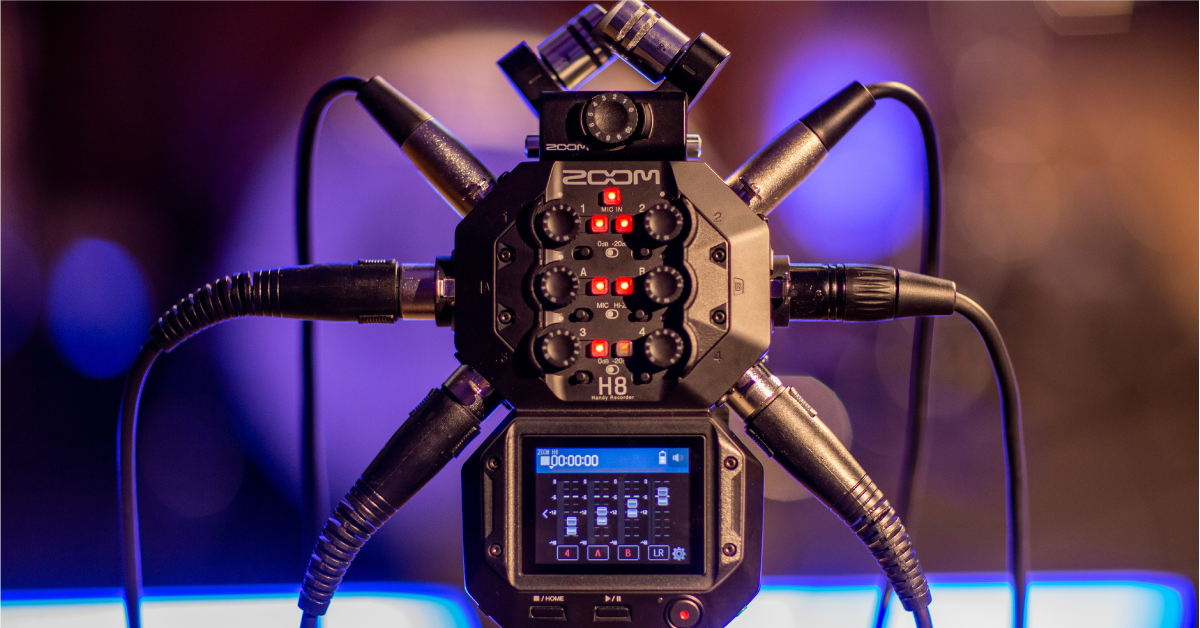
Getting started with the Zoom H8
In this guide, we’ll show you how to set up and work with the Zoom H8 handy recorder for the first time. Follow the sections below to get started.
Register the Zoom H8
The first thing you’ll want to do when you open the box is to register the H8 with Zoom and activate Cubase LE, Wavelab LE, and Ableton Live Lite. To register the H8 with Zoom, you’ll need the serial number located on the back. Follow these steps below to register the Zoom H8.
- Go to Zoom’s product registration page.
- Fill out the required information, including the serial number which is located on the back of the Zoom H8, and then click Submit.
Format the Zoom H8 SD card
Before you can use the Zoom H8, you have to format the SD card on the H8 in order for it to work. It’s a very simple process so follow these steps to format the SD card on the Zoom H8.
IMPORTANT: Formatting the SD card will erase any data that is currently stored on there. Be sure that anything important has been backed up to your computer before continuing.
- Insert the SD card into the slot located on the left.
- Turn the unit on (hold the power button until the device powers up).
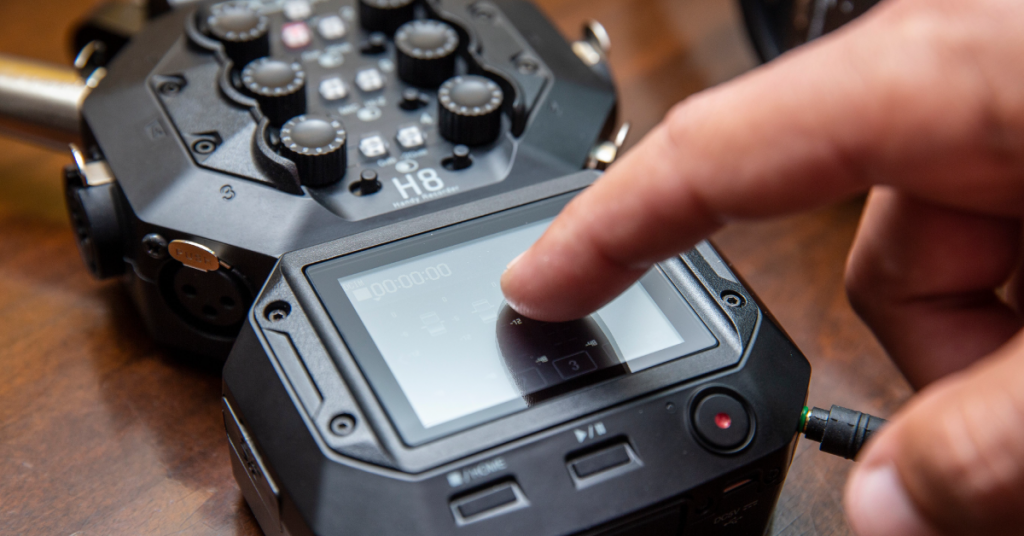
- Tap SD CARD to enter the SD card menu, tap Format, and then tap Execute.
Card protected error
If you insert the SD card into the Zoom H8 and see a Card protected message on the display, take the card out of the H8 and check the security tab on the SD card. If the switch is set to protected mode, the SD card is “locked” so no data can be stored onto it.
Zoom HD card compatibility
If your Zoom H8 isn’t recognizing the SD card or you continue to receive errors, please make sure that the SD card is compatible with the device. A good way to see if it will work is to test the SD card using the Quick Test and Full Test feature. You can also check out Zoom’s compatibility list for more information.
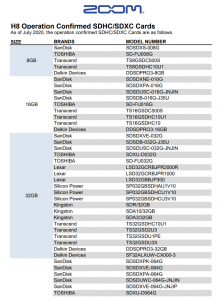
Click the image for a full list of compatible SD cards
Recording audio on the Zoom H8
The Zoom H8 is very versatile in that you have plenty of options when it comes to recording. There are three separate apps (modes): Field, Music, and Podcast. Each app has different settings that are most useful, depending on how you’re using it.
- While on the homepage, press the app (Field, Music, Podcast) you want to record to.
- Connect the microphones (or instruments) you wish to record, then press its corresponding channel button so it turns red. You’ll notice the track is then added onto the display.
- If a condenser microphone is connected, tap the Microphone icon, tap Phantom, and then select On/Off or Voltage(For all tracks).
- Test the audio and set the levels to a point where it’s not clipping.
- Depending on the audio you’ll be capturing, use the switches on the center that are most applicable to what’s connected to that particular input.
- If necessary, update the recording format by taping the Paper icon (located next to the microphone icon)
- Press the Record button to begin recording.
- Press the Play/Pause button if Sound Marker is enabled or if you want to stop the recording briefly but don’t want to create a new track.
- Once you’re done, press the Stop button.
Which H8 recording app should I use?
Depending on what and where you’re recording, you may find one app useful over another. Here are some things to consider when you’re recording:
- The Field app is best suited for handheld recordings. Its simplistic GUI makes it easy to navigate, which is particularly useful to capture recordings on the fly.
- The Zoom H8’s Music app is specially made for on the go recording. If you have a guitar idea and you’re not in front of your computer, just connect it, open the Music app, then press record. The Music app on the H8 also includes built-in effects, which makes it sound that much better!
- The Podcast app on the Zoom H8 is perfect for any time of interview and podcast. The four sound pads are fully customizable, too. The H8 already has some classic sound pads, but you can import ones from your SD card, as well.
- Custom sound pads must be WAV’s, either 44.1 or 48k sample rate, and 16/24-bit Bit rate.
Related content

Learn more about how to optimize your Windows 10 computer for audio recording.
Learn more about how to optimize your Mac computer for audio recording.
Learn more about how to get started with Cubase!
Learn more about how to set up your Zoom H8 as an audio interface!
When you need help, Sweetwater has the answers!
Our knowledge base contains over 28,000 expertly written tech articles that will give you answers and help you get the most out of your gear. Our pro musicians and gear experts update content daily to keep you informed and on your way. Best of all, it’s totally FREE, and it’s just another reason that you get more at Sweetwater.com.

