
Yamaha EAD10 Quickstart Guide
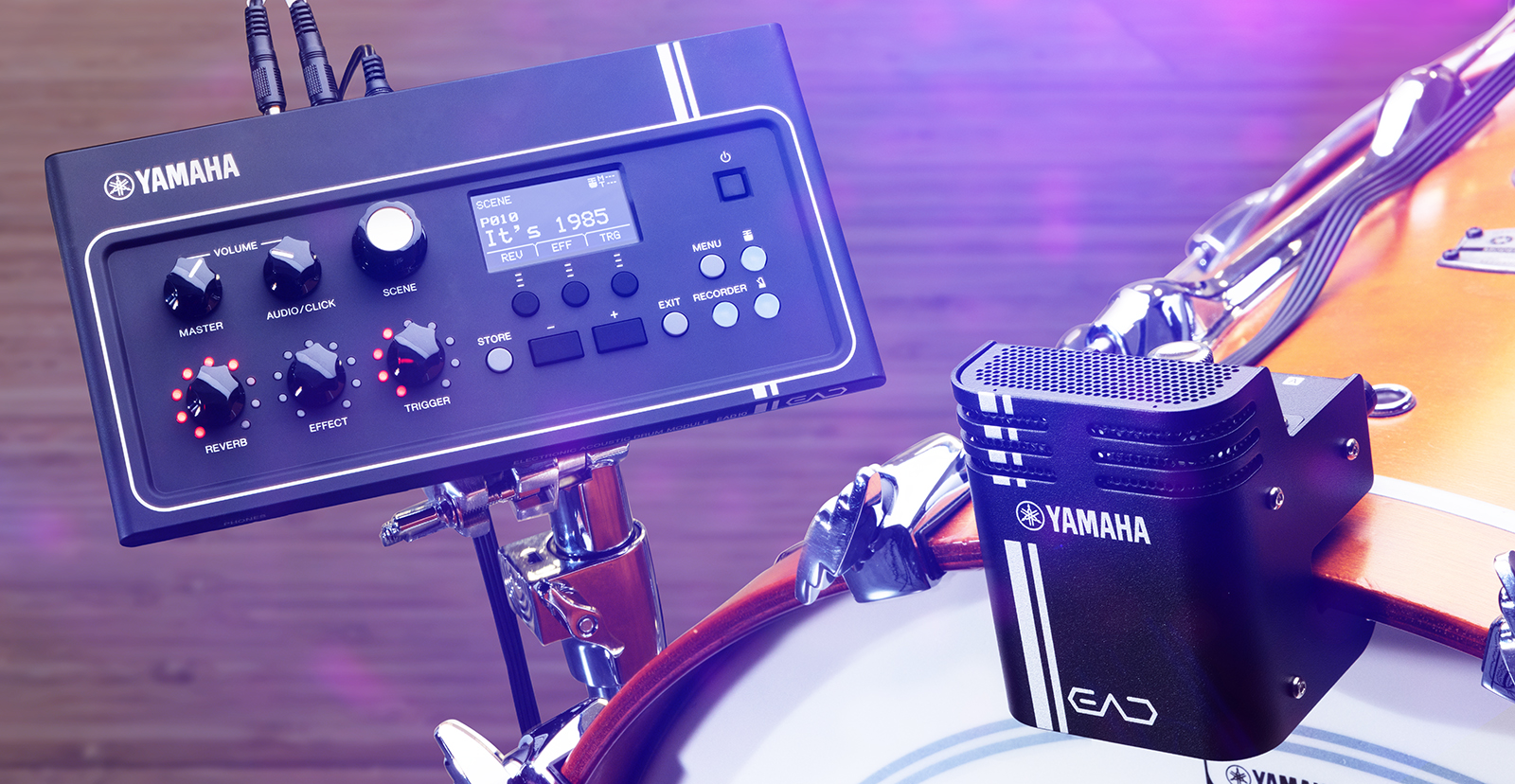
The Yamaha EAD10 module system is a great addition to your drum kit, so in this guide we will show you how to set up, connect, and use the EAD10 for the first time. Follow the sections below to get started.
- Install and Connect the Microphone Trigger
- Calibrate the Sensor Gain and Sensitivity
- How to Record MIDI and Audio
Install and Connect the Microphone Trigger
Installing and connecting the EAD10 mic trigger is easy. You just need to slide it onto your kick drum hoop and tighten it enough that it won’t move. If you’re attaching the mic trigger to a metal kick drum hoop, which often has an uneven profile, be sure to install the included adhesive cushions on the inner and outer attachment points of your kick drum so it’s securely fastened.
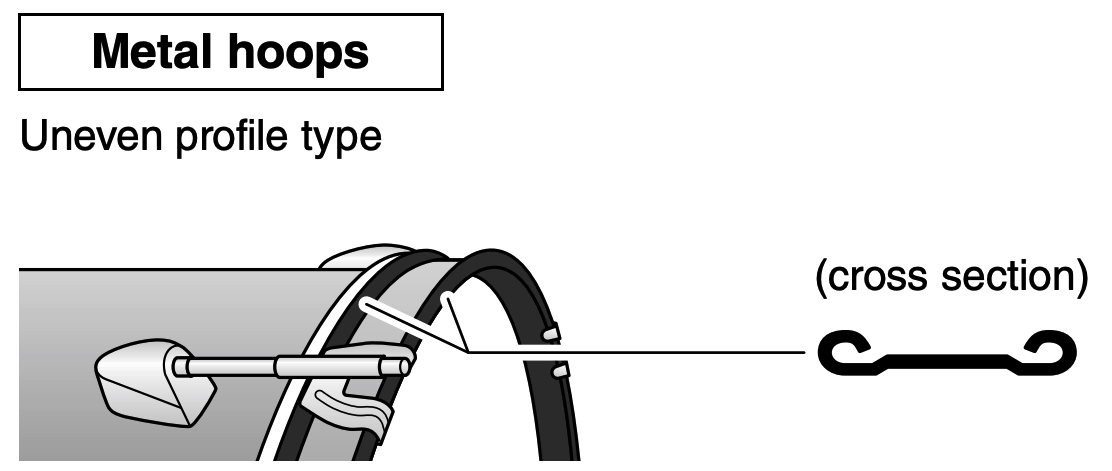
EAD10 metal hoop attachment
To get the best performance possible, here are a few tips for installing the mic trigger.
- To eliminate the risk of unnecessary noise and potential physical damage, make sure that your rack toms don’t touch the mic trigger.
- Make sure your kick drum is the central point of your kit.
- It is not recommended to use the EAD10 system with double kick drum setups, as drums and cymbals placed farther away will sound lower in volume.
- Similar to double kick drum setups, it’s not recommended to have your cymbals placed too close or too far away from the mic trigger.
- Use the included hook-and-loop ties to secure the cables to the kick drum’s tension rod directly next to the module and the hi-hat stand. This reduces the risk of cables accidentally disconnecting.
Hardware connections
After you install the EAD10 mic on your kick drum, you will next connect it to the module. Just match the cables labeled A and B to the outputs on the module. If you have a snare trigger, like the Yamaha DT-50S, connect it to the Snare (3/4) jack. Check out the EAD10 Reference Manual to learn more about how each trigger generates sound.
- You can also connect two 3-zone drum pads to Outputs 5 and 6, but you cannot change the sound settings for Outputs 5 and 6.
Computer connections
IMPORTANT: USB 3.0 cables and ports are not supported.
One great feature of the EAD10 is connecting it to your computer. This is handy if you want to treat your acoustic drum kit as an electronic kit and want to use virtual instrument software. Follow these steps to connect the EAD10 to your computer. Once connected, continue below to learn about recording audio and MIDI.
- Go to the Yamaha EAD10 download page and download and install the latest Yamaha driver.
- Connect the module to your computer with a USB 2.0 cable, launch your DAW, and set the EAD10 as a MIDI device. Check out our SweetCare article for DAW-specific MIDI device setup guides.
EAD10 Easy Setup
EAD10 – Adding Triggers & Pads
Calibrate the Sensor Gain and Sensitivity
IMPORTANT: If you plan on using the EAD10 live, consider this a live microphone. So, if you have a guitar cab or PA speaker facing toward you, it will pick up any effects coming from them (e.g., distortion, delay).
Now that you have everything set up and connected, next you need to calibrate the gain and sensitivity of the mic trigger attached to your kick drum. While the factory setting is a great starting point, you may need to adjust the gain and sensitivity of the mic trigger.
Automatic gain calibration
Automatically calibrating the EAD10 is helpful as it will pick up individual drums and adjust everything according to your dynamic range. This is especially useful in larger, lively rooms where bleed could be an issue.
- Press the Microphone button, located to the right of the Menu button.
- Press the F3 button (below AUTO), then strike each drum at performance level eight times.
- Stop will appear on the display when calibration begins.
- After calibration is complete, Auto will reappear.
Manual gain calibration
Automatic calibration is probably the best way to calibrate the mic sensor, but if you need to fine-tune anything (particularly if you’re running into issues), manually calibrating the EAD10’s mic sensor is the way to go. To do so, simply press the Microphone button, then press the + and – buttons.
Setting the Microphone Sensitivity With the EAD10
Trigger gain sensitivity
Adjusting the sensitivity of the EAD10’s built-in trigger and any additional triggers connected to the module is critical as it can make or break your performance. Adjusting the sensitivity is also something you need to do if you’re running into false triggering.
To update the trigger sensitivity, just press the Microphone button, press the down arrow, then use the + and – buttons to increase or decrease the sensitivity.
How to Record Audio and MIDI
You can record audio in a few ways: to the module itself, to a USB flash drive, to your computer, or your mobile device via the Yamaha Rec’N’Share app. To record, press the RECORDER button to access the record mode.
Once in record mode, press the F1 (REC) button and start playing. Once you’re finished, press the F1 button once more. Please note any recordings saved to your module will be erased if you turn the module off, so be sure to export them to a USB flash drive beforehand! For more information, be sure to check out the EAD10 Owner’s Manual to learn more.
- If you’re recording to a USB flash drive or to a mobile device, press the F3 (SOURCE) button and switch the source to AUX IN.
Recording MIDI and audio in your DAW
As we mentioned in the Computer connections section, you can record MIDI and audio within your DAW at the same time. By default, the EAD10 module is set up to only record MIDI, so if you also want to record audio, you will need to go into the module’s USB to Host settings.
- On the module, press MENU, press the F2 (down) button to cycle to Utility, then press F3 (ENTER).
- Press the F2 button until you see USB to Host, then press the F2 (+) button to change it to Audio and MIDI.
EAD10 Recording Your Drums
EAD10 Drum Module – Record + Upload
EAD10 – Rec’n’Share App Overview
When you need help, Sweetwater has the answers!
Our knowledge base contains over 28,000 expertly written tech articles that will give you answers and help you get the most out of your gear. Our pro musicians and gear experts update content daily to keep you informed and on your way. Best of all, it’s totally FREE, and it’s just another reason that you get more at Sweetwater.com.

