
Using the Synthtribe App with the Behringer 2600
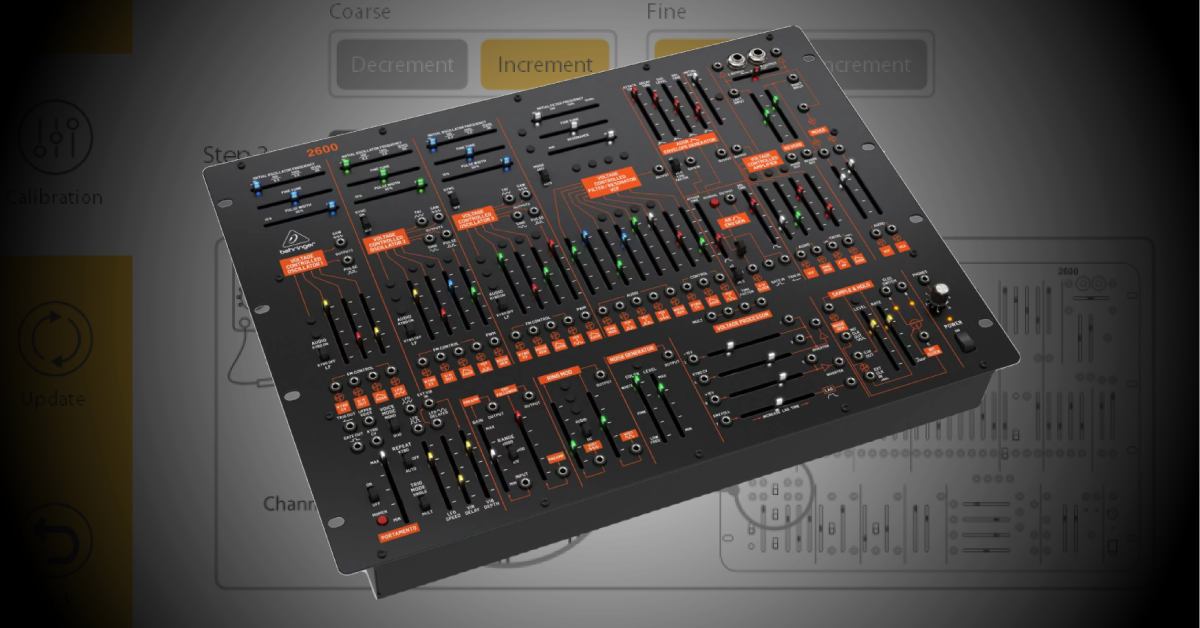
The Behringer 2600 synthesizer is an analog synthesizer that has digital components that allow digital control via the included USB connections. The USB connection allows you to send MIDI to USB, but it also lets you calibrate the 2600 and perform factory resets and firmware updates.
The Synthtribe app is where you’ll perform these functions and more, so in this guide we will show you how to navigate the windows and functions when using the Synthtribe application with your Behringer 2600. Follow the sections below to get started.
Download and install Synthtribe
Download the newest version of the Synthtribe software from the Behringer 2600 product page. Click Downloads, and select the version for Mac or Windows PC. Download and install it.
Connect your 2600 to the computer using a USB data cable, and launch Synthtribe.
General
The General tab of the Synthtribe app has a few different options to select from: a factory reset, Pitch Bend Semitones, and Key Priority. The factory reset option is self-explanatory, but the Pitch Bend Semitones and Key Priority play an important role on your performance.
Factory reset
NOTE: There won’t be any indication when the reset is complete, so it’s best to wait a few seconds before you do anything else.
If your 2600 is exhibiting odd behavior, one of the very first things you should try is a factory reset. Luckily, performing a factory reset on the 2600 is easy. Launch the app, go to the General tab, then click Restore to Factory Default Settings.
Pitch Bend Semitones
Pitch Bend Semitones is a good way to fine-tune your MIDI controller with your Behringer 2600. This option allows you to adjust the range of the pitch bend. Smaller amounts will result in minor changes of pitch; conversely, larger changes will result in a much larger range of pitch. For example, if you have Pitch Bend Semitones set to 2, the pitch bend functionality will have a range of two octaves. If it’s only set to 0.5, then the maximum range you’ll reach is half an octave.
Key Priority
The last option in the General tab is Key Priority. Key priority is based on the order in which keys are played. Here are the three options to choose from:
- Low Note Priority: The lowest-played note takes priority over notes held above.
- High Note Priority: The highest-played note takes priority over notes held below.
- Last Note Priority: The last note played takes priority over notes held above and below it.
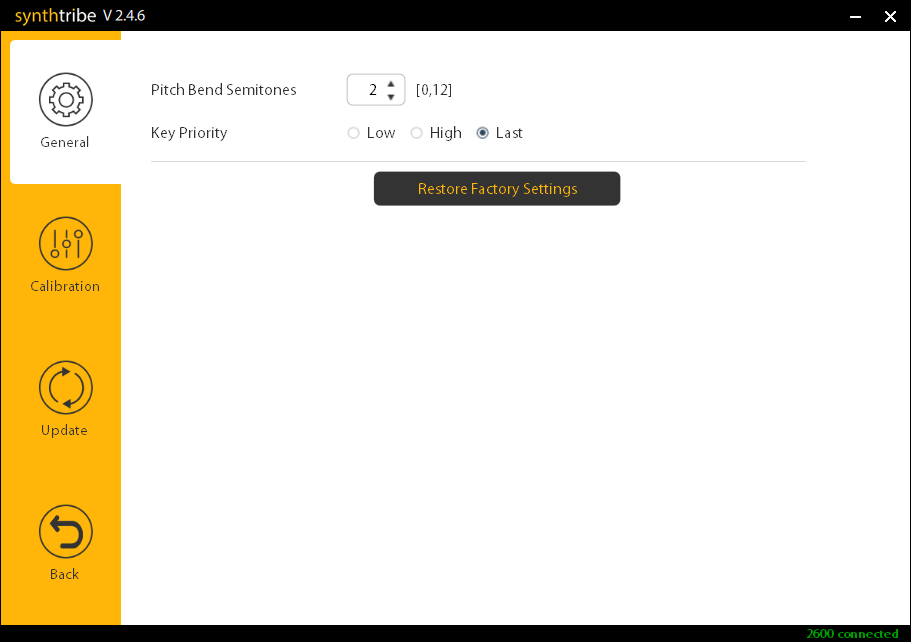
General tab
Update the Firmware
The Update tab only has one option to select from, and that is the firmware update. Behringer will release firmware updates from time to time to address any bugs from past firmware and to help fine-tune how the 2600 behaves. As soon as you click the Update tab, it will automatically scan for the latest firmware available. If there is an update, you’ll be prompted to update at that time.
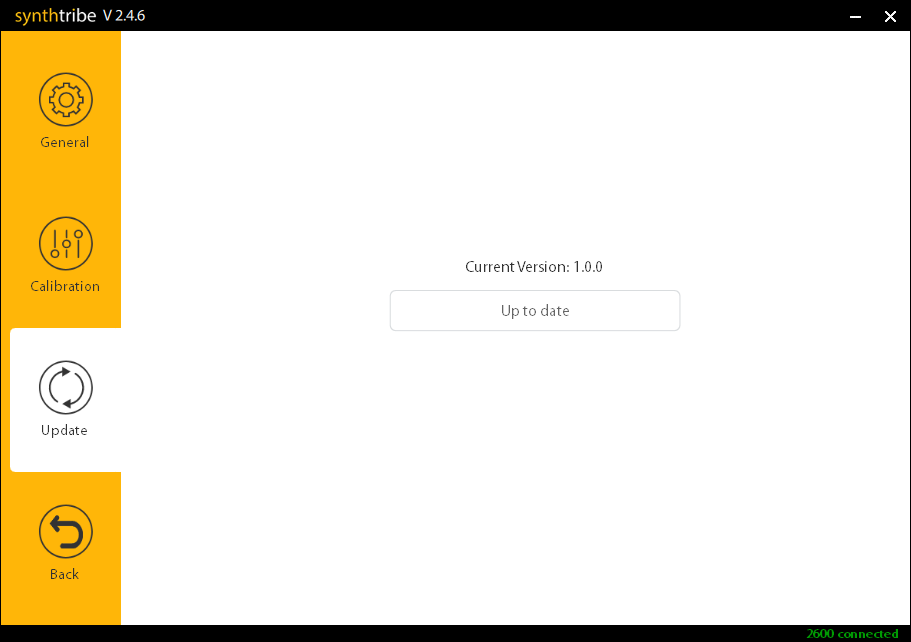
Update window
Related content
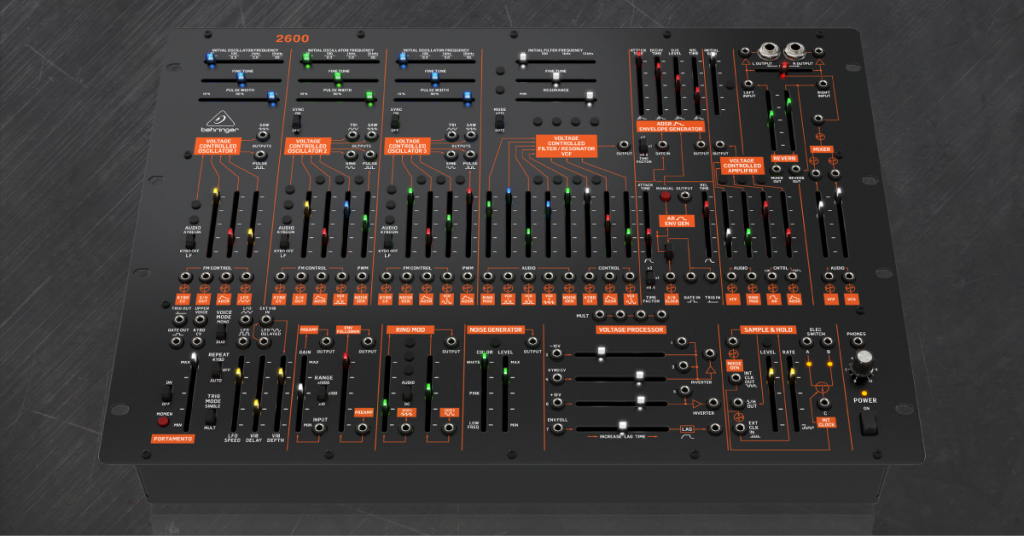
Learn more about how to set up and connect the Behringer 2600!
Learn More
Learn more about how to create sound on a Behringer 2600!
Learn MoreWhen you need help, Sweetwater has the answers!
Our knowledge base contains over 28,000 expertly written tech articles that will give you answers and help you get the most out of your gear. Our pro musicians and gear experts update content daily to keep you informed and on your way. Best of all, it’s totally FREE, and it’s just another reason that you get more at Sweetwater.com.

