
Behringer Virtualizer 3D FX2000 QuickStart Guide
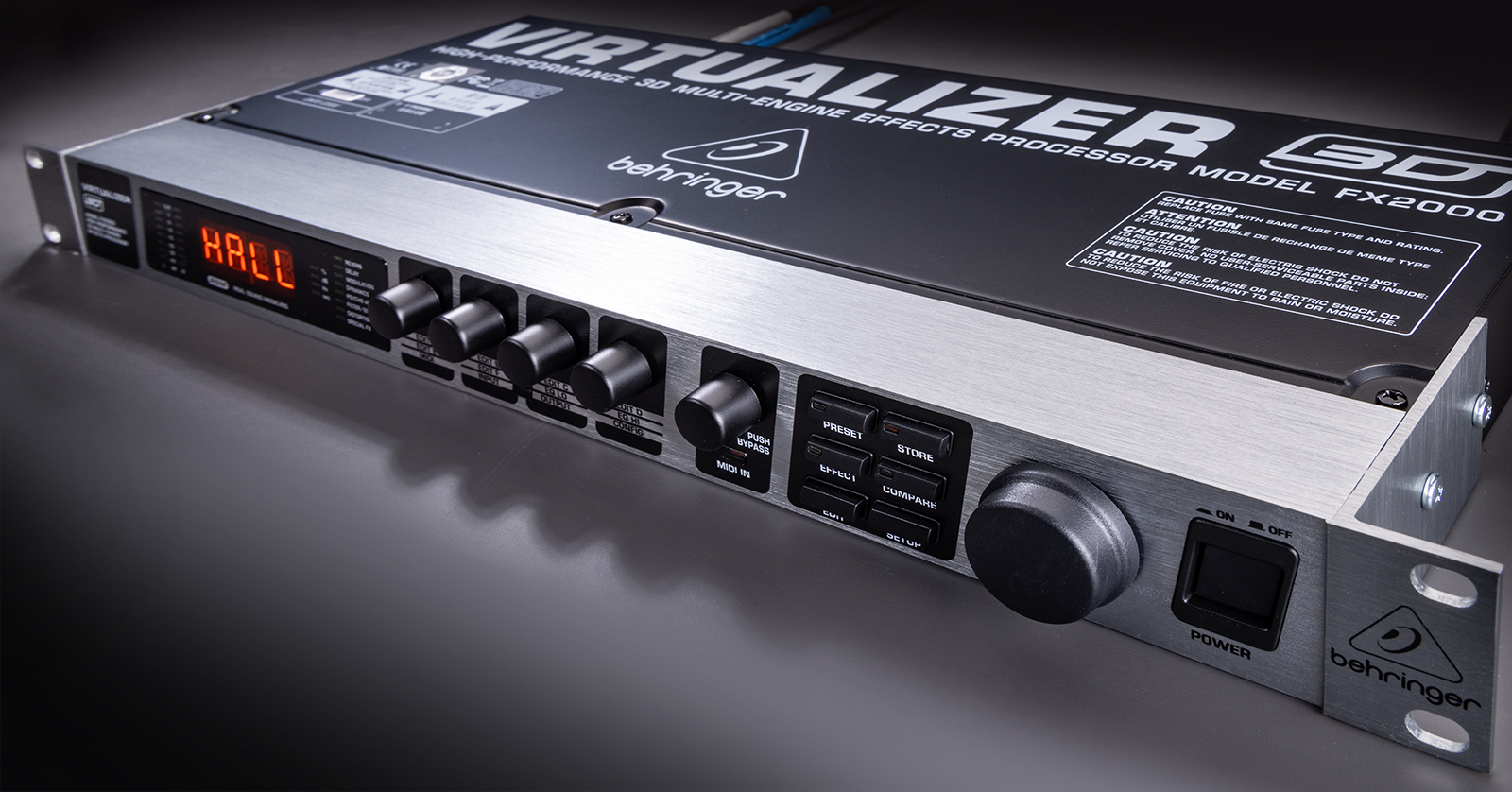
The Behringer FX2000 effects processor is an affordable and robust unit for your studio and live setup. So, in this guide, we will show you how to register, set up, and use it for the first time. Follow the instructions below to get started.
Register the Behringer FX2000
While breaking out your new gear and starting to use it is always exciting, you must first register the effects processor with Behringer. Upon registration, you will receive Behringer’s three-year extended warranty. It should be noted that you must register the unit within the first 90 days of purchase. Check out our guide below to learn how to register Behringer products!
Setup and Connections
You can utilize the FX2000 in many ways. From using it as a hardware insert to using it with your guitar rig, the possibilities are endless. Connections differ slightly depending on your application, so check out the different ways to set up your FX2000.
Analog Outboard Gear
TIP: If your mixer has aux buses with one jack for the aux send, you must use Input 1 on the FX2000. In this case, you must choose the mono mode.
Like other analog outboard effects units, you can use it as an effects insert on a channel or bus. You need to connect the channel/bus output to one of the inputs on the FX2000. Next, use two 1/4-inch mono cables to connect Outputs 1+2 on the FX2000 to the input’s/bus’s L+R inputs. Check out our guide on connecting outboard gear to learn more!
Guitar Effects
IMPORTANT! If your guitar amp utilizes a series effects loop, you should set the FX2000 to Mix Internal mode. However, if your guitar amp uses a parallel effects loop that can allow for adding the effects signal (like an aux bus), you must set it to Mix External mode.
If you have a guitar amp with an FX loop, you can use it as a multi-effects processor. The connection remains the same whether your guitar amp has a series or parallel effects loop. Connect a cable from the Send of your guitar amp to Input 1 of the FX2000. Next, connect a cable from Output 1 of the device to the Return of your guitar amp.
What’s the difference between Mix Internal and Mix External?
Depending on your application, you may want to switch between the Mix Internal and Mix External modes. Mix Internal allows you to control the wetness of the effect applied. In Mix External mode, the effect’s intensity will always be set to 100%.
How to Use the Behringer FX2000
Once everything is set up and connected, it’s time to get started! This article only scratches the surface, as plenty of features are available on Behringer FX2000, so be sure to check out the User Manual to learn more.
Select, Edit, and Save Presets
The Behringer FX2000 boasts 100 high-quality presets that can be fully edited and saved for later recall. Behringer has made selecting, editing, and saving your presets easy, so you can spend more time creating and less time menu diving.
- Power on your gear, adjust the levels, then select a preset using the PRESET knob.
- Once you’ve found a preset, press the EDIT button, then use the four EDIT knobs to adjust specific parameters.
- By default, you will edit parameters A–D. Press the EDIT button once more to access parameters E–H.
- Once you’re happy with the effect, press the STORE button, use the primary encoder to select a user location, then press the STORE button once more to save the preset.
- The unit will return to edit mode if you don’t push the STORE button within five seconds.
Comparing a factory preset with an edited preset
While you’re in Edit mode and would like to compare your changes to the original sound, press the COMPARE button. The COMPARE LED will begin blinking, and editing functions will be temporarily disabled. Press it once more to return to Edit mode.
Factory Reset
IMPORTANT: Do not power off the unit while performing a factory reset! Doing so may brick the unit, and you will have to send it in for non-warranty repair.
There may be a time when you want to start with a blank slate and perform a factory reset of the FX2000. Behringer has made the factory reset process straightforward, too! You just need to press and hold the STORE and PRESET keys while turning on the unit. INIT will then display, followed by a count from R1–R100.
When you need help, Sweetwater has the answers!
Our knowledge base contains over 28,000 expertly written tech articles that will give you answers and help you get the most out of your gear. Our pro musicians and gear experts update content daily to keep you informed and on your way. Best of all, it’s totally FREE, and it’s just another reason that you get more at Sweetwater.com.

