Trigger 2 Quickstart Guide

In this guide, we will show you how to get started with Trigger 2 Platinum. That means we’ll show you how to navigate the plug-in, load samples, and adjust trigger settings. Follow the sections to get started.
Getting started with Trigger 2
Trigger 2 is a drum replacement plug-in which you can use on audio tracks within your DAW. After it’s registered and installed, all you need to do is add it as an insert plug-in onto an audio track.
Navigating the plug-in
There are three main tabs on the main window of Trigger 2; Browser, Triggering, Settings. Within each section, there are additional windows to adjust parameters, change samples, and change plug-in settings.BrowserSettingsTriggering
Browser
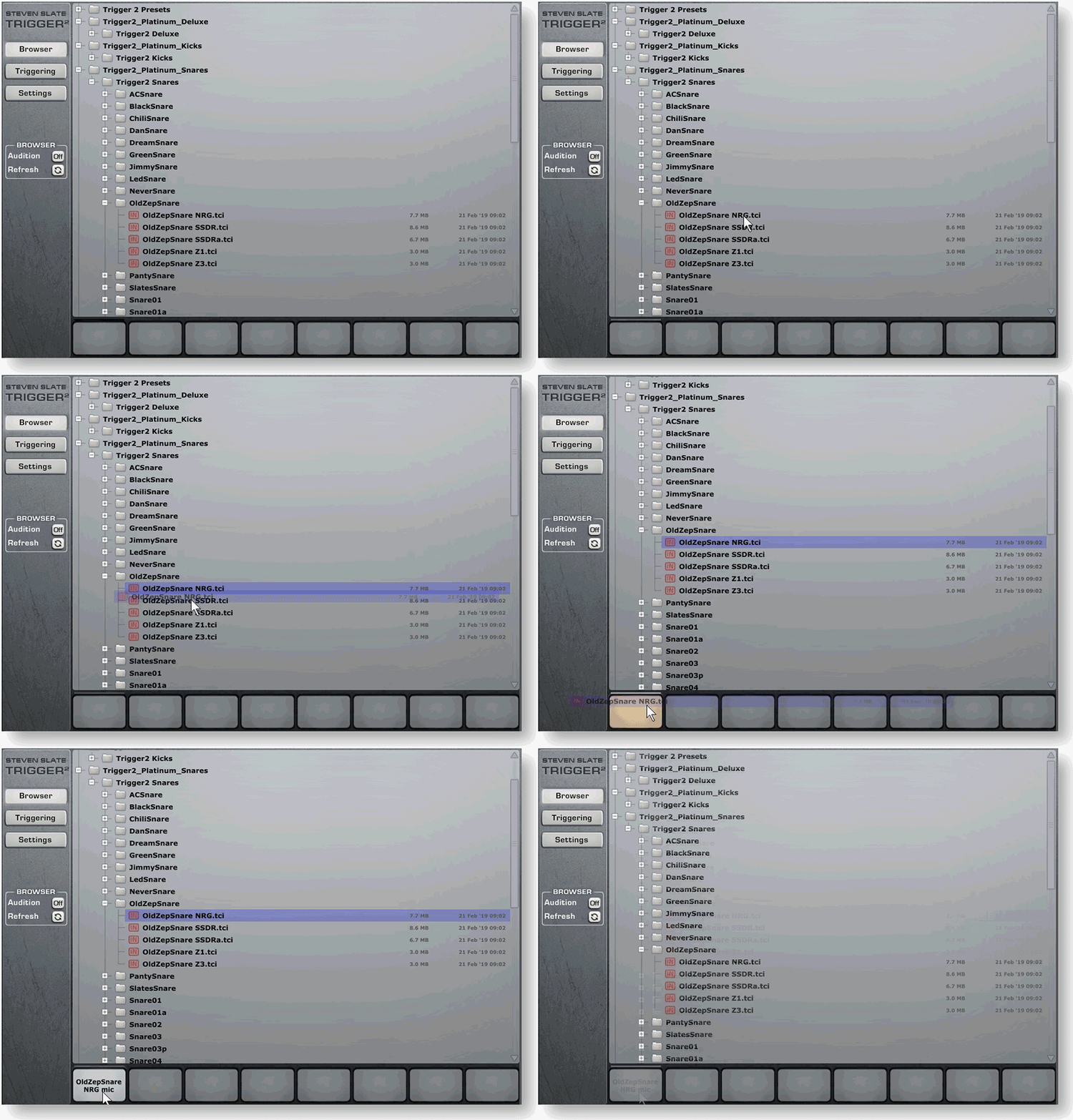
The Browser window is where you’ll view and load all of the samples. There are two additional buttons in the Browser menu; Audition and Refresh. Audition allows you to preview the sample before adding it, and Refresh will refresh the sample libraries if you recently moved the files or added a new sound pack.
Triggering
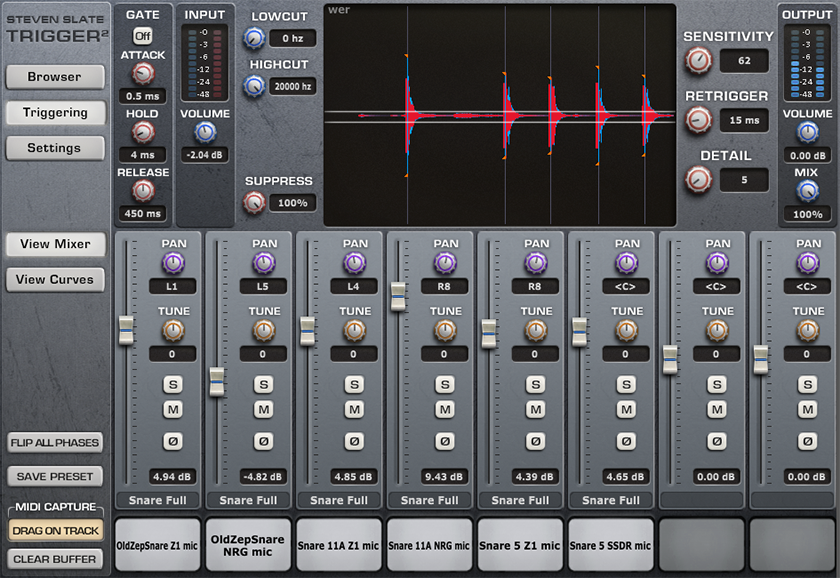
The Triggering window is where you’ll spend time adjusting settings like sensitivity, input and output levels, and hi and low-cut tweaks.
Triggering
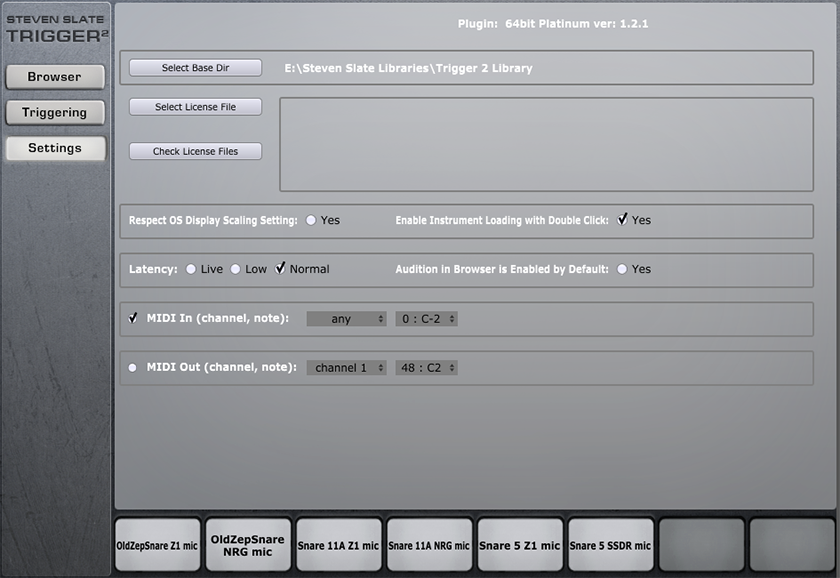
While in the Settings window, this is where you will set the path in which any Trigger libraries reside, adjust plug-in performance options, as well as MIDI note changes.

Browser
Settings
Triggering
How to load samples
Once you’ve installed and linked the sound libraries, all you need to do is select a sample and drag it to a track. Follow these steps to load a sample.
- Load Trigger as a plug-in on an audio track.
- Click Browser, navigate to the folder where the sample resides, then click and drag it to one of the channels located at the bottom of the plug-in window.
- Alternatively, you can double-click a sample to load a sample if you have Enable Instrument Loading with Double-Click checked in the Settings window.
Saving presets
Once you’ve created a preset that you’d like to use later, click Save Preset. To load it back in, go to the Browser tab and locate the preset.
Loading a sample in Trigger 2
Using Trigger 2
Trigger 2 may look a little confusing, but it’s straightforward to use. As soon as you press play, you’ll see the source audio signal stream along with orange hit points and guidelines to help make the re-triggering process a breeze.
Adjusting Trigger settings
Once Trigger is loaded as a plug-in, navigate to the Triggering tab to get you to the main editing window. This is where you’ll adjust settings like input and output volume, detail, and sensitivity.
Input and Output
These adjust the incoming and outgoing signal of the original sample. Use the Mix knob in the output section to blend the source audio and trigger for a more natural sound.
High-Cut and Low-Cut
These filter certain frequencies from the source audio to reduce false triggering. This is particularly useful if, for example, you have false triggering due to hi-hat bleed into the kick drum microphone.
Sensitivity
Adjusting this influences how sensitive the plug-in triggers audio. If setting the sensitivity to a higher value, it will trigger low-volume (ghost notes) samples.
ReTrigger
Changing the ReTrigger time will change the time in between hits. For example, if you’re getting a double-trigger (or “flam”) sound from a bass drum, increase the ReTrigger time to smooth it out.
Detail
Detail sets the level at which the sample stops triggering. Anything outside of the white lines will trigger and display an orange hit point, while anything in-between will not be triggered.
View Mixer
The View Mixer window is where you’ll make changes to each drum channel such as level, panning, and the articulation which triggers.
View Curves
While in View Curves, you can adjust the individual attack, sustain, release, and dynamics of each channel. If you turn a function ON in the Curve Link section, it will group all channels so you can, for example, adjust the attack on all samples at one time.
Flip All Phases
If you click Flip All Phases, the phase of every track will be inverted. This is particularly useful if you want to use both the source audio and the Trigger sample and make them sound cohesive.
Suppressing samples
The routing in Trigger 2 is straightforward. Just add it to a track, and have it come out of the main outs. However, if you have drum tracks that have a lot of bleed from other microphones, you can use Trigger as a plug-in on an AUX track to isolate the drum. Follow these steps to suppress leakage within Trigger. For detailed instructions on how to accomplish this within your DAW, visit the Suppression hub here.
- Create a stereo Group/AUX track in your DAW and add Trigger as a plug-in.
- Send the channel you wish to trigger (i.e., snare) to the LEFT side of the stereo aux channel, and send the other tracks (i.e., kick and hi-hat) to the RIGHT side of the stereo aux channel.
- Adjust the Suppression knob until you only hear the snare samples. The blue waveform is the source audio, and the red is the bleed which is removed.
Is it not triggering correctly?
Make sure that the RED wave peaks are a little bit above the blue wave peaks. If they’re too high, it will mistrigger, and you’ll need to turn the suppression and/or volume of the source track down.
Working with MIDI
With Trigger 2, you can also convert audio tracks into MIDI. It’s an excellent way to edit and quantize beats or even layer sounds from another virtual instrument. Follow these steps to convert audio to MIDI.
- Click Clear Buffer in the MIDI Capture section so it says Empty.
- Press Play within your DAW to start capturing MIDI, then press stop when complete.
- Click and drag the button labeled Drag on Track onto a MIDI or Virtual Instrument track
Trigger 2 Platinum – Drum Replacer Overview
Trigger 2 Deluxe Expansion
Related Articles
When you need help, Sweetwater has the answers!
Our knowledge base contains over 28,000 expertly written tech articles that will give you answers and help you get the most out of your gear. Our pro musicians and gear experts update content daily to keep you informed and on your way. Best of all, it’s totally FREE, and it’s just another reason that you get more at Sweetwater.com.