

Trigger 2 Platinum Software Activation Instructions

In this guide, we’ll show you how to register and install Trigger 2 Platinum software. Follow the sections below to get started.
- Create an iLok account
- Register Trigger 2 Platinum
- Download and install the software
- Link Slate libraries
Create an iLok account
Trigger 2 Platinum software is licensed with iLok. That means to use it, you will need to connect its iLok license to your computer either on your hard drive or an iLok USB stick. If you don’t already have an iLok account, you’ll need to create one and install the iLok License Manager app. Follow the steps below to get started. If you already have an account, pass these steps and continue to Register Trigger 2 Platinum. Learn more about iLok licensing in our iLok Quickstart Guide.
- Visit iLok’s registration page and complete the registration form. Take note of your User ID and password.
- Open the iLok Account Activation email and click on the verification link.
- Download and install the iLok License Manager.
- Launch the iLok License Manager app and sign in to your iLok account.
- (optional) Connect an iLok and when prompted, click Yes to register it to your account.
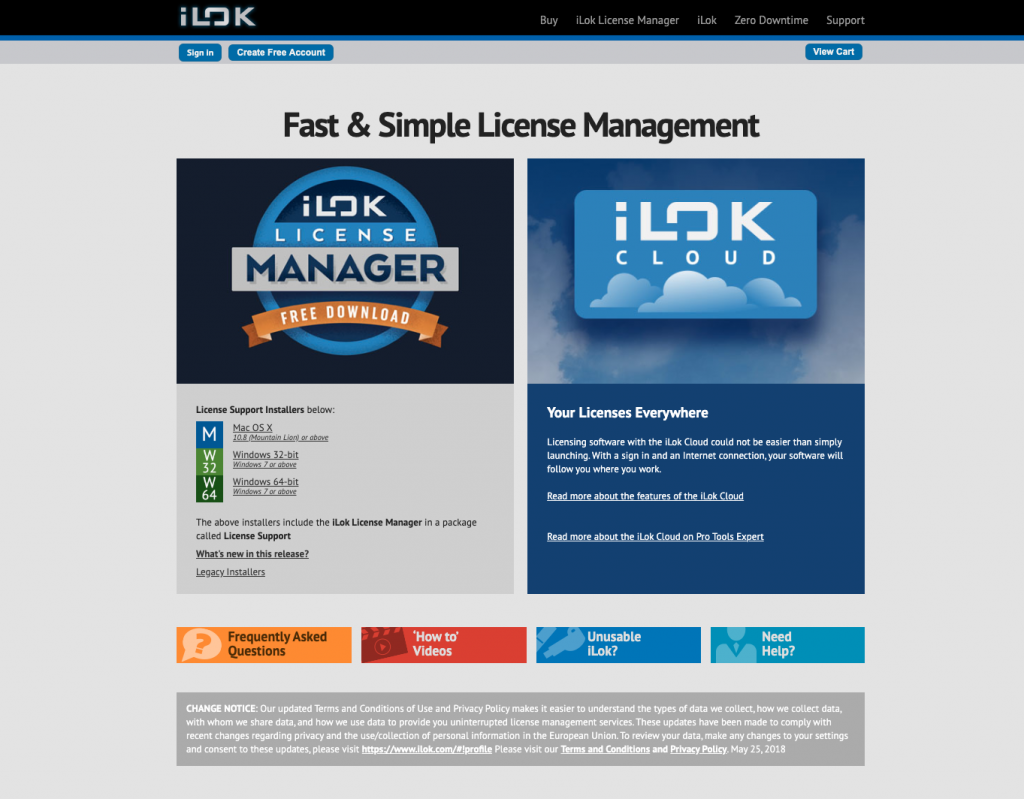
Download the iLok License Manager app from iLok.com.
Register Trigger 2 Platinum
To get your software, you need to register the Passcode with Steven Slate. Visit the Trigger 2 Platinum registration page and enter the Passcode you received from your Sweetwater Sales Engineer. If you already have an account with Steven Slate, use the same email address so you can easily access all your products. Follow the steps below to register Trigger 2 Platinum.
Verify iLok account
Before you can activate your software, you must first verify your iLok account with Steven Slate.
- Log into your Steven Slate Audio account. If you don’t have one yet, you can do so here.
- On your account home page, click your name at the top of the page, then go to Account Settings.
- Click iLok ACCOUNT, enter your iLok User ID, then click Verify.
Is your Steven Slate email account different from your iLok email account?
If the email address for your Steven Slate account is different from your email address linked to your iLok account, you will be prompted to enter a verification code. The verification code will be emailed to your iLok account email address.
Activate Trigger 2 Platinum
Once the account is created, and your iLok account has been verified, the next step in the process is to activate Trigger 2 Platinum.
- On your account home page, click Add Product, copy and paste the Passcode sent to you by your Sweetwater Sales Engineer, then click Submit.
- Launch the iLok License Manager application, navigate to the Available tab.
- Click and drag the license to your iLok dongle or to your computer.
Steven Slate Audio Plugin Install for Windows (PC)
Steven Slate Audio Plugin Install for Mac
Download and install the software
The Trigger 2 Platinum virtual instrument is installed via the Steven Slate Audio Center application. Once downloaded, all of your authorized products will be available to download and install, all in one spot. You’ll be prompted to where you’d like your plugin and sound libraries installed during the installation process. The sample library is large, so we recommend installing it to a hard drive with plenty of space.
Trigger 2 is a sound replacement plug-in that plays audio from its drum sample libraries. That means in order for Trigger 2 to work, you’ll need to install and link the Trigger 2 plug-in and sample libraries. Follow the steps below to install the plug-in first and the libraries second.
- Go to your Steven Slate Audio account, then click on the Trigger 2 Platinum software.
- Click on the installer for your OS, navigate to your Downloads folder, and then launch the installer.
- Launch Steven Slate Audio Center, and if prompted, enter your account credentials.
- Click on the product you just activated, then click the Install button.
- On the next screen, choose where you want the plugin and libraries to be installed, then click Install.
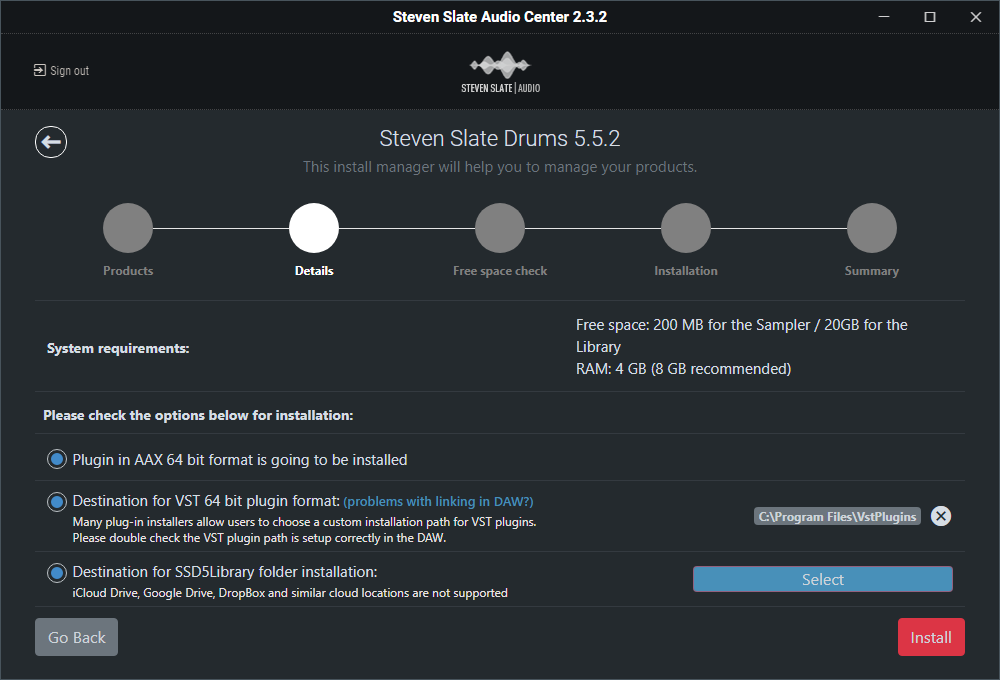
Installing Steven Slate Drum product
Link Slate libraries
Once installed for the first time, all that’s left to do is insert Trigger 2 Platinum on a track and then link the sound Slate Packs. Without linking the Slate Packs, you won’t be able to play any of the drum sounds. Once linked, the Trigger 2 installation is complete. Enjoy your new virtual drum software!
- Launch your DAW software.
- Create a track and add Trigger 2 to it.
- Click the Settings button and click Select Base dir to select your Trigger 2 library folder.
- If you have installed an Expansion Pack and you get an error mentioning a missing license file, navigate to Settings, then click Select License File to link the license manually.
Additional resources
When you need help, Sweetwater has the answers!
Our knowledge base contains over 28,000 expertly written tech articles that will give you answers and help you get the most out of your gear. Our pro musicians and gear experts update content daily to keep you informed and on your way. Best of all, it’s totally FREE, and it’s just another reason that you get more at Sweetwater.com.

