
Rode AI-Micro Setup Guide
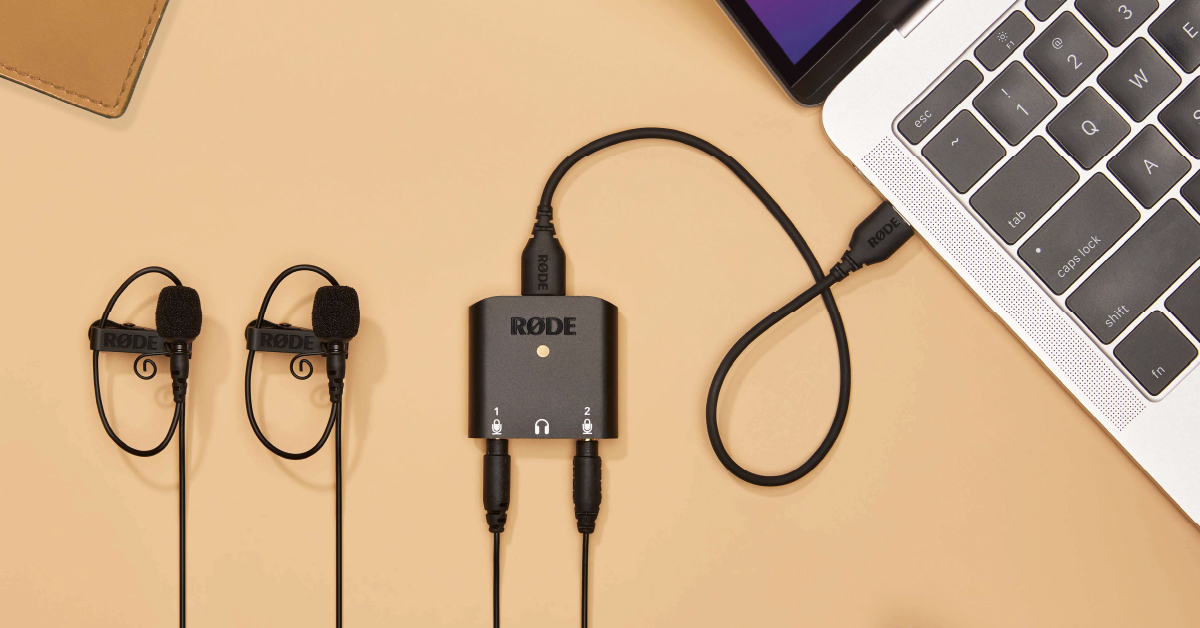
The RØDE AI-Micro is an excellent mobile audio interface to have both on the road and in the studio, so in this guide, we will show you how to register, set up, and connect the interface for the first time. Follow the sections below to get started.
Register the interface
Before you get started, the first thing to do is register the AI-Micro with RØDE. Upon registration, you will receive an extended two-year warranty.
- Log into your RØDE account. If you don’t have an account yet, do so at this time.
- On the next page, use the dropdown box to select the AI-Micro, enter the serial number (located on the box), then click Register.
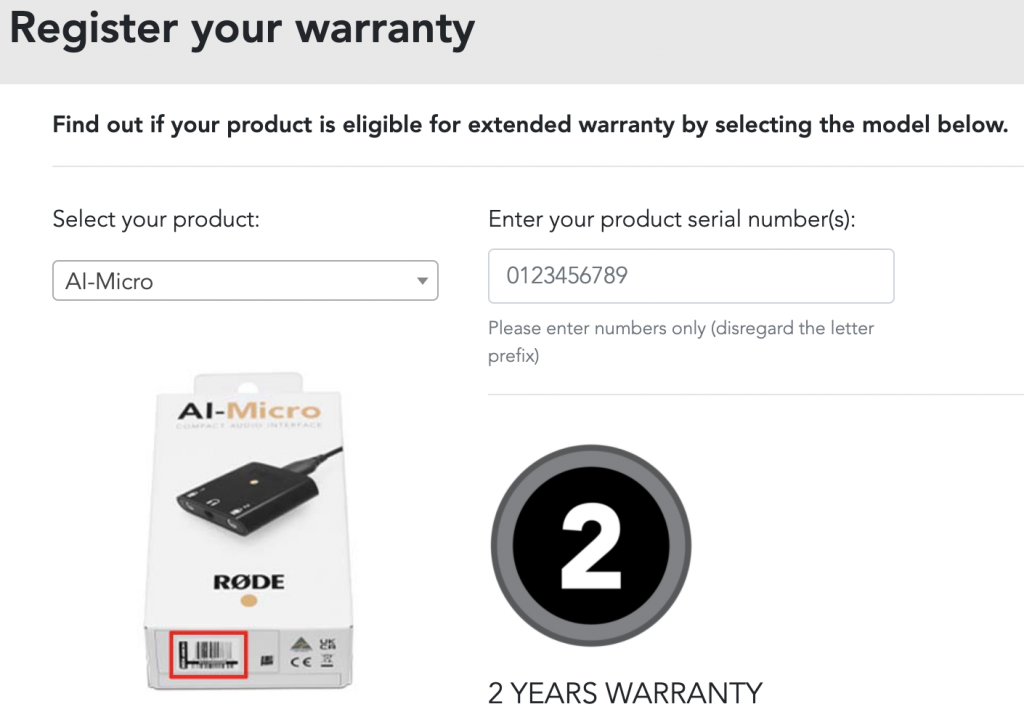
Click the image to register your AI-Micro with RØDE.
Setup and connections
IMPORTANT: If you’re using an iOS device with a Lightning port, you must use the official Rode SC15 Lightning to USB-C cable. Also, you cannot use phantom-powered mics.
Once your AI-Micro is registered, it’s time to get set up and connected! It’s perfect for mobile users recording in the field or performing on-location interviews, but it’s also great for recording podcasts and livestreams at home.
The connections are straightforward, so you’ll spend more time recording and less time setting up. It’s class-compliant and bus-powered, so no additional power or drivers are necessary for it to run correctly on your device.
All you need to do is connect the RØDE AI-Micro to your mobile device or computer using the included cables, and the interface will take care of the rest. Your computer or mobile device will automatically detect the interface and set the Micro as the default playback and recording device.
Using the RODE applications
While you can use any third-party software to record audio with your AI-Micro, you will need to use RØDE’s Connect application (PC and Mac), Reporter application (mobile devices), and RØDE Central (for all devices) for expanded functionality and interface configuration. You can also update the firmware of your AI-Micro using any one of the three apps.
RODE Connect
RØDE Connect is used when connecting the AI-Micro to your computer. This software lets you set up and connect your RØDE products within your streaming or recording software. Be sure to keep this tab open and check out our guide below to learn how to use RØDE Connect.
RODE Reporter
RØDE Reporter is a mobile app available on the Google Play Store and App Store. While you can use any recording app on your Android or iOS device, RØDE Reporter is preferred as you have complete control of the interface, which includes adjusting individual input levels, enabling the hi-pass filter, and selecting the mode you’d like to record in (Merged, Split, Stereo).
Click to download from the Google Play Store
Click to download from the App Store
RODE Central
RØDE Central is an application available for both mobile and desktop setups. This software is best used for device configuration with third-party audio applications and when you want to control the channel modes, high-pass filter, and direct monitoring.
Related Articles
When you need help, Sweetwater has the answers!
Our knowledge base contains over 28,000 expertly written tech articles that will give you answers and help you get the most out of your gear. Our pro musicians and gear experts update content daily to keep you informed and on your way. Best of all, it’s totally FREE, and it’s just another reason that you get more at Sweetwater.com.

