
Numark Mixstream Pro: Setup and Connections
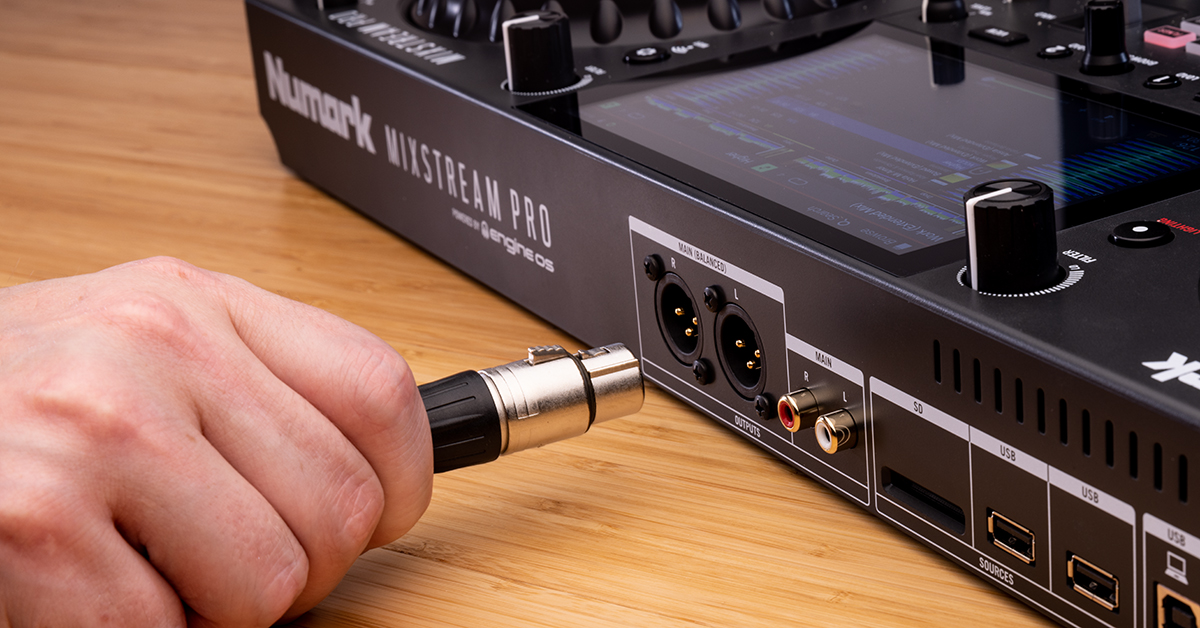
We at Sweetwater are committed to making sure you have the best experience possible, so in this guide, we will show you how to get up and running with your new Numark Mixstream Pro. Follow the sections below to get started.
Register the Mixstream Pro
While it’s exciting to open the box and start using your Mixstream Pro, you’ll first need to register the controller with Numark. When registering the Mixstream Pro with Numark, you will gain access to exclusive Numark software like Engine DJ and additional promotions that are only available to Numark customers.
- Sign in to your Numark account. If you don’t have an account, you can create one here.
- On your account home page, click Register A Product.
- Use the dropdown box to select your Mixstream Pro, enter your Serial Number (located at the bottom of the unit), and fill out the additional information.
- Keep your Sweetwater invoice handy, as you’ll need it for part of the registration process!
- Click Submit Registration.
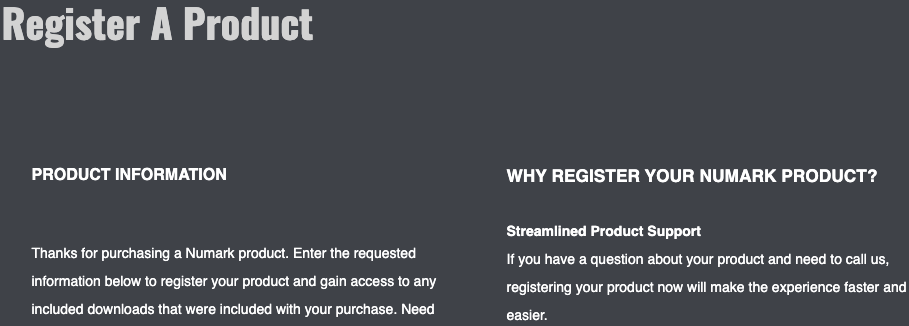
Click the image to register your Numark Mixstream Pro
Setup and connections
IMPORTANT! The Mixstream Pro must go through a self-calibration process every time you turn on the unit. Do NOT touch the platters or touchscreen, as they may operate incorrectly. It is also recommended that the controller be on a flat/level surface for optimal results.
The Numark Mixstream Pro connections are straightforward. It has RCA and XLR outputs, a ¼-inch microphone input, and ¼-inch and ⅛-inch headphone inputs. It also has an SD card, two USB-B connections (for importing your music and firmware), and a USB-A port for connecting to your computer.
Here are a few tips when setting up your Mixstream Pro. For detailed information on setting up and connecting DJ controllers, check out our guide to learning how to set up your DJ controller.
- The microphone input only accepts a TRS connection.
- Connect a keyboard to one of the USB-B ports to search through your library.
- If you want to hear the cue and main mix separately, swipe down on the touchscreen and press Split Cue. The cue signal will be summed to mono and sent to the left channel, and the main mix will be summed to mono and sent to the right.
- For optimal level, push the deck’s fader up, turn the deck’s Level knob all the way down, and begin playing the track at its loudest point. Slowly turn it up to the point where it starts clipping, then back off slightly.
- We highly recommend using name brand, USB 3.0 thumb drives formatted in exFAT or FAT32 and Class U1 or U3 SD cards, particularly when streaming music from the device, for the best performance possible!
Firmware update
If your Mixstream Pro’s firmware is out of date, you will receive a message after the self-calibration process is complete. There are a few different ways you can update the firmware, so check out our guide to learn more about how to update the firmware on your Numark Mixstream Pro.
Related Articles
When you need help, Sweetwater has the answers!
Our knowledge base contains over 28,000 expertly written tech articles that will give you answers and help you get the most out of your gear. Our pro musicians and gear experts update content daily to keep you informed and on your way. Best of all, it’s totally FREE, and it’s just another reason that you get more at Sweetwater.com.

