

Numark Mixstream Pro: How to Stream Music
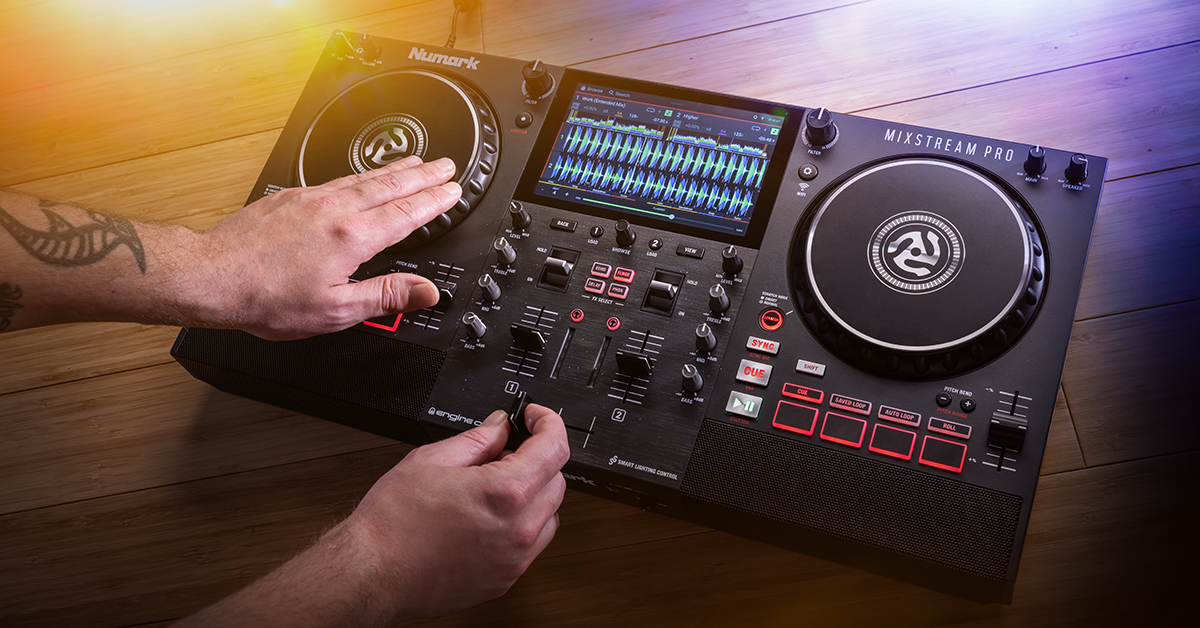
The Mixstream Pro is a versatile DJ mixer that allows you to stream music in multiple ways, so in this guide we will show you how to set up and start playing music on your Mixstream Pro! Follow the sections below to get started.
Preparing your tracks
The first thing you need to do is prepare your tracks within the Engine DJ software. Engine DJ is the free music management software you’ll use to import and sync music from your computer and your Apple Music, Serato, Traktor, and rekordbox libraries. What’s great is you can create playlists and even plan out your entire set by adding cues, loop points, and more!
TIP: By default, Traktor and rekordbox libraries are disabled. To enable them, click the Gear icon (upper right corner of the software), click Library, then click On. Their respective icons will then appear on the left sidebar.
- Go to the Engine DJ webpage and download the Engine DJ Desktop application.
- Navigate to your Downloads folder, launch the installer, and follow the on-screen instructions.
- Launch Engine DJ, then on the left side of the application, click the icon where the music is being imported.
- Highlight the songs you want to send to your Collection, then drag them to the Playlists icon (first icon on the top).
- Drag the songs over Collection to create a Playlist.
- Once you’re all set, click Sync Manager, select the Playlists you want to send to your storage device, then click Export to drive.
- Click the eject icon at the top right of the Sync Manager window, then disconnect your storage device.
- Always be sure to safely eject external storage devices so your audio files or playlists don’t get corrupted.
Engine DJ file format compatibility
If a track doesn’t appear in your collection in Engine DJ, it could be due to file format incompatibility. So you don’t run into this issue, here is a list of all compatible audio file formats:
- AAC/M4A
- AIF/AIFF (44.1–192 kHz, 16–32-bit)
- ALAC
- FLAC
- MP3 (44.1kHz, 32–320 kbps)
- MP4
- Ogg Vorbis
- WAV (44.1–192 kHz, 16–32-bit)
Do I have to create a playlist?
If you have a gig where you need to keep the energy going or are playing a specific genre for the entire set, we highly recommend creating playlists. However, if you’re DJing a formal event like a wedding or a party where you know there will be plenty of song requests, you can just drag and drop songs directly to your thumb drive and prepare and create playlists directly from your Mixstream Pro on the fly.
Streaming from a USB drive or SD card
Once you’ve exported music to your thumb drive or SD card, it’s time to stream DJing on the Mixstream Pro.
- Insert the storage device to the Mixstream Pro, swipe down on the touch screen, then press Browse.
- If you created a playlist as we described in the first section, press Playlists.
- If you just copied and pasted tracks directly to your thumb drive, press Source, and select your connected device.
- Double-tap or swipe the first song you want to load, then select its destination deck. Follow the same procedure to load the next song to the other deck.
- Start playing!
Using USB Drives and SD Cards | Numark Mixstream Pro Quickstart Guide
Wireless streaming
IMPORTANT: Please note that you must have an active subscription to use any of the streaming services.
One feature that sets the Mixstream Pro apart from the rest is the ability to stream playlists wirelessly. Currently, you can stream playlists from TIDAL, Beatport LINK, Beatsource LINK, Soundcloud GO+, and Dropbox. Skip these steps and continue to the Streaming from Dropbox instructions if you want to stream from Dropbox, as the process is a little different.
Make sure you’re connected to a network with a strong signal. If you run into any connectivity issues, be sure to check out our guide on how to optimize network settings for your gear!
- Press the Gear button on the controller, then press WIFI on the touchscreen.
- Locate, then press the network you wish to connect to, enter the Wi-Fi password, and press Connect.
- Navigate to the Browse window, press Source, and select the platform you want to stream from.
- Follow the on-screen instructions to connect the controller to your platform account.
- Search for the song you want to play, double-tap or swipe the first song you want to load, then select its destination deck.
- Follow the same procedure to load the next song to a deck.
- Start playing!
Using Standalone Streaming Apps | Numark Mixstream Pro Quickstart Guide
Streaming from Dropbox
Streaming your music from Dropbox is a bit different from the other platforms, as it’s more involved. Please note that you will need a USB thumb drive or SD card when streaming from Dropbox.
- Create a Dropbox account, then download and install the software.
- Go to the Engine DJ webpage, and download the Engine DJ Desktop application.
- Launch the Engine DJ application, click the gear icon, and select Library.
- Click On underneath Cloud Storage to enable Dropbox.
- Create playlists in the software as we outlined in the Preparing your tracks section of this article.
- Once you’re all set, click Sync Manager, select the Playlists you want to send to Dropbox, then click Export to Drive.
- Press the gear button on the controller, then press WIFI on the touchscreen.
- Locate, then press the network you wish to connect to, enter the Wi-Fi password, and press Connect.
- Insert your USB thumb drive or SD card.
- Press Source on the touchscreen, select Dropbox, then follow the on-screen instructions.
- Search for the song you want to play, double-tap or swipe the first song you want to load, then select its destination deck.
- Follow the same procedure to load the next song to a deck.
- Start playing!
Using Dropbox | Numark Mixstream Pro Quickstart Guide
Related Articles
When you need help, Sweetwater has the answers!
Our knowledge base contains over 28,000 expertly written tech articles that will give you answers and help you get the most out of your gear. Our pro musicians and gear experts update content daily to keep you informed and on your way. Best of all, it’s totally FREE, and it’s just another reason that you get more at Sweetwater.com.

