

Numark Mixstream Pro: Firmware Update and Factory Reset
In this guide, we will show you how to perform a firmware update on a Numark Mixstream Pro. Follow the instructions below to get started.
How to update Numark Mixstream Pro firmware
TIP: We highly recommend updating the firmware via USB, if possible. If you update the firmware via Wi-Fi and have a spotty connection, you may encounter errors.
When you first power on the Mixstream Pro, you will receive a notification that the firmware is out-of-date. If that’s the case, you can update the firmware three separate ways: using the Engine Update software, USB flash drive, or Wi-Fi. Follow these steps to check the firmware version.
- If the firmware is out-of-date, press Remind Later, Ignore, or Update when prompted on the touchscreen.
- If you press Update, press Yes to begin the update process. The controller will restart and boot into Update Mode.
- If you press Remind Later or Ignore, you can enter Update mode by going to the About/Update menu and pressing Reboot.
Accessing the settings
To view which firmware version is currently installed on your controller, you will need to enter the About/Update menu. To access this menu, swipe down the top of the touchscreen, press Settings, then press About/Update. Alternatively press the gear button located on the right side of the controller.
Engine Update software and USB thumb drive
- Go to the Engine DJ download page. On the right side of the page, you will see OS. Use the dropdown box to select the Numark Mixstream Pro.
- Click the installer for your OS.
- If you are updating the firmware via USB thumb drive, click Download for USB adapter.
- Connect the Mixstream Pro to your computer.
- Navigate to your Downloads folder, double-click Mixstream+Pro+x.x.x+Updater, then click the red Start Update button.
- Once the update has been completed, reboot the device.
USB thumb drive
IMPORTANT: The thumb drive will not be recognized if formatted to NTFS, so be sure to format the drive to exFAT or FAT32 beforehand. Check out our guide to learn more about formatting external USB drives.
- Go to the Engine DJ download page. On the right side of the page, you will see OS. Use the dropdown box to select the Numark Mixstream Pro.
- Click Download for USB updater.
- Insert the thumb drive into your computer, navigate to your Downloads folder, then transfer the .img file to your thumb drive.
- Safely eject the hard drive from your computer.
- Turn on the Mixstream Pro, insert the USB thumb drive, then enter Update Mode.
- Once the firmware update is complete, reboot your controller.
- Press the red LIGHTING button underneath the left Filter knob, then press the eject icon located to the right of your thumb drive to unmount the drive from the controller safely.
Wi-Fi
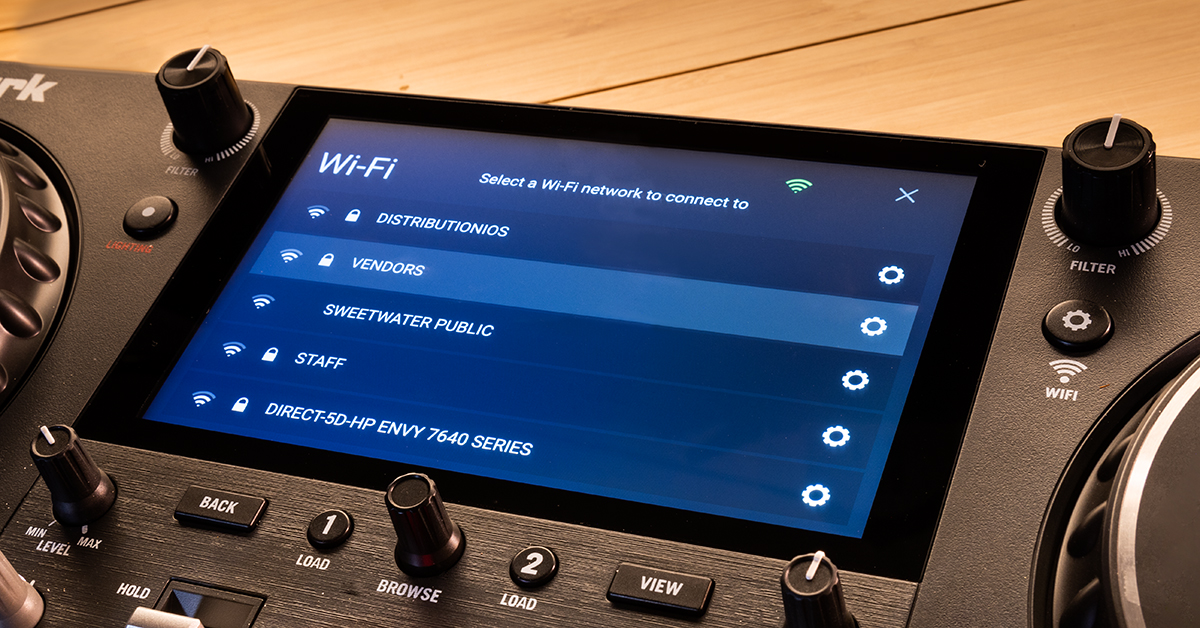
- Connect your device via Wi-Fi by pressing the Wi-Fi button underneath the right Filter knob, then press Wi-Fi on the touchscreen.
- Connect to your wireless network.
- Access the Settings menu and tap the About/Update tab.
- Press Update and follow the on-screen prompts.
- Once complete, reboot your Mixstream Pro.
Numark Mixstream Pro factory reset
Restoring the Mixstream Pro to its original factory settings is referred to as a “factory reset.” If you’re running into issues with your controller, or just need a fresh start, you will need to perform a factory reset. Numark has made the process easy.
- Swipe down on the touchscreen or press the gear button.
- Press Settings, then press Reset to default located to the right of Settings.
Related Articles
When you need help, Sweetwater has the answers!
Our knowledge base contains over 28,000 expertly written tech articles that will give you answers and help you get the most out of your gear. Our pro musicians and gear experts update content daily to keep you informed and on your way. Best of all, it’s totally FREE, and it’s just another reason that you get more at Sweetwater.com.

