
Getting Started With the Neve 88M
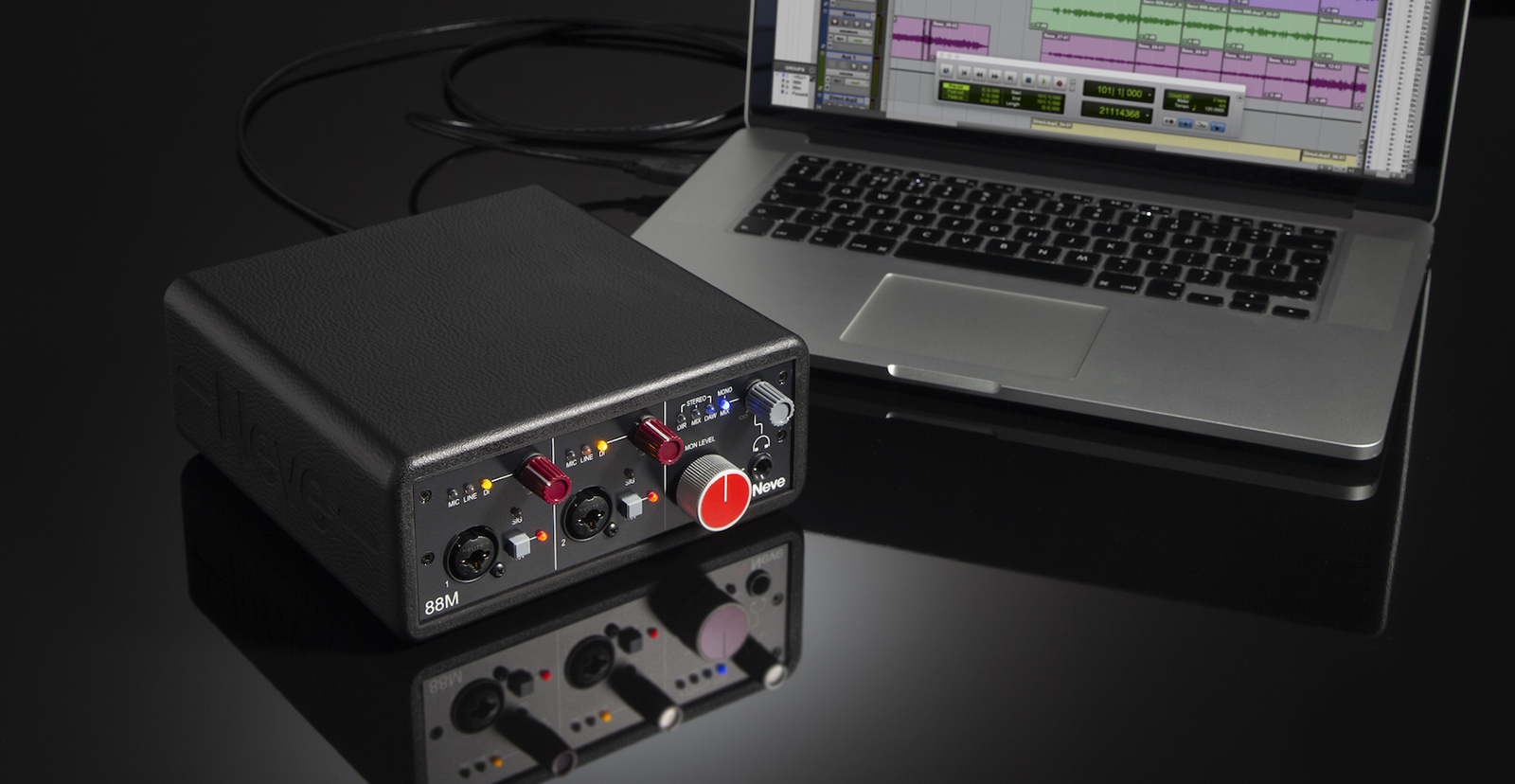
The Neve 88M audio interface is a fantastic interface to use in the studio, so in this guide, we will show you how to register, set up, and use the 88M for the first time. Follow the sections below to get started.
Register the Interface
Before you get set up and connected, you first want to register the 88M with Neve. Upon registration, you will activate Neve’s three-year warranty. While all Sweetwater purchases come with a free two-year warranty, registering the interface will guarantee an extra year.
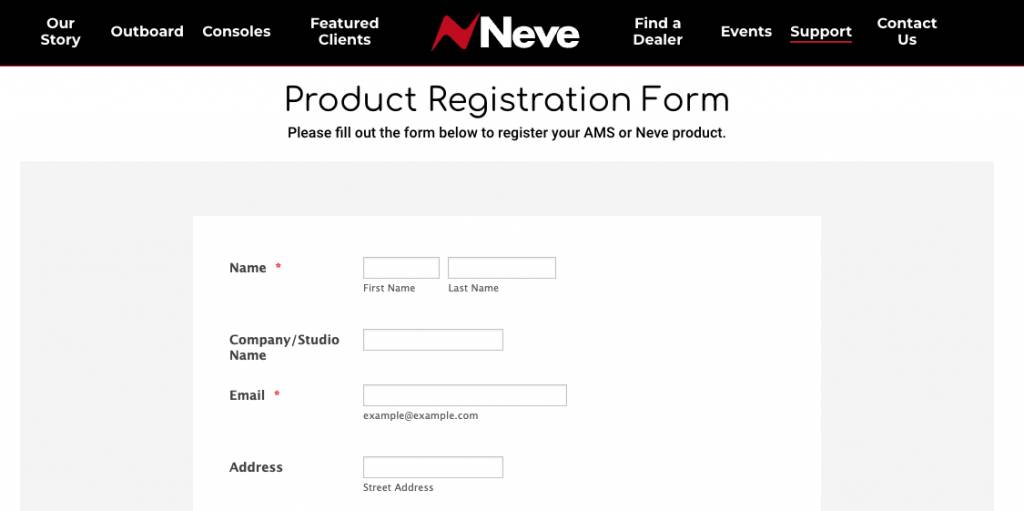
The registration process is easy, too. All you need to do is go to the Neve registration page, fill out the necessary information, then click Register. Be sure you have a copy of your Sweetwater invoice handy, as you will need to provide proof of purchase!
Setup and Connections
Once you have registered the Neve interface, it’s time to get set up and connected! The 88M is bus-powered, so no external power supply is needed, and it runs on the USB 3.0 protocol but is also USB 2.0 compliant.
Download the 88M driver (Windows PC users only)
The interface is class-compliant on Mac, which means no additional driver software is necessary. However, Windows PC users must download the dedicated Neve ASIO driver for the interface before connecting it to the computer, so it works correctly.
- Go to the Neve’s 88M product page, scroll down to More Information and Support, click Downloads, then click USB Audio Driver (Windows).
- Navigate to your Downloads folder, then locate and launch the installer.
- Once the installation is complete, connect the 88M to your computer.
Connecting your gear
To connect, plug in your Neve 88M interface with the included USB-C cable directly to your computer. What’s great is that you can also connect any rack gear to the interface via Ch 1 and 2 and any outboard gear that uses ADAT connections. Once connected, update your computer’s audio settings, and set your interface as the default playback and recording device.
- Turn GAIN, Headphones, and MON LEVEL knobs all the way down.
- Connect the interface to your computer, navigate to your OS sound settings and set it as the default input and output device.
- PC: Right-click the sound icon on the Windows taskbar, select Sounds, then click the Playback tab. Locate and select the interface, click Set Default, then click OK to close the menu. Do the same in the Recording tab.
- Mac: Click the Apple icon from the Menu Bar and select System Preferences. Click Sound, then select the 88M under the Input and Output tabs.
- Connect your monitors to the MON O/P outputs.
- Connect your guitar, microphone, or line-level signal to the front panel channels 1 and 2.
- If you have external signal processing equipment, you can connect it using the two channels of Send and Return jacks on the back panel.
- You can also obtain eight more channels of input by using equipment with an ADAT interface, connected through the ADAT Out and In jacks on the back panel.
- If using a condenser microphone, be sure to connect the mic before turning Phantom Power (+48V) on.
- Play some music or a video, and slowly turn the MON LEVEL and (if applicable) Headphone knobs to the right until it is at a comfortable listening level.
- Begin playing your instrument or talking into the mic at normal performance level, turn the associated Input knob to a point where it clips, then turn it down slightly. This ensures you get the most accurate input level possible.
- Launch your DAW and set it as the primary playback and recording device.
When you need help, Sweetwater has the answers!
Our knowledge base contains over 28,000 expertly written tech articles that will give you answers and help you get the most out of your gear. Our pro musicians and gear experts update content daily to keep you informed and on your way. Best of all, it’s totally FREE, and it’s just another reason that you get more at Sweetwater.com.

