
Midas M Air Series Quickstart Guide
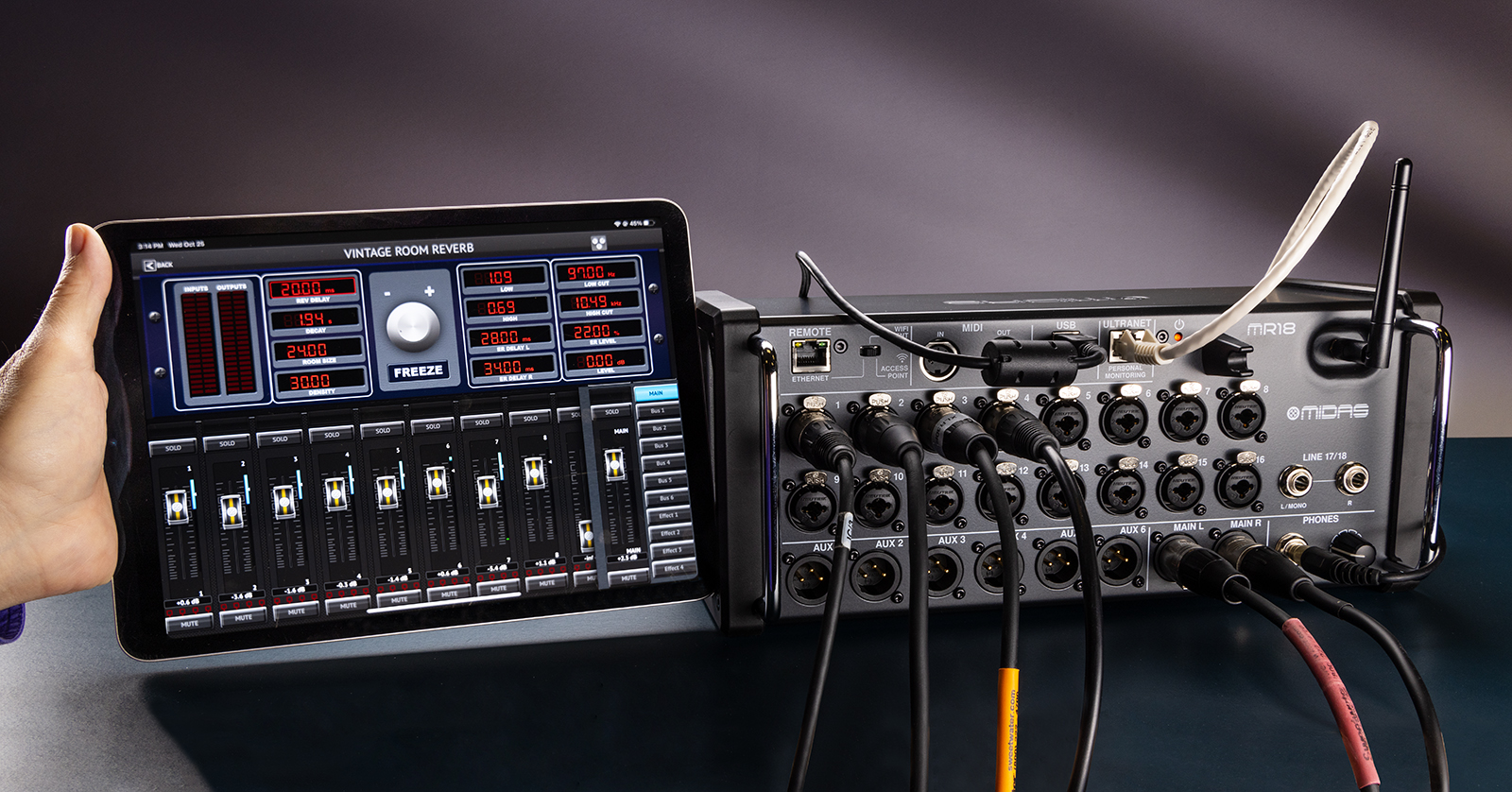
The Midas MR12 and MR18 make up the Midas M Air series of digital mixers. You control them from your iPad or Android tablet over Wi-Fi with the new-generation Behringer MX-Mix app. In this guide, we’ll show you how to use the app, then how to connect a microphone and send a signal to your speakers. Let’s get started.
- Tutorials for Midas & Behringer Digital Mixers
- Midas M Air Warranty Registration
- Download the Midas User Manual & Quick Start Guide
- Controlling Your Midas M Air Mixer from Your iPad or Android Tablet
- Wi-Fi & Ethernet Connections
- Set a Wi-Fi Network Name & Password on Your M Air
- Get Sound In & Out
- Related Content
Tutorials for Midas & Behringer Digital Mixers
IMPORTANT: Many Behringer X Air and Midas M Air tutorial videos you find online were made years ago and refer to controlling your M Air with the M AIR and M AIR Q apps for iPad and Android tablet. These apps are obsolete. You need the new-generation MX-Mix and MX-Q apps instead.
If you want to learn about using your Midas M Air mixer, then you can look online for tutorials on the Behringer X Air mixer.
The Midas M Air line of mixers, with their superior audio components and sound quality, share their design with the less-expensive Behringer X Air line of mixers. Both brands come from Music Tribe.
Behringer X Air tutorials apply equally to the Midas M Air because the two products are laid out and operate in the same fashion.
Midas M Air Warranty Registration
By default, Midas gives you a 1-year warranty. However, if you register your item on the website within 90 days of purchase, Midas gives you an additional two years on your warranty. It’s free. Follow these instructions.
How to Register Your Midas to Get the Full Warranty
TIP: Everything you purchase from Sweetwater comes with our 2-year Total Confidence Coverage (TCC) warranty. However, three years is even better than two, so please register with Midas today.
Download the Midas User Manual & Quick Start Guide
IMPORTANT: The Midas M Air user manual refers to controlling your mixer from the Midas M Air app for iPad or Android tablet. That app is no longer supported. Instead, you will be using the new-generation Behringer MX-Mix app for iPad or Android to perform the same functions.
Go to the Midas MR18 product page and click Downloads. Find the Manual, English and download it.
Controlling Your Midas M Air Mixer from Your iPad or Android Tablet
M Air mixers function the same way as any mixer, but instead of using physical faders and knobs, you control everything from your iPad or Android tablet, or your desktop computer, over Wi-Fi. The M Air has a built-in Wi-Fi access point. While there are other methods for connecting to M Air mixers, we’ll get you started by covering the basics.
Behringer MX-Mix Remote App

Behringer MX-Mix is the app you need for iPad or Android tablet.
The app you need to download to your iPad or Android tablet to get started with your Midas M Air mixer is called Behringer MX-Mix.
- On your iPad, download MX-Mix from the Apple App Store.
- On your Android device, download MX-Mix from the Google Play Store.
MX-Mix supports not only the Midas M Air series but also the Midas M32 series, the Behringer X Air series, and the Behringer X32 series.
Midas M Air App for Mobile Is No Longer Supported
The owner’s manual for the M Air series, as well as many Behringer and Midas tutorial videos, refers to the older-generation X Air and M Air apps for iPad and Android. These apps will no longer work with iPad and Android tablets running versions of operating systems released after 2022. So, don’t install these apps; use MX-Mix instead.
Learn more in our SweetCare Behringer MX-Mix and MX-Q Mobile Apps Quickstart Guide.
Behringer MX-Mix and MX-Q Mobile Apps Quickstart Guide
Wi-Fi & Ethernet Connections
Connecting to the mixer’s built-in Wi-Fi is not the only way to control your mixer. You can also use the Remote Ethernet port to connect a Cat 5e network cable to an external Wi-Fi router, to a network switch, or directly to your Mac or Windows PC.
The Midas app you need to control your M Air mixer from your Mac or Windows PC is called M-Air Edit. Not only is the computer app essential for its control and editor/librarian functions but it’s also what you use to update the firmware on your mixer.
On your computer, go to the Midas MR18 product page and click “Downloads.” Select, download, and install the version of the M-Air Edit app for your mixer model in the version for macOS or Windows.
As the instructions for working with this are the same for the Behringer X Air series, you can learn more in our SweetCare Behringer X Air Ethernet and External Router Setup guide.
Behringer X Air Ethernet and External Router Setup
Set a Wi-Fi Network Name & Password on Your M Air
The first time you connect to your new M Air unit, you should change its Wi-Fi network identifier name and assign a new password for security.
On the M Air mixer, power on the unit and move the Remote switch to Access Point. This will activate the M Air’s built-in Wi-Fi.
On your iPad or Android tablet, or on your Mac or Windows PC, open the system settings and go to the Wi-Fi section. You should see the name of the M Air mixer’s Wi-Fi access point (e.g., XR12-5c-B0-2B). Select it.
Use the MX-Mix app on iPad or Android or the M-Air Edit app on Mac or Windows PC. With the Wi-Fi connection set up, you’ll be prompted to connect your mixer inside the app.
Go to the Setup section and choose the Network tab. Update the mixer’s name and access point settings:
- Change the Network Name of the M Air unit.
- Under “Key,” select an encryption method and enter a new passcode for security.
- Under “Channel,” select the least-trafficked Wi-Fi channel in your area. 1, 6, and 11 are commonly used.
To log out and log back in with the new network name and password:
- On the M Air mixer, move the Remote switch to Ethernet, wait a couple of seconds, and then move the switch back to Access Point.
- On your tablet or computer, open the system settings, go to the Wi-Fi section, select the new Wi-Fi network name for the mixer, and enter the new password you created.
- Launch your control app and connect to the mixer.
Get Sound In & Out
Once you have established a remote control connection, it’s time to pass a signal. Connect a microphone or instrument to one of the input jacks.
You’ll then need the MX-Mix app on your tablet to control the channel’s gain, phantom power, level, and settings.
Once you’ve got the input signal into the mixer, you can send it to speakers connected to the Main or Aux outputs. Adjust both the channel and output level faders. Keep the Main or Aux level around “0,” or unity, and set your speaker levels appropriately.
Note that each channel’s level fader controls the Send level when a bus is selected in the Mix view. Alternatively, you can control Send levels within a selected channel’s Sends tab.
Related Content
As we mentioned above, the Midas M Air series of mixers operate in the same fashion as their siblings in the Behringer X Air series. These Sweetwater SweetCare guides written for the Behringer X Air series will provide you with further information you can use with your Midas mixer. Remember, you’ll be using the Behringer MX-Mix app for mobile devices and using the Midas M-Air Edit app for your computer.
When you need help, Sweetwater has the answers!
Our knowledge base contains over 28,000 expertly written tech articles that will give you answers and help you get the most out of your gear. Our pro musicians and gear experts update content daily to keep you informed and on your way. Best of all, it’s totally FREE, and it’s just another reason that you get more at Sweetwater.com.

