
¡Obtenga asesoría en español!  Llámenos hoy a (800) 222-4701
(800) 222-4700 Talk to an expert!
Loading Cart
Your Cart Is Empty

See what's new at Sweetwater.

My Cart this.cartQty

Behringer X AIR Troubleshooting Guide
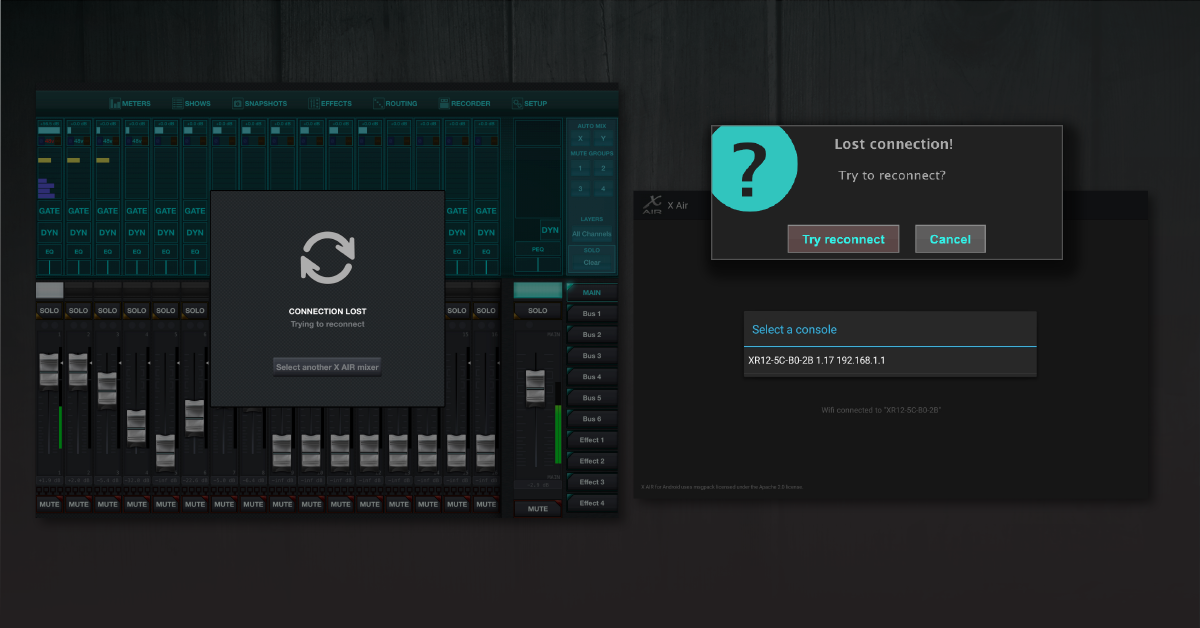
Here are some tips for resolving issues with your Behringer X AIR mixer. If you’re having an issue with Wi-Fi connectivity or the MX-Mix app, continue below to get your X AIR mixer back to normal. If you’re trying to connect to the built-in Wi-Fi Access Point or just getting started for the first time, visit the X AIR Quickstart Guide.

  1. X AIR Wireless Tips
  2. Network and Factory Reset
  3. Network Connections
  4. Behringer X Air Firmware Update

X AIR Wireless Tips

When using your X AIR mixer, its wireless network may be affected by your setup or the wireless environment. In particular, crowed WLAN channels may make it difficult to sustain a remote connection. Here are a few of our best practices that will help keep your X AIR mixer is performing at its best.

  • Always point the built-in antenna straight up, towards the ceiling.
  • Allow a clear line of sight between the antenna and the remote control devices.
  • Update the network name (SSID) and password (KEY) to prevent unauthorized remote control.
  • Select a WLAN channel with the fewest amount of active Wi-Fi networks. Use a Wi-Fi scanner app and to see how trafficked each channel is. (WLAN channels 1, 6, and 11 are the most commonly used.)
  • If the built-in Wi-Fi Access Point isn’t strong enough for your environment, consider using a more powerful external wireless router.

Behringer: X AIR How To: Wi-Fi Tips

Network and Factory Reset

If you’re not able to connect to the mixer’s internal Wi-Fi, try resetting the mixer’s network settings. You’ll need a paperclip or something similar to press the reset button located in the small hole to the right of the REMOTE switch.

1. Power up the X AIR mixer.

2. Using a paperclip, press and hold the reset button for 2 seconds to reset the network settings or 10 seconds to restore the mixer to factory settings.

3. Power off the mixer, wait 5 seconds and then power it back on.

Network connections

View our X AIR Ethernet and External Router Setup page for more information about remote controlling your mixer without connecting directly to the built-in Wi-Fi Access Point.

Behringer X Air Firmware Update

From time to time Behringer will provide a free firmware update for your mixer. This will fix bugs, may add new features, and will assure compatibility with the newest versions of the control apps.

  1. On your Mac or Windows PC, connect to your mixer using the X-AIR Edit app.
  2. In your web browser, visit the Behringer website Products page and search for your product.
  3. Open the product page, and click Downloads.
  4. Under “Firmware,” locate the newest version of the firmware. Click on it and download it according to the instructions.
  5. In your Downloads folder, expand the .zip file.

Launch the X-AIR Edit app. Click Setup.

In the Setup window, view the Connection tab. Click Update FW and then select the firmware file in your Downloads folder. Once completed, the mixer will restart, and you will be prompted to reconnect.

Behringer: X AIR How To: Update the Firmware

Related Content

Behringer X AIR Quickstart Guide

Behringer X AIR Quickstart Guide

Behringer X AIR Effects Inserts and Sends Guide

Behringer X AIR Effects Inserts and Sends Guide

Behringer X AIR Routing and I/O Settings Guide

Behringer X AIR Routing and I/O Settings Guide

Behringer X AIR Ethernet and External Router Setup

Behringer X AIR Ethernet and External Router Setup

Behringer MX-Mix and MX-Q Mobile Apps Quickstart Guide

Behringer MX-Mix and MX-Q Mobile Apps Quickstart Guide

When you need help, Sweetwater has the answers!

Our knowledge base contains over 28,000 expertly written tech articles that will give you answers and help you get the most out of your gear. Our pro musicians and gear experts update content daily to keep you informed and on your way. Best of all, it’s totally FREE, and it’s just another reason that you get more at Sweetwater.com.


Click here for 28,000 answers to your tech questions Knowledge Base

Hundreds of Deals in the DealZone

Offer applies only to single-receipt qualifying purchases. Select manufacturers may require that only the manufacturer’s products qualify towards the minimum purchase amount needed to be eligible for promotional financing. Otherwise, an invoice that meets the minimum purchase amount and contains at least one qualifying manufacturer product is eligible for promotional financing. No interest will be charged on promo purchase balance, and equal monthly payments are required on promo purchase until it is paid in full. The payments equal the amount financed divided by the number of months in the promo period, rounded up to the next whole dollar. These payments may be higher than the payments that would be required if this purchase was a non-promo purchase. During the last month(s) of the promo period the required monthly payment may be reduced due to the prior months’ rounding. Regular account terms apply to non-promo purchases. New Accounts as of 07/31/2025: Purchase APR is 34.99%. Penalty APR is 39.99%. Min Interest Charge is $2. Existing cardholders: See your credit card agreement terms. Subject to credit approval.

Offer applies only to single-receipt qualifying purchases. No interest will be charged on the promo balance if you pay it off, in full, within the promo period. If you do not, interest will be charged on the promo balance from the purchase date. The required minimum monthly payments may or may not pay off the promo balance before the end of the promo period, depending on purchase amount, promo length and payment allocation. Regular account terms apply to non-promo purchases and, after promo period ends, to the promo balance. New Accounts as of 07/31/2025: Purchase APR is 34.99%. Penalty APR is 39.99%. Min Interest Charge is $2. Existing cardholders: See your credit card agreement terms. Subject to credit approval.

The estimated required monthly payment shown which excludes taxes and delivery equals the amount financed divided by the number of months in the promo period, rounded up to the next cent. During the last month(s) of the promo period the required monthly payment may be reduced due to this rounding. These payments apply only with the financing offer shown. If you make these payments by the due date each month, you should pay off this amount financed within the promo period, if it is the only balance you are paying off. If you have other balances on your account, this payment will be added to any other minimum monthly payments.

Applies only to select items from this manufacturer. Ask your Sweetwater Sales Engineer for more details.