

Mackie Onyx Producer and Artist Setup Guide
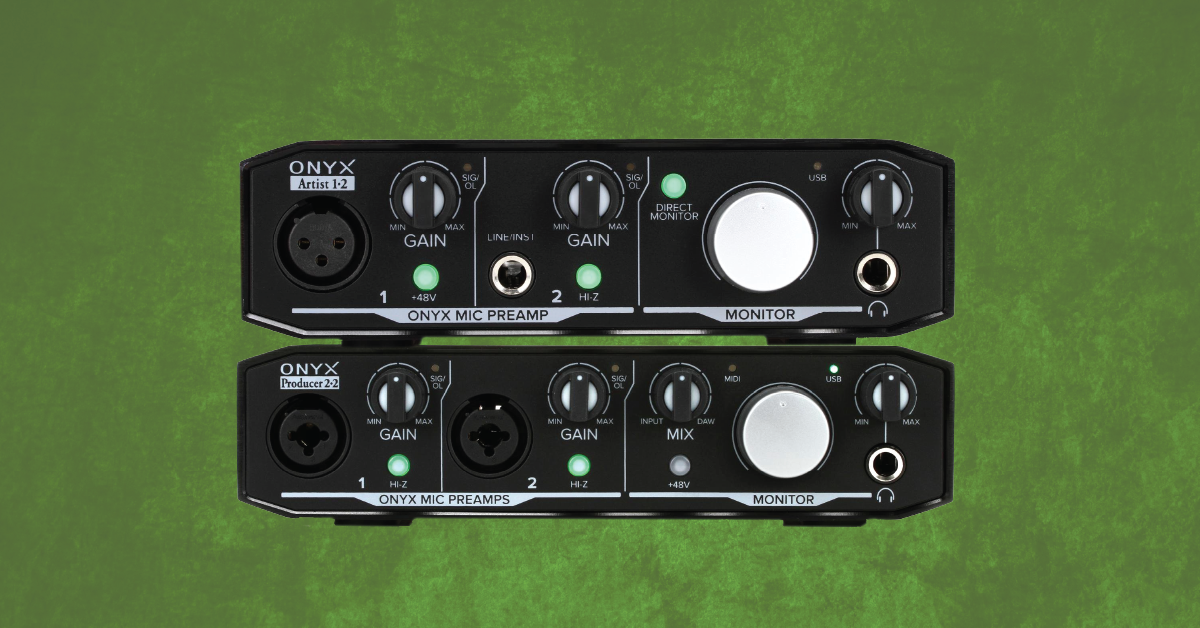
Getting started with the Mackie Onyx Artist and Producer USB interface
In this guide we will show you how to register, set up, and connect a Mackie Onyx USB interface for the first time. Follow the sections below to get started.
- Register the Mackie Onyx series interface
- Download and install the Onyx USB drivers (Windows users only)
- Mackie Onyx USB interface setup and connections
Register the Mackie Onyx series interface
Before we dive in, the first thing to do is to register the Mackie Onyx Artist and Producer interface with Mackie. Once you register the interface, you’ll receive a free copy for an exclusive Mackie plug-in package, Waveform OEM, as well as the DAW Essentials plug-in collection.
- Log into your Mackie account. If you don’t have one, you can create one here.
- Click the Register New Product tab, then click the green Register New Product button.
- On the next page, type Onyx, select either Mackie Onyx Artist 1-2 or Producer 2-2, then click Register Product.
- Fill out the required information, then click Register!
- Once registered, licenses for all of the software will appear in your Mackie account.
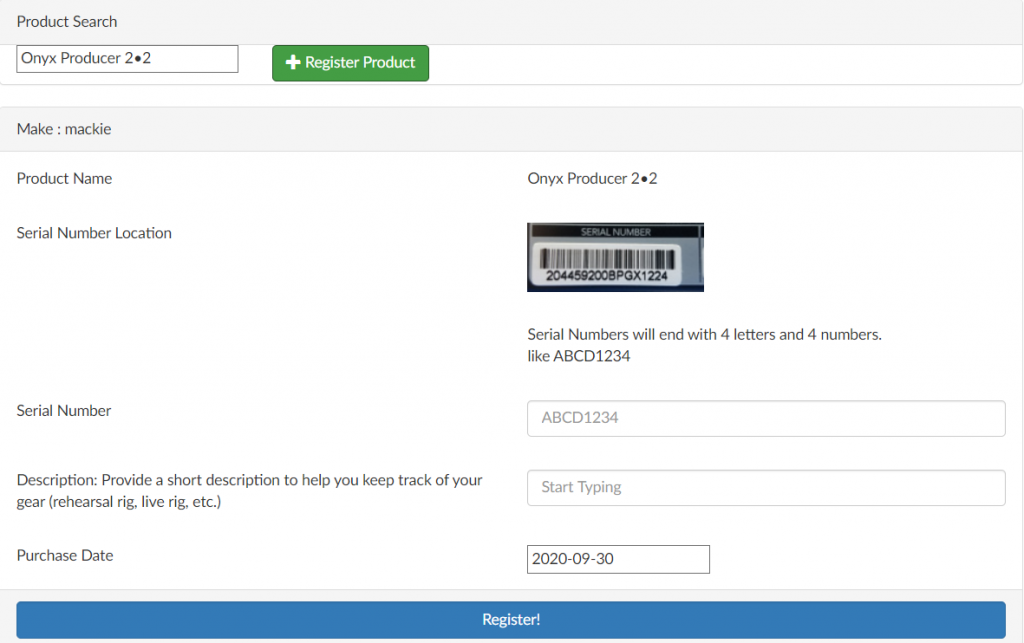
Click the image to register your Mackie Onyx USB interface
Download and install the Onyx USB interface driver (Windows users only)
Mackie Onyx Artist and Producer are class-compliant on Mac, which means no additional driver software is required. However, if you’re a Windows user, you’ll need to download the driver from the Mackie website beforehand. Follow these instructions to download the Onyx Artist/Producer driver. If you’re a Mac user, skip this section and continue to Mackie Onyx USB setup and connections.
- Go to the Mackie Onyx USB Interface product page.
- Scroll down to the green Specs & Downloads section and download the latest version of the Windows driver.
- Navigate to your Downloads folder, launch the installer, then follow the on-screen instructions. Once the installation is complete, you can then connect the interface to your computer.
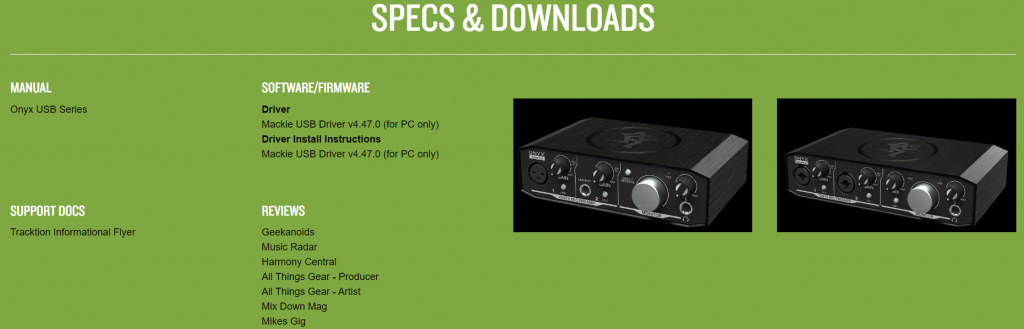
Click the image to download the Mackie Onyx USB interface drivers.
Mackie Onyx USB interface setup and connections
After everything has been set up and connected, the last thing you’ll need to do is update your computer’s sound settings. For most apps that aren’t DAWs, this is done from Sound Settings (Windows) or Sound Preferences (Mac).
DAWs like Pro Tools, Cubase, Studio One, etc. have their own sound settings for selecting an audio device. When using your interface with a DAW, choose your Mackie interface from the Playback Engine or Audio Settings window within your DAW. Follow these steps to select the Onyx series interface as your computer’s audio playback device.
Is your interface not showing up?
If your computer isn’t detecting your Mackie Onyx Artist or Producer interface, disconnect then reconnect it. If the problem persists, try using a different USB port on your computer, or a different USB cable. Also, be sure to visit our Windows and Mac guides for more tips on resolving audio interface issues.
Learn more about resolving audio interface issues on Windows!
Learn more about resolving audio interface issues on Mac!
Set up an Onyx interface on Mac
- From the Menu Bar, click the Apple icon and select System Preferences.
- Click Sound.
- Under the Input and Output tabs, select the Mackie Onyx interface.
Set up an Onyx interface on PC
- Right-click the Speaker icon on the Windows taskbar and select Open Sound Settings.
- Use the dropdown boxes in the Input and Output sections to select the interface as the default input and output device.
- While in the Sound Settings menu, we highly recommend disabling Exclusive Mode to ensure the best performance possible. Check out our guide to learn how to disable Exclusive Mode.
Related content

Learn more about how to optimize your Windows 10 computer for audio recording.
Learn more about how to optimize your Mac computer for audio recording.
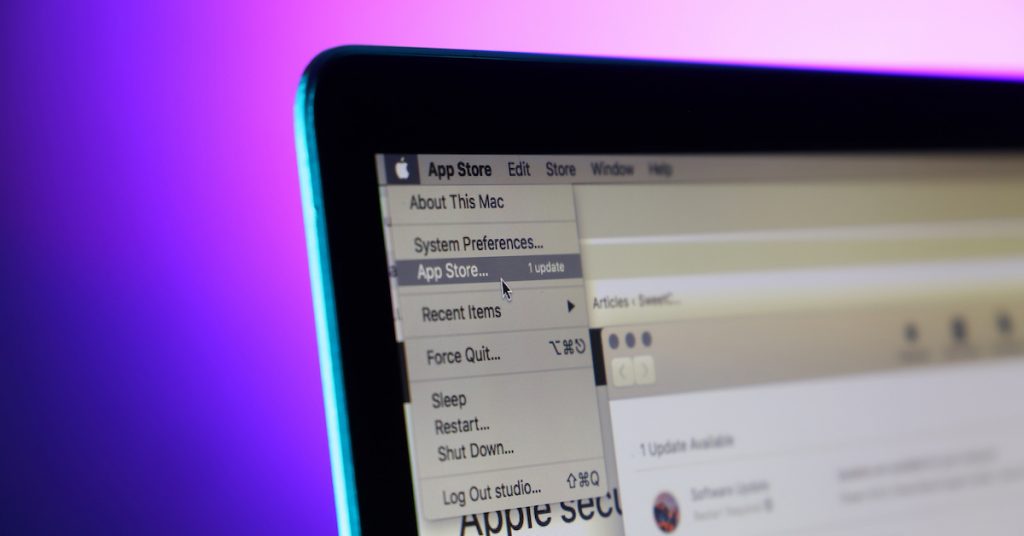
Learn more about computer updates for music production.

Learn more about how to reduce latency, clicks, and pops while recording.
Additional resources
When you need help, Sweetwater has the answers!
Our knowledge base contains over 28,000 expertly written tech articles that will give you answers and help you get the most out of your gear. Our pro musicians and gear experts update content daily to keep you informed and on your way. Best of all, it’s totally FREE, and it’s just another reason that you get more at Sweetwater.com.

