

How to Roll Back Windows 10
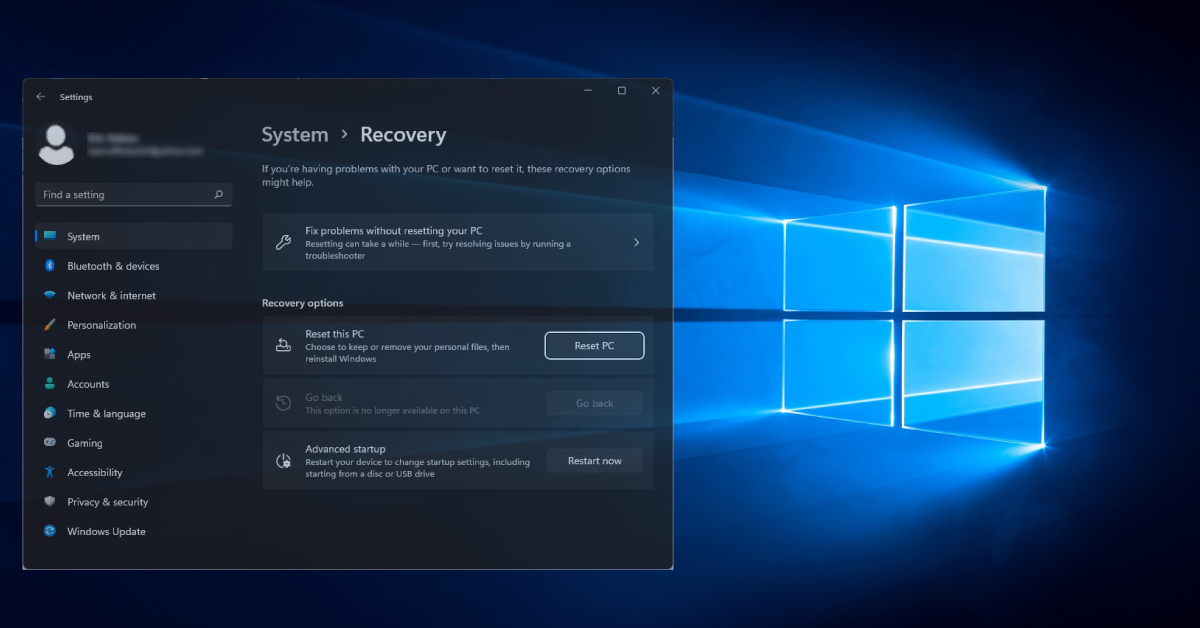
In this guide, we will show you how to roll back Windows 10. Follow the instructions below to get started.
Why roll back Windows 10?
Windows 10 will release updates periodically, which often fix bugs in the current build. These are known as Quality (sometimes referred to as “cumulative”) updates. These updates are pretty frequent. However, Windows will often release what’s called a Feature update twice a year. The updates typically include updates to the GUI, navigation and menu changes, and “under the hood” performance updates.
Sometimes a Windows update (Quality or Feature) may address one bug but create another. Also, there may be a time when the update might not install correctly. If something like this happens, it can cause various issues such as software incompatibility and performance and graphical issues — even the Blue Screen of Death (BSOD) and the inability to fully boot your Windows PC. Some apps and drivers may not be compatible after an update, either. So if, after extensive troubleshooting, you still run into issues with your PC, rolling back may fix your problems.
Windows 10 rollback grace period
Until the Windows 10 Anniversary Update (Version 1607), Microsoft used to have a 30-day grace period to roll back to a previous version. Once this update was released, however, Microsoft decreased the grace period from 30 days to 10. After the 10-day grace period, you need to perform a “clean install” of Windows 10.
To check if you’re within the 10-day grace period, click the Windows icon, type “Reset”, then click Reset this PC. In the window that opens, check the status in the “Go back to an earlier build” section. If you are able to click Get started, then this means you’re eligible to roll back to an earlier build. If you can’t, then you will need to perform a clean install instead.
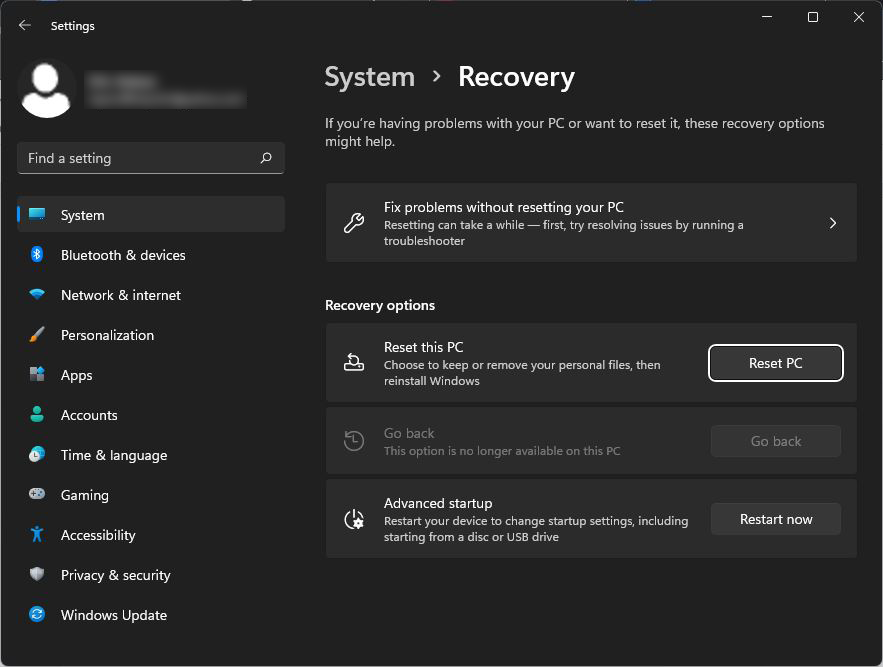
The Go back button will be greyed out after the 10-day grace period.
How to roll back Windows 10
IMPORTANT: If you do need to roll back Windows 10 for any reason, we strongly recommend backing up your files.
There are a couple of ways to roll back Windows: revert to the previous build or uninstall the specific Windows updates that may have caused the issues. Both processes are straightforward, but we suggest rolling back as one of the last resorts when troubleshooting issues with your PC.
Roll back to a previous build
If you want to roll back to a previous build of Windows 10, then you will need to go to the recovery page within the Update & Security menu.
- Click the Windows icon on the toolbar and click the gear icon.
- Alternatively, you can press the Windows and I keys on your keyboard.
- Select Update & Security, then choose Recovery.
- Click Get Started.
- If the option is grayed out, this means that you have passed the 10-day grace period. Depending on how long ago the update was installed, you may need to reset Windows 10.
Uninstall a specific update
Sometimes just one or two cumulative or feature updates may cause issues. Fortunately, you can uninstall specific updates. Uninstalling the update(s) should only be done if you know which is causing problems. If you’re uninstalling updates at random, or too many updates, you may end up causing even more issues.
- Click the Windows icon on the toolbar and click the gear icon.
- Alternatively, you can press the Windows and I keys on your keyboard.
- Select Update & Security, then select Windows Update.
- Click Update History and then choose Uninstall updates.
- Select the update(s) you wish to uninstall in the window that appears, and click Uninstall.
Reinstall Windows
If you’re still having issues after rolling back Windows or uninstalling specific updates, then resetting Windows or performing a fresh start may be the last resort. Before reinstalling, we highly recommend creating a backup so you don’t lose any critical data.
When you need help, Sweetwater has the answers!
Our knowledge base contains over 28,000 expertly written tech articles that will give you answers and help you get the most out of your gear. Our pro musicians and gear experts update content daily to keep you informed and on your way. Best of all, it’s totally FREE, and it’s just another reason that you get more at Sweetwater.com.


Offer applies only to single-receipt qualifying purchases. Select manufacturers may require that only the manufacturer’s products qualify towards the minimum purchase amount needed to be eligible for promotional financing. Otherwise, an invoice that meets the minimum purchase amount and contains at least one qualifying manufacturer product is eligible for promotional financing. No interest will be charged on promo purchase balance, and equal monthly payments are required on promo purchase until it is paid in full. The payments equal the amount financed divided by the number of months in the promo period, rounded up to the next whole dollar. These payments may be higher than the payments that would be required if this purchase was a non-promo purchase. During the last month(s) of the promo period the required monthly payment may be reduced due to the prior months’ rounding. Regular account terms apply to non-promo purchases. New Accounts as of 07/31/2025: Purchase APR is 34.99%. Penalty APR is 39.99%. Min Interest Charge is $2. Existing cardholders: See your credit card agreement terms. Subject to credit approval.
Offer applies only to single-receipt qualifying purchases. No interest will be charged on the promo balance if you pay it off, in full, within the promo period. If you do not, interest will be charged on the promo balance from the purchase date. The required minimum monthly payments may or may not pay off the promo balance before the end of the promo period, depending on purchase amount, promo length and payment allocation. Regular account terms apply to non-promo purchases and, after promo period ends, to the promo balance. New Accounts as of 07/31/2025: Purchase APR is 34.99%. Penalty APR is 39.99%. Min Interest Charge is $2. Existing cardholders: See your credit card agreement terms. Subject to credit approval.
The estimated required monthly payment shown which excludes taxes and delivery equals the amount financed divided by the number of months in the promo period, rounded up to the next cent. During the last month(s) of the promo period the required monthly payment may be reduced due to this rounding. These payments apply only with the financing offer shown. If you make these payments by the due date each month, you should pay off this amount financed within the promo period, if it is the only balance you are paying off. If you have other balances on your account, this payment will be added to any other minimum monthly payments.
Applies only to select items from this manufacturer. Ask your Sweetwater Sales Engineer for more details.