

How to Activate and Download Echo Farm by Line 6

Overview
In this article, we will walk you through the steps needed to get your Line 6 software up and running. In order to use Echo Farm, you will need to complete the getting started process, broken down into 3 steps:
2. Authorize your product via iLok
3. Download and run the installer file
System Requirements
To ensure that Echo Farm works with your current operating system, verify that your computer meets the System Requirements.
Create an Account
Before you can activate Echo Farm, you will need to either create an account or sign in to your existing account. If you already have an account, do not make a new one.

You will need an iLok in order to activate and use Echo Farm.
How to Activate Echo Farm
Once you are logged into your account, you need to activate your software by going to the Line 6 activation page and entering in the activation code. Follow the steps below to activate Echo Farm:
Activate Echo Farm by Line 6
1. Log in to your Line 6 account.
2. Visit the Line 6 activation page and click Add Product Activation Code.
3. Enter the activation code found in the Software Activation Instructions email sent from your Sweetwater Sales Engineer.
4. Click Submit.
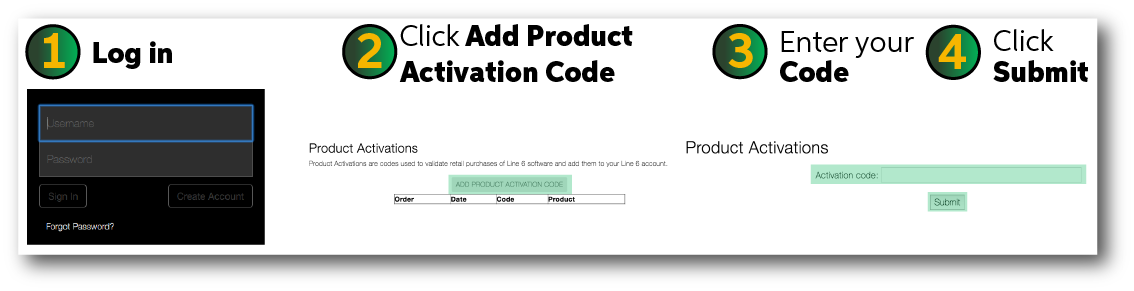
Activate Echo Farm by submitting the code sent by your Sweetwater Sales Engineer.
How to Authorize Echo Farm Using iLok
Now that you have activated Echo Farm, you now need transfer the license over to your iLok. To do that, go to the Available tab in iLok License Manager, locate your license, and drag it to the iLok icon on the left side of the window. Follow the steps below:
If you’re new to iLok, don’t worry.
We have a two-part guide that will walk you through all you will need to use your iLok. To create an account and install the iLok License Manager, visit our Getting Started with iLok article. If you’re unsure of how to transfer your license, read through the How to Transfer & Use iLok Licenses section of our Transferring a License to iLok article.
Transfer Echo Farm License to iLok
1. In the iLok License Manager, click the Available tab.
2. Locate your license. Then, click and drag it to the iLok icon and release.
3. Wait for the license to transfer to complete before removing your iLok.

Transferring license to iLok USB dongle. Instead of Auto-Tune as shown in the GIF above, look for Echo Farm.
How to Download and Install Echo Farm
After authorizing Echo Farm with iLok, the final step is to download and run the installer file. Be sure to download the correct installer for your operating system (Windows or Mac). Follow the instructions below:
Download and Install Echo Farm for Windows or Mac
1. Go to the Line 6 downloads page and choose your product and operating system in the drop-down menus. Then click Go.
2. Locate the latest version for either Windows or Mac and select Get Download.
3. Go to your Downloads folder and double-click either EchoFarmv3.0.1Installer.exe (Windows) or EchoFarm3.0.1.dmg (Mac).
Mac users: After opening the .dmg file, you will need to select Echo Farm Installer.pkg.
4. Run the installer and follow the on-screen instructions.
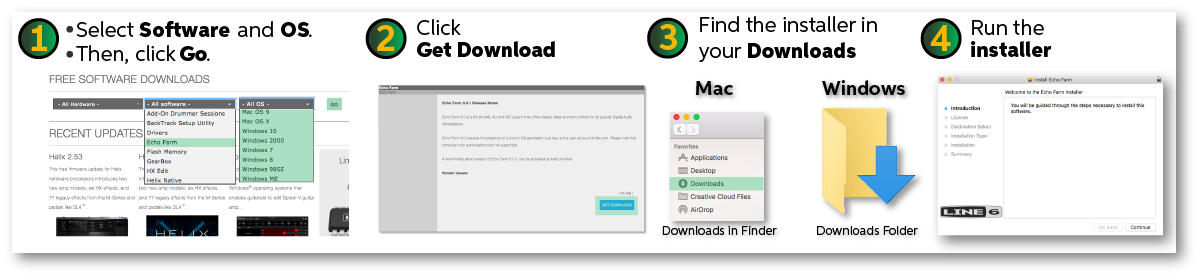
Download and Install Echo Farm for Windows and Mac.
Helpful Links
Getting Started FAST Line 6’s Helix Native.
How to Get Started with iLok & iLok License Manager
How do I redeem my iLok activation code using the iLok License Manager?
Line 6 Helix FAQ
Mac Optimization Guide for macOS 10.13 High Sierra
PC Optimization Guide for Windows 10
When you need help, Sweetwater has the answers!
Our knowledge base contains over 28,000 expertly written tech articles that will give you answers and help you get the most out of your gear. Our pro musicians and gear experts update content daily to keep you informed and on your way. Best of all, it’s totally FREE, and it’s just another reason that you get more at Sweetwater.com.

