

Line 6 Helix FAQ
Getting started
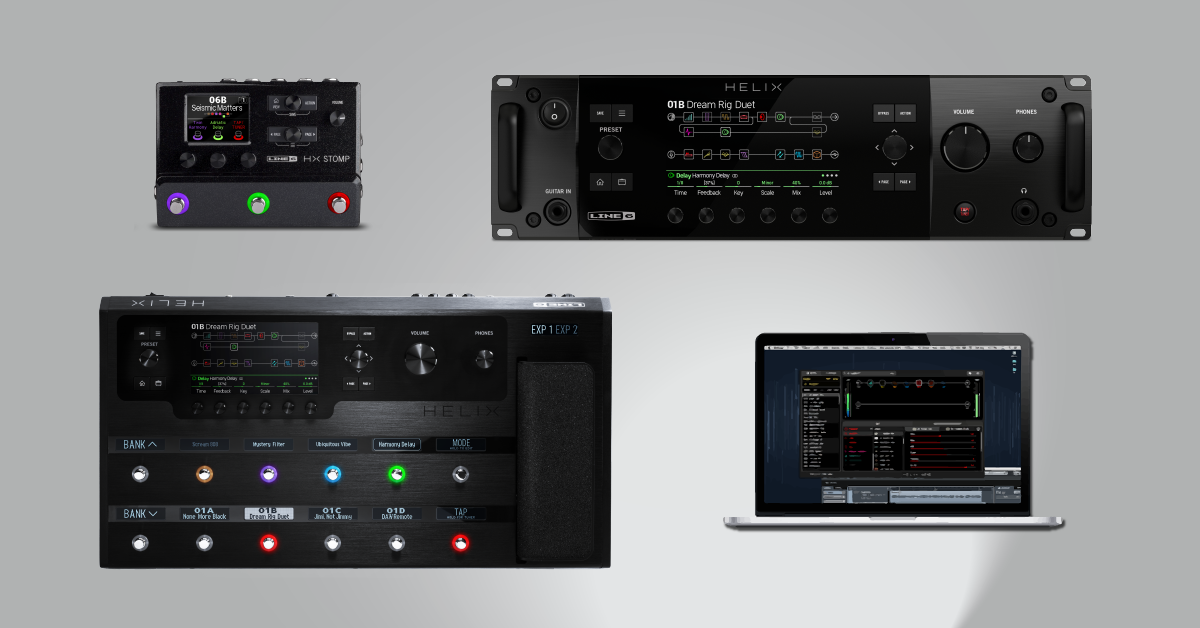
In this FAQ, we’ve compiled some useful answers to common Helix questions. Check out each of the sections below to learn more.
- General
- The Helix Modeling Engine
- Model list/DSP Allocation
- Helix Rack and Control
- Troubleshooting
- Related content
General
Q. Will there be an iOS or Android editor?
Probably not, Helix’s presets are extremely large, and syncing 1024 tones would take forever. As Helix is more at home in larger studios and on larger tours, it makes sense to support Mac/PC editing.
Q. Will there be an iOS or Android editor?
Probably not, Helix’s presets are extremely large, and syncing 1024 tones would take forever. As Helix is more at home in larger studios and on larger tours, it makes sense to support Mac/PC editing.
Q. Can I reamp?
Yes, you can reamp two instruments simultaneously. You can even choose which two physical inputs will be sent dry to your DAW.
Q. Does Helix have delay or reverb spillover?
Delays, Reverbs and FX Loops have bypass trails, where they’ll continue to ring out after being bypassed (if desired). But this currently no delay or reverb spillover when changing presets.
Q. Why isn’t there a metal protection bar for the knobs?
Helix’s top panel is carved from a solid block of aluminum (like a Macbook Pro you can stomp on) and its side panels and treadle are solid aluminum as well. There’s no metal protection bar because our 210 pound lead tester kicked the crap out of it and the metal knobs worked flawlessly.
Q. How do I get Helix’s footswitch mapping to be like HD500X’s?
Stay in Preset footswitch mode. Then, the Global Settings > Footswitches menu, set:
*Knob 2 (Preset mode Switches) to “Lower Row”
*Knob 4 (Up/Down Switches) to “Banks”
Q. How do I customize a footswitch’s label and LED color?
There are two ways.
*From the Footswitch Assign screen, as long as the current block is assigned to a footswitch, press Knob 6 (Customize)
*From the Command Center screen, select Footswitch 1-6, 7-11, or Exp Toe and press Knob 6 (Customize)
The Helix Modeling Engine
Q. Is this the same old HD engine?
No, Helix utilizes an all new from the ground up advanced dual DSP processor architecture with HX models.
Q. Are ALL the models HX?
Not quite. The reverbs and 8 our of 10 wahs are HD, but they’ve been enhanced and tweaked for inclusion in HX. The popular Line 6 custom amps Elektrik, Doom, and Epic are technically HD, but have been rebuilt inside the HX engine and many advantages of HX. All other amps, cabs, and effcts have been modeled in HX from the ground up.
Q. I noticed some model names are the same as in the HD models packs. Are you sure they aren’t HD?
The all new models in the HD model packs came from the original Helix modeling sessions (except for the Pete Anderson Custom which is based on POD 2.0!), but they’ve been stripped down somewhat to run on the HD architecture.
Q. Where are the deep cab parameters?
Instead of reso, thump, etc., Helix has mic distance, Low Cut, and High Cut.
Model list/DSP Allocation
Q. Will the I see the DSP LIMIT REACHED message like in HD500X? Why are some items in the model list grayed out?
Even though Helix has 2.3 times the DSP power of HD500X, and we have more efficient code optimization, HX models are notably more sophisticated than HD. In practice, you should get about 50% more blocks than HD500X and 60% more than HD500. However, the message popping up and telling you you’ve run out of DSP is gone. Instead, Helix intelligently grays out and skips over any models that can’t be accommodated.
Q. How can I move a block from Path 1 to 2 (or vice versa)
Currently, Helix cannot move blocks between paths. You can, however, copy and paste blocks from one path to the other (even in a different preset)
Q. How do I create parallel paths?
1. Highlight a block you want to move to a parallel path a press ACTION to “pick it up”
2. Move the joystick down to move the block to the parallel path.
Helix Rack and Control
Q. What’s the difference between Helix and Helix Rack?
Along with the Helix Control Remote, Helix Rack’s workflow and feature set is virtually identical to that of Helix. Plus you get duplicate expression pedal jacks, a 1/4″ analog bypass (buffered) output, AES/EBU in and Wordclock in with terminator switch. Presets can be freely shared across both units with no file conversion required.
Q. Is Helix Control powered from Helix Rack? Why is there a DC IN jack?
Yes, Helix Control is powered from Helix Rack. if you leave its power switch on, turning Helix Rack on and off will also affect Helix Control. The DC IN is for very long cable lengths (TBD, but probably over 100 feet) and for possible future use. Helix Control does not ship with a DC-3G, as it’s not necessary.
Q. Why does Helix control have a USB connector?
For potential future use. Helix’s Control firmware is updatable, but only while connected to the Helix Rack. which would be connected via USB to a Mac or PC. Do not connect Helix Control’s local USB jack to a Mac/Pc, at last for now.
Q. Why is Helix Rack 3 spaces? Couldn’t you have crammed it into 2 spaces?
No, but we tried. The color screen is far too large and there are too many ins and outs to fit into 2RU.
Troubleshooting
Q. I hear some distortion/clipping from my headphone out. Why?
Helix’s headphone out is designed to drive even high impedance studio headphones. If you use low impedance headphones, you may hear a bit of distortion when cranked all thew way. This is normal.
Q. Why is the AUX IN volume different from the guitar in?
Helix’s AUX IN has a 10k Ohm impedance, and is meant to accommodate guitars or basses with louder active pickups or line-level mono synths.
Related content
How to Update Firmware on a Helix Family Devices
Learn how to update the firmware for Helix family devices.
When you need help, Sweetwater has the answers!
Our knowledge base contains over 28,000 expertly written tech articles that will give you answers and help you get the most out of your gear. Our pro musicians and gear experts update content daily to keep you informed and on your way. Best of all, it’s totally FREE, and it’s just another reason that you get more at Sweetwater.com.

