
Getting Started FAST with Line 6’s Helix Native
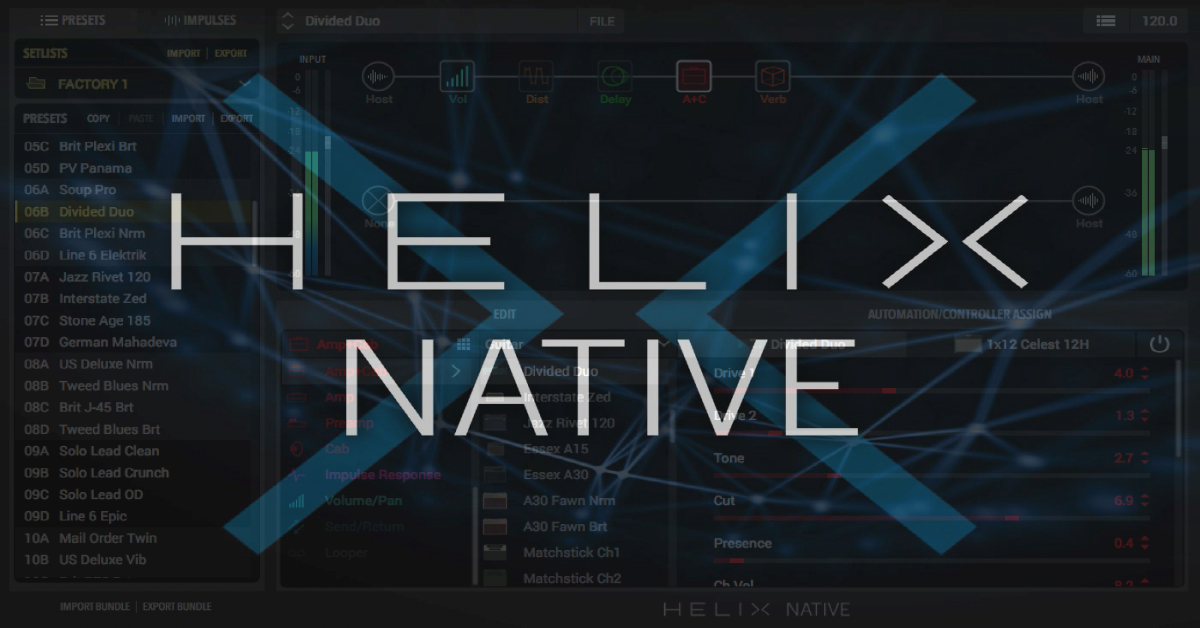
In this article, we’ll show you how to activate, download and install, and how to authorize your new Line 6 Helix Native plug-in. We’ll also help you check compatibility and make sure your computer meets the minimum requirements. Follow our guide below to get started with Line 6’s Helix Native.
System Requirements
Before we dive in, let’s check that your computer is compatible with Helix Native. After all, if your system isn’t compatible with Helix Native, you may not be able to install or run the software. Use the table below and make sure your computer meets Helix Native’s minimum requirements or learn how to find your system’s specs here.
Windows
- Windows 7 SP1, Windows 8.1, & Windows 10
- 64-bit AAX Native, VST3 or VST2 host DAW software
- Supported Sample Rates: 44.1kHz, 48kHz, 88.2kHz, 96kHz
Mac
- Mac OS X 10.10 and 10.11 & macOS 10.12
- AAX Native, Audio Units (AU), VST3 or VST2 host DAW software
- Supported Sample Rates: 44.1 kHz, 48 kHz, 88.2 kHz, 96 kHz
Minimum System Requirements
- Dual-Core 2.0GHz processor or faster
- 4GB of RAM
- 100MB of free disk space
- Internet connection required for license authorization (and for trial version)
Create an Account
Before you can access your Helix Native software, you’ll need to create an account with Line 6. Click the button below to get started. If you already have an account, do not create a new one; simply sign in to your account. If you have trouble accessing your account, use Line 6’s account recovery tools to regain access.

Activate the software
Now that your account is set up we’re ready to activate the software. To activate your Helix Native plug-in, sign in to your Line 6 account. Once there, click the activation link below, enter your activation code, and click submit. Your activation code is located in the Software Activation Instructions email sent from your Sales Engineer.
IMPORTANT! If you already own Helix hardware and purchased the upgrade, make sure your hardware is registered first! (Click here to register, otherwise the code won’t work.)

Download and Install
Now that you have set up your account and used your activation code, let’s download and install the Helix Native plug-in.
- Go to Line 6’s software download page.
- Click the 2nd drop-down menu and select Helix Native.
- Click the 3rd drop-down menu, select your operating system, and click Go.
- Locate the latest Helix Native installer and click Download.
Launch and Authorization
Almost there, just one more step to go! We need to authorize your computer to use the newly installed plug-in. Simply open your DAW, launch Helix Native, and sign in with your Line 6 username and password. That’s it, enjoy Helix Native!
- Open your DAW of choice and insert the Helix Native plug-in to a track.
- Sign in with your Line 6 username and password.
- Click Authorize This Computer.
Related Articles
When you need help, Sweetwater has the answers!
Our knowledge base contains over 28,000 expertly written tech articles that will give you answers and help you get the most out of your gear. Our pro musicians and gear experts update content daily to keep you informed and on your way. Best of all, it’s totally FREE, and it’s just another reason that you get more at Sweetwater.com.

