

Line 6 Helix Stadium Data Backup and Factory Reset
NOTE: This guide is about the Line 6 Helix Stadium family of products. We provide a guide for the original Line 6 Helix and HX families here.
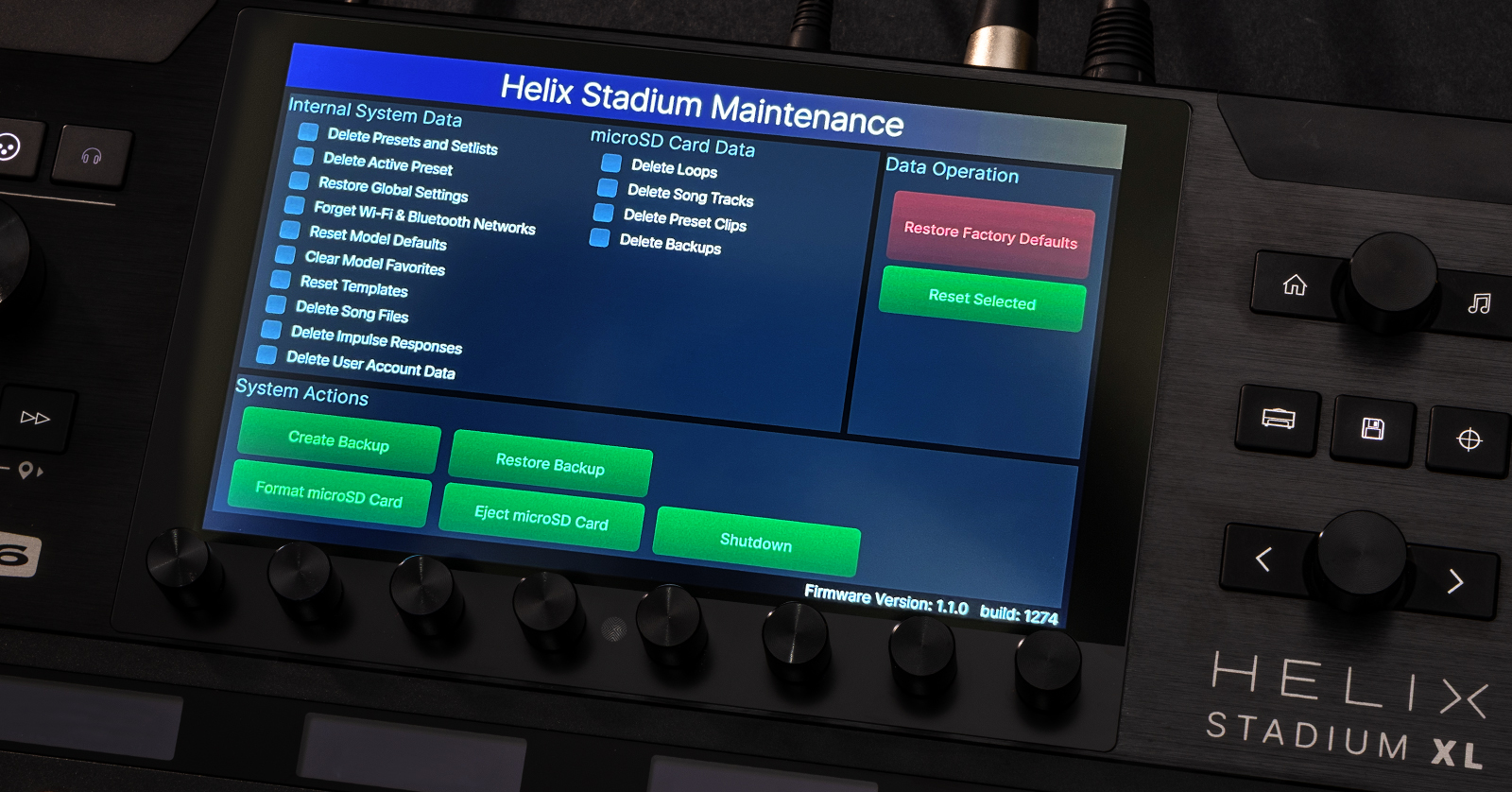
The Helix Stadium and Helix Stadium XL have an easy method for backing up data to a microSD card, and a flexible interface for resetting only the data you want to reset. They are both accessed in the Maintenance Screen mode. Let’s explain how to use it.
- Helix Stadium Maintenance Screen Mode
- How to Boot Into Maintenance Screen Mode
- How to Back Up and Restore Data on Helix Stadium
- How to Copy Your Helix Stadium microSD Card
- How to Factory Reset a Line 6 Helix Stadium
- Sweetwater SweetCare Line 6 Helix Stadium Guides
Helix Stadium Maintenance Screen Mode
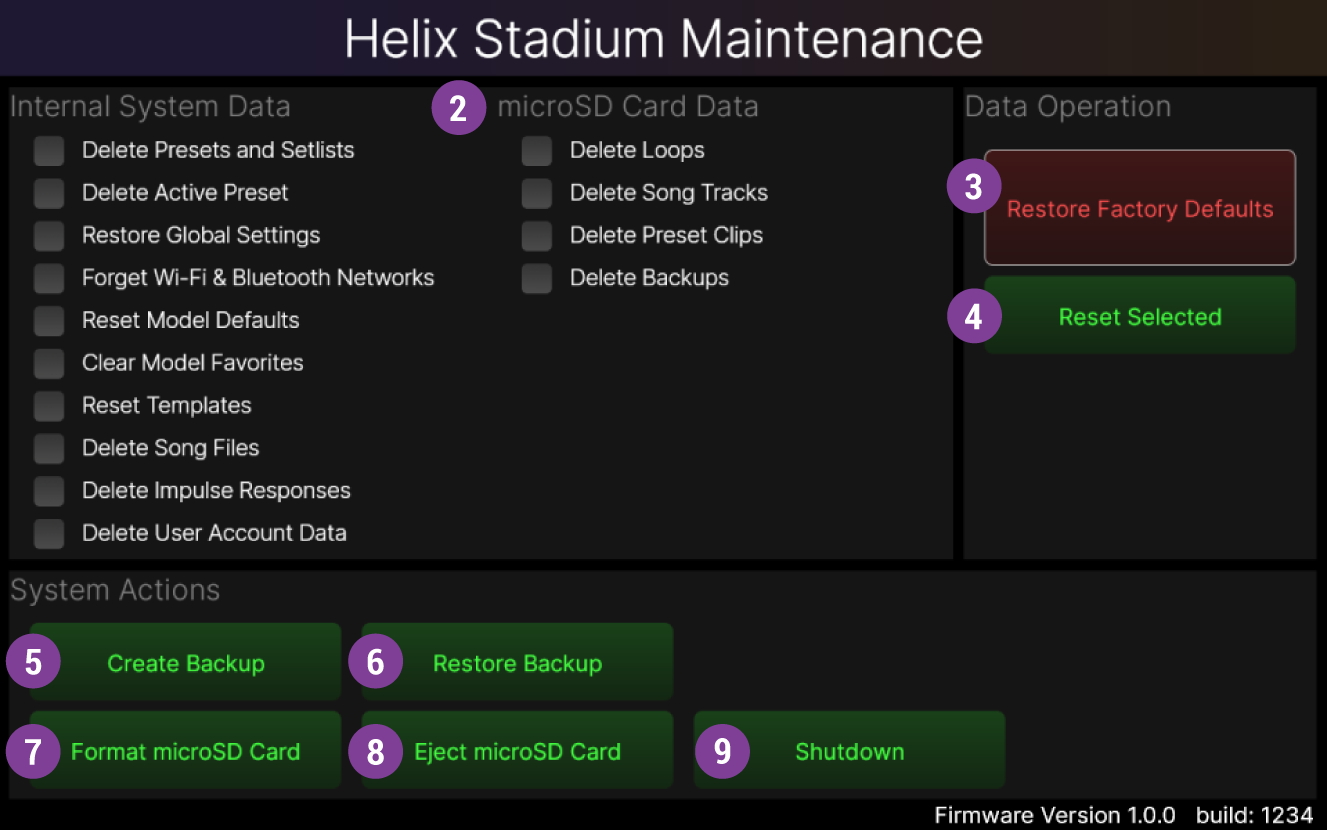
The Maintenance Screen as it’s shown in the Helix Stadium owner’s manual
To back up and restore your data to a microSD card, to reset various kinds of data, or do a full factory reset, you have to shut your Helix Stadium down and boot it into the special Maintenance Screen mode. When you are done with your backup, restore, or reset, you can then shut it down again and reboot into the regular mode.
How to Boot Into Maintenance Screen Mode
To put your Helix Stadium into the Maintenance Screen mode:
- Shut the unit down.
- While holding down the Home and Song buttons, turn the power on. Continue to hold the buttons down for 45 seconds until the Maintenance screen appears.
How to Back Up and Restore Data on Helix Stadium
The Stadium has a no-fuss method to back up everything you’ve stored on the unit all at once. This is called a “full state backup.” It’s done to a microSD card inserted into the card slot on the back.
Each time you do a backup, the Stadium will store a compressed data file with the date and time in the file name. If something goes wrong, you can use these sequentially-dated files to restore your Stadium’s data to a prior state.
Unlocking the Helix Stadium microSD Card Slot
The microSD card reader is covered by a “security panel.” Raising the security panel to expose the card slot requires a small Philips-head screwdriver.
Slightly loosen the two screws (but don’t remove them) and slide the panel upwards. Tighten the screws just a bit so the panel stays in place.
Your unit should come with a microSD card already inserted. Insert other microSD cards using the spring-loaded thumbnail release.
Performing a Full State Backup
Boot into Maintenance Screen mode according to the instructions above.
Format a Card for First Use
After the Maintenance screen appears, prepare a microSD card for first use.
- Insert a microSD card into the microSD slot in the back of the unit.
- On the screen, under System Actions, tap Format microSD Card. Confirm your choice, as this will erase all data on the card.
Once you have a formatted card, you can use it for multiple backups.
Create a Backup
Tap Create Backup. In the confirmation screen, tap OK.
Wait for the status dialog to complete. Do not adjust any controls or power off your unit until the dialog informs you that the backup was created successfully.
Tap OK to return to the Maintenance screen.
Restoring from Backup
Tap Restore Backup and you’ll see the list of compressed files labeled by date and time.
Choose one and tap Restore Backup and the memory of your Stadium will be replaced with the data from that backup.
Exiting Maintenance Screen Mode
To exit the Maintenance screen, tap Shutdown.
The dialog will say “Wait for footswitch 1’s LED to turn off before shutting off power.”
Tap OK, and wait for the LED to turn off. Now you can use the power switch on the back to shut the unit down.
When you turn the power on again, if you don’t hold any buttons down, the unit will boot into its normal operating mode.
Other microSD Card Functions
In Maintenance Screen mode, under microSD Card Data, you’ll see these functions:
- Delete Loops
- Delete Song Tracks
- Delete Preset Clips
- Delete Backups
Only the “Delete Backups” and “Delete Song Tracks” features are available at this time, with Firmware 1.2.
How to Copy Your Helix Stadium microSD Card
Since all of your data is on one microSD card, together with your incremental full-state backups, it’s a good idea to establish a regular pattern of copying everything from one microSD card to a second microSD card in case something goes wrong with your primary microSD card.
To do this, you’ll need to safely eject the microSD card from your Stadium and insert it into a card reader attached to your Mac or Windows PC, to perform the copy functions on your computer.
Follow the instructions in the Helix Stadium Owner’s Manual > Helix Stadium Maintenance > Copying Your microSD Card Contents to a New microSD Card.
How to Factory Reset a Line 6 Helix Stadium
Doing a factory reset on a Stadium doesn’t have to be an all-or-nothing operation. Stadium gives you numerous options about what to delete or reset in the Maintenance Screen.
- Boot into Maintenance Screen mode according to the steps above.
- Under Internal System Data you’ll see a checklist of 10 different choices for data you wish to delete, from “Delete Presets and Setlists” to “Delete User Account Data.” Tap on the touch screen to select only the items you want.
- Under Data Operation, tap the green Reset Selected button and confirm your choice and these will be deleted.
The choices available under Internal System Data are:
- Delete Presets and Setlists
- Delete Active Preset
- Restore Global Settings
- Forget Wi-Fi & Bluetooth Networks
- Reset Model Defaults
- Clear Model Favorites
- Reset Templates
- Delete Song Files
- Delete Impulse Responses
- Delete User Account Data
For a complete factory reset, tap the red Restore Factory Defaults button on the right side of the screen. This will completely erase all your data and put the unit back to the default factory state.
If you have made a backup of your Stadium to a microSD card as explained above, you can use this to restore your data after a factory reset.
Learn more in the Helix Stadium Owner’s Manual > Helix Stadium Maintenance.
Sweetwater SweetCare Line 6 Helix Stadium Guides
When you need help, Sweetwater has the answers!
Our knowledge base contains over 28,000 expertly written tech articles that will give you answers and help you get the most out of your gear. Our pro musicians and gear experts update content daily to keep you informed and on your way. Best of all, it’s totally FREE, and it’s just another reason that you get more at Sweetwater.com.

