
iLok License Manager Quickstart Guide

Getting Started
This guide will show you how to get started with the iLok License Manager app and iLok-enabled software licenses. You will learn how to create an iLok User ID, download the iLok License Manager app, register an iLok USB, enter an iLok Activation Code, and activate an iLok license. Follow each section below and skip any parts that are not applicable to you.
1. iLok Account
iLok-licensed software requires an iLok account and an iLok User ID. If you already have an existing iLok User ID and wish to register your new software with that account, then sign in to verify the username and login before proceeding. If this is your first time using iLok License Manager, then create a new iLok User ID. In most cases, you will only need one iLok account, though you may wish to create more than one to distinguish different locations, users, etc.
IMPORTANT! Do not create multiple iLok User IDs if you only need one. Instead, try signing in to the existing account with your current login. To reset your password or recover your account, go to the iLok Account Issues page.
IMPORTANT! Once your iLok User ID is created, it cannot be renamed. iLok User IDs are case-sensitive. You can also use an email address as your iLok User ID, though iLok does not recommend doing so.
Sign In with an Existing iLok User ID
- Open the iLok License Manager app or go to iLok.com.
- Click “Sign In” and enter your login.
- Click the All Licenses tab (app) or go to the My Account page (web) and then click the My Licenses tab.
- Verify that the current iLok User ID is the intended destination for your new license(s).

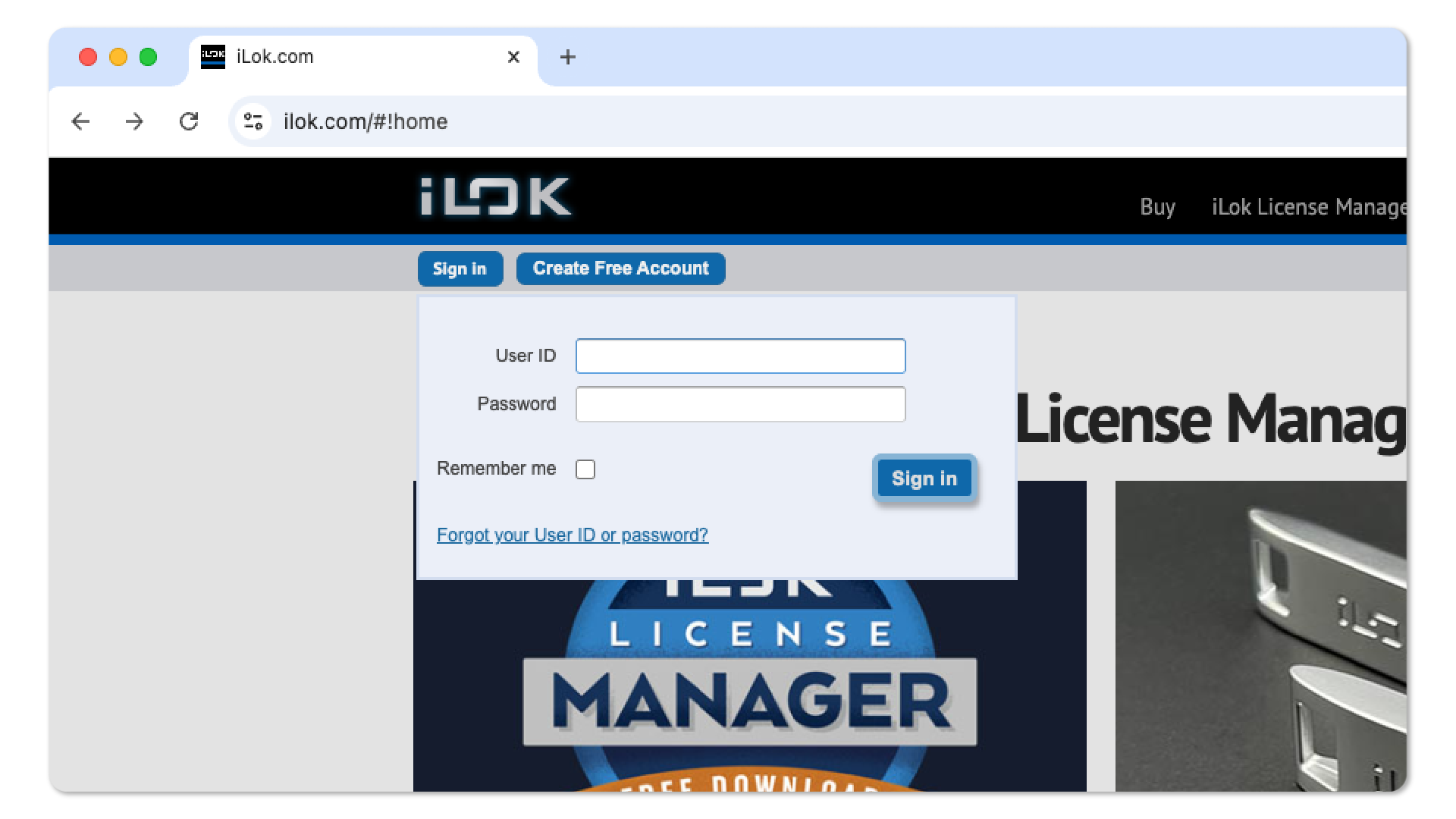
Create a New iLok User ID
- Go to the Free Account Setup page.
- Complete the registration form and click “Create Account.”
- Open the “iLok.com Account Activation” email, click the registration confirmation link, and sign in.
- The email may take up to one hour. If you have not received it after an hour, please contact support@iLok.com.
- Click “Continue” on the following Account Activation page to complete registration.

2. Download and Installation
iLok License Manager is the app for managing your iLok licenses, iLok USB, and iLok Activation Codes. If you already have iLok License Manager installed, then check for updates before continuing.
IMPORTANT! iLok License Manager requires the latest compatible version for optimal performance. Go to our iLok License Manager Troubleshooting Guide for additional details on resolving any problems with the iLok licensing system.
IMPORTANT! iLok License Manager does not currently support Windows on ARM or Copilot+ PCs. Windows on ARM support is expected in the future and will be announced once available.
Download and Install iLok License Manager
- Go to the iLok License Manager page and click the macOS or Windows download button, whichever is compatible with your computer.
- For older operating systems, find past versions of iLok License Manager on the Legacy Installers page.
- Open your Downloads folder and install the app.
- On Mac:
- Open the “LicenseSupportInstallerMac.zip” file to extract its contents.
- Open the new “LicenseSupportInstallerMac.dmg” file and then double-click the “License Support.pkg” file.
- On PC:
- Right-click the .zip file; select “Extract all…”; then click “Extract.”
- Open the new “LicenseSupportInstaller” folder and then double-click the new “License Support.exe” file.
- On Mac:
- Follow the on-screen instructions to complete the installation.
- Open the iLok License Manager appand sign in with your iLok User ID.


3. iLok USB
iLok USB is a physical USB drive dedicated to holding iLok licenses. iLok USB must first be registered to your iLok User ID before any licenses can be activated on it. Use the iLok License Manager app to register any iLok USB with your iLok User ID.
IMPORTANT! Licenses activated on an iLok USB are only detected while the iLok USB is connected. While activated on iLok USB, licenses are unavailable in iLok Cloud until they are first deactivated from iLok USB.
Register iLok USB
- Open iLok License Manager and sign in.
- Connect iLok USB to your computer and, when prompted to register, click “Yes.”
- Right-click your iLok USB icon and select “Rename/Edit” to name and describe it.


4. iLok Activation Code
iLok Activation Codes are codes entered within the iLok License Manager app, and doing so deposits the code’s corresponding software license to your account. For many software products, this is all that is required to redeem your code and get your license.
Some manufacturers also require you to connect your iLok User ID to their account to receive your license. Other manufacturers provide an additional iLok Activation Code after you register their code to your account.
- iLok Activation Codes are entered directly into the iLok License Manager, and the license is immediately deposited to the iLok User ID.
- Manufacturer Codes are first activated on a software manufacturer’s website via a user account or an app manager. The license is deposited to your iLok User ID after you connect your iLok User ID to their account.
IMPORTANT! After a license is deposited to your iLok User ID, you must then activate it on a valid location: iLok USB, Host Computer, or Cloud Session.
Enter an iLok Activation Code
- Open the iLok License Manager app.
- Click the Licenses menu and select “Redeem Activation Code.” You can also click the “..I” button next to the search bar.
- Enter your iLok Activation Codeand click “Next.”


5. iLok License
To make iLok licenses work, they must be activated on an eligible location. Depending on the iLok-enabled software, your license can be activated to an iLok USB dongle, your host computer, or the iLok Cloud. View each license’s eligible locations under the “Valid Locations” column in the iLok License Manager. You can also go to the manufacturer’s website for additional details and system requirements for your software.

If your license requires iLok USB, then it must be activated on an iLok USB to work. If your license can be activated to the “Host Computer,” then that means it can be activated directly on your computer’s internal storage without using iLok USB or Cloud Session.
iLok Cloud Sessions are flexible like iLok USB but without the physical USB drive. Licenses stored on iLok USB and host computers cannot be selected by iLok Cloud until they have been deactivated and returned to the iLok Cloud. Each iLok User ID can only access one iLok Cloud Session at a time.
Activate iLok License to iLok USB
- Click the Available tab.
- Drag and drop your license into the iLok icon (left).
- Wait for the license transfer to complete before removing the iLok.

Activate iLok License to Host Computer
- Click the Available tab.
- Drag and drop your license into the computer icon (left).
- Wait for the license transfer to complete.

Activate iLok License to iLok Cloud
- Verify that your computer has internet access.
- Start iLok Cloud first:
- Launch the iLok License Manager and sign in.
- Click the File menu and select “Open Cloud Session.” A new iLok Cloud Session will start with all available cloud-enabled licenses.
- Open software first:
- Launch your iLok-licensed software (e.g., Pro Tools).
- When prompted, sign in to your iLok account.

Wrapping Up
Your iLok-enabled software may require additional configuration with your unique hardware and software setup. Go to the manufacturer’s Support page for additional support resources or contact us directly for help with your Sweetwater purchase.
Additional Resources
When you need help, Sweetwater has the answers!
Our knowledge base contains over 28,000 expertly written tech articles that will give you answers and help you get the most out of your gear. Our pro musicians and gear experts update content daily to keep you informed and on your way. Best of all, it’s totally FREE, and it’s just another reason that you get more at Sweetwater.com.

