
Getting Started With the Strymon BigSky
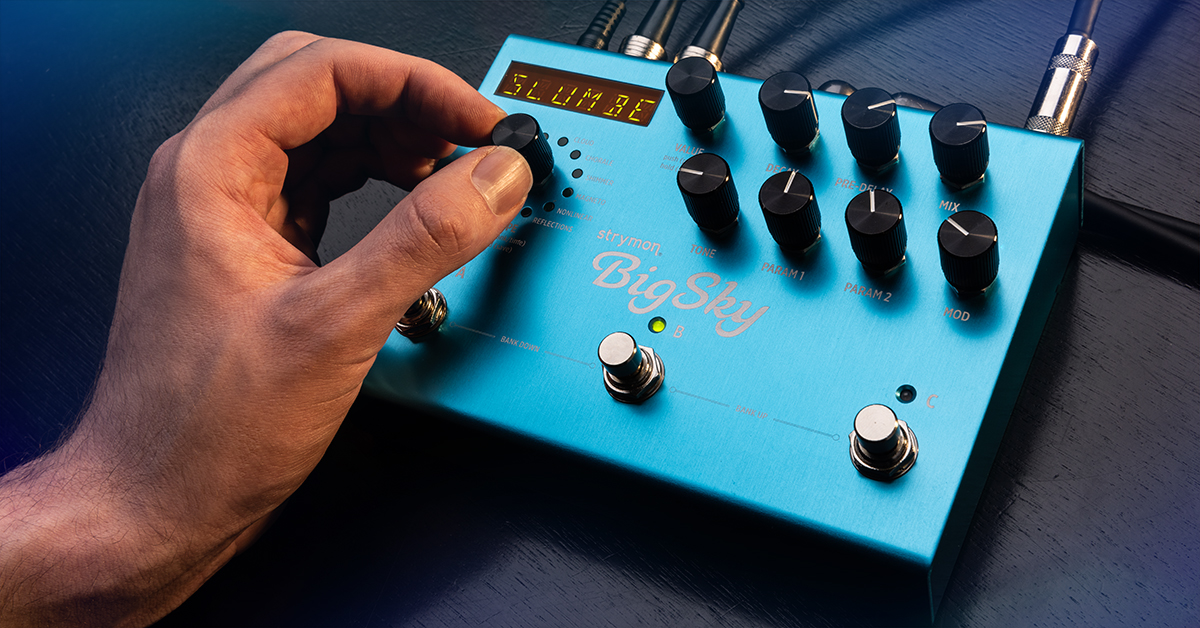
In this guide, we will show you how to get up and running with your Strymon BigSky reverb pedal for the first time. Follow the sections below to get started.
Setup and connections
The Strymon BigSky easily connects to whatever kind of mono/stereo live or studio setup you may have. Once plugged in to the connections on the unit, connect the mono output to your amp for live settings, or connect the stereo outputs to an interface or mixer for studio applications. You can even use the Cab Filter switch to emulate a real guitar cabinet sound.
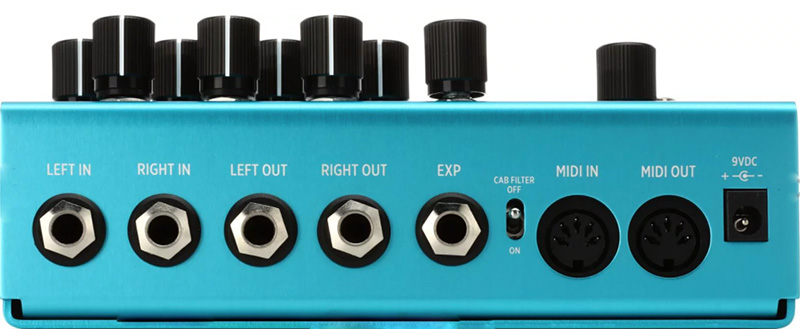
Rear of a Strymon BigSky
Important things to know
- Pedal Power Requirements:
- Always power your pedals with a compatible power supply. The Strymon BigSky requires a 9VDC Center Negative, 300mA power supply (included). If using an alternative power supply, make sure the voltage specifications are identical and that the power supply meets or exceeds the amperage (mA) rating.
- True Bypass or Analog Buffered Bypass
- When you engage or bypass a pedal, that activates it “on” and “off” in your signal chain. When bypassed with True Bypass, the pedal will produce no effects, and your direct signal will pass through. When bypassed with Analog Buffered Bypass, you enable reverb trails even after the pedals are technically disengaged.
- Cab Filter Switch
- BigSky provides a sophisticated Cab Filter for times when a guitar amp isn’t used. If you’re outputting to a full-range PA system, recording interface, or headphones, you can simply place BigSky last in your effects chain and engage the Cab Filter.
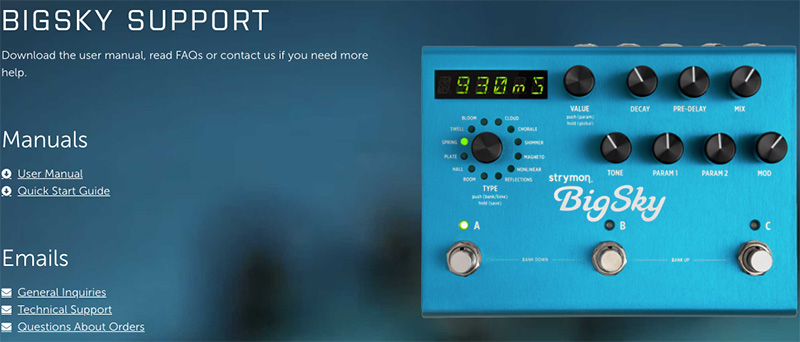
Click the image to visit Strymon’s BigSky support page
Strymon BigSky Reverb – Cab Filter demo
Understanding Pedal Order
Sounds and presets
Important! MIDI patch changes: BigSky presets are arranged in a grid of 100 numbered Banks (00-99) with 3 presets (A, B, and C) within each Bank for a total of 300 presets. Because MIDI Program Change messages have a maximum number of 128 (0-127), the presets are grouped into three MIDI Patch Banks:
–MIDI BANK 0 = PRESETS 00A-42B
–MIDI BANK 1 = PRESETS 42C-85A
–MIDI BANK 2 = PRESETS 85B-99C
Strymon’s BigSky is preloaded with 300 presets, all of which are customizable and can be rewritten. Those presets are selected from the footswitches or via MIDI program changes. Each of BigSky’s effects are driven by its distinct reverb processing engine, which is 12 different core reverb effects. Be sure to check out each of the 300 included presets to explore everything BigSky can do!
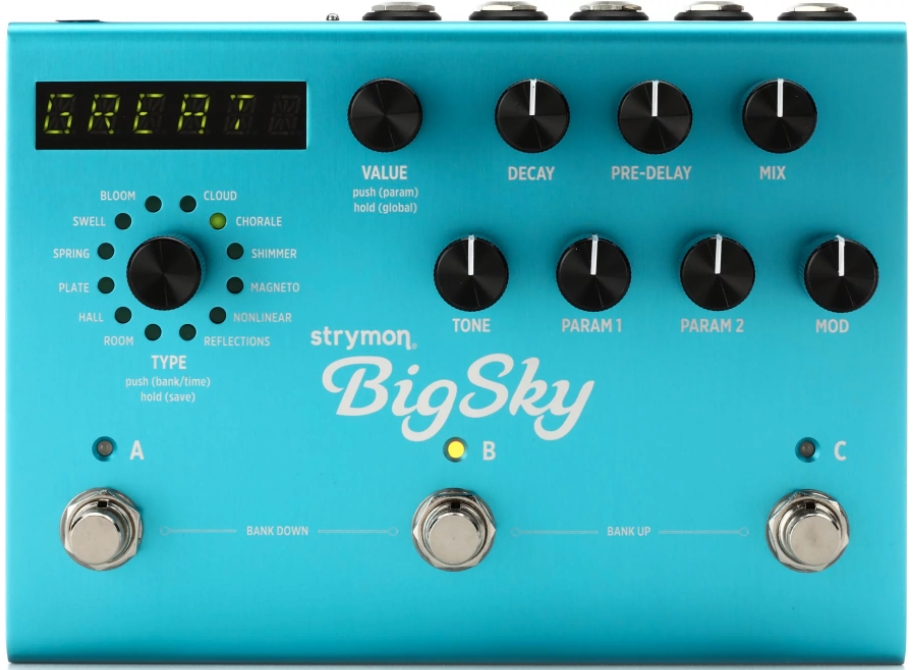
Face of Strymon BigSky
Patch Examples:
- Strymon BigSky – Hall Reverb machine audio demo
- Strymon BigSky – Plate Reverb machine audio demo
- Strymon BigSky – Spring Reverb machine audio demo
- Strymon BigSky – Swell Reverb machine audio demo
- Strymon BigSky – Bloom Reverb machine audio demo
- Strymon BigSky – Cloud Reverb machine audio demo
- Strymon BigSky – Chorale Reverb machine audio demo
- Strymon BigSky – Shimmer Reverb machine audio demo
- Strymon BigSky – Magneto Reverb machine audio demo
- Strymon BigSky – Nonlinear Reverb machine audio demo
- Strymon BigSky – Reflections Reverb machine audio demo
- Strymon BigSky – Room Reverb machine audio demo
Strymon BigSky Playlist
How to Perform a Factory Reset – Strymon TimeLine, BigSky & Mobius
INTERLINK: Strymon Librarian
Downloads and firmware updates
BigSky can be managed and updated from the Nixie app. Use a MIDI connection to sync your BigSky to the Nixie app on either Windows or macOS. From there you can detect a new device, back up and restore presets, and update the device’s firmware.
Strymon Nixie
- Go to Strymon’s Downloads page and click the Strymon Nixie download link compatible with your computer.
- Open your Downloads folder and double-click the installer file (.exe or .dmg).
- Windows: Double-click the .exe file and follow the onscreen instructions.
- macOS: Double-click the .dmg file, then drag the Nixie app to your Applications folder.
- Use MIDI cables to connect BigSky to the MIDI interface.
- Use Nixie’s Detect Device feature to connect.
Nixie resources
- Update Manually with Sysex App
- Why doesn’t Nixie see my connected pedal?
- Strymon Downloads
- Nixie Support
MIDI and footswitch settings
You can use MIDI controllers to recall and control BigSky’s settings. Check out the MIDI implementation chart found in the User Manual below.

Click the image to the BigSky MIDI implementation chart!
MIDI Control for Strymon Pedals
Strymon MultiSwitch -Foot Controller for TimeLine, BigSky, Mobius
Related Articles
When you need help, Sweetwater has the answers!
Our knowledge base contains over 28,000 expertly written tech articles that will give you answers and help you get the most out of your gear. Our pro musicians and gear experts update content daily to keep you informed and on your way. Best of all, it’s totally FREE, and it’s just another reason that you get more at Sweetwater.com.

