
Strymon Firmware Update Guide
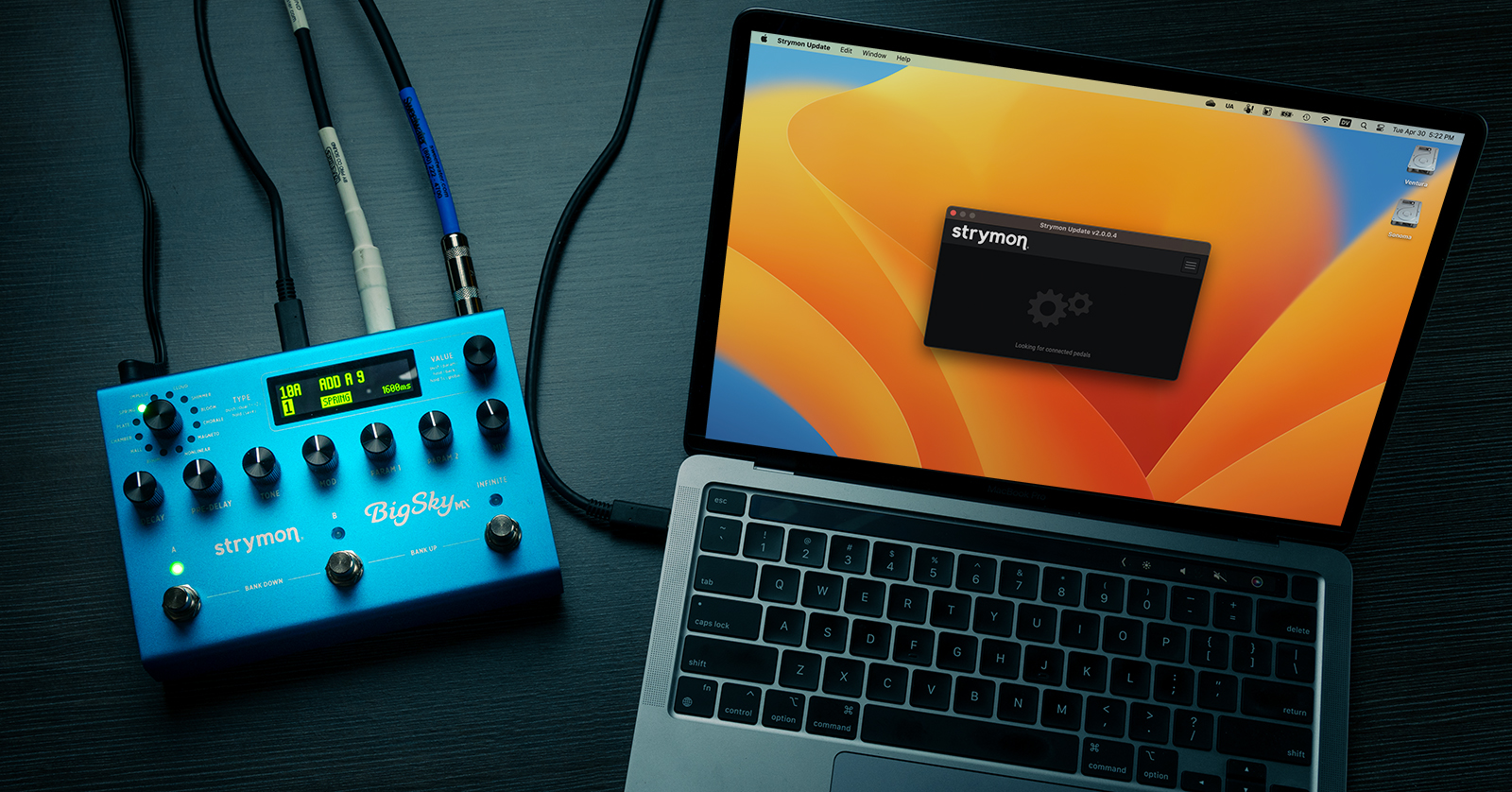
From time to time Strymon will provide firmware updates for their effects pedals and Eurorack modules. Updates fix bugs and may provide new features and improved algorithms, so it’s a good idea to check to see if there’s a new update for you to install.
Firmware updates are provided by connecting your Strymon pedal to your Mac or Windows PC and running the Strymon Update 2 app.
- Download and Install the Update App
- Connect Your Strymon Device to Your Computer
- Update Your Firmware with the Strymon Update App
Download and Install the Update App
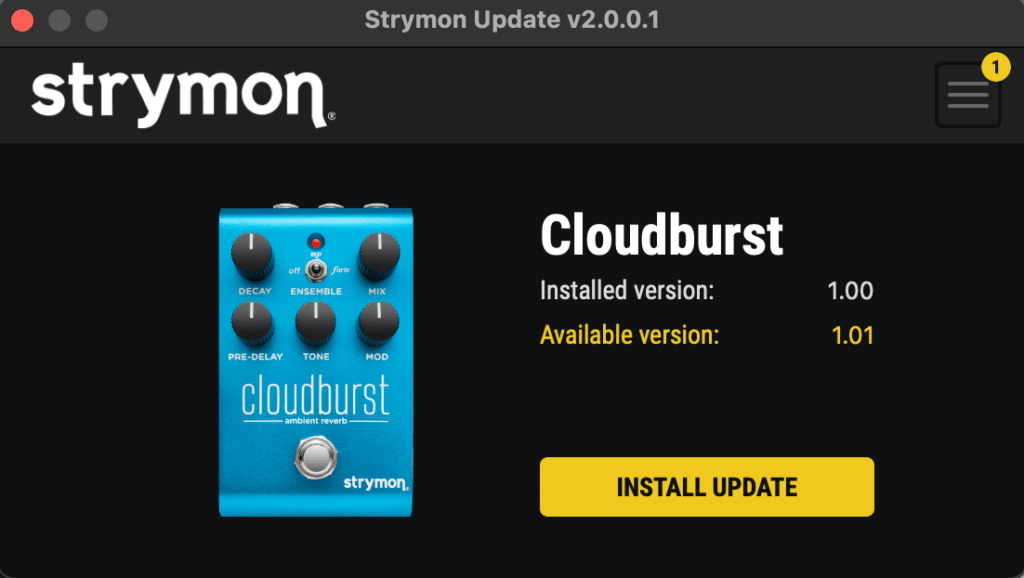
Strymon Update 2 shows that a firmware update is available
On your computer, go to the Strymon Update support page and download and install the newest version of the Strymon Update 2 app for Mac or Windows.
Connect Your Strymon Device to Your Computer
How you connect your device to your computer depends on its design. In any case, you need to power your Strymon device with an external power supply.
Strymon devices with a USB connection
Some Strymon pedals and Eurorack modules have a USB connection onboard. You will need the correct kind of USB data cable.
Depending on the model, your device may have a USB-C port, a USB Mini port, or a USB Micro port. On a few Strymon pedals, the USB Micro port is concealed beneath the bottom plate on the unit, and you need to remove the plate first.
Strymon devices with a MIDI connection
Some Strymon pedals don’t have USB but provide a MIDI connection, either standard 5-pin DIN MIDI or a 1/4-inch TRS connector.
Connect these pedals to your computer with the appropriate cable into a Strymon Conduit MIDI hub interface, which is then connected to your computer via a USB-C cable. You can also use any third-party MIDI-to-USB interface.
Strymon Conduit
The Strymon Conduit MIDI interface has its own firmware. Update a Conduit by connecting it to the computer with a USB-C cable. In this case, disconnect the 9V power from the Conduit; it gets its power from the computer.
For detailed instructions about connecting the different models of Strymon devices over USB or MIDI, consult the Strymon support article How to connect to Strymon Update 2.
Update Your Firmware with the Strymon Update App
IMPORTANT: A firmware update may take some time. Wait until the app tells you that the update is complete. Do not disconnect cables, shut down the app or the computer, or power down your Strymon device while the update is underway; doing so may leave your device in an inoperable state.
Once you’ve got your Strymon device connected to your computer, launch the Strymon Update 2 app.
If you have more than one Strymon device attached to your computer, you can select which one you want to update.
The app will detect your connected device. The app will show you the version number of the firmware currently on your device, and the version of the newest firmware for that device.
- If there is a newer version available, click Install Update.
- Once completed, the Installed Version will match the Available Version to show that your device is up to date.
You can now disconnect the device from your computer and use it.
Learn more in the Strymon support article How to Use Strymon Update 2.
Related Articles
When you need help, Sweetwater has the answers!
Our knowledge base contains over 28,000 expertly written tech articles that will give you answers and help you get the most out of your gear. Our pro musicians and gear experts update content daily to keep you informed and on your way. Best of all, it’s totally FREE, and it’s just another reason that you get more at Sweetwater.com.

