
Eventide Software Activation Instructions

In this guide, we will show you how to register, activate, and install your Eventide software. Follow the sections below to get started.
Create an iLok account
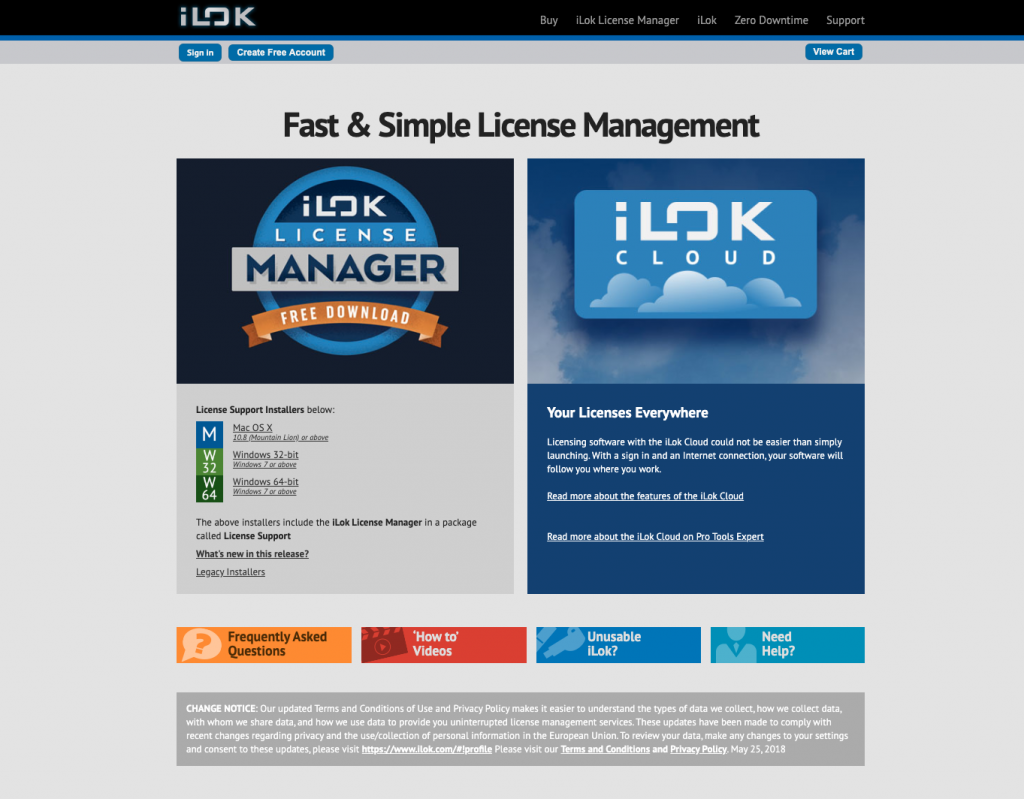
Eventide software is licensed with an iLok. That means in order to use it, you will need to connect its iLok license to your computer via an iLok USB dongle. If you don’t already have an iLok account, you’ll need to create one and install the iLok License Manager app. Follow the steps below to get started. If you already have an account, pass through these steps and continue to the next section. Learn more about iLok licensing in our iLok Quickstart Guide.
- Visit iLok’s registration page and complete the registration form. Take note of your User ID and password.
- Open the iLok Account Activation email and click on the verification link.
- Download and install the iLok License Manager.
- Launch the iLok License Manager app and sign in to your iLok account.
- (optional) Connect an iLok and when prompted, click Yes to register it to your account.
Register software
The next step towards getting your software up and running is to log in or create an account with Eventide. If you already have an account, use that one and do not create a new one. Your software is registered through your account once you are signed in. After entering your License Key and iLok information, your license will be deposited in your iLok account and your product will the be available to download in your account.
- Log in to your Eventide account. If you don’t have an account yet, go to the login page and click Create Account.
- When you create a new account, Eventide will send you an email to verify and activate your account.
- On the bottom right of your account homepage, fill out the prompted information including your Eventide and iLok account info and license key.
- Your License Key can be found in the Software Activation Instructions email sent from your Sweetwater Sales Engineer.
- Click Register.
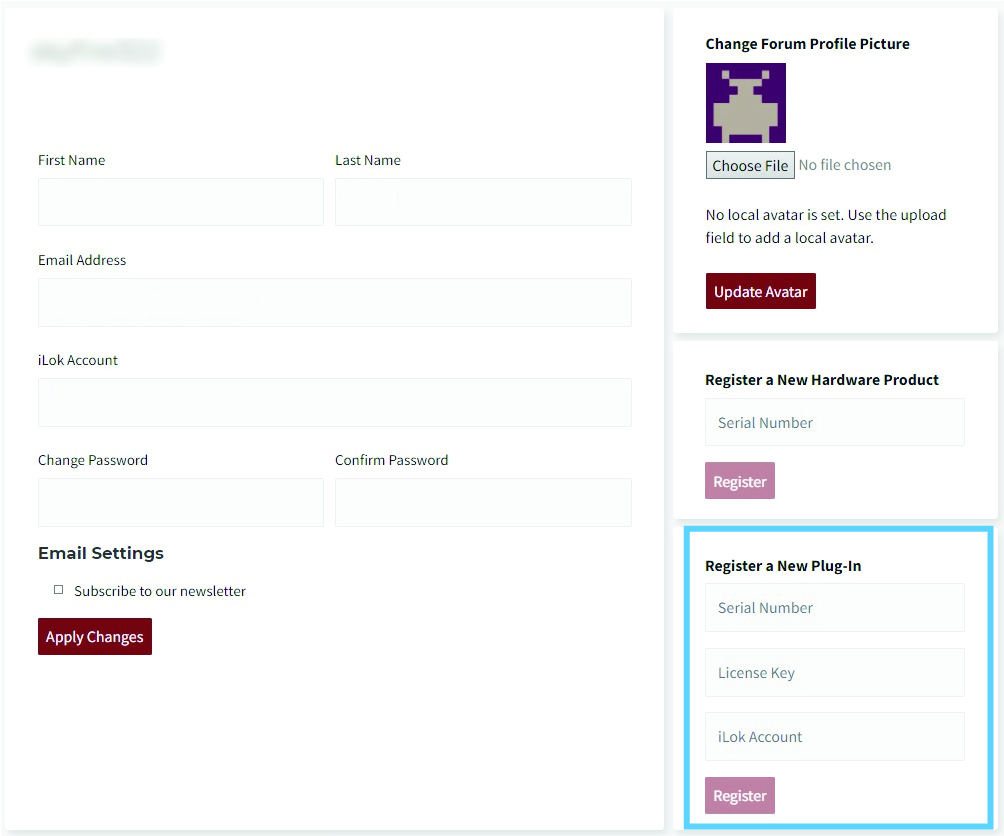
Your Eventide software can be registered through your account.
Activate software with iLok
Once you have registered your License Key with Eventide, an iLok License will be deposited to your iLok account. Log in to the iLok License Manager app and move the license from your account to either the computer or a connected iLok USB dongle.
- Sign in to the iLok License Manager and click the Available tab.
- Locate your license and drag it to either your computer or a connected iLok USB dongle.
- Wait for the license to transfer to complete and click OK.
Transferring an iLok license to an iLok USB dongle.
Download and install software
Once your software is activated, all that is left is to download and install it. All Eventide installer files can be found on their Product Support page. After downloading the software and running the installer, you’re good to go! For more information to help you get started, take a look at Eventide’s Support Page and YouTube Channel.
- Choose your product.
- Select the correct download version for your operating system (Windows or Mac).
- Open your Downloads folder and run the installer.
- PC: Right-click the Eventide Plug-in .zip file, select Extract all…, and then click Extract. Double-click the new Eventide Plug-in .exe file and follow the on-screen instructions.
- Mac: Double-click the Eventide Plug-in .dmg file. In the window that appears, double-click the Eventide Plug-in .pkg file and follow the on-screen instructions.
Related Articles
When you need help, Sweetwater has the answers!
Our knowledge base contains over 28,000 expertly written tech articles that will give you answers and help you get the most out of your gear. Our pro musicians and gear experts update content daily to keep you informed and on your way. Best of all, it’s totally FREE, and it’s just another reason that you get more at Sweetwater.com.

