
The correct inputs and outputs aren’t available in my ProTools sessions. How do I reset my IO Setup?
When creating a new Pro Tools session, the default I/O Setup is “Last Used.” That uses the input and output labels from the last opened session. If the previous session was a demo session or a session created with a different interface, the input and output labels will not match with the current interface. Read below to learn how to reset your Pro Tools I/O setup.
Resetting Pro Tools I/O
Step 1: Assign Playback Engine
In ProTools 9 and later, go to Setup > Playback Engine and confirm that the Playback Engine (driver) is set to your audio interface.
-

- Setup Menu, Playback Engine, click to enlarge.
-
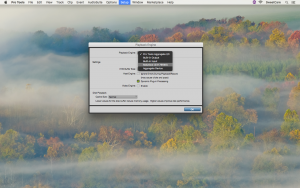
- Playback Engine selection, click to enlarge.
Step 2: Reset I/O Labels
Go to the Setup > IO Setup.
-

- Setup Menu, I/O Setup, click to enlarge.
Note: Before proceeding any further, we suggest to use the Export Settings button to save your current IO settings. If they’ve been exported, we will always be able reload them to your session.
2. Go to the Input tab.
3. Select all paths on the screen (Command-A on a Mac or Control-A on PC)
4. Click Delete Path. (Pro Tools will warn you they’re in use, go ahead and delete them anyway.)
5. Then, click Default.
Now, repeat steps 3 – 5 for the Output and Bus tabs.
-

- Delete Incorrect Input Settings, click to enlarge.
-

- I/O Setup, Default Outputs, click to enlarge.
-

- I/O Setup, Default Busses, click to enlarge.
Viola! Your Pro Tools I/O settings have been reset! You will notice that the input and output options have changed and now match your current audio interface. Make sure to assign the inputs and outputs on each of your tracks, as they will likely read “no input” and “no output.” We recommend to save, or export, these new setting for backup and future use.
Helpful Links
Tech Tip: How to reset your Pro Tools I/O
Pro Tools Troubleshooting Guide
How do I trash my Pro Tools preferences?
Pro Tools won’t recognize my interface!
Pro Tools tells me that “The current playback engine does not support a sample rate of…”
When you need help, Sweetwater has the answers!
Our knowledge base contains over 28,000 expertly written tech articles that will give you answers and help you get the most out of your gear. Our pro musicians and gear experts update content daily to keep you informed and on your way. Best of all, it’s totally FREE, and it’s just another reason that you get more at Sweetwater.com.

