

Black Spirit 200 Floorboard Setup and Connections
In this guide, we will show you how to set up and connect your new Black Spirit 200 Floorboard Amplifier. You will learn how to set it up for a rehearsal, performance or recording session. Check out our sounds and presets guide when you’re done. Follow each of the sections below to get started.
IMPORTANT! Register your new Hughes & Kettner amplifier to redeem the manufacturer’s three-year warranty. Go to their product registration page to register and learn more.
Connect a speaker
When you say “guitar amp” it typically refers to both the amplifier and speaker, either in a combo (combined) or separated (amplifier and cabinet) format. The Black Spirit 200 Floorboard is unique because it’s your amplifier but in a foot controllable format. It even has recallable presets, which let you save and load your tone, volume, built-in effects, and effects loops.
Your Black Spirit 200 Floorboard can operate with or without a speaker connection, just don’t connect or disconnect while the floorboard is powered on. That means only make speaker connections while the device is powered off.
Redbox DI
The Redbox DI is ideal for connecting your amp to a PA system or recording interface. It also has a speaker cabinet emulation feature which makes your guitar sound like it was recorded with a speaker cabinet and microphone. This helps your guitar sit better in the mix than the original direct signal could. The cabinets sound great but if you want a dry direct guitar signal you may prefer to turn this feature off or use another DI box before the amp. Move the selector switch to On or Off to enable/disable the speaker cabinet emulation.
Standalone and headphones
Connecting headphones to the Black Spirit 200 Floorboard automatically disengages the speaker output for silent practice. The RedBox cabinet emulation is applied to the headphone mix for a pleasant practice experience. You can even stream audio over Bluetooth or connect to the Aux In to play along with tracks or a metronome.
IMPORTANT! Headphone listening levels: The headphone amplifier output is designed for connecting high impedance headphones. Be careful with listening levels, especially when connecting low impedance headphones/earphones.
- Connect ¼” headphone or use a ¼” headphone adapter.
- Turn the floorboard’s Master volume all the way down and then power it on.
- Start playing and turn the Master volume up to the appropriate headphone level.
Connect to a guitar cabinet
Combo amplifiers are preconfigured with their speaker(s) and often can connect an additional speaker. But like most speakerless guitar amplifiers, the Black Spirit 200 Floorboard has two ¼” TS speakers connections wired in parallel. That means to get the maximum power from your Black Spirit 200 Floorboard, the ideal speaker cabinet connections are either one 8 Ohm speaker cab rated at 200W, or two separate 16 Ohm speaker cabs rated at 100W each.
- Power off the Black Spirit 200 Floorboard Amplifier.
- Connect your passive guitar speaker cabinet to the floorboard’s Speaker Output.
- Only use ¼” TS speaker cables.
- Only connect amplifier-less 8 Ohm speaker cabinets rated for your selected wattage.
- Select Guitar Cab and then select the desired wattage.
- 2W for bedroom noodling
- 20W for band rehearsal
- 200W for stage amplification
- Turn down the master volume on your guitar and power on the floorboard.
- Turn your guitar all the way up and play through the speaker cab.
- Set the Master Volume to the desired level.
Connect to a stage monitor
This setup only requires the Black Spirit 200 and a compatible passive floor monitor to work. Double-check that the Cab switch is set to Fullrange Cab to get the optimal guitar and cabinet sim sound from your speaker cabinet.
Monitor Mix
Connect a monitor mix to the Monitor In XLR jack and it will be mixed in with your Black Spirit 200’s output signal. Use the Monitor Level to control its mix.
- Power off the Black Spirit 200 Floorboard Amplifier.
- Connect your passive stage monitor speaker to the floorboard’s Speaker Output.
- Only connect amplifier-less 8 Ohm speaker cabinets rated for your selected wattage.
- Move the speaker output switch to Fullrange Cab and select the desired wattage.
- Connect the Monitor Mix to the Monitor In XLR jack.
- Turn down the master volume on your guitar and power on the floorboard.
- Turn your guitar all the way up and play through the stage monitor. Control the blend with the Monitor In knob.
- Set the speaker output switch to Fullrange Cab to use the speaker cabinet simulations. This makes fullranges speakers sound like guitar cabinets. If your prefer the sound of your physical speaker cabinet, set the Speaker switch to Guitar Cab and the cab sims will not be applied to the speaker output. Cab sims are still applied to the RedBox DI unless switched to Off.
Remote control with tablet or smartphone
The Black Spirit 200 Floor Remote app lets you remote control your amp and is available for Android, iPadOS, and iOS 10 and later. Only one device can be connected at a time, so you might need to reset the Bluetooth if you’re unable to connect. Follow the sections below to download the app and then connect via Bluetooth.
Device and Bluetooth compatibility
The Black Spirit 200 Floorboard Amplifier is compatible with Bluetooth 4.0 and above. Older Bluetooth versions (2.0), like on the iPad gen 1 or 2, are not compatible and will not connect.
Preset storage and memory
The Black Spirit 200 Floor Remote can store up to 128 presets on its internal memory. Use the app to back up your presets and save them elsewhere via email or cloud storage.
Download the Black Spirit 200 Remote Floor app
- Open the App Store (iPad OS and iOS) or Google Play (Android).
- Search for Black Spirit 200 Floor Remote and select it.
- Press Install and wait for the installation to complete.
Connect via Bluetooth
- Hold the Gain button down until the Bluetooth light flashes.
- Open the Bluetooth menu on your device select the Black Spirit 200 Floorboard.
- Once paired, launch the Black Spirit 200 Floor Remote app. You can now control your floorboard remotely.
- The app will display CONNECTING TO AMP PLEASE WAIT… when the two are not yet paired or Bluetooth is powered off.
- From the top right, select either to edit the floorboard’s memory or your app’s storage.
Reset Bluetooth connection
- Power off Bluetooth on your current device.
- Turn Bluetooth off by holding the Boost button until the Bluetooth light flashes and turns off.
- With Bluetooth off, press and hold the Boost button for several seconds until the Bluetooth LED flashes and turns off.
- Power on Bluetooth on both your device and the amplifier to reconnect.
Connect external pedals
The Black Spirit 200 Floorboard Amplifier is pedal-friendly and has useful features for integrating your favorite pedals. You can connect to the standard FX Loop, or take advantage of the two Pre-Loops which are ideal for driving the floorboard’s preamp. You can even synchronize MIDI-equipped pedals and remotely recall presets via program changes.
Connect to Pre-Loops and FX Loop
Effects pedals are best connected to either the FX Loop or Pre-Loops. The FX Loop comes after the preamp and built-in effects but before the power amplifier. It’s best suited for time and modulation based effects. The two Pre-Loops come before the preamp and are ideal for gain based effects like overdrive, fuzz, and distortion pedals. All three loops can be saved to presets and recalled in any configuration. Use two different tones of drive or two different drive settings, the choice is yours.
- Connect gain pedals to one of the Pre-Loops and enable them by engaging their Pre-Loop 1 or 2 button.
- Connect time and modulation effects to the FX Loop and enable it by engaging the FX Loop button
Connect expression pedal or footswitch
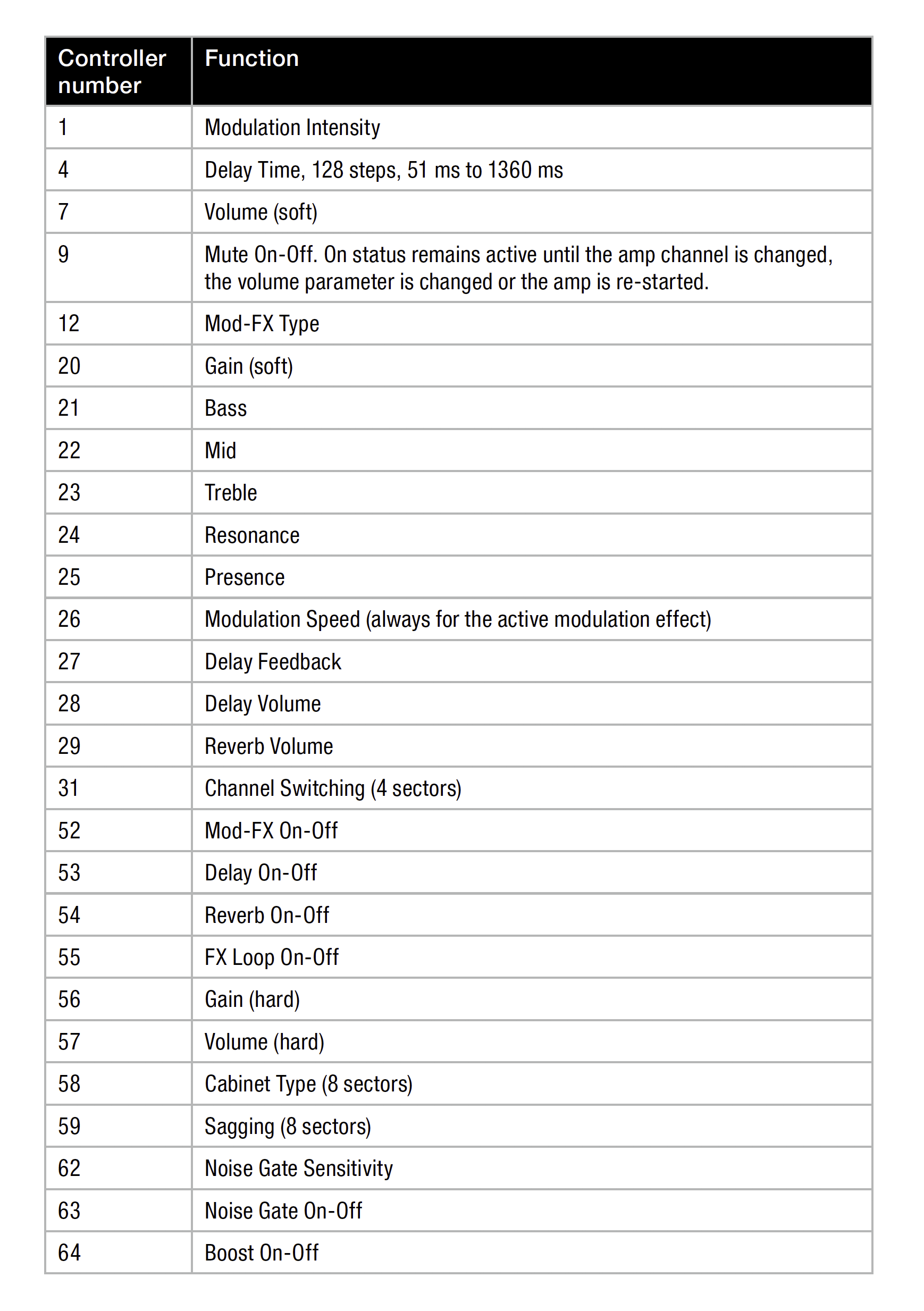
Expression pedals and single button footswitches connect to the Control 1 and 2 jacks. You must assign a controller change number (CC#) to each Controller jack in order for it to control a specific function. Consider connecting a single TRS footswitch to Controller 1 assigning a Boost (CC#64) so it turns the Boost on and off.
You can even connect an expression pedal to Control 2 and assign it to soft or hard Volume/Gain. The soft functions are relative to your volume, meaning “all the way up” on your expression pedal is the maximum volume saved to the preset. Hard functions ignore your preset gain and volume levels. Soft functions are preferred for consistent volume while changing presets.
- Hold the Tap and D (Control 1, default CC#07) or C (Control 2, default CC#64) switches until the footswitch display changes.
- Use the Up and Down switches to select the controller change number (CC#).
- Press the same footswitch from step 1 (D or C) to assign the CC# and exit.
Assign MIDI channel
The Black Spirit 200 Floorboard Amplifier can send and receive MIDI signals, which lets you control the floorboard remotely. Send MIDI program changes (PC) to the floorboard to recall presets according to their respective preset numbers. You can also control your floorboard’s individual parameters with MIDI controller change messages (CC). Use the MIDI implementation chart (above) to configure your external MIDI controllers to the correct controller change numbers.
Send MIDI messages
Pressing the floorboard’s footswitches also triggers MIDI out messages. For Preset and Direct 7 modes, pressing a footswitch sends its corresponding program change to the MIDI Out. In Stompbox mode, the floorboard will output the footswitch function’s respective control change number (CC#) and value (0-127).
- Connect your floorboard to the external device(s) with MIDI cables.
- Assign MIDI channel(s) to the external device(s).
- Hold the FX Access and FX Loop buttons simultaneously until the Store button lights up.
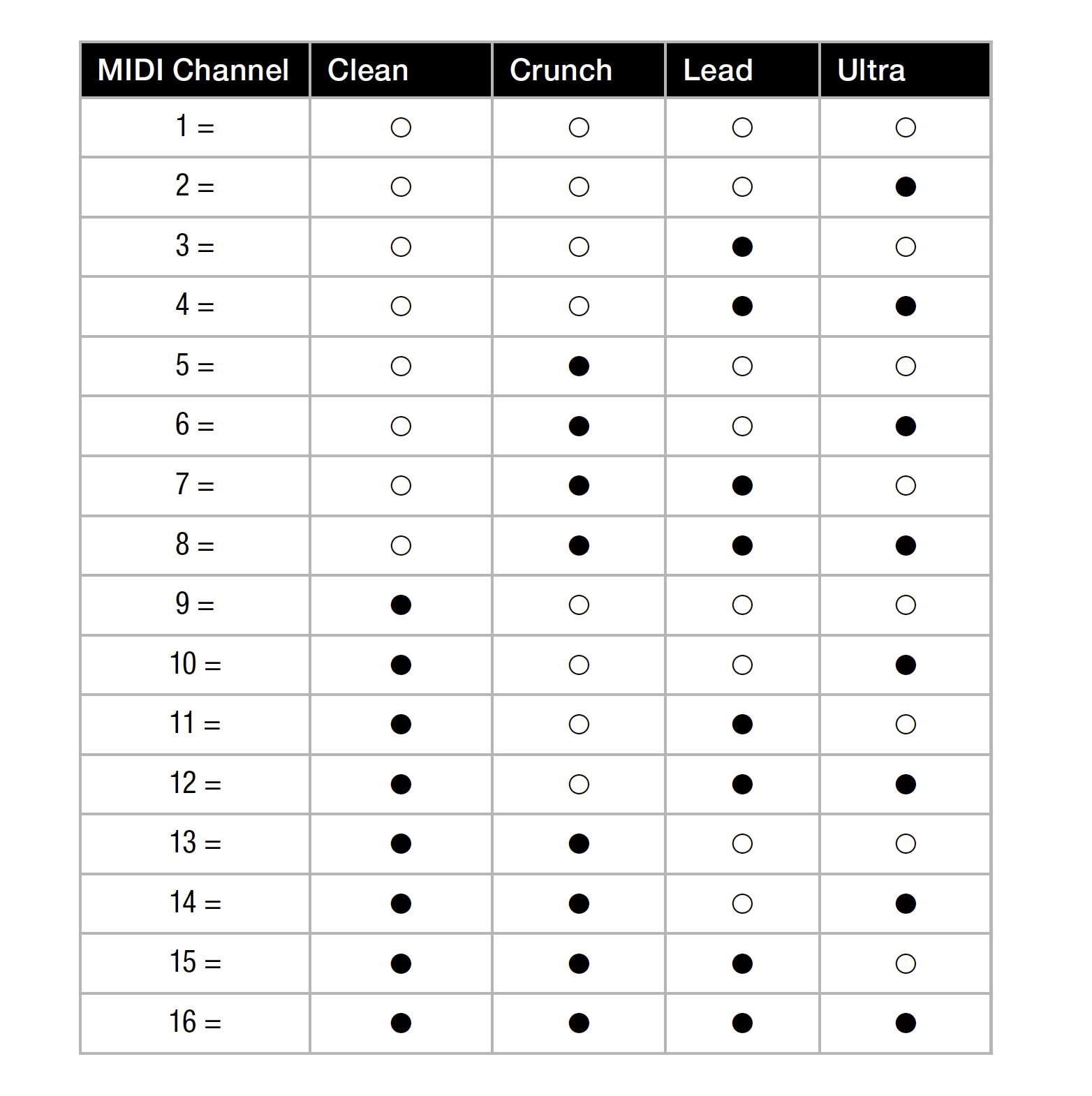
- Your MIDI channel configuration is indicated by the floorboard’s Clean, Crunch, Lead, and Ultra channel lights:
- Select the floorboard’s MIDI channel with FX Loop (up) and FX Access (down).
- Turn Boost on to enable Omni and receive MIDI messages from all channels.
- Hold the Store button until it flashes to save your settings and exit.
Related Content
- Black Spirit 200 Floorboard Firmware Update
- Black Spirit 200 Floorboard Factory Reset
- Black Spirit 200 Floorboard Sounds and Presets
When you need help, Sweetwater has the answers!
Our knowledge base contains over 28,000 expertly written tech articles that will give you answers and help you get the most out of your gear. Our pro musicians and gear experts update content daily to keep you informed and on your way. Best of all, it’s totally FREE, and it’s just another reason that you get more at Sweetwater.com.

