

Black Spirit 200 Floorboard Factory Reset
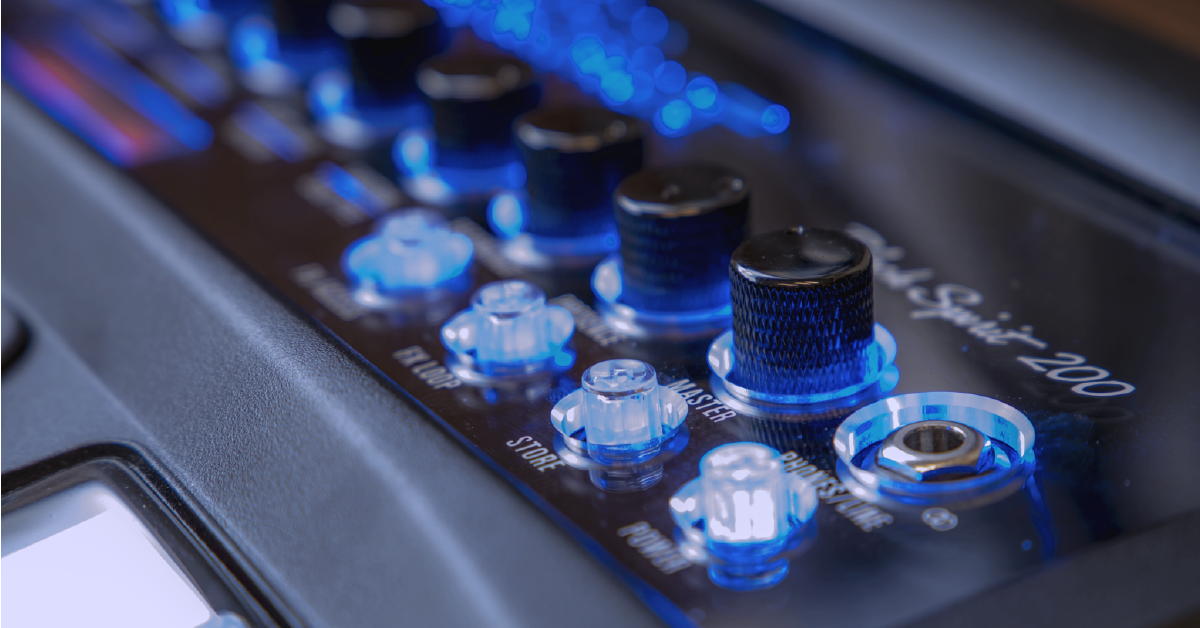
In this guide, we will show you how to reset your Black Spirit 200 Floorboard Amplifier to the default factory settings. If you have preset you want to keep, make sure to save and back them up before resetting. Follow each of the sections below to get started.
Back up your presets
Resetting your Black Spirit 200 Floorboard Amplifier will erase all user presets and saved settings. If you have presets you want to back up, then you’ll need to do so with the Black Spirit 200 Floor Remote app before resetting. Download the app for iPadOS, iOS, or Android and then back up your presets. Since all preset backups are stored on your mobile device, you’ll need to share them via email or Google Drive to have a true file backup. You can then send the file to your device and open it to restore the backup.
Download the Black Spirit 200 Remote Floor app
- Open the App Store (iPad OS and iOS) or Google Play (Android).
- Search for Black Spirit 200 Floor Remote and select it.
- Press Install and wait for the installation to complete.
Connect via Bluetooth
- Hold the Gain button down until the Bluetooth light flashes.
- Open the Bluetooth menu on your device select the Black Spirit 200 Floorboard.
- Once paired, launch the Black Spirit 200 Floor Remote app. You can now control your floorboard remotely.
- The app will display CONNECTING TO AMP PLEASE WAIT… when Bluetooth is powered off or the two are not yet paired.
- From the top right, select either to control the floorboard’s memory or your app’s storage.
Back up presets
- For Memory Selector (top-right), choose Amp.
- Press Backup (top-left).
- Name the backup and then save it.
- Once saved, press Library (top-right).
- Select the presets you backed up and then press the share icon (bottom-left). Choose to email the file or upload it with third-party cloud storage.
Restore factory default settings
Resetting your Black Spirit 200 Floorboard Amplifier will clear all user presets and restore the default factory settings. If you have user settings that need to be saved, make sure to back up your presets before resetting.
Restore your preset backups
To restore preset backups to your floorboard, email/send the backup file to your mobile device or tablet and open it. The remote control app will automatically launch and load the backup file into the library. You can then rename it, select it, then load it to the floorboard amplifier.
- Save and back up your current presets.
- Power off the floorboard.
- While holding the FX Access and Store buttons, press and hold the Power button until the FX Access and Store buttons start to flash.
- When the channel lights stop flashing, the floorboard will reset and return to normal operation.
Related Content
- Black Spirit 200 Floorboard Setup and Connections
- Black Spirit 200 Floorboard Sounds and Presets
- Black Spirit 200 Floorboard Firmware Update
When you need help, Sweetwater has the answers!
Our knowledge base contains over 28,000 expertly written tech articles that will give you answers and help you get the most out of your gear. Our pro musicians and gear experts update content daily to keep you informed and on your way. Best of all, it’s totally FREE, and it’s just another reason that you get more at Sweetwater.com.

